How to Test an Agent Locally with the Microsoft 365 Agents Playground

You don't need Microsoft Teams, an Azure subscription or an app registration to talk to an agent you're building. The Microsoft 365 Agents Playground is a chat window that runs on your machine, pretends to be a channel such as Teams, and shows you every request that passes between it and your agent.
The Playground, formerly the Teams App Test Tool, is Microsoft's local test client for agents built with the Microsoft 365 Agents SDK, the Teams SDK or the Bot Framework. It's a small Node.js program: you start your agent, start the Playground with your agent's address, and chat with it in your browser. Microsoft labels it a preview.
Syntax
agentsplayground -e <endpoint> -c <channel> [options]
-e <endpoint>(--app-endpoint) is the address your agent receives activities on. If you leave it out, the Playground useshttp://localhost:3978/api/messages.-c <channel>(--channel-id) is the channel the Playground pretends to be:msteams,webchat,emulator,directline(another name forwebchat) oragents.[options]are optional settings, such as-p <port>for the Playground's own port (56150by default). The full list is at the end of this post.
The Example
The agent for this post is about as small as an agent gets: an ASP.NET Core app with the Microsoft 365 Agents SDK, listening on port 3978, that answers every message with You said: and the text. Its whole logic is one class:
using Microsoft.Agents.Builder;
using Microsoft.Agents.Builder.App;
using Microsoft.Agents.Builder.State;
using Microsoft.Agents.Core.Models;

namespace PlaygroundDemo;

public class DemoAgent : AgentApplication
{
    public DemoAgent(AgentApplicationOptions options) : base(options)
    {
        OnActivity(ActivityTypes.Message, ReplyAsync);
    }

    private async Task ReplyAsync(ITurnContext turnContext, ITurnState turnState, CancellationToken cancellationToken)
    {
        await turnContext.SendActivityAsync($"You said: {turnContext.Activity.Text}", cancellationToken: cancellationToken);
    }
}
Any agent works the same way, in any language: the Playground only needs the address of its /api/messages endpoint.
Prerequisites
- Node.js, with npm, to install the Playground. Check with
node --version; this post used Node.js 24. - An agent you can run locally, listening on a known port, with anonymous access allowed while you test. An Agents SDK agent running in the
Developmentenvironment allows it by default.
Step 1: Install the Playground
The Playground is an npm package. Install it globally, so the agentsplayground command works from any folder:
npm install -g @microsoft/m365agentsplayground
added 1 package in 2s
It's a single package with no install scripts, so npm 12's script approval doesn't get in the way. Check the version:
agentsplayground --version
0.2.30
The package also installs a second command, teamsapptester, from the Playground's days as the Teams App Test Tool.
Step 2: Start Your Agent
Start your agent the way you normally do. For the .NET example, that's dotnet run in the project folder, and the line to look for is the address it listens on:
info: Microsoft.Hosting.Lifetime[14]
      Now listening on: http://localhost:3978
info: Microsoft.Hosting.Lifetime[0]
      Application started. Press Ctrl+C to shut down.
Leave it running. The agent's endpoint is that address plus /api/messages.
Step 3: Start the Playground
Open a second terminal and start the Playground with your agent's endpoint, as the emulator channel, a plain test channel:
agentsplayground -e http://localhost:3978/api/messages -c emulator
Telemetry: agents-playground-cli/serverStart {"cleanProperties":{"channelId":"emulator","deliveryMode":"unspecified","eventsRecordingEnabled":"false","authenticationConfigured":"false"}}

Listening on 56150
The Playground runs its own small server on port 56150 and opens it in your browser. The Telemetry: line is one of the usage events the Playground collects for Microsoft; starting it with --disable-telemetry turns that collection off. It connects to your agent and sends it a conversationUpdate, the activity that says a conversation has started.
Type a message and press Enter:
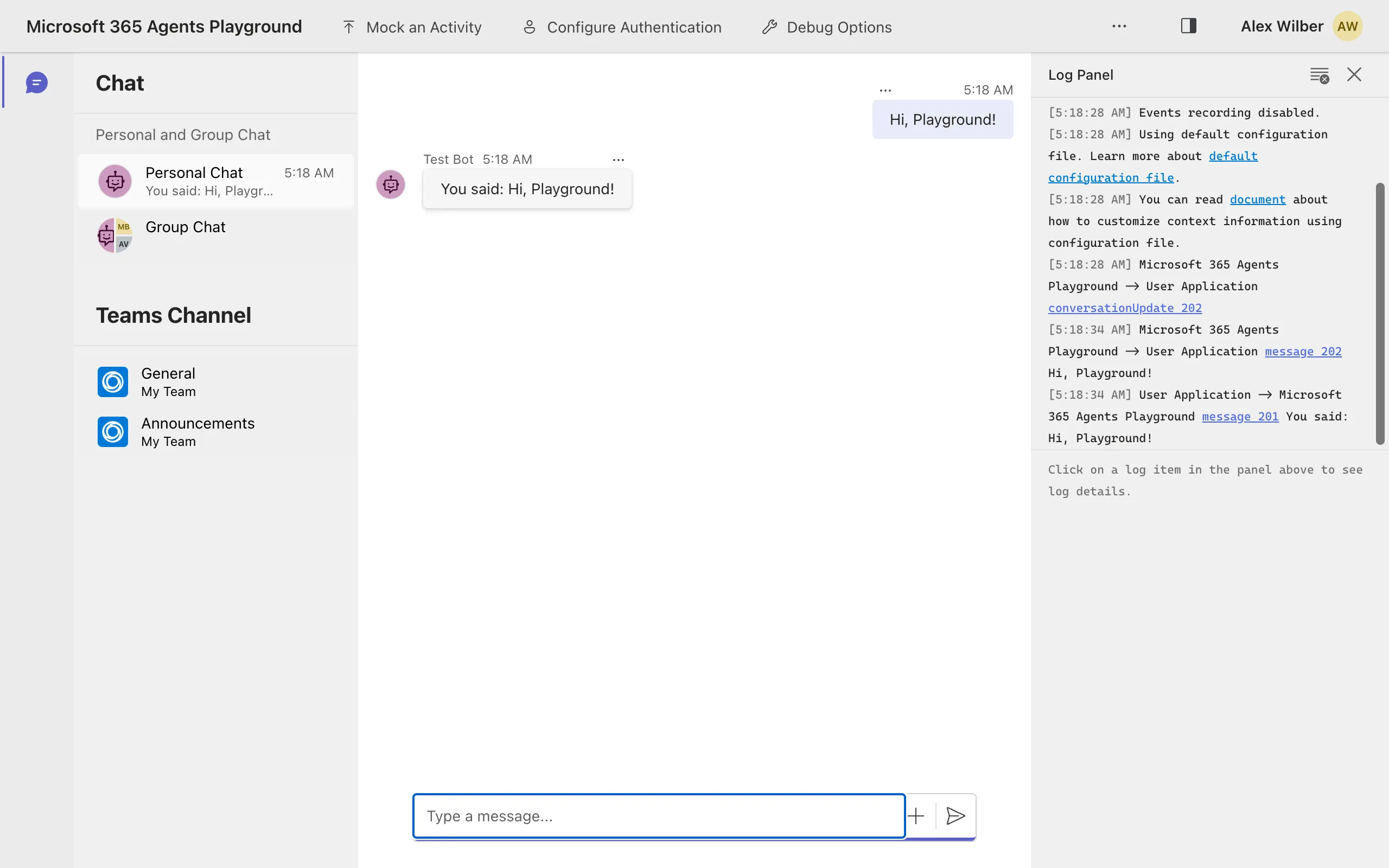
You're Alex Wilber, the Playground's made-up user, and your agent appears as Test Bot. The chat list on the left lets you try the agent in a personal chat, a group chat or a team's channels.
Step 4: Read the Log Panel
The Log Panel on the right records every request. Microsoft 365 Agents Playground → User Application lines are activities sent to your agent, with the status code your agent answered: 202, accepted. User Application → Microsoft 365 Agents Playground lines are what your agent sent back, answered with 201, created.
Click a line to see the request in full. Request shows the JSON that was sent, and Response what came back:
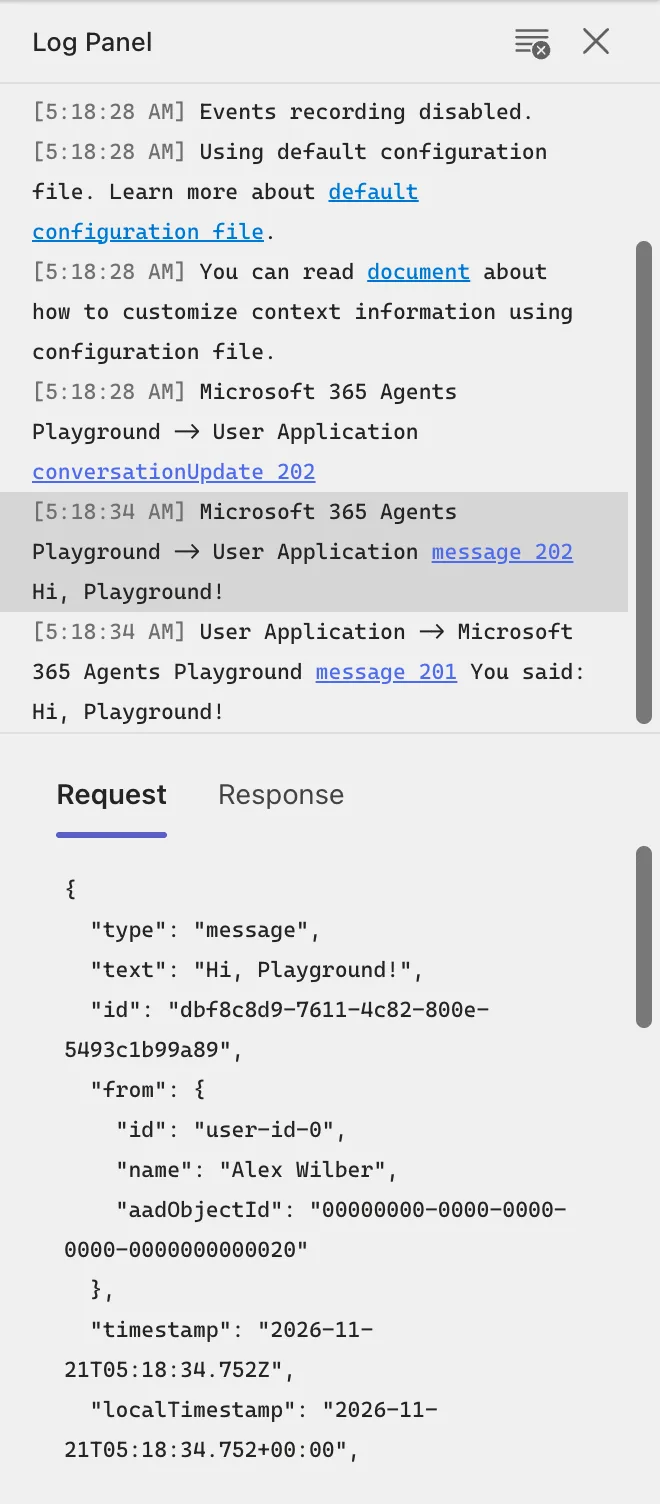
This is the fastest way to see exactly what your agent received and what it answered, field by field.
Step 5: Test as Teams or Web Chat
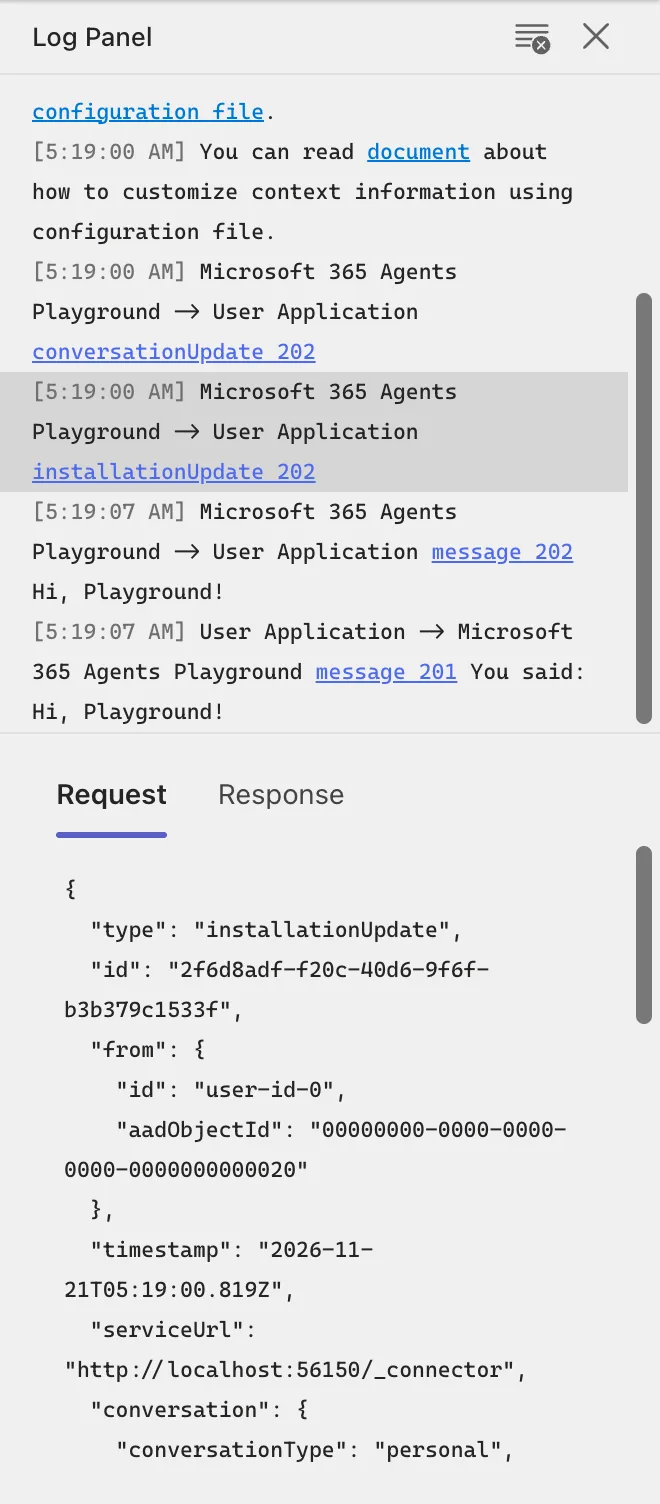
Channels send different activities, so test with the one your agent will meet. Stop the Playground with Ctrl+C and start it again with another -c value; your agent can keep running.
agentsplayground -e http://localhost:3978/api/messages -c msteams
As Teams, the window looks the same, but the activities change. When it connects, the Playground also sends an installationUpdate, the way Teams tells an agent it was installed:
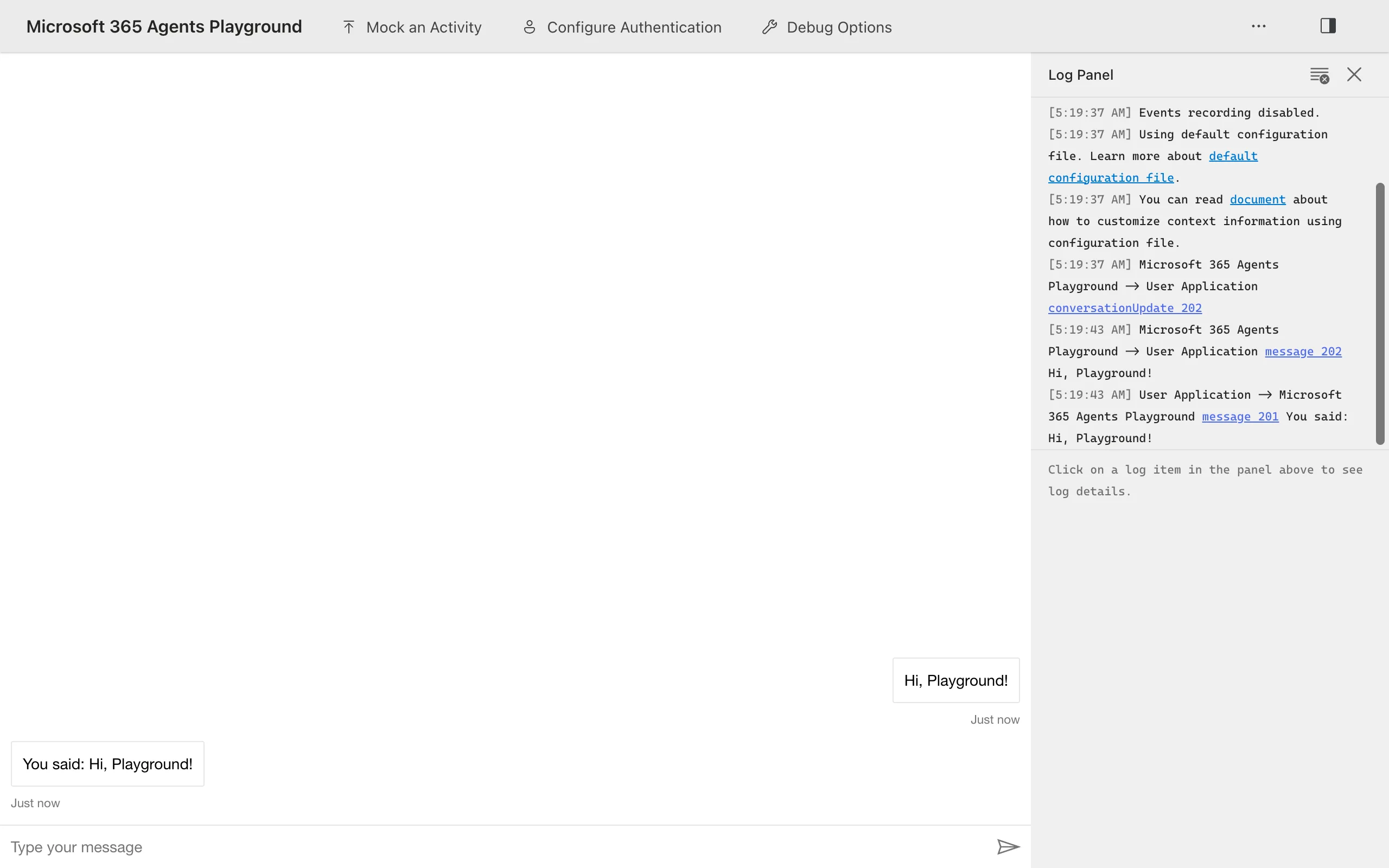
agentsplayground -e http://localhost:3978/api/messages -c webchat
As Web Chat, the whole window changes to a Web Chat conversation, the kind you'd embed in a website:
Useful Options
agentsplayground --help lists every option. These are the ones you'll reach for most when testing a local agent:
| Option | What it does |
|---|---|
-p, --port | The Playground's own port. Default 56150, or a random one if that's taken |
--conversation-id | A fixed conversation id instead of a new one each time; in Teams mode, for the personal chat |
--delivery-mode | Sets the activities' deliveryMode to default or expectReplies |
--disable-telemetry | Stops sending usage data to Microsoft |
--host | The address the Playground listens on. Default 127.0.0.1; anything else exposes it to your network |
--client-id, --client-secret, --tenant-id | Credentials, for testing an agent that requires authentication |
The --target option starts it against a Direct Line or Copilot Studio conversation instead of a local endpoint.
Stop and Clean Up
Press Ctrl+C in the Playground's terminal and in your agent's. The Playground writes its own log to a devTools folder, as m365agentsplayground.log, in the folder you started it from; delete the folder when you no longer need it. To remove the Playground itself, run npm uninstall -g @microsoft/m365agentsplayground.
Common Mistakes
| Mistake | What happens | Do this instead |
|---|---|---|
Leaving out /api/messages in -e | The Playground can't deliver activities to the agent | Give the full endpoint: http://localhost:3978/api/messages |
| Starting the Playground before the agent | It can't connect | Start the agent first, then the Playground |
| Testing only in the emulator channel | Code that reads Teams-specific fields never runs | Test with -c msteams or -c webchat too |
Exposing the Playground with --host 0.0.0.0 | Anyone on your network can reach it | Keep the default 127.0.0.1 |
Troubleshooting
| Symptom | Likely cause | Fix |
|---|---|---|
agentsplayground: command not found | It isn't installed, or npm's global folder isn't on your PATH | Install it again and open a new terminal |
| The Playground doesn't connect | The agent isn't running, or listens on another port | Check the agent's Now listening on line and match -e to it |
| The Playground starts on a different port | Port 56150 was in use | Use the port it prints, or free 56150 |
FAQ
Does the Playground send anything to Teams or the cloud?
Your messages don't: the Playground plays the channel's part itself, at http://localhost:56150/_connector. It does collect usage data for Microsoft, unless you start it with --disable-telemetry.
What can't the Playground test?
It renders Adaptive Cards, but no other card types. Microsoft lists typing indicators, dialogs, single sign-on, tabs, meetings and the mobile experience among what it can't emulate, and it shows a warning in the conversation and the Log Panel when your agent uses something it doesn't support. Test those in the Teams client.
Is the Playground enough before going to production?
No. Microsoft recommends testing your agent in the Teams client before you move it to production. The Playground is for the fast inner loop: change code, restart, chat.
Can I change the made-up user or team?
Yes. A .m365agentsplayground.yml file in the folder you start the Playground from customizes its mock users, chats and teams. Microsoft's documentation describes the format.
Conclusion
Install the Playground with npm install -g @microsoft/m365agentsplayground, start your agent, and run agentsplayground -e <your endpoint> -c <channel>. You get a chat with your agent in your browser, a Log Panel with every request in full, and the Teams, Web Chat and emulator channels to test against, all without an account or a cloud resource.
Additional Resources
- Microsoft 365 Agents Playground — Microsoft's documentation: activity triggers, channels and the configuration file.
- @microsoft/m365agentsplayground on npm — the package and its versions.
