How to Test a Power Apps Canvas App on Phone and Tablet Sizes

A responsive canvas app should work on a phone as well as on a laptop, but you don't need a phone to check. Power Apps Studio can show your app at common phone and tablet sizes, and the canvas itself can switch between four widths while you edit. Testing at a small size early catches layout problems that a wide monitor hides.
Prerequisites
- A responsive canvas app, with App layout set to Responsive and screens built from containers. See How to Add a Vertical Container in Power Apps. The example is the Career Development Plan app's Home screen, from Part 4 of the series.
Method 1: Preview on a Device Size
Open Preview (F5); see How to Preview a Canvas App in Power Apps Studio. In the preview toolbar, open Phones (or Tablets) and pick a device. The list shows each device's size, and ends with Custom:
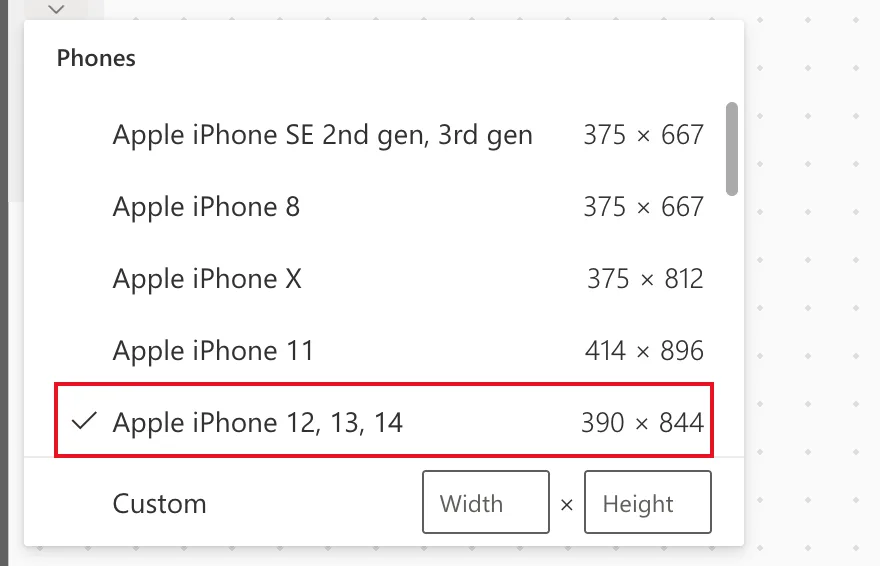
The app redraws in a phone frame. The first time, the example also showed a Dataverse offline tip, which OK dismisses:
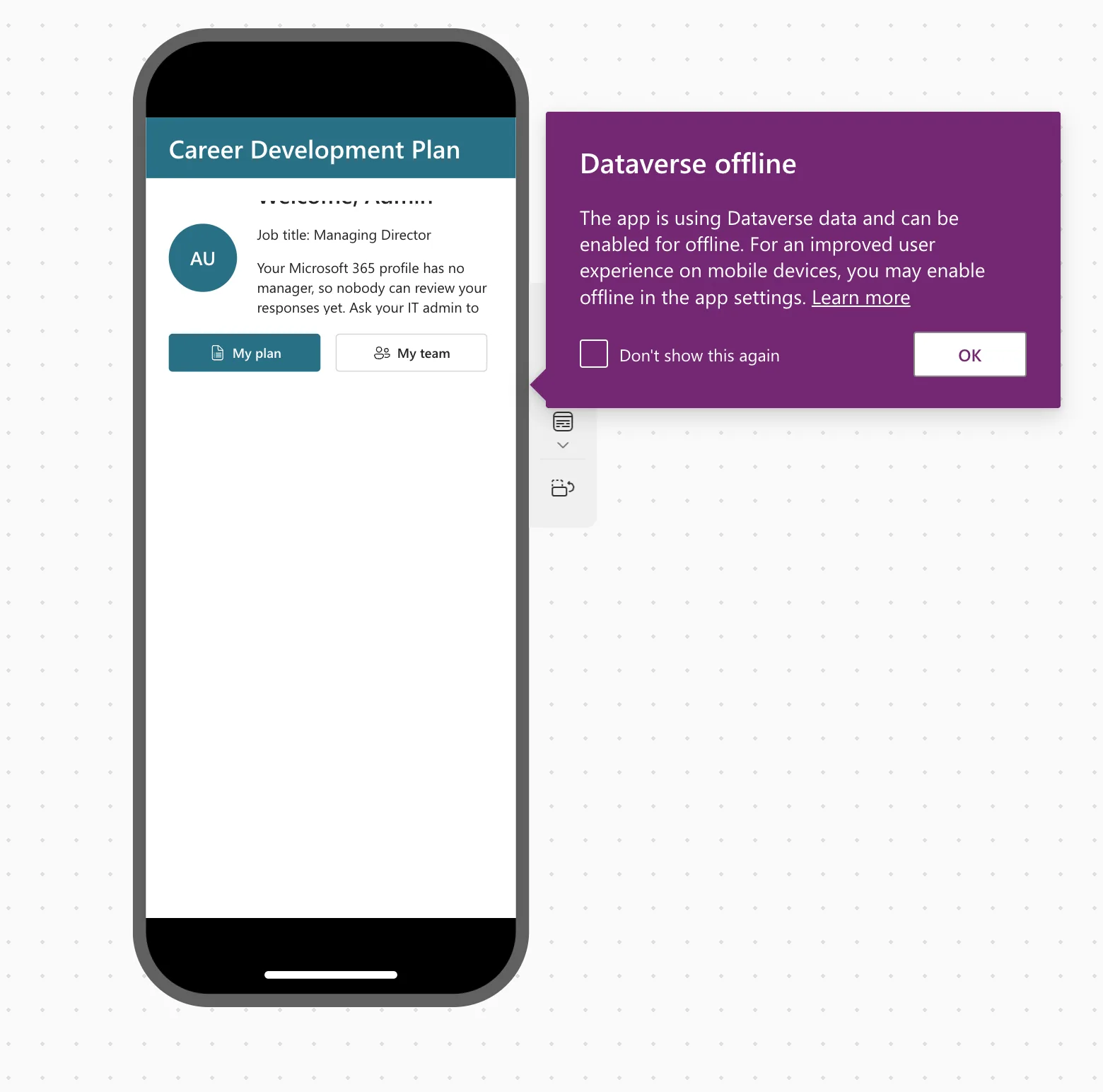
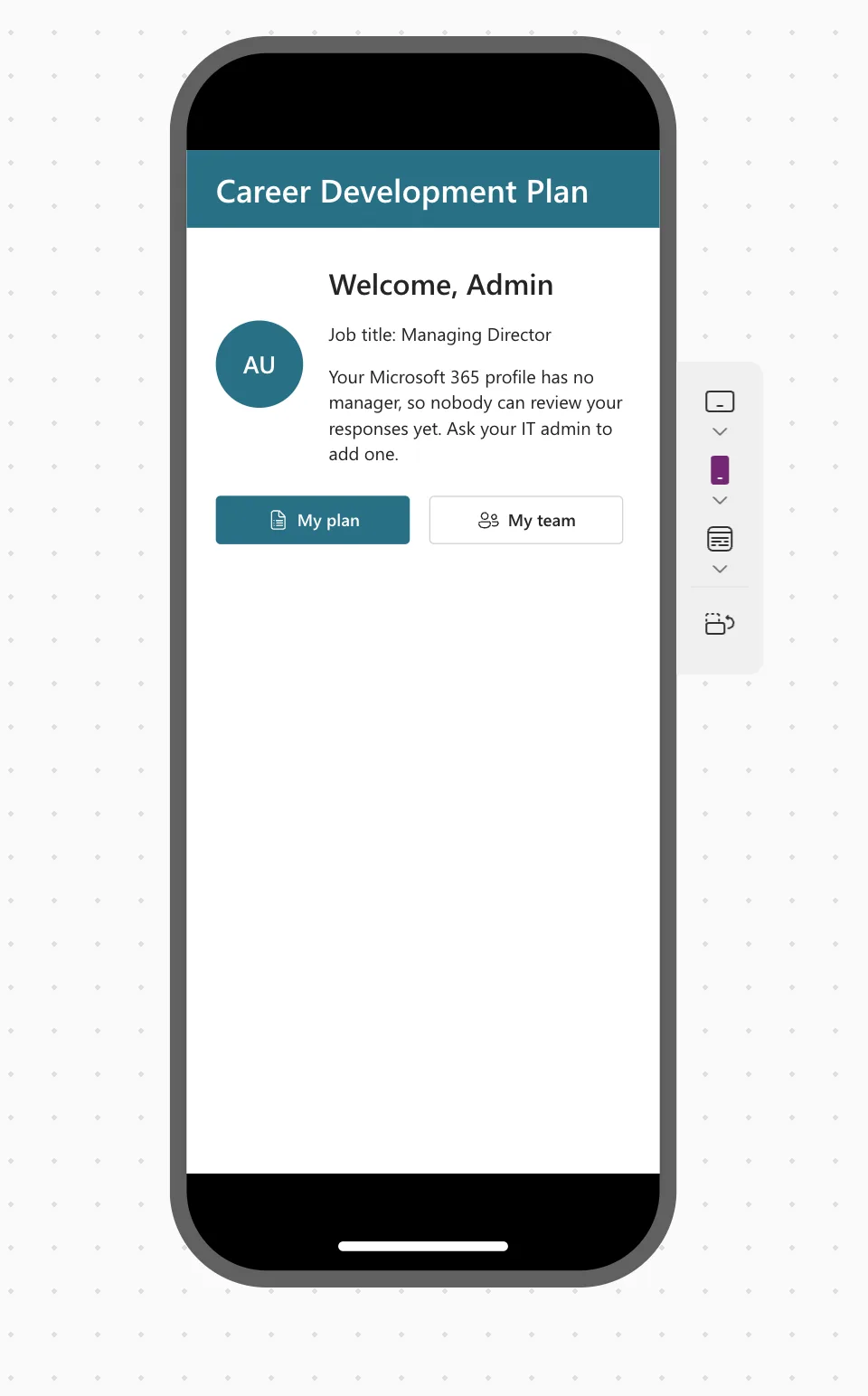
That first phone preview showed a real bug: the welcome line was cut off at the top and the manager message at the bottom, because their container had a fixed height. Fixed: Text Is Cut Off Inside a Container on Small Screens in Power Apps explains the fix. After it, the same size looks right:
Method 2: Change the Canvas Size While You Edit
At the bottom of the canvas, four buttons switch the screen's width without leaving the editor:

Hover them to see their sizes: Default 1366x768, Large 1200x768, Medium 900x768 and Small 600x768. On Small, the example's manager message wraps onto two lines and the profile area grows to fit:
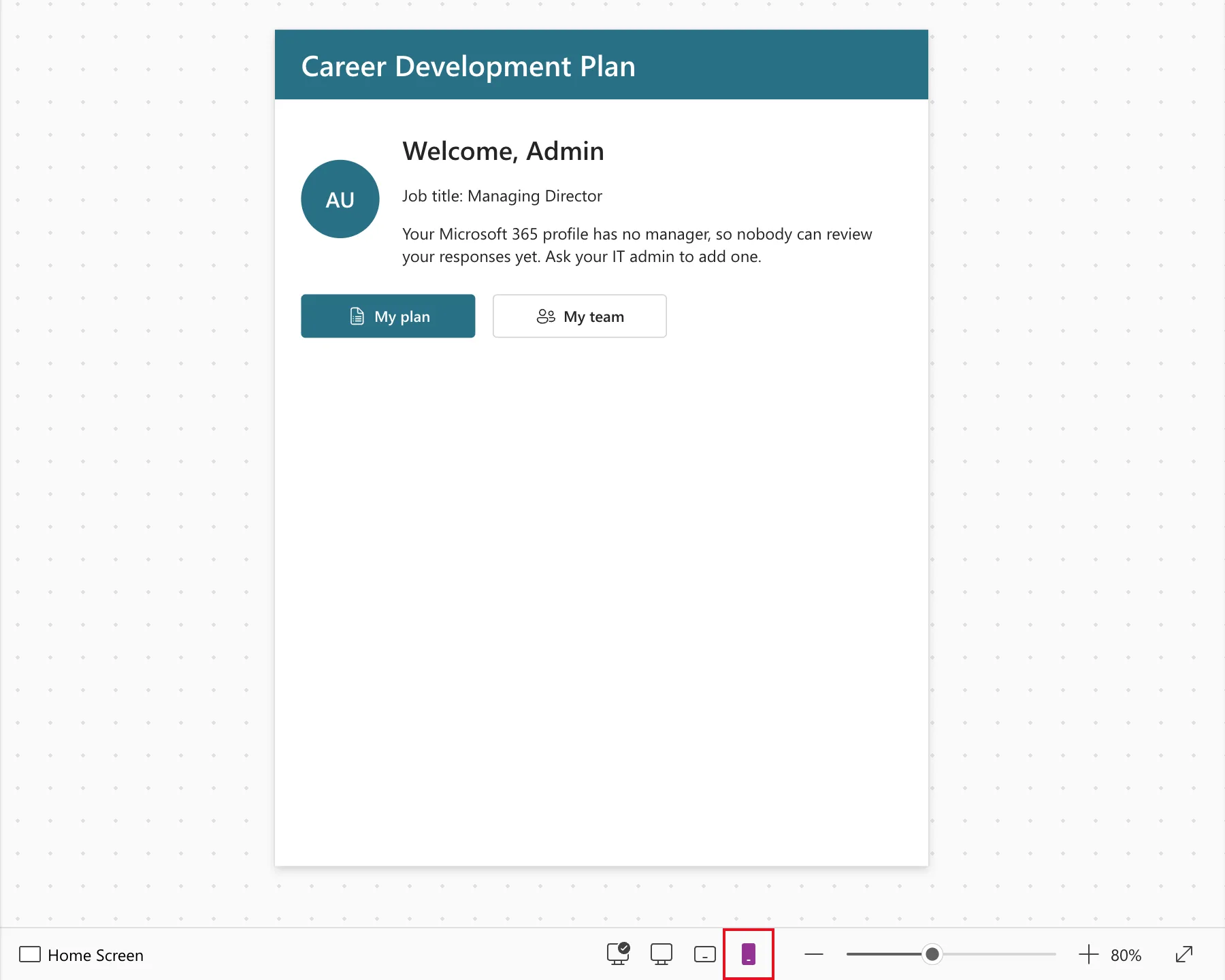
You can keep editing at that size, which makes fixing a small-screen layout much quicker.
The canvas changes width, but it doesn't run formulas that depend on the screen's size: Microsoft's responsive layout article says the authoring canvas doesn't respond to sizing formulas. In Part 9, the My team screen at Small still showed Back, Refresh and Open with their text, although on phones they show only icons:
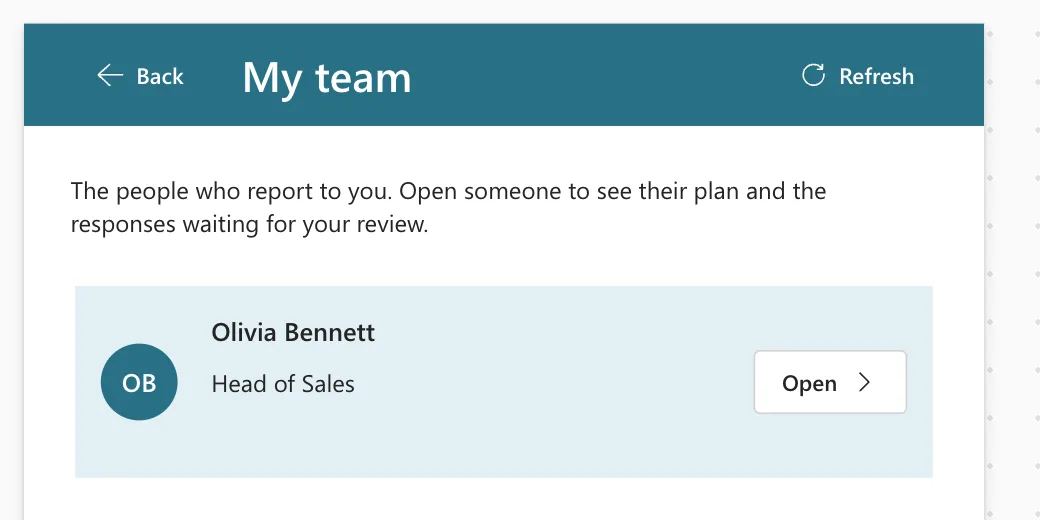
Check those formulas in the preview's Phones list, or in the published app.
The widths of Large, Medium and Small match the app's default size breakpoints, which you'll find on App → SizeBreakpoints: [600, 900, 1200].
Common Mistakes
| Mistake | What happens | Do this instead |
|---|---|---|
| Only ever testing at full width | Phone users find the layout bugs | Check Small or a phone preview after each screen |
| Fixed heights for containers that hold text | Text is cut off when it wraps | Let the container's height follow its content |
| Fixed widths on controls | Things spill off narrow screens | Use Flexible width in containers |
Troubleshooting
| Symptom | Likely cause | Fix |
|---|---|---|
| The app zooms instead of rearranging | App layout is Fixed | Set it to Responsive in Settings → Display |
| Text is cut off on a phone | A fixed-height container | See the fix post above |
| Controls overlap on Small | Controls placed with X and Y | Put them in containers |
| The canvas's Small size shows text on buttons that are icons on phones | The canvas doesn't run sizing formulas | Check in the preview or the published app |
| Formulas based on the screen size don't change after you switch the preview size | The size changed while a screen was already open | Go to another screen and back, and test the published app at different window sizes, as Microsoft recommends (How to Show Only the Icon on a Button on Phones) |
FAQ
Do I still need to test on a real phone?
For the final check, yes, especially for touch and the Power Apps mobile app. The sizes in Studio catch most layout problems first.
What's the Custom size for?
To try a size that isn't in the list, by entering its width and height.
Should I enable offline because of the tip?
Only if your app's data is in Dataverse and people need it without a connection. The example's data is in SharePoint, so the tip was dismissed.
Conclusion
Use the preview's Phones and Tablets lists for device-shaped checks, and the canvas's Default, Large, Medium and Small buttons to fix layouts while you edit. Test small early.
Additional Resources
- Preview an app: the device picker.
- Building responsive canvas apps: containers and layouts that adapt.
- Create responsive layouts: screen size breakpoints.
