How to Test a Cloud Flow Manually in Power Automate

You don't need to leave the designer to try a flow. Test runs it there, asks for any inputs, and shows each step's result on the canvas with how long it took. This guide tests an instant flow and reads what came back.
Prerequisites
- A saved flow. I selected Save before every test and waited for Your flow is ready to go.
- The example is the setup flow from Part 11 of the Career Development Plan series, at the point where it had three steps. Its trigger asks for a Site URL (How to Add a Text Input to a Manually Triggered Flow).
Step 1: Choose Manually
Select Test in the designer's command bar. The Test Flow panel offers two ways:
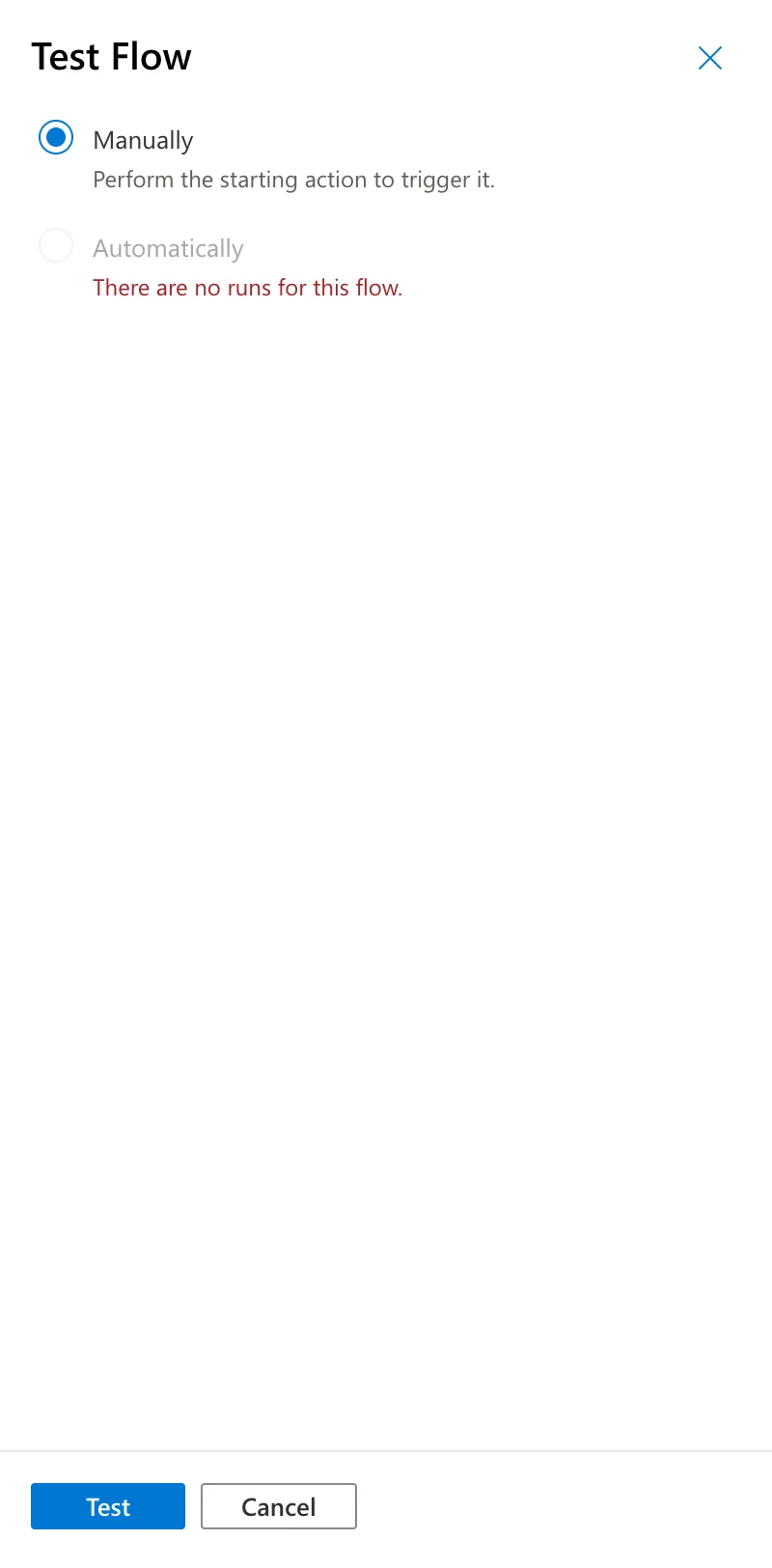
- Manually: you start the flow yourself now.
- Automatically: works from the flow's earlier runs. It's greyed out until there is one: There are no runs for this flow.
Choose Manually, then Test.
Step 2: Check the Connections
The Run flow panel lists the connections the flow uses, with a green check for each one that's ready. Here it's the SharePoint connection reference from the flow's solution (How to Create a Connection Reference in a Solution):
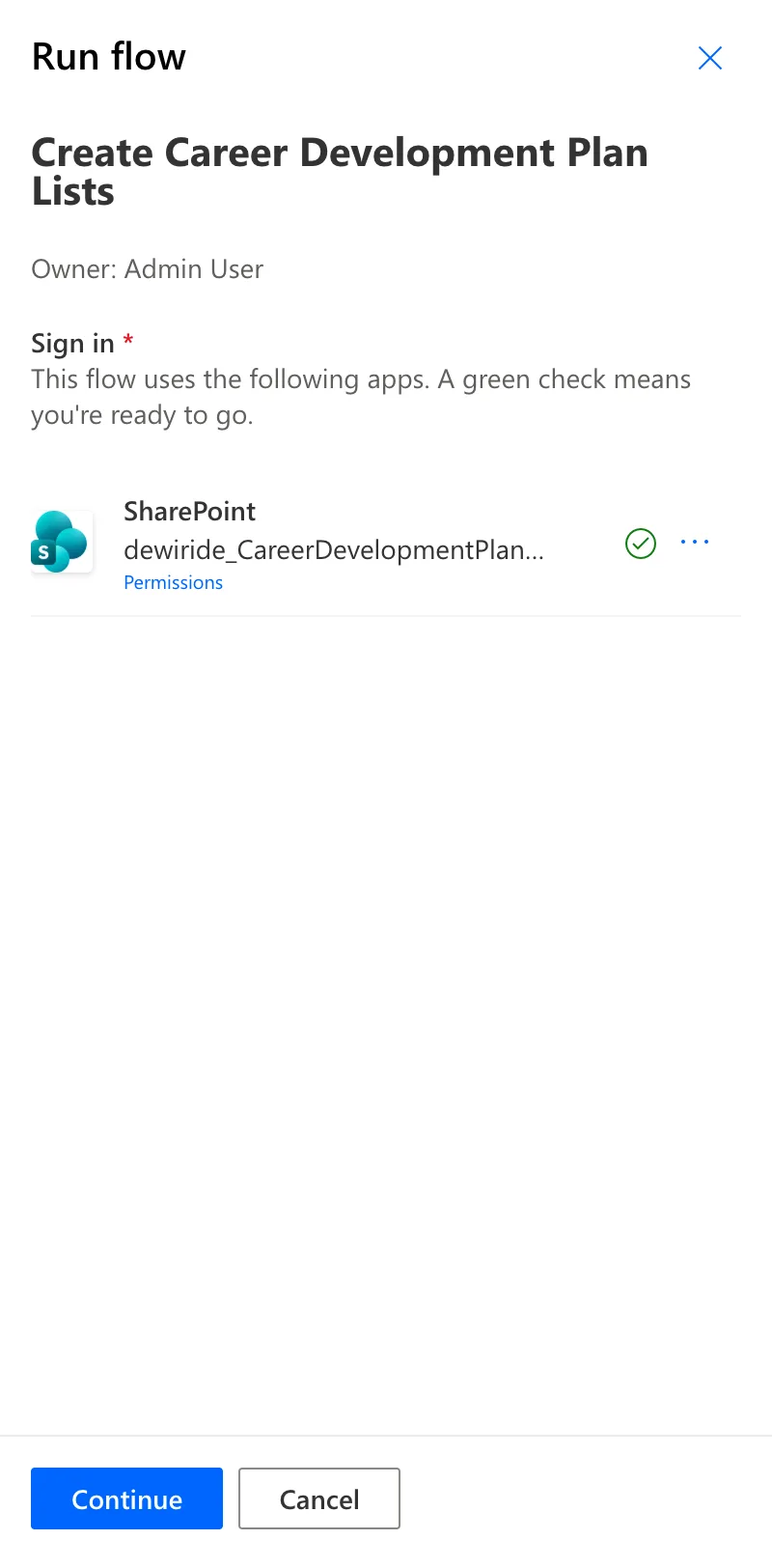
Select Continue.
Step 3: Enter the Inputs
The panel shows a box for each trigger input, with its description under it. Type the value, here the test site's address, and select Run flow:
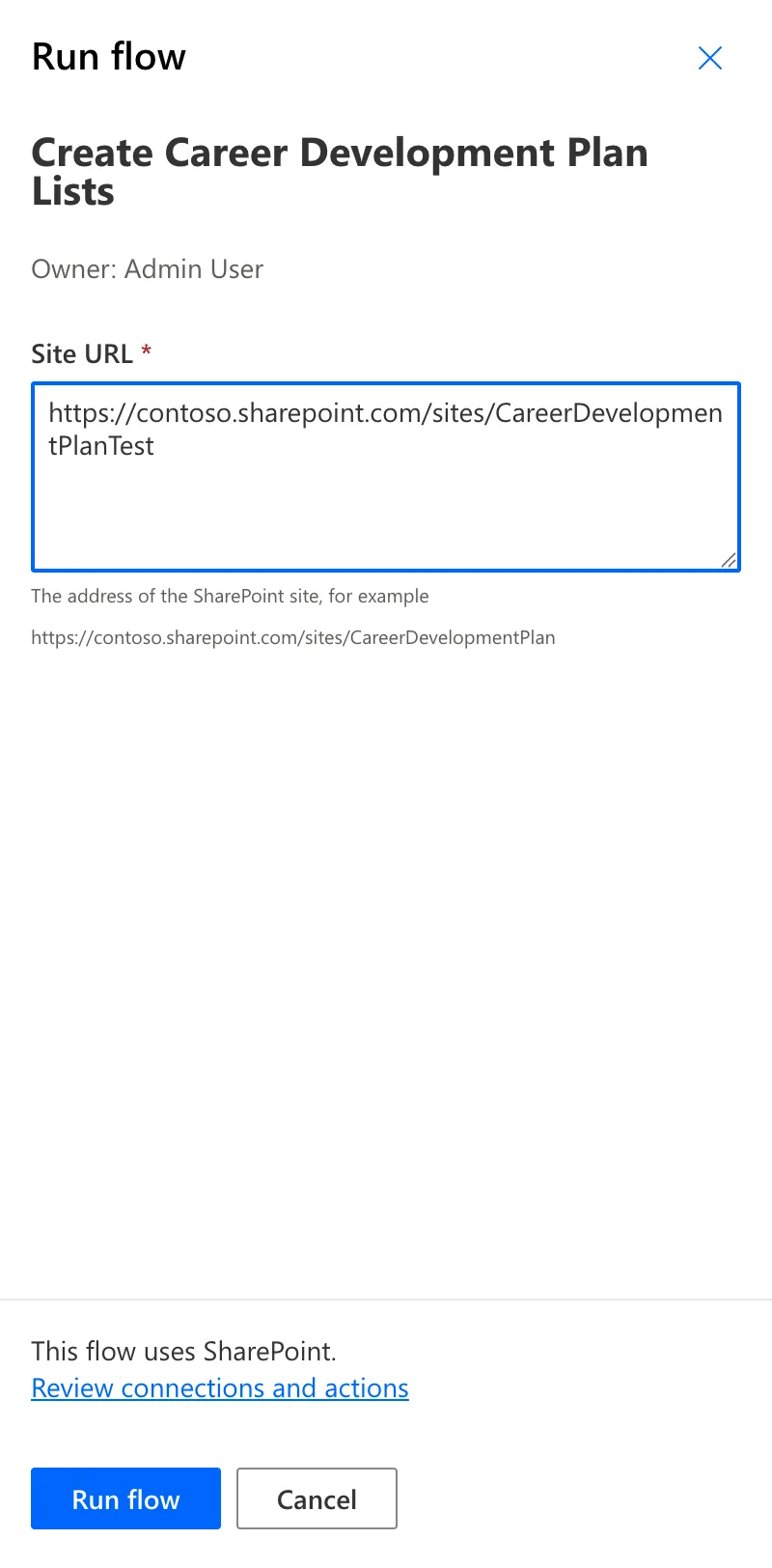
Power Automate confirms the run has started:
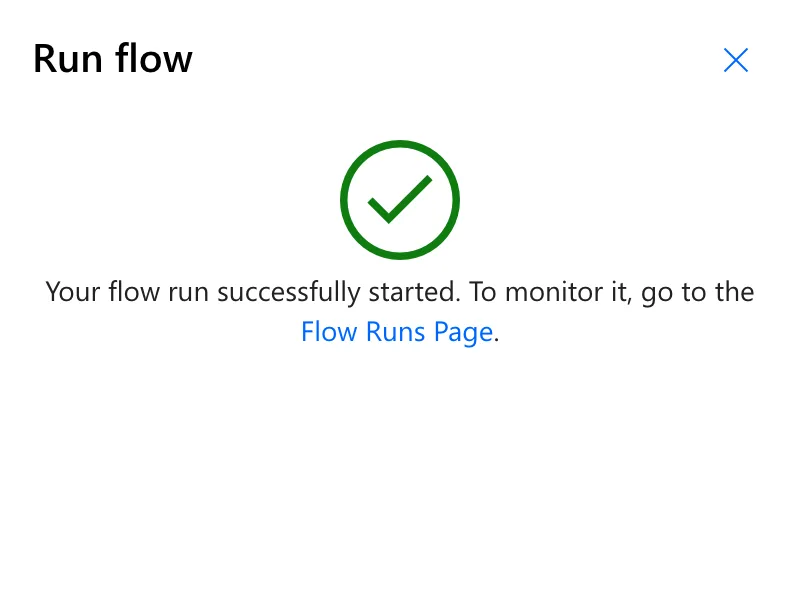
Select Done to watch the run in the designer.
Step 4: Read the Result
When the run ends, a banner says how it went, and each card shows a green check and how long the step took:
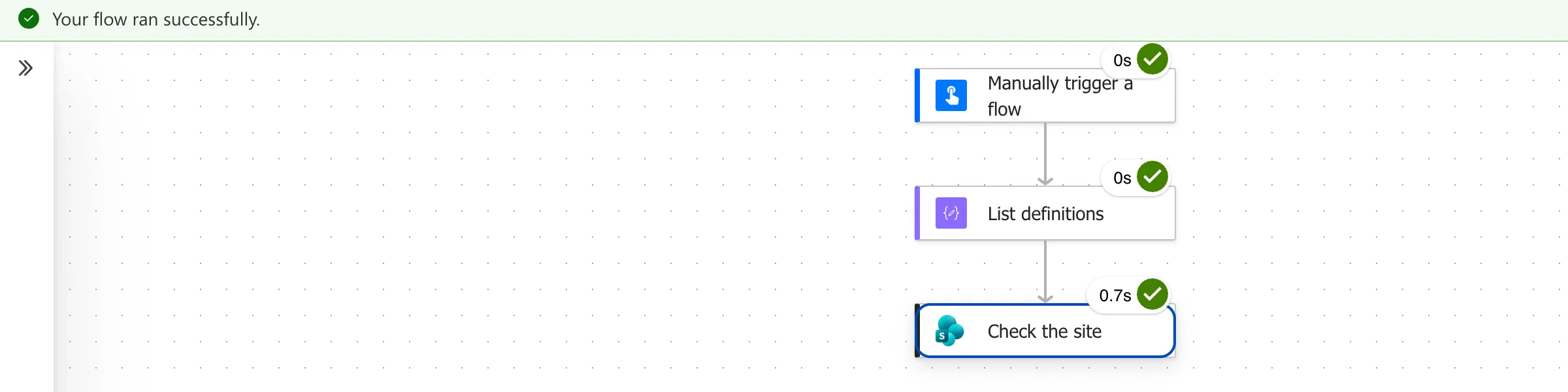
Select a card to see its Run results: its inputs, its outputs and its status. How to Use Send an HTTP Request to SharePoint reads the response of Check the site this way. A failed step shows a red mark, and the banner names the step and its error.
To change the flow again, select Edit in the command bar.
Common Mistakes
| Mistake | What happens | Do this instead |
|---|---|---|
| Testing without saving | Your latest change may not be in the run | Save, wait for the banner, then Test |
| Judging a long run by the canvas | Steps inside a running loop can show Waiting | Wait for the run to end, then read each step |
| Only looking at the banner | You miss what each step returned | Open the steps' Run results |
Troubleshooting
| Symptom | Likely cause | Fix |
|---|---|---|
| Automatically is greyed out | The flow has never run | Use Manually |
| A connection has no green check | It isn't set up or no longer works | Fix the connection, then test again |
| The run takes minutes | A step is being retried after an error | Read the step's Retry history; this post shows a real case |
FAQ
Where do test runs show up later?
In the flow's run history, on its details page, marked Test succeeded or Test failed.
Does a test run change anything?
Yes, it's a real run. Every step does what it's built to do, so test against test data, such as the empty test site used here.
Conclusion
Save, then Test → Manually → Test, check the connections, enter the inputs and select Run flow. Each step then shows its result and time on the canvas, and its Run results show what went in and what came out.
Additional Resources
- Test cloud flows: testing, resubmitting and canceling runs.
- Explore the cloud flows designer: the designer's command bar and panes.
