How to Switch Environments in Power Apps

Everything you create or import in Power Apps lands in the environment shown in the header. Before you import a solution, build an app or add a table, check that it's the right one, and switch if it isn't. It takes two clicks.
Why It Matters
Environments keep work apart: apps, flows, tables and connections in one environment don't appear in another. Microsoft's Choose an environment warns to make sure you're in the right environment before you create anything, because components can't easily be moved from one environment to another. Power Apps opens in the environment you used last, which is often the Default environment.
Prerequisites
- Another environment where you have a role, for example a trial environment you created (How to Create a Free Trial Environment).
Step 1: Open the Environment Switcher
In Power Apps, the header shows Environment and the current environment's name, near the right-hand side. Select it.
Step 2: Pick the Environment
The Select environment pane opens: Spaces to create, store, and work with data and apps. It has a Search box and a Filter, and lists environments in two groups:
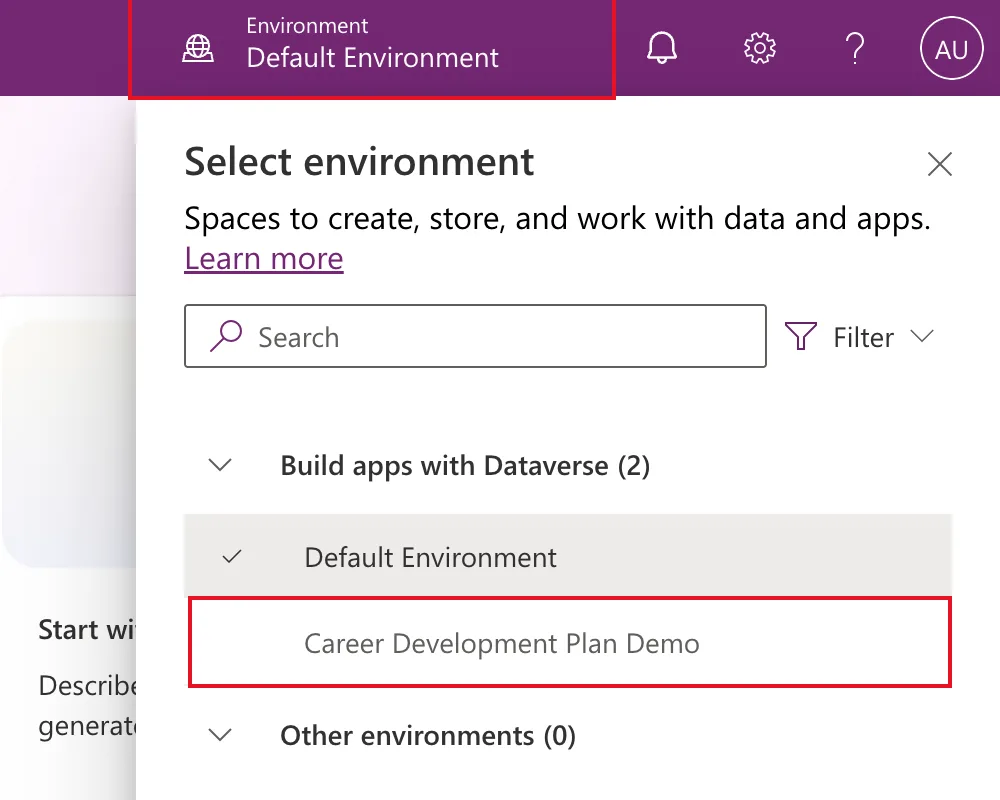
- Build apps with Dataverse: environments where you're System Administrator or System Customizer.
- Other environments: environments where you're only an environment maker, or can edit at least one canvas app.
The check mark shows the current one. Select the one you want, here Career Development Plan Demo.
Step 3: Check the Header
Power Apps reloads its home page in the new environment, and the header shows its name:

Long names are shortened in the header. The browser's address changes too: it contains the environment's ID after /environments/.
The next time you open Power Apps, it opens in this environment again, so check the header before each piece of work.
Common Mistakes
| Mistake | What happens | Do this instead |
|---|---|---|
| Importing a solution without checking the header | It lands in the environment you used last | Check the header first |
| Expecting apps from one environment in another | They aren't there | Switch to the environment that holds them |
Troubleshooting
| Symptom | Likely cause | Fix |
|---|---|---|
| A new environment isn't listed | It's still being prepared, or the list hasn't caught up | Wait for it to be Ready, then reload Power Apps |
| An environment you can open in the admin center isn't listed | Microsoft says the switcher needs the Environment Maker, System Customizer or System Administrator role there | Give yourself a role in it |
| The environment shows under Other environments | You don't have System Administrator or System Customizer there | Expected for maker-only access |
FAQ
Does switching change anything in the environment?
No. It only changes where Power Apps is looking.
Can I see an environment's details from the pane?
Microsoft's article says hovering over an environment in the list shows its details.
Conclusion
Select Environment in the header, pick the environment in Select environment, and check the header before you create or import anything.
Additional Resources
- Choose an environment: the switcher, its groups and its filter.
- Environments overview: what an environment is and its types.
