How to Switch Between Viewing and Editing a Power BI Report

A saved Power BI report opens in Viewing mode, the way readers see it. To change it, switch to Editing. Here's how, and what changes on screen.
Microsoft's Use Report view in the Power BI service describes the two modes: Viewing mode provides commands for interacting with a report without changing its design, and Editing mode provides commands for creating and changing it. The same article says the new ribbon, Try the new ribbon (preview), is available only after you save a report. The example is Expenses Report, a saved report of expense claims.
Prerequisites
- The Contributor role or higher in the workspace. Microsoft's report editor tour says that to open a report in Editing view, you must be a report owner or creator, or have at least a Contributor role in the workspace.
Step 1: Find the Mode Menu
Open the report. At the top right, next to Comments and Share, a button shows the current mode, Viewing. The ribbon has only File, Home and View, with reader commands such as Subscribe, Explore and Analyze in Excel:

Step 2: Choose Editing
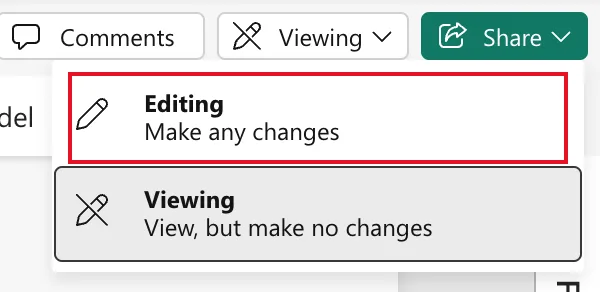
Select Viewing. The menu offers Editing, Make any changes, and Viewing, View, but make no changes. Select Editing:
Step 3: Check the Editing Tools
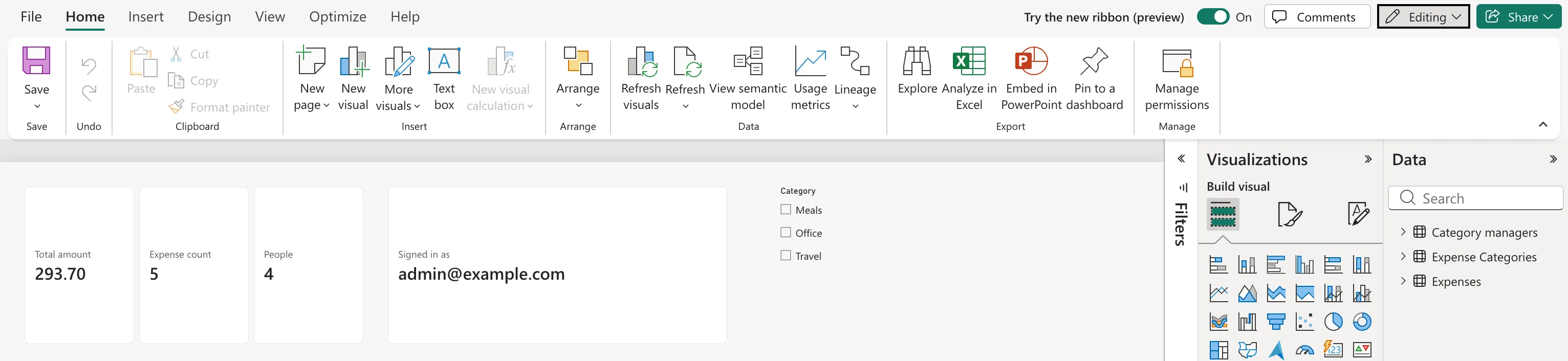
The button reads Editing. The ribbon gains the Insert, Design and Optimize tabs, and its Home tab has Save, New page, New visual, Text box and more. The Filters, Visualizations and Data panes appear on the right:
To stop editing, select Editing and choose Viewing. Save your changes first (How to Save a Report in Power BI in the Browser).
Common Mistakes
| Mistake | What happens | Do this instead |
|---|---|---|
| Looking for the Visualizations pane in Viewing | It isn't there | Switch to Editing |
| Leaving Editing without saving | Changes can be lost | Save first |
| Expecting Viewers to edit | They can only view | Give editors Contributor or higher |
Troubleshooting
| Symptom | Likely cause | Fix |
|---|---|---|
| No mode menu | Your workspace role is Viewer | Ask for Contributor or higher |
| A different ribbon from the pictures | Try the new ribbon (preview) is off, or the report isn't saved yet | Turn it on, or save the report |
FAQ
What's the new ribbon?
The ribbon in the pictures, which brings many Power BI Desktop commands to the web. The article says it's a preview, available only after a report is saved, and that turning it off returns the previous experience.
Does Viewing mode stop filters and slicers?
No. Readers can still use slicers and filters in Viewing mode; they just can't change the design.
Conclusion
Select the mode button at the top right and choose Editing to change the report, or Viewing to see it as readers do. The example's Expenses Report opened in Viewing after its first save.
