How to Support Light and Dark Mode with CSS Variables

A page can follow the light or dark setting of the visitor's computer without a line of JavaScript. Define each color once as a CSS variable, give the variables dark values inside a prefers-color-scheme media query, and use only the variables in the rest of your CSS. One more line, color-scheme, makes form fields and scroll bars follow too.
How It Works
A CSS variable (officially a custom property) is a value with a name that starts with two dashes, such as --background, which other rules read with var(--background). Variables set on :root apply to the whole page.
The media query prefers-color-scheme: dark matches when the visitor's operating system or browser is set to dark mode. Put the dark values of the variables inside it, and every rule that uses the variables changes with the setting. Nothing else in your CSS needs to know about dark mode.
Prerequisites
- A web page or app with a global stylesheet. The examples use a Next.js app, where it is
app/globals.css, but the CSS works in any page.
Step 1: Name Your Colors
At the top of the global stylesheet, give every color the page uses a name and a light value:
:root {
  --background: #ffffff;
  --foreground: #1b1f24;
  --muted: #5f6b7a;
  --border: #dde2e8;
  --surface: #f1f4f7;
  --accent: #2f6fd6;
  --on-accent: #ffffff;
}
Name colors by their job, not their look — --muted for secondary text, --surface for cards — so the names still make sense when the values turn dark.
Step 2: Give Them Dark Values
Below, the same names with dark values, inside the media query:
@media (prefers-color-scheme: dark) {
  :root {
    --background: #0f1216;
    --foreground: #e8ebef;
    --muted: #98a3b1;
    --border: #2a313a;
    --surface: #1a2028;
    --accent: #4d8af0;
    --on-accent: #ffffff;
  }

  html {
    color-scheme: dark;
  }
}
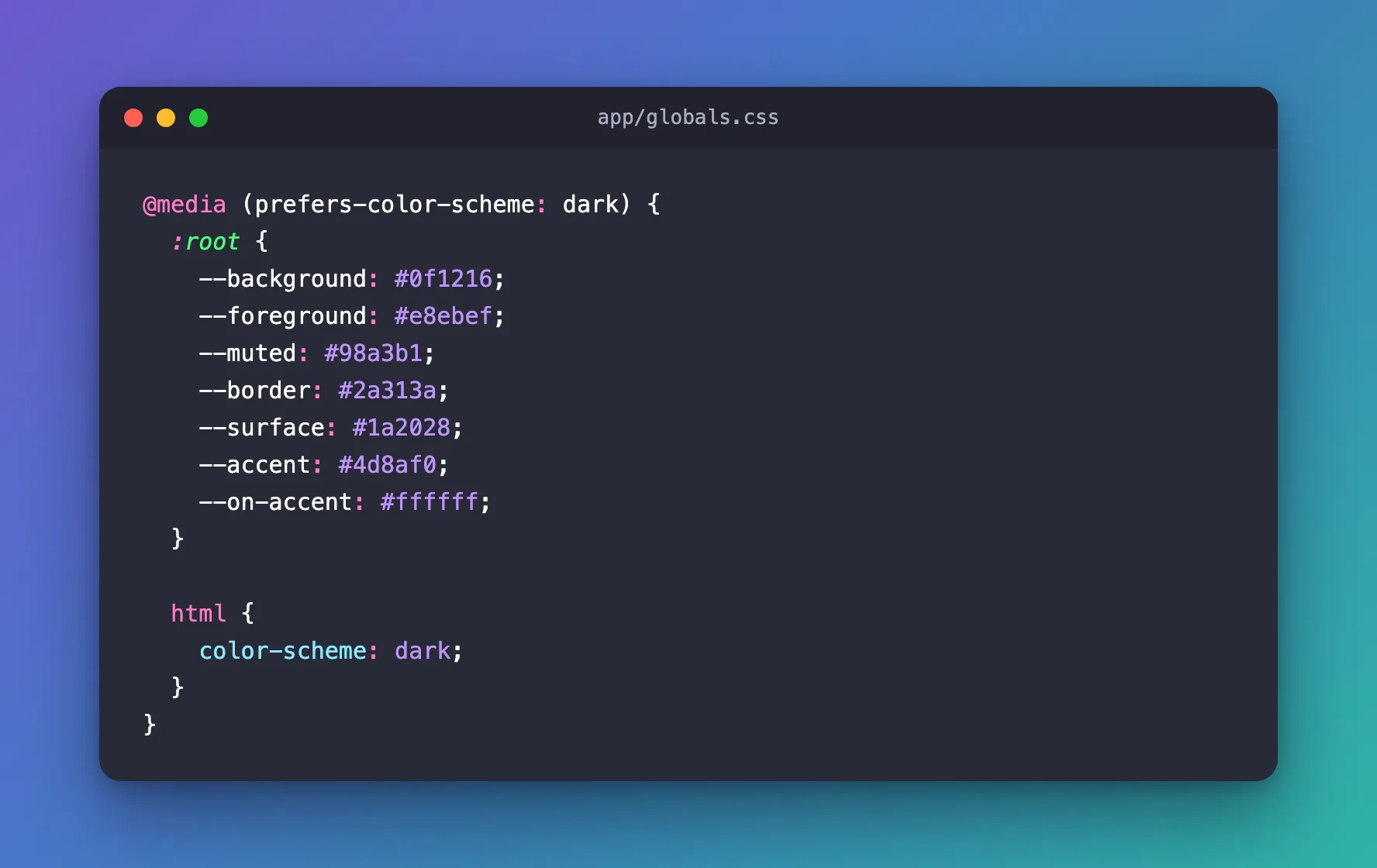
Dark mode isn't just inverted colors: the accent gets a little lighter, so it keeps enough contrast against a dark background, and the muted text a little brighter. color-scheme: dark tells the browser that the page is dark, so the parts the browser draws itself — text fields, scroll bars — use their dark versions too. Step 4 shows the difference.
Step 3: Use Only the Variables
Every color in the rest of your CSS comes from a variable. The page's base:
body {
  color: var(--foreground);
  background: var(--background);
}
And a card with text, a link, a text field and a button:
.card {
  display: grid;
  gap: 14px;
  padding: 24px;
  border: 1px solid var(--border);
  border-radius: 14px;
  background: var(--surface);
}

.card p {
  color: var(--muted);
  line-height: 1.6;
}

.card a {
  color: var(--accent);
}

.card input {
  padding: 10px 12px;
  border: 1px solid var(--border);
  border-radius: 10px;
  font: inherit;
}

.card button {
  justify-self: start;
  padding: 10px 16px;
  border: 0;
  border-radius: 10px;
  background: var(--accent);
  color: var(--on-accent);
  font: inherit;
  font-weight: 600;
}
None of these rules mentions dark mode.
Step 4: See Both Modes
With the computer in light mode:
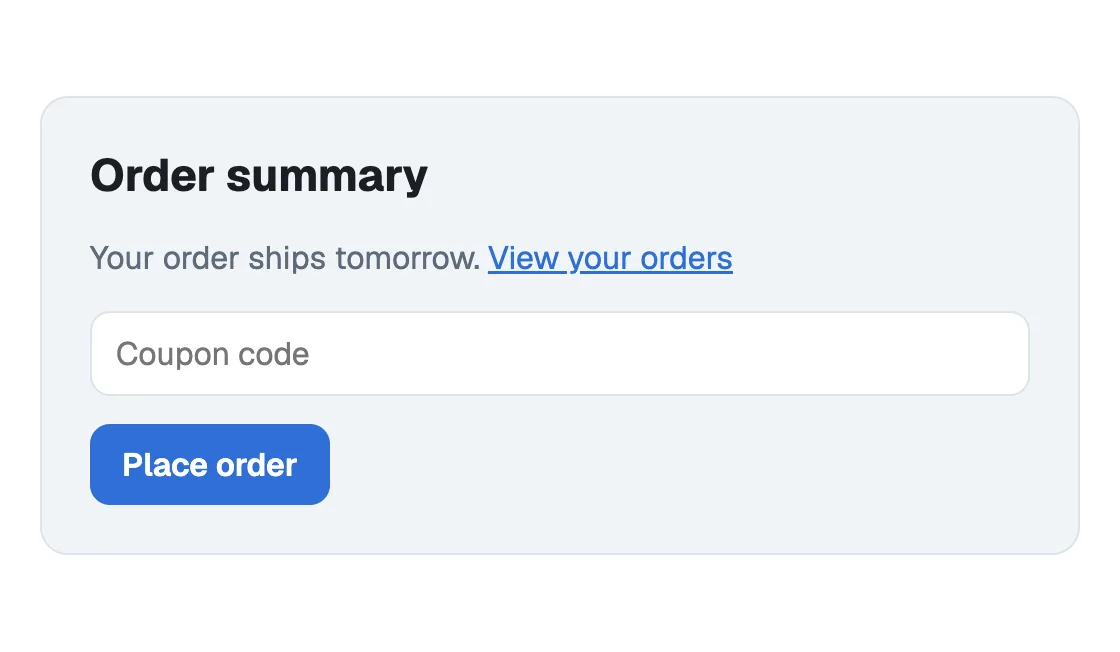
And in dark mode, the same page with nothing changed but the setting:

The text field turned dark although no rule gives it a background: that is color-scheme: dark. Without that line, the browser draws the field in its light style, and it glares out of the dark card:

To try the dark version without changing your computer's setting, open Chrome's or Edge's developer tools, then ⋮ → More tools → Rendering, and set Emulate CSS media feature prefers-color-scheme to prefers-color-scheme: dark.
Common Mistakes
| Mistake | What happens | Do this instead |
|---|---|---|
A color written directly in a rule, such as color: #333 | That part stays the same in dark mode | Use a variable for every color |
Leaving out color-scheme: dark | Text fields and scroll bars stay light in dark mode | Set it in the dark media query |
| Simply inverting the light colors | Accents and muted text become hard to read | Choose dark values for contrast, and check them |
Troubleshooting
| Symptom | Likely cause | Fix |
|---|---|---|
| Nothing changes in dark mode | The variables aren't used, or the media query has a typo | Check the rule with the browser's developer tools |
| One element stays light | It has a color written directly | Replace it with a variable |
| A text field or scroll bar stays light | color-scheme: dark is missing | Add it inside the dark media query |
FAQ
Can visitors choose a mode themselves?
Not with this alone: it follows the computer's setting. A switch on the page needs a little JavaScript that sets an attribute on <html>, with the dark values attached to that attribute as well.
Does this work in every browser?
prefers-color-scheme, color-scheme and CSS variables work in all current major browsers.
Conclusion
Name every color as a variable on :root, give the same names dark values inside @media (prefers-color-scheme: dark), add color-scheme: dark there, and use only the variables everywhere else. The page then follows the visitor's setting — form fields included — with no JavaScript.
Additional Resources
- MDN: prefers-color-scheme — the media query.
- MDN: color-scheme — how the browser draws its own controls.
- MDN: Using CSS custom properties — variables in CSS.
Related
- Part 5 of the Microsoft Agent Framework series — a chat app that uses these variables, light and dark.
