How to Sum Values Between Two Dates in Excel with SUMIFS

To add up only the rows dated within a range, give SUMIFS two conditions on the same date column: on or after the start, ">="&start, and before the end, "<"&end. The comparison sign goes in quotes and & joins it to the cell with the date.
The example is from the Monthly totals sheet of the old overtime timesheet in Part 1 of the Overtime Timesheet series, which totals each month's hours.
Prerequisites
- A column of values to add and a column of dates, such as Hours and Date in the OvertimeLog table.
- The start date in a cell. Here B1 holds 01/10/2026.
The Formula
This is the formula in B2 of the monthly totals, Aisha Khan's hours from 1 October up to, but not including, 1 November:
=SUMIFS(OvertimeLog[Hours],OvertimeLog[Employee],$A2,OvertimeLog[Date],">="&B$1,OvertimeLog[Date],"<"&EDATE(B$1,1))
The two date conditions are the part this guide is about:
OvertimeLog[Date],">="&B$1: dates on or after B1, 1 October.OvertimeLog[Date],"<"&EDATE(B$1,1): dates before 1 November. How to Get the First Day of the Next Month in Excel with EDATE explainsEDATE.
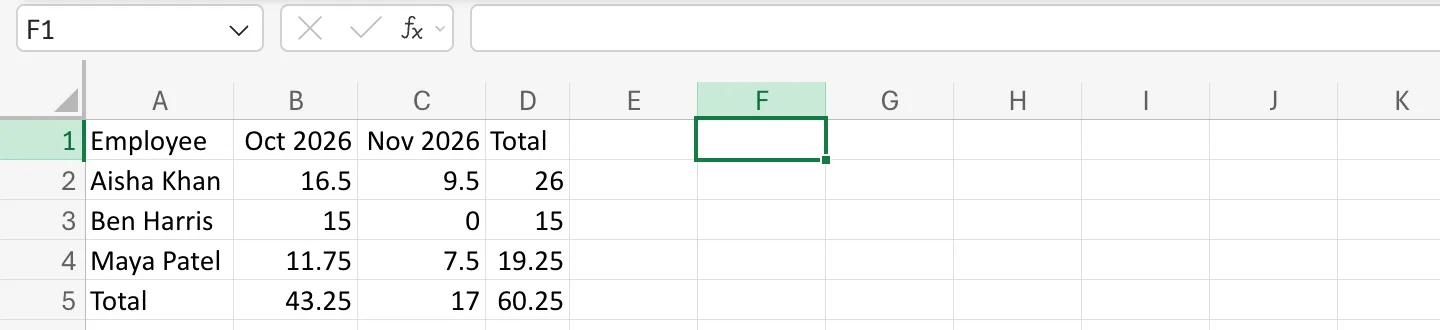
SUMIFS adds the Hours of the rows where every condition is true, and the employee condition, OvertimeLog[Employee],$A2, is covered in How to Total Hours by Person and Month in Excel with SUMIFS. Leave it out, and the same two date conditions add up everyone's hours for the month. Copied across the grid, the formula gave these totals, 43.25 hours in October:
Why the Quotes and the &
A condition is text that Excel reads as a test. ">=01/10/2026" would work for one fixed date, but the date is in a cell. ">="&B$1 builds the same test from the cell: & joins the text >= to the date in B1. Microsoft's SUMIF function uses the same pattern, ">" & C2, and says any condition with a comparison sign must be in double quotes.
Why the End Is "Before the Next Month"
- Months have different lengths. "Before the 1st of next month" works for every month without knowing its last day.
- Dates with times are counted. A shift logged at 31/10/2026 22:00 is after 31/10/2026, so
<=31/10/2026would miss it;<01/11/2026doesn't.
Common Mistakes
| Mistake | What happens | Do this instead |
|---|---|---|
">=B1" with the cell inside the quotes | Excel compares with the text "B1" and finds nothing | ">="&B1 |
"<="& the last day of the month | Entries with a time on the last day are left out | "<"& the next month's first day |
| A start date stored as text | The test compares dates with text and adds nothing | Make sure the cell holds a real date |
Troubleshooting
| Symptom | Likely cause | Fix |
|---|---|---|
| The total is 0 | The condition is in quotes with the cell, or the dates are text | ">="&B1, and real dates |
| One day's entries are missing | The end test is <= on a date and some entries have times | Use < the next day |
FAQ
Can the end date be in a cell too?
Yes: "<"&C1, with the end date in C1.
Does it work for dates without a table?
Yes. Use ranges such as B2:B100 instead of table columns, the same size for every range.
Conclusion
Two conditions on one date column, ">="&start and "<"&end, add up everything in a range. Keep the sign in quotes, join the cell with &, and end before the next period starts.
