How to Subtract an Unpaid Break from Hours Worked in Excel

A shift's paid time is the time between start and finish minus any unpaid break. With the break recorded in minutes, the formula is: MOD(Finish-Start,1) minus Break/1440. The MOD handles shifts past midnight and the /1440 turns minutes into a time.
This is the Time worked formula of the old overtime timesheet from Part 1 of the Overtime Timesheet series, where each row has a Start, a Finish and a Break (mins).
Prerequisites
- Start and finish times, and a break in minutes, in each row. An Excel table makes the formula readable: How to Format Data as a Table in Excel.
Step 1: Type the Formula
In the first row of the Time worked column, type:
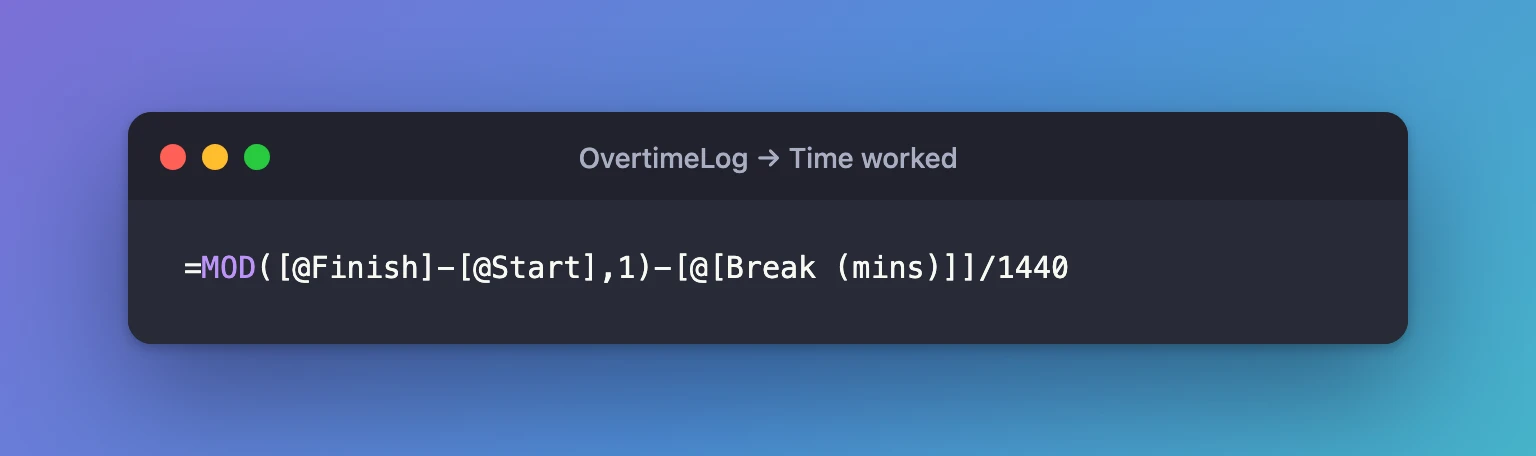
=MOD([@Finish]-[@Start],1)-[@[Break (mins)]]/1440
Piece by piece:
| Part | Does |
|---|---|
[@Finish]-[@Start] | This row's finish minus start, as a fraction of a day |
MOD(…,1) | Counts forward past midnight, so night shifts aren't negative: How to Calculate Hours for an Overnight Shift in Excel with MOD |
[@[Break (mins)]]/1440 | The break in minutes as a time: How to Convert Minutes to a Time in Excel by Dividing by 1440 |
- between them | Takes the break off |
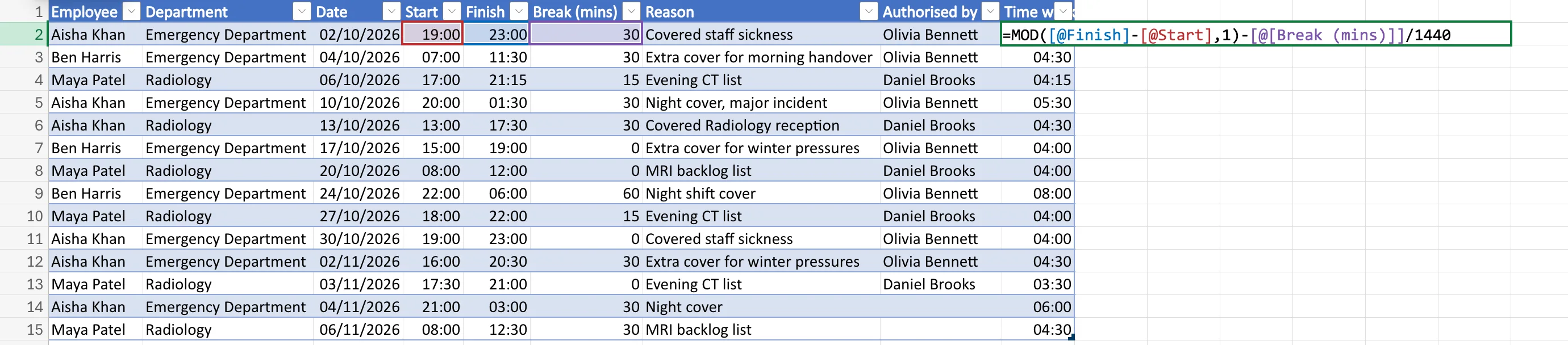
Outside a table, with start in D2, finish in E2 and the break in F2: =MOD(E2-D2,1)-F2/1440.
Step 2: Check the Results
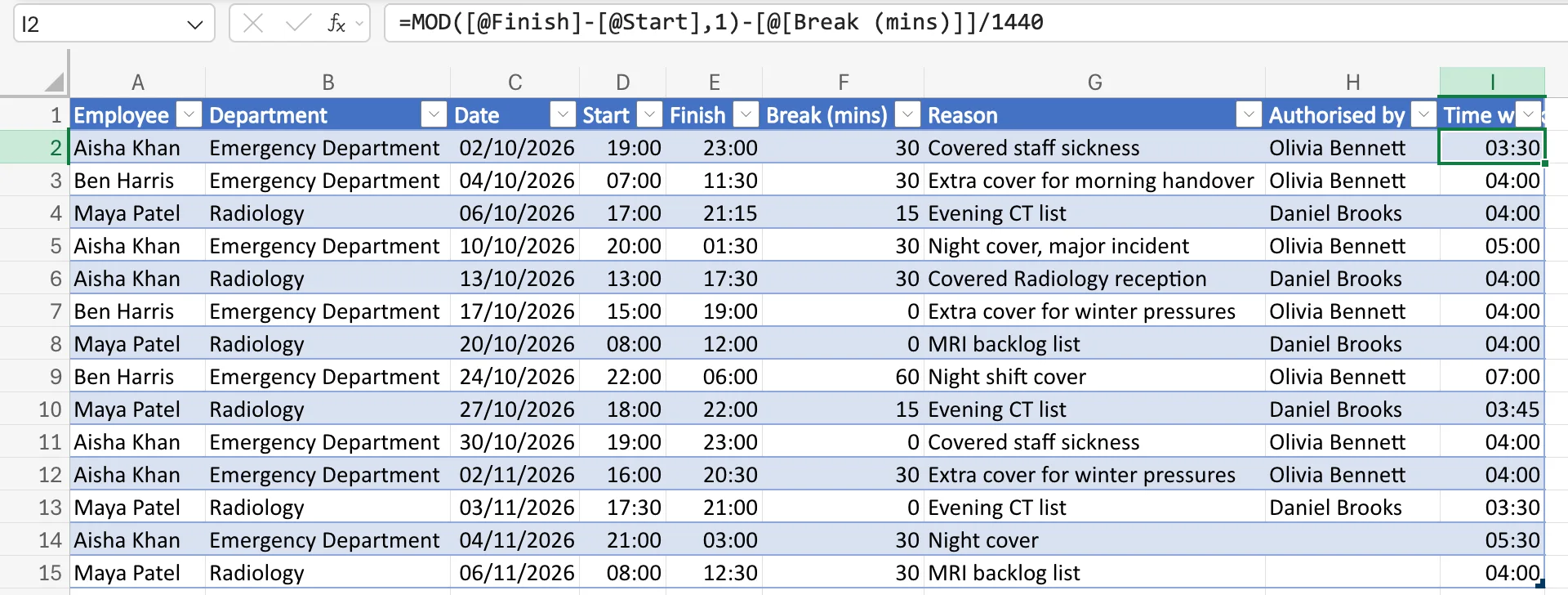
Press Enter. Every row now shows paid time:
- 19:00 to 23:00 with a 30-minute break: 03:30
- 07:00 to 11:30 with a 30-minute break: 04:00
- 22:00 to 06:00 with a 60-minute break: 07:00
- 15:00 to 19:00 with no break: 04:00
For decimal hours, multiply this column by 24 in another: How to Convert Time to Decimal Hours in Excel.
Common Mistakes
| Mistake | What happens | Do this instead |
|---|---|---|
Subtracting the break inside the MOD | It still works for most rows, but a break longer than a short shift wraps round to nearly 24 hours | Subtract the break after MOD |
Subtracting the minutes without /1440 | 30 is taken as 30 days | Divide the minutes by 1440 |
| Recording some breaks as times and some as minutes | One kind is wrong | Use minutes for every row |
Troubleshooting
| Symptom | Likely cause | Fix |
|---|---|---|
######## in a few rows | The break is longer than the shift, giving a negative time | Check the row's data |
######## in every row | The break was subtracted without /1440 | Add /1440 |
| A night shift across a clock change is an hour out | Excel ignores daylight saving time | How to Calculate Hours Worked Across a Daylight Saving Time Change in Excel |
FAQ
What if breaks are recorded as times like 0:30?
Then subtract the cell directly, without /1440.
Is a break of 0 a problem?
No. 0/1440 is 0, so the shift's time doesn't change.
Conclusion
=MOD(Finish-Start,1)-Break/1440 gives paid time for every shift, day or night, with the break taken off.
