How to Store a Connection String in .NET C# with dotnet user-secrets

A connection string usually contains a password, and appsettings.json is committed to Git with the rest of your code. .NET's Secret Manager, the dotnet user-secrets command, keeps secrets in a file in your user profile instead, and ASP.NET Core reads them as if they were in appsettings.json. This guide stores a MySQL connection string that way, shows every command with its real output, and explains how the same setting reaches the app outside development.
How user-secrets Works
Microsoft's documentation describes three properties of app secrets:
- They're "stored in a separate location from the project tree".
- They're "associated with a specific project or shared across several projects".
- They "aren't checked into source control".
Each project that uses secrets gets a UserSecretsId, a GUID in its project file. The secrets themselves live in a secrets.json file in a folder named after that GUID:
| Operating system | Location |
|---|---|
| Windows | %APPDATA%\Microsoft\UserSecrets\<UserSecretsId>\secrets.json |
| macOS and Linux | ~/.microsoft/usersecrets/<UserSecretsId>/secrets.json |
When an ASP.NET Core app runs in the Development environment, WebApplication.CreateBuilder adds this file to the app's configuration automatically. Your code reads a secret exactly like any other setting.
Microsoft is direct about the limits: Secret Manager "doesn't encrypt the stored secrets and shouldn't be treated as a trusted store. It's for development purposes only." It keeps secrets out of your code and out of Git, which is its job.
Prerequisites
- The .NET SDK (this guide uses 10.0.403):
dotnet --version. - An ASP.NET Core project. The examples use
src/Dewiride.Inventory.Apifrom How to Create a .NET C# Web API Solution with a Class Library. Use your own project's path in--project.
Run the commands from the folder above src. They work unchanged in bash, zsh and PowerShell unless a step shows tabs.
Step 1: Give the Project a Secrets Store
dotnet user-secrets init --project src/Dewiride.Inventory.Api
Set UserSecretsId to '00000000-0000-0000-0000-000000000000' for MSBuild project '/Users/you/projects/dewiride-inventory-api/src/Dewiride.Inventory.Api/Dewiride.Inventory.Api.csproj'.
init adds one line to the project file, with a new GUID; yours will be different:
<UserSecretsId>00000000-0000-0000-0000-000000000000</UserSecretsId>
The GUID isn't secret: it's only the name of the folder, and it's fine to commit. Running init a second time changes nothing:
The MSBuild project '/Users/you/projects/dewiride-inventory-api/src/Dewiride.Inventory.Api/Dewiride.Inventory.Api.csproj' has already been initialized with a UserSecretsId.
Step 2: Save the Connection String
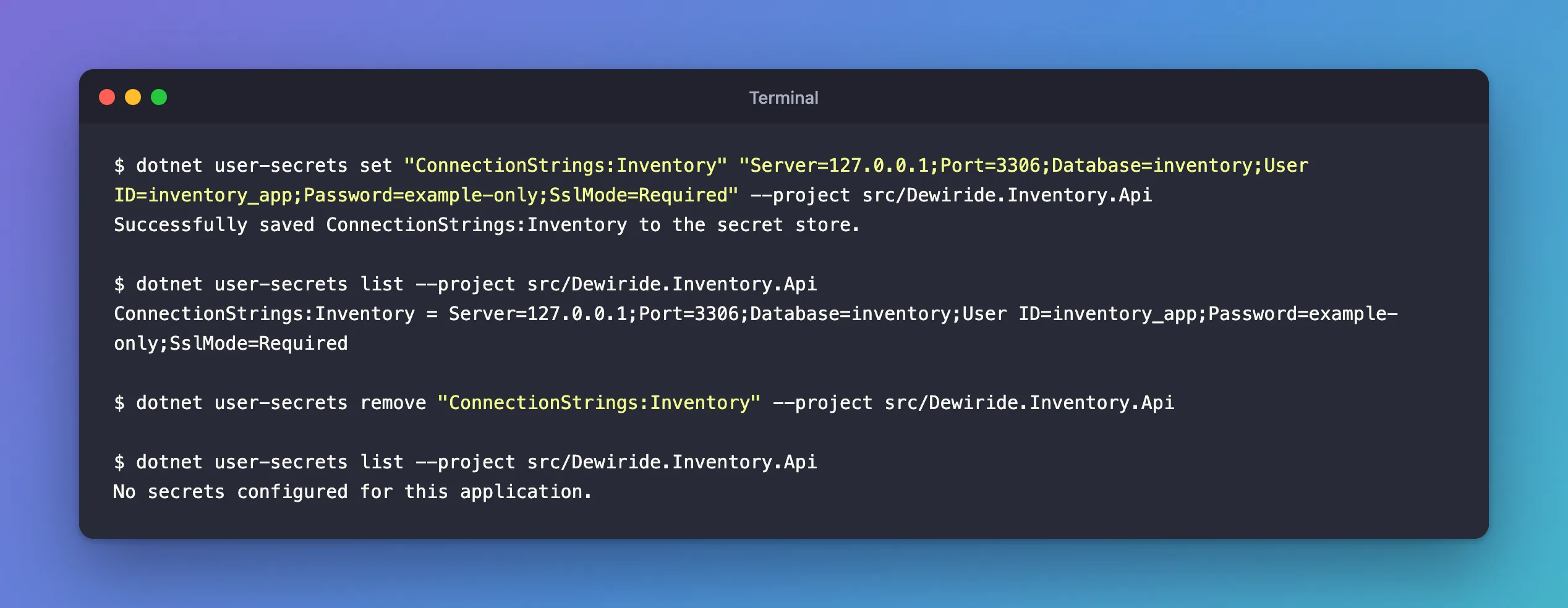
set stores a key and its value. The examples on this page use the placeholder password example-only:
dotnet user-secrets set "ConnectionStrings:Inventory" "Server=127.0.0.1;Port=3306;Database=inventory;User ID=inventory_app;Password=example-only;SslMode=Required" --project src/Dewiride.Inventory.Api
Successfully saved ConnectionStrings:Inventory to the secret store.
The key is ConnectionStrings:Inventory. The colon separates levels, so this is the same as an Inventory entry inside a ConnectionStrings section in appsettings.json, which is exactly where GetConnectionString("Inventory") looks.
With a real password: read it from a file
Typing a real password into a command leaves it in your shell history, where anyone with access to your computer can read it. If the password is already in a file, such as the .env file from How to Keep Passwords Out of compose.yaml with an .env File, let the command read it:
- macOS / Linux
- Windows (PowerShell)
dotnet user-secrets set "ConnectionStrings:Inventory" "Server=127.0.0.1;Port=3306;Database=inventory;User ID=inventory_app;Password=$(grep '^MYSQL_PASSWORD=' .env | cut -d= -f2-);SslMode=Required" --project src/Dewiride.Inventory.Api
Your shell history keeps the text $(grep …), not the password.
$password = (Get-Content .env | Where-Object { $_ -like 'MYSQL_PASSWORD=*' }).Substring('MYSQL_PASSWORD='.Length)
dotnet user-secrets set "ConnectionStrings:Inventory" "Server=127.0.0.1;Port=3306;Database=inventory;User ID=inventory_app;Password=$password;SslMode=Required" --project src/Dewiride.Inventory.Api
PowerShell's history keeps $password, not the password.
Step 3: List the Secrets
dotnet user-secrets list --project src/Dewiride.Inventory.Api
ConnectionStrings:Inventory = Server=127.0.0.1;Port=3306;Database=inventory;User ID=inventory_app;Password=example-only;SslMode=Required
list prints every value in plain text, passwords included. With a real password, don't run it while sharing your screen or recording a video.
Step 4: Look at the File
You never need to open the file, but seeing it makes the tool less mysterious. These commands read the UserSecretsId from the project file and print the matching secrets.json:
- macOS / Linux
- Windows (PowerShell)
cat ~/.microsoft/usersecrets/$(sed -n 's:.*<UserSecretsId>\(.*\)</UserSecretsId>.*:\1:p' src/Dewiride.Inventory.Api/Dewiride.Inventory.Api.csproj)/secrets.json
sed pulls the GUID out of the <UserSecretsId> line, and cat prints the file in the folder with that name.
$id = ([xml](Get-Content src/Dewiride.Inventory.Api/Dewiride.Inventory.Api.csproj)).Project.PropertyGroup.UserSecretsId
Get-Content "$env:APPDATA\Microsoft\UserSecrets\$id\secrets.json"
[xml] reads the project file as XML, so .Project.PropertyGroup.UserSecretsId finds the GUID.
{
  "ConnectionStrings:Inventory": "Server=127.0.0.1;Port=3306;Database=inventory;User ID=inventory_app;Password=example-only;SslMode=Required"
}

It's an ordinary JSON file, outside your project folder, so git add can never pick it up. Microsoft advises against writing code that depends on its location or format, because both may change; use the dotnet user-secrets commands instead.
Step 5: Read the Secret in Your Code
Nothing special is needed. In an ASP.NET Core app, a secret is just another configuration value:
var connectionString = builder.Configuration.GetConnectionString("Inventory");
GetConnectionString("Inventory") is a short way to read ConnectionStrings:Inventory. If the value is missing, it returns null, so check for that and stop with a clear message. How to Connect a .NET C# Web API to a MySQL Database — Part 1 does exactly that, and passes the value to EF Core.
Step 6: Remove or Clear Secrets
Remove one key:
dotnet user-secrets remove "ConnectionStrings:Inventory" --project src/Dewiride.Inventory.Api
It prints nothing when it works. Check with list:
dotnet user-secrets list --project src/Dewiride.Inventory.Api
No secrets configured for this application.
To delete every secret of the project at once, use clear, which also prints nothing:
dotnet user-secrets clear --project src/Dewiride.Inventory.Api
Development Only, by Design
User secrets are read only in the Development environment. Run the same app as Production, and the connection string simply isn't there. This is the API from the MySQL series, which stops when the connection string is missing, started with ASPNETCORE_ENVIRONMENT=Production and no launch profile:
Unhandled exception. System.InvalidOperationException: The connection string 'ConnectionStrings:Inventory' is missing. In development, set it with dotnet user-secrets. Everywhere else, set the ConnectionStrings__Inventory environment variable.
That's deliberate: a secret on your laptop should never leak into a server. dotnet run uses the http profile in launchSettings.json, which sets Development for you.
Everywhere Else: an Environment Variable
On a server, in a container or in a CI pipeline, give the app the same setting as an environment variable. Replace each colon in the key with two underscores, because not every operating system accepts colons in variable names: ConnectionStrings:Inventory becomes ConnectionStrings__Inventory. This runs the API once with the variable set, reading the password from .env:
- macOS / Linux
- Windows (PowerShell)
ConnectionStrings__Inventory="Server=127.0.0.1;Port=3306;Database=inventory;User ID=inventory_app;Password=$(grep '^MYSQL_PASSWORD=' .env | cut -d= -f2-);SslMode=Required" dotnet run --project src/Dewiride.Inventory.Api
A NAME=value in front of a command sets the variable for that one command only.
$password = (Get-Content .env | Where-Object { $_ -like 'MYSQL_PASSWORD=*' }).Substring('MYSQL_PASSWORD='.Length)
$env:ConnectionStrings__Inventory = "Server=127.0.0.1;Port=3306;Database=inventory;User ID=inventory_app;Password=$password;SslMode=Required"
dotnet run --project src/Dewiride.Inventory.Api
$env: sets the variable for this PowerShell window until you close it.
Using launch settings from src/Dewiride.Inventory.Api/Properties/launchSettings.json...
Building...
info: Microsoft.Hosting.Lifetime[14]
      Now listening on: http://localhost:5190
info: Microsoft.Hosting.Lifetime[0]
      Application started. Press Ctrl+C to shut down.
info: Microsoft.Hosting.Lifetime[0]
      Hosting environment: Development
info: Microsoft.Hosting.Lifetime[0]
      Content root path: /Users/you/projects/dewiride-inventory-api/src/Dewiride.Inventory.Api
I ran this after clearing the user secrets, so the connection string could only come from the variable, and the API's readiness check answered Healthy. On a real server, you'd set the variable through your hosting platform's settings or secret store, not in a terminal.
Which Value Wins
If the same key is set in several places, ASP.NET Core's configuration documentation lists the order, from highest to lowest priority:
- Command-line arguments.
- Environment variables (except those starting with
ASPNETCORE_orDOTNET_). - User secrets, in the Development environment.
appsettings.{Environment}.json, such asappsettings.Development.json.appsettings.json.
So an environment variable always beats a user secret, and a user secret always beats appsettings.json.
In Visual Studio
Visual Studio has a menu item for the same tool: right-click the project in Solution Explorer and choose Manage User Secrets. Microsoft's documentation says it adds a UserSecretsId if the project has none and opens secrets.json in the editor. I wrote this guide on a Mac, where Visual Studio isn't available, so it shows the dotnet user-secrets commands, which work in Visual Studio's terminal too.
Common Mistakes
| Mistake | What happens | Do this instead |
|---|---|---|
Putting the connection string in appsettings.json | The password is committed to Git | Use user-secrets in development |
Typing the real password into set | It stays in your shell history | Read it from a file, as in Step 2 |
Running the command in a folder with no project, without --project | The tool stops with Could not find a MSBuild project file | Pass --project with the project's path |
| Expecting secrets on a server | They're read in Development only | Use an environment variable or a secret store |
Writing ConnectionStrings:Inventory as an environment variable name | Some systems reject or mangle the colon | Write ConnectionStrings__Inventory |
Troubleshooting
| Symptom | Likely cause | Fix |
|---|---|---|
| The app can't find the connection string | It isn't running in Development, or the key is misspelled | Check Hosting environment in the startup output, and list the secrets |
has already been initialized with a UserSecretsId | init ran twice | Nothing to fix; the store already exists |
No secrets configured for this application. | Nothing is set for this project, or --project points to another project | set the value again with the right --project |
Could not find a MSBuild project file in '…'. Specify which project to use with the --project option. | The current folder has no project file | Add --project with the project's path, or cd into the project's folder |
FAQ
Can I commit the UserSecretsId?
Yes. It's a folder name, not a secret. Committing it lets everyone on the team use the same key names.
Do I need a NuGet package?
Not in an ASP.NET Core project; it's built in. A console app needs the Microsoft.Extensions.Configuration.UserSecrets package and an AddUserSecrets call.
Is a user secret safer than an environment variable?
Both are plain text on your computer. User secrets are simply more convenient while developing, because they survive restarts and stay out of every terminal window.
Conclusion
dotnet user-secrets keeps a connection string, password included, outside your project and out of Git: init creates the store, set saves a value, list shows it, and remove and clear delete it. ASP.NET Core reads the secrets automatically in Development; everywhere else, the same setting arrives as the ConnectionStrings__Inventory environment variable.
Additional Resources
- Safe storage of app secrets in development in ASP.NET Core — Microsoft's guide to Secret Manager.
- Configuration in ASP.NET Core — every configuration source and their order.
- How to Read from appsettings.json in ASP.NET Core — reading settings and binding them to classes.
