How to Stop, Start and Remove Docker Compose Containers Without Losing Data

Docker Compose has four everyday commands for stopping and starting your containers, and they differ in what they remove. Three of them keep your database's data; one deletes it for good. This guide runs each one against a real MySQL database and proves the data is still there afterwards, so you know which command to reach for.
Containers Come and Go, Volumes Stay
A container is the running program: here, MySQL. It's meant to be disposable: Compose removes and recreates it whenever it needs to. A named volume is storage that Docker keeps outside the container, and that's where the database files live.
The project in this guide is the MySQL 9.7 database from How to Run MySQL in Docker with Docker Compose. Its compose.yaml maps MySQL's data folder to a named volume:
services:
  mysql:
    volumes:
      - mysql-data:/var/lib/mysql

volumes:
  mysql-data:
As long as that volume exists, you can remove the container as often as you like.
| Command | Container | Network | Named volume (your data) |
|---|---|---|---|
docker compose stop | Stopped, kept | Kept | Kept |
docker compose start | Started again | Kept | Kept |
docker compose down | Removed | Removed | Kept |
docker compose down -v | Removed | Removed | Deleted |
Prerequisites
- A Compose project with a named volume, such as the MySQL one above, running and healthy.
- A terminal in the project folder, the one with
compose.yaml. Every command here works unchanged in bash, zsh and PowerShell.
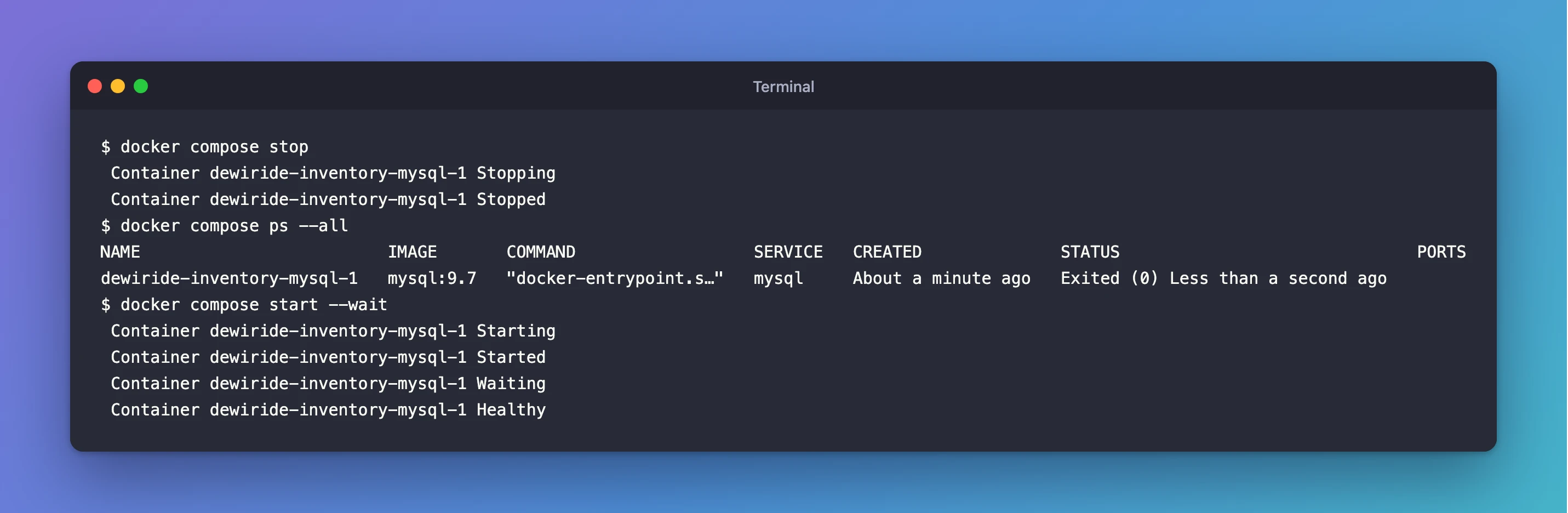
Step 1: Stop the Container
docker compose stop
 Container dewiride-inventory-mysql-1 Stopping
 Container dewiride-inventory-mysql-1 Stopped
MySQL shuts down cleanly and its memory is freed. The container still exists, which ps shows with --all (plain ps lists only running containers):
docker compose ps --all
NAME                         IMAGE       COMMAND                  SERVICE   CREATED              STATUS                              PORTS
dewiride-inventory-mysql-1   mysql:9.7   "docker-entrypoint.s…"   mysql     About a minute ago   Exited (0) Less than a second ago
Exited (0) means it stopped normally, with exit code 0.
Step 2: Start It Again
docker compose start --wait
 Container dewiride-inventory-mysql-1 Starting
 Container dewiride-inventory-mysql-1 Started
 Container dewiride-inventory-mysql-1 Waiting
 Container dewiride-inventory-mysql-1 Healthy
--wait waits for the health check, so when the command returns, MySQL is ready. That's the same container, with the same data.
Step 3: Remove the Container but Keep the Data
docker compose down
 Container dewiride-inventory-mysql-1 Stopping
 Container dewiride-inventory-mysql-1 Stopped
 Container dewiride-inventory-mysql-1 Removing
 Container dewiride-inventory-mysql-1 Removed
 Network dewiride-inventory_default Removing
 Network dewiride-inventory_default Removed
down "stops and removes containers, networks", in the words of its own --help. The output never mentions the volume, because down leaves it alone. Check that it's still there:
docker volume ls --filter name=dewiride-inventory
DRIVER    VOLUME NAME
local     dewiride-inventory_mysql-data
Step 4: Bring It Back
docker compose up -d --wait
 Network dewiride-inventory_default Creating
 Network dewiride-inventory_default Creating
 Network dewiride-inventory_default Created
 Network dewiride-inventory_default Created
 Container dewiride-inventory-mysql-1 Creating
 Container dewiride-inventory-mysql-1 Created
 Container dewiride-inventory-mysql-1 Starting
 Container dewiride-inventory-mysql-1 Started
 Container dewiride-inventory-mysql-1 Waiting
 Container dewiride-inventory-mysql-1 Healthy
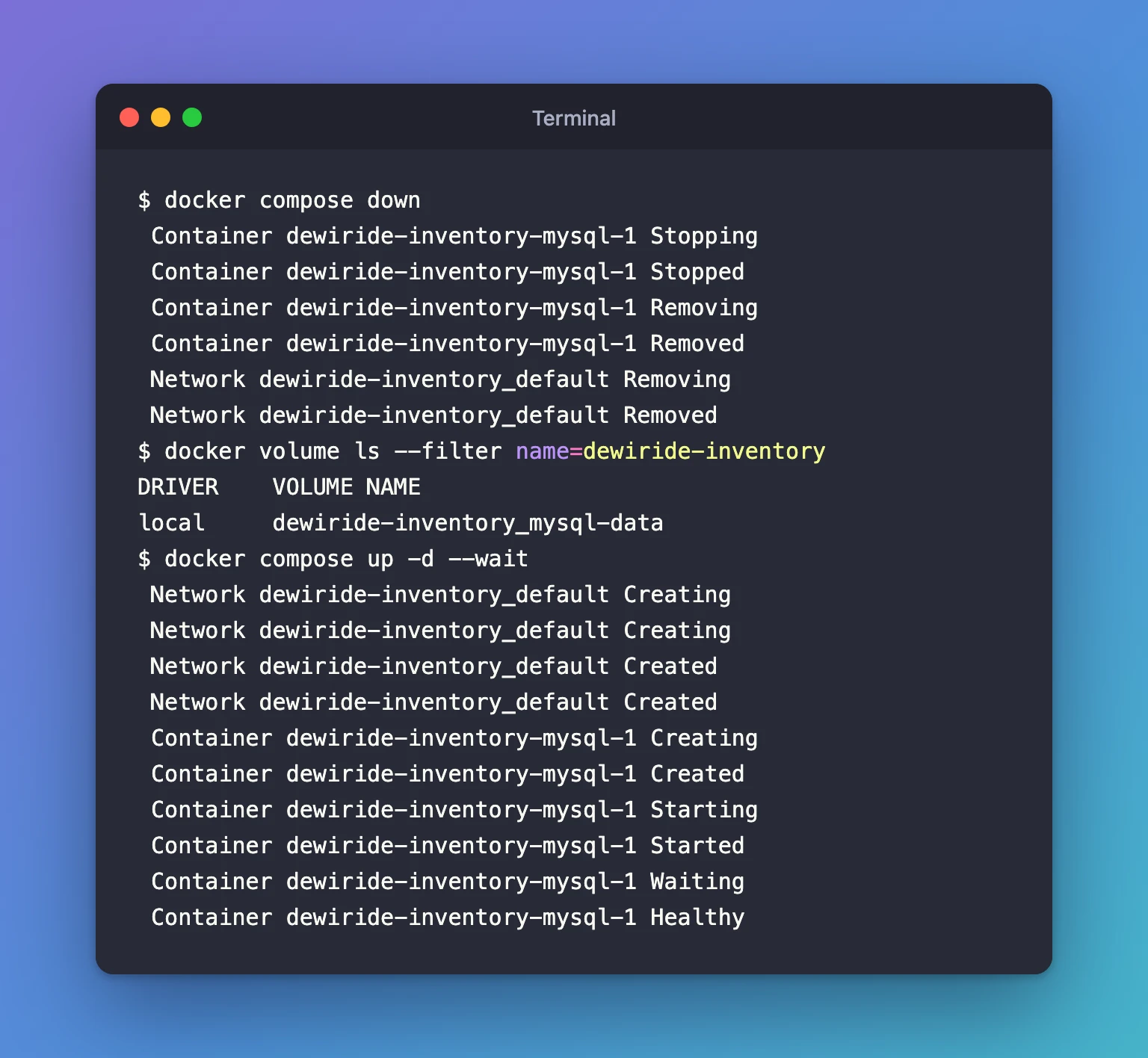
A brand-new container, but the old data. The MySQL log proves it: on the very first start, MySQL printed Initializing database files and created the database. This time it skipped straight to being ready:
docker compose logs mysql
mysql-1  | 2026-11-02 14:50:47+00:00 [Note] [Entrypoint]: Entrypoint script for MySQL Server 9.7.4-1.el9 started.
…
mysql-1  | 2026-11-02T14:50:48.452003Z 0 [System] [MY-010931] [Server] /usr/sbin/mysqld: ready for connections. Version: '9.7.4'  socket: '/var/run/mysqld/mysqld.sock'  port: 3306  MySQL Community Server - GPL.
And the inventory database and its account are still there:
+--------------------+
| Database           |
+--------------------+
| information_schema |
| inventory          |
| performance_schema |
+--------------------+
3 rows in set (0.000 sec)
The One Command That Deletes Your Data
docker compose down -v
-v (or --volumes), in Docker's own words: "Remove named volumes declared in the "volumes" section of the Compose file and anonymous volumes attached to containers." For a database, that means every database, table and row. The next docker compose up starts from an empty database.
Use down -v only when you really want an empty database, for example to start a development set-up from scratch. If the data matters, take a backup first.
Common Mistakes
| Mistake | What happens | Do this instead |
|---|---|---|
Using down -v to "restart cleanly" | The database is deleted | Use stop/start, or down without -v |
| Mapping the data folder without a named volume | Removing the container removes the data with it | Use a named volume for /var/lib/mysql |
| Running commands from another folder | Compose can't find the project | cd into the folder with compose.yaml |
Expecting .env changes to apply to an existing database | Docker recreates the container, but MySQL keeps the old accounts | See Fixed: ERROR 1045 (28000): Access denied for user |
Troubleshooting
| Symptom | Likely cause | Fix |
|---|---|---|
docker compose ps shows nothing after stop | Plain ps lists only running containers | Use docker compose ps --all |
The volume is missing from docker volume ls | It was removed with down -v or docker volume rm | Recreate the data from a backup, or start fresh |
| MySQL didn't come back after restarting your computer | This compose.yaml sets no restart policy | Run docker compose start --wait |
FAQ
Should I use stop or down at the end of the day?
stop. It frees memory and keeps everything ready for start. down is for when you want to remove the containers too. For example, after changing compose.yaml in a way that needs fresh ones, although up usually recreates them for you.
Does down delete the MySQL image?
No. Images are only removed when you add --rmi. The next up reuses the downloaded image.
How do I delete everything when I'm truly done?
docker compose down -v removes the containers, the network and the volume. docker image rm mysql:9.7 then frees the disk space the image uses. Do both only when you no longer need the data.
Conclusion
docker compose stop, start, down and up all keep a named volume, so your database survives them. The proof is a recreated container that starts with the old data and skips initialization. Only docker compose down -v deletes the volume, so save it for when you really want to start over.
Additional Resources
- docker compose down — every option, including
-vand--rmi. - docker compose stop and docker compose start — stopping and starting without removing.
- Volumes — how Docker keeps data outside containers.
