How to Stop Sharing a Canvas App with Someone in Power Apps

To stop sharing a canvas app with someone, open the app's Share dialog, select Manage access, change the person's access to Remove access and select Apply. Power Apps confirms with Access updated.
The example is Hello App, a one-screen canvas app that greets whoever opens it, shared with one person, Maya Patel, as a User. This post takes her access away.
Prerequisites
- You own the app, or are a co-owner. Only they can change who it's shared with.
Step 1: Open Manage Access
At make.powerapps.com, select Apps, then the app's More commands (⋮) > Share. The Share dialog opens, the same one you share from (How to Share a Canvas App with Specific People in Power Apps). Select Manage access.
People + groups lists everyone the app is shared with. The owner has no drop-down; everyone else has one with their access:
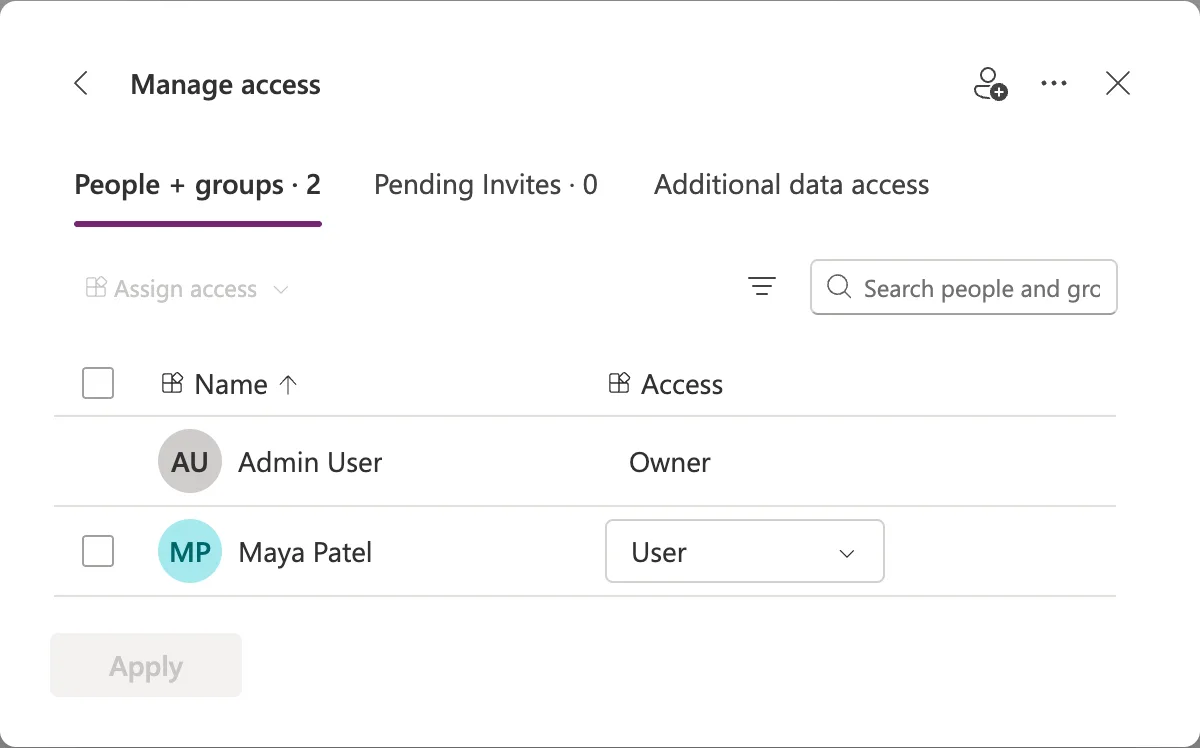
Step 2: Set the Person to Remove Access
Open the drop-down next to the person. It lists User and Co-owner, then, below a line, Remove access. Select Remove access.
The row now shows Remove access, an undo arrow appears at its end, and Apply turns purple. Nothing has changed yet:
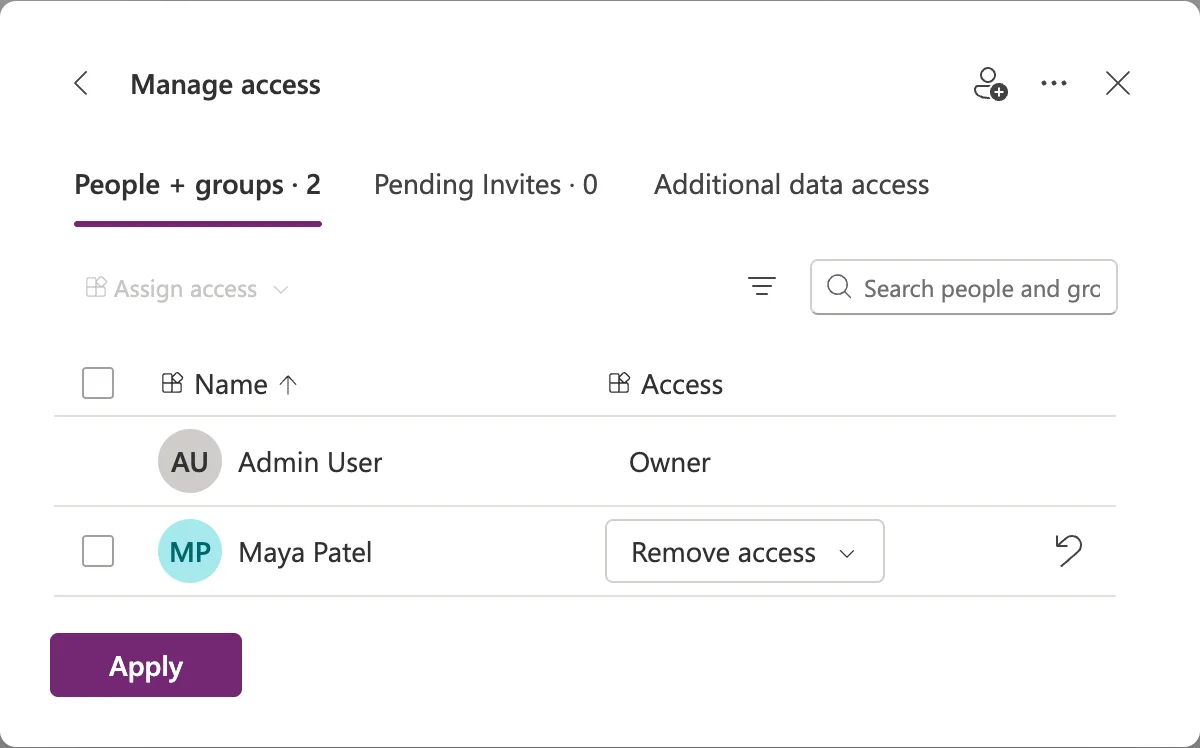
If you picked the wrong person, select the undo arrow to put the row back.
Step 3: Apply
Select Apply. A green bar says Access updated., and the person is gone from the list, here leaving People + groups · 1:
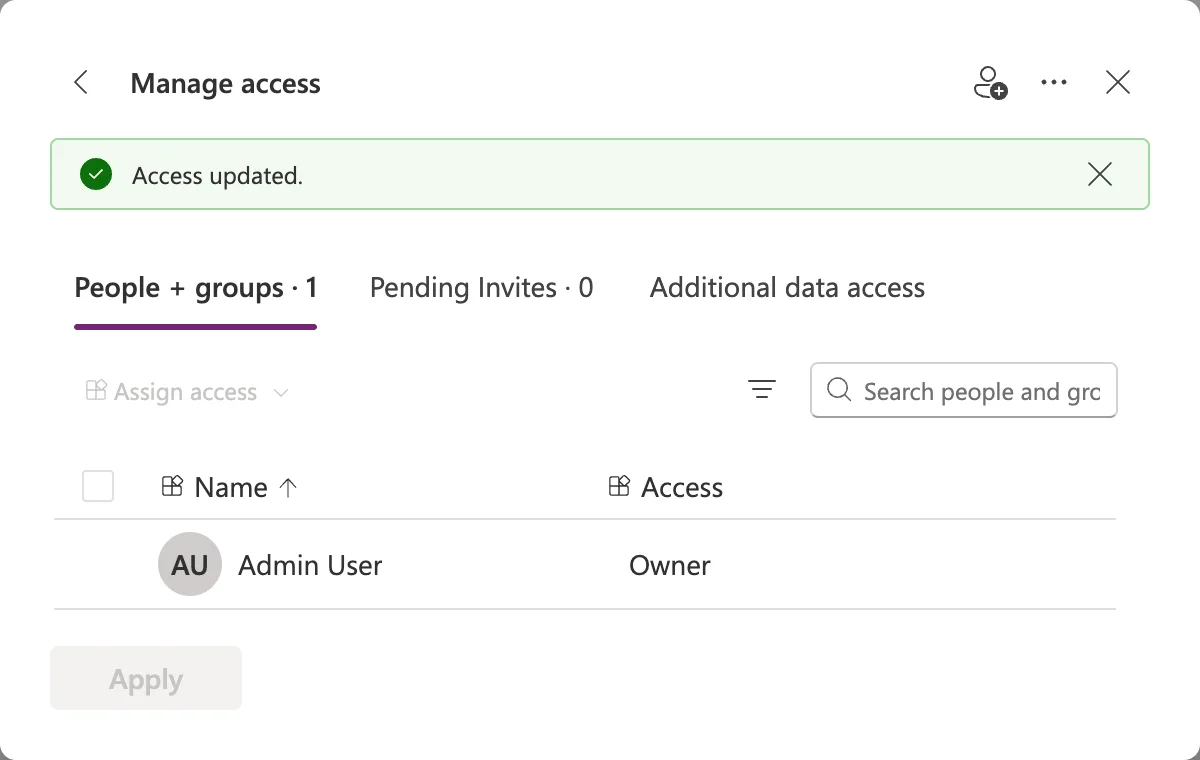
Close the dialog with X.
What Removing Access Does
When several rows are selected, the same choice appears under Assign access with Power Apps' own description: All Access and ability to use the app will be removed. It takes away the app, and nothing else:
- Data. If you gave the person access to the app's data, such as a SharePoint list, that access stays. Microsoft's sharing article reminds you that a shared app's data sources are shared separately.
- Flows. If the app runs flows and you made the person a run-only user of them, remove them there too (How to Remove a Run-Only User from a Flow in Power Automate).
- Groups. If the person is also in a security group the app is shared with, they still have the app through the group.
Common Mistakes
| Mistake | What happens | Do this instead |
|---|---|---|
| Closing the dialog without Apply | The person keeps their access | Select Apply and wait for Access updated. |
| Removing the person but not their group | They still have the app through the group | Remove them from the group, or remove the group |
| Removing app access only | They keep the data and flow access you gave them | Remove those too |
Troubleshooting
| Symptom | Likely cause | Fix |
|---|---|---|
| No drop-down next to a name | That's the app's owner | The owner can't be removed here |
| The person still opens the app | They're in a group the app is shared with | Check People + groups for groups |
| Apply stays grey | Nothing has changed yet | Pick Remove access first |
FAQ
Can I remove several people at once?
Yes. Tick their rows, open Assign access above the list, and select Remove access, then Apply.
Is the person told?
Power Apps didn't show any option to notify them.
Can I share the app with them again later?
Yes, from the Share dialog, like the first time.
Conclusion
Open the app's Share dialog, select Manage access, set the person's drop-down to Remove access and select Apply. Then check the access that came with the app: its data, its flows and any groups the person is in.
