How to Stop Inheriting Permissions on a SharePoint List

Every SharePoint list starts with the same permissions as its site, and follows any change made to the site. To give one list different permissions, stop it inheriting: Stop Inheriting Permissions on the list's Permissions page. The list then keeps a copy of the site's permissions, which you can change without touching the site.
This guide does it on the OvertimeEntries list of the Overtime Timesheet series. Everyone on the team can read the site, but the overtime entries need their own, stricter permissions.
How Inheritance Works
Microsoft's Customize permissions for a SharePoint list or library explains: "By default, all sites, lists, and libraries in a site collection inherit permissions settings from the site that is directly above them in the site hierarchy." And: "you will need to break permission inheritance before you can assign unique permissions, change permissions levels, or remove user permissions to a list, library, or survey."
Prerequisites
- Owner of the site. Owners have Full Control, which includes managing permissions.
- A list. See How to Create a List and Add Columns in SharePoint Online.
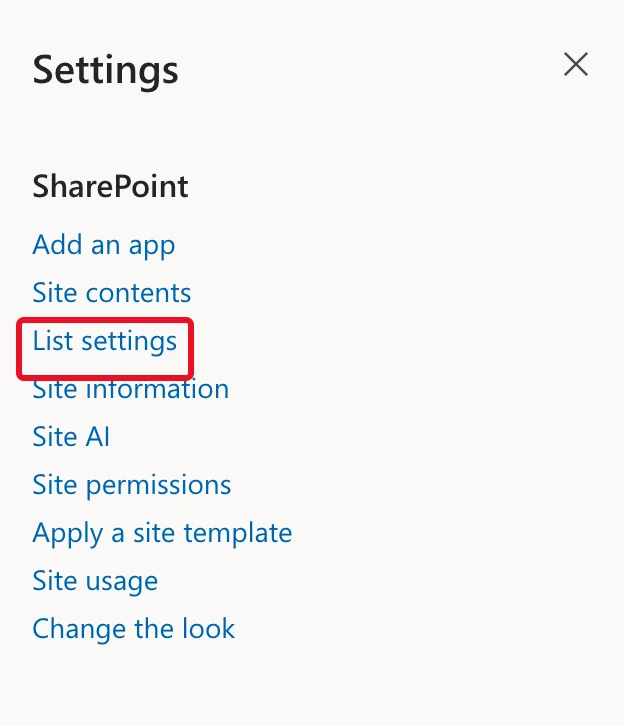
Step 1: Open the List's Settings
Open the list, select Settings (the gear), then List settings:
Step 2: Open Permissions for This List
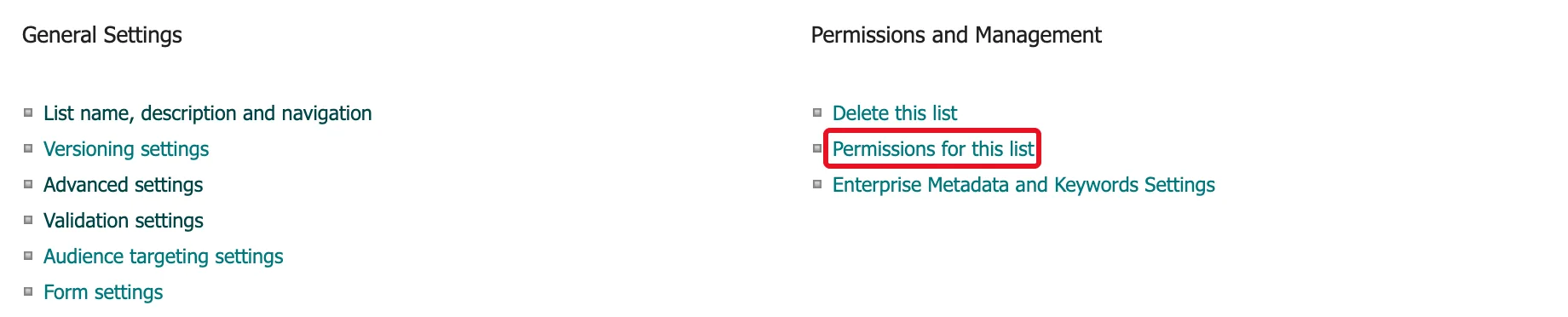
Under Permissions and Management, select Permissions for this list:
Step 3: Select Stop Inheriting Permissions
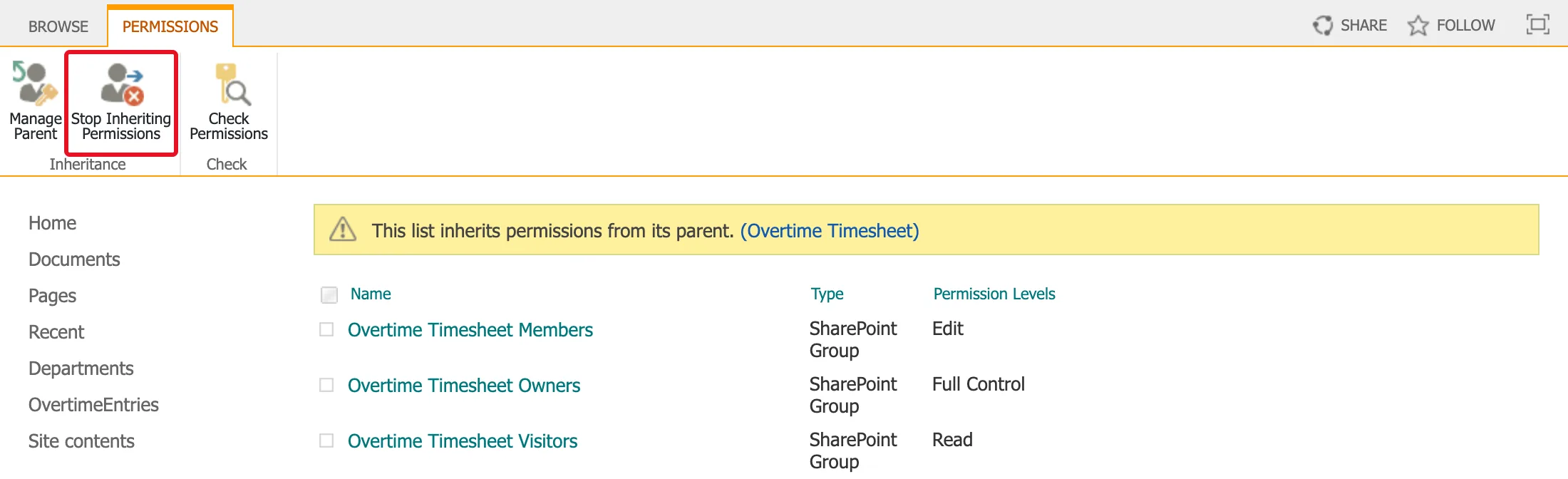
The page says This list inherits permissions from its parent. (Overtime Timesheet) and lists the site's three groups. The ribbon only offers Manage Parent, Stop Inheriting Permissions and Check Permissions: while the list inherits, its permissions are managed on the site. Select Stop Inheriting Permissions:
Step 4: Confirm
SharePoint asks in a browser dialog:
You are about to create unique permissions for this list. Changes made to the parent site permissions will no longer affect this list.
Select OK.
Step 5: Check the Result
The message is now This list has unique permissions, and the ribbon has the commands for changing them: Delete unique permissions, Grant Permissions, Edit User Permissions, Remove User Permissions and Check Permissions:
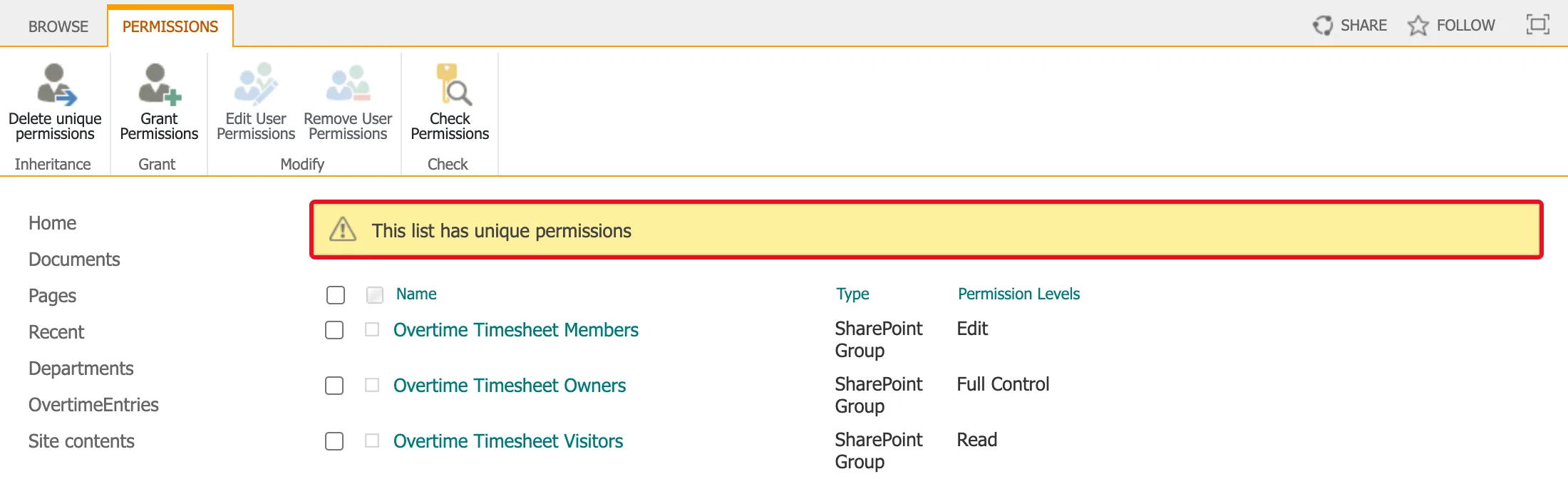
Nothing has changed about who can open the list yet. The same three groups are listed with the same levels: the list has a copy of the site's permissions. What has changed is that later changes to the site no longer reach the list, and changes to the list don't reach the site.
What to Do Next
A copy of the site's permissions is rarely what you want. Usually you then:
- Remove the groups that shouldn't have access: How to Remove a Group's Permissions from a SharePoint List.
- Grant the groups that should: How to Give a Group Access to One SharePoint List.
The copied SharePoint groups are the site's own groups, not snapshots of them. If someone is later added to the site's Members group, they get whatever the Members entry on this list allows. That's why it matters which copies you keep.
Common Mistakes
| Mistake | What happens | Do this instead |
|---|---|---|
| Stopping inheritance and then stopping | The list's access is exactly what it was | Remove and grant what the list needs |
| Changing the site's permissions later and expecting the list to follow | The list keeps its own permissions | Change the list's Permissions page too |
| Breaking inheritance on many lists without a plan | Nobody can tell who has access to what | Keep a short list of which lists have their own permissions and why |
Troubleshooting
| Symptom | Likely cause | Fix |
|---|---|---|
| No Stop Inheriting Permissions button | You aren't an owner, or the list already has unique permissions | Check the message at the top of the page |
| Grant Permissions is missing | The list still inherits | Stop inheriting first |
| You can't break inheritance on a very large list | Microsoft's article: "When a list or library contains more than 100,000 items, you can't break permissions inheritance on the list itself." | Plan permissions before a list grows that large |
FAQ
Can I make the list inherit again?
Microsoft's article describes Delete unique permissions on the same ribbon, which restores inheritance and "removes any custom permissions you set." The list then has the site's permissions again.
Does breaking inheritance change the items?
Items inherit from their list, so they now follow the list's new permissions, unless an item has permissions of its own.
How do I see which lists have their own permissions?
The site's Permissions page has a link for that: How to See Which Lists Have Unique Permissions in SharePoint.
Conclusion
List settings → Permissions for this list → Stop Inheriting Permissions → OK. The list gets a copy of the site's permissions that you can now change on its own.
