How to Stop Editing an Item Once It's Approved in Power Apps

Requests should be easy to correct until someone approves them, and fixed after that. In a gallery, give each row an Edit button whose Visible is ThisItem.Status.Value <> "Approved": pending and rejected rows can be opened, approved ones can't. When an edited item is saved, set its status back to Pending, so the change is approved too.
The example is the Overtime Timesheet app, where people can change an overtime entry until it's approved.
Prerequisites
- A gallery with a button per row: How to Add a Vertical Gallery in Power Apps and Connect It to a SharePoint List and How to Use ThisItem in a Power Apps Gallery.
- Showing and hiding controls: How to Show or Hide a Control in Power Apps with Visible.
- A status column: here a SharePoint Choice column, Status, with Pending, Approved and Rejected (How to Show a SharePoint Choice Column's Value in Power Apps).
Step 1: Hide Edit on Approved Rows
In the gallery's template, the Edit button opens the row's entry, and is only there when the entry isn't approved:
ThisItem.Status.Value <> "Approved"
Studio's preview strip can't work out a formula that uses the row, and says so: This formula uses scope, which is not presently supported for evaluation. Preview the app to see it work (How to See What a Formula Returns in Power Apps Studio).
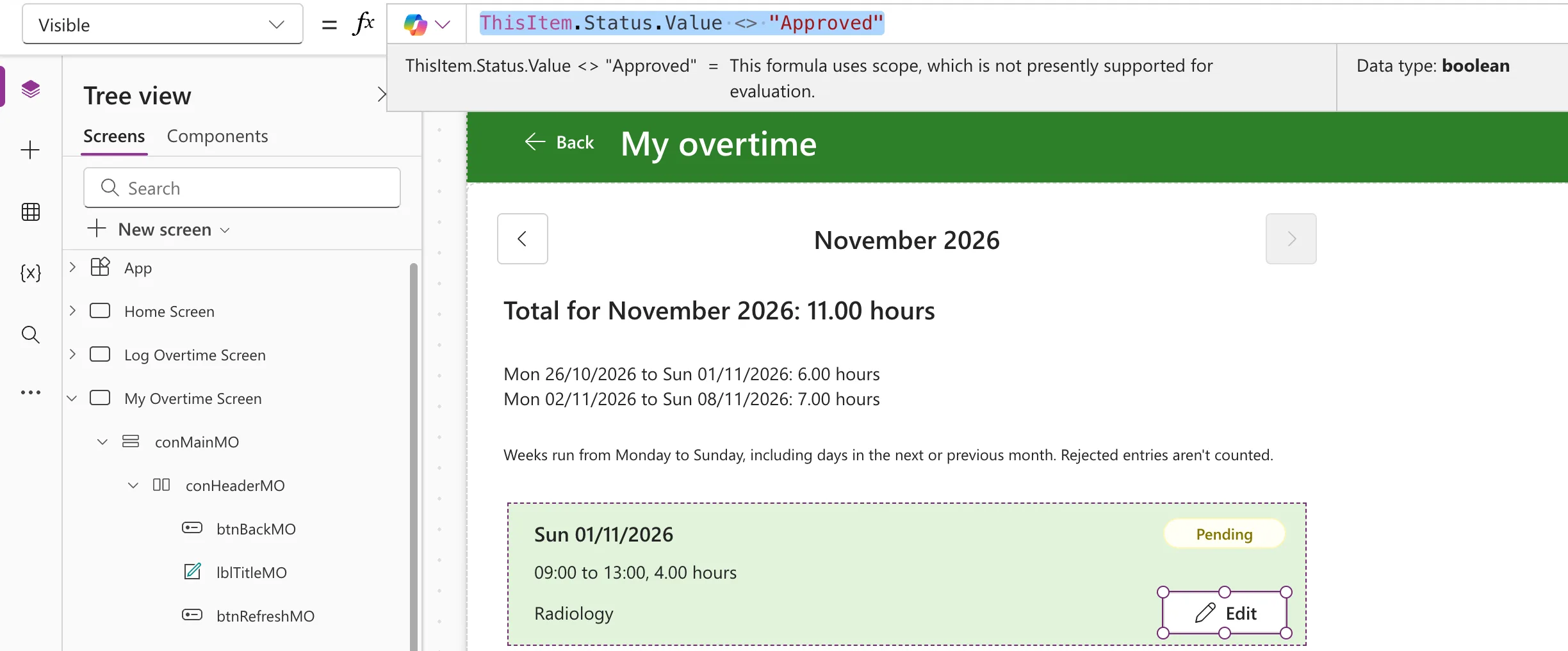
<> is "not equal to". A rejected entry keeps its button, so it can be corrected and sent again.
Step 2: Check It in Preview
The approved night shift has no Edit button; the pending entry below it does:
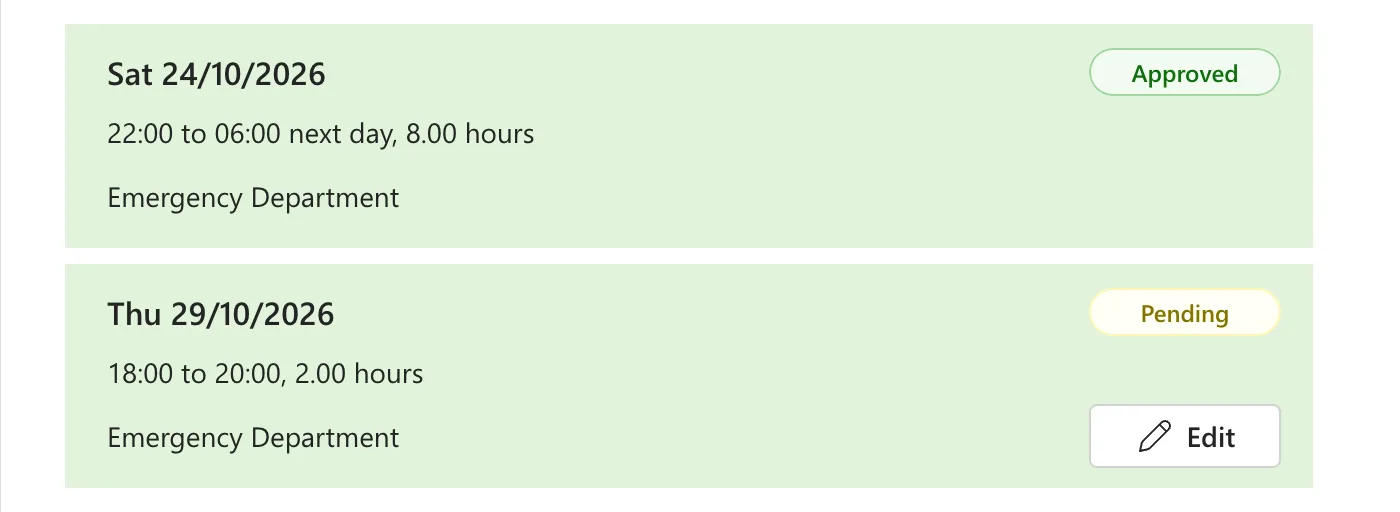
The badge shows the status in words, so people can see why there's no button (How to Add a Badge Control in Power Apps).
Step 3: Send a Corrected Item for Approval Again
Saving an edited entry sets its status back to Pending, whatever it was:
Status: {Value: "Pending"},
A rejected entry that someone corrects is then waiting for approval again. In the example, a rejected Friday shift was opened from its Edit button, its finish corrected, and saved; it came back as Pending with its new hours.
The Button Isn't the Lock
Hiding a button only changes the app. Someone with access to the list could still change the item in SharePoint. In the example, the OvertimeEntries list has content approval turned on, so any change made there puts the item back to Pending approval: Build an Overtime Timesheet App in Power Apps — Part 3. The button keeps the app tidy; the list's settings protect the data.
Common Mistakes
| Mistake | What happens | Do this instead |
|---|---|---|
ThisItem.Status <> "Approved" without .Value | A Choice column is a record, not text: Fixed: "Expected Text Value" for a SharePoint Choice Column in Power Apps | ThisItem.Status.Value |
| Hiding the button as the only protection | People can still change the item in SharePoint | Content approval, or permissions, on the list |
| Saving an edit without changing the status | A rejected item stays rejected after it's fixed | Set it back to Pending when saving |
Troubleshooting
| Symptom | Likely cause | Fix |
|---|---|---|
| This formula uses scope… in the preview strip | The formula uses ThisItem | Expected; check it in Preview |
| Approved rows still show Edit | The status text doesn't match exactly | Compare with the choice's exact text, such as Approved |
| Every row hides Edit | The formula reads the wrong column | Check it's the Status column's Value |
FAQ
Why hide the button instead of disabling it?
A disabled button still takes up the row and suggests it might work later. Hidden, the badge explains the row on its own. Either works with the same condition, in Visible or DisplayMode.
What about the screen that edits the entry?
It loads the entry fresh by its ID when it opens, so it edits what's in the list now: How to Use One Screen to Add and Edit Items in Power Apps.
Conclusion
ThisItem.Status.Value <> "Approved" in the Edit button's Visible lets people change an item until it's approved. Set the status back to Pending when an edit is saved, and let the list's settings, not the button, protect the data.
Additional Resources
- Gallery control: controls in a gallery's template.
- Patch function: changing a record.
