How to Stop a Button Being Selected Twice While It Saves in Power Apps

Saving to SharePoint takes a moment, and a second tap on Save in that moment runs its formula again: two items instead of one. Make setting a context variable the first thing OnSelect does, keep the button disabled and showing Saving... while the variable is true, and set it back when the save finishes, whether it worked or not.
The example is the Overtime Timesheet app's Log overtime screen. Each save creates an overtime entry, and a duplicate entry could get the same hours paid twice.
Prerequisites
- Context variables: How to Use Context Variables in Power Apps with UpdateContext.
- Disabling a button: How to Make a Control Read-Only in Power Apps with DisplayMode.
- Catching a failed save: How to Handle Errors in Power Apps with IfError.
Step 1: Set the Variable First
The first line of the button's OnSelect:
UpdateContext({locIsSaving: true});
Formulas joined with ; run one after the other, so the variable is true before the save starts. The loc prefix is a naming habit for context variables, which belong to one screen.
Step 2: Disable the Button While It's True
The button's DisplayMode starts with !locIsSaving, so it's Disabled while a save runs. The rest of the formula checks the form is complete (How to Validate a Form Without an Edit Form in Power Apps):
If(
    !locIsSaving &&
    !IsBlank(dpWorkDateLO.SelectedDate) &&
    !IsBlank(cmbStartLO.Selected) &&
    !IsBlank(cmbEndLO.Selected) &&
    !IsBlank(cmbDepartmentLO.Selected) &&
    !IsBlank(Trim(txtReasonLO.Text)) &&
    IsBlank(lblProblemLO.Text),
    DisplayMode.Edit,
    DisplayMode.Disabled
)

Step 3: Say What's Happening
A disabled button with no explanation looks broken. The button's Text says what it's doing:
If(locIsSaving, "Saving...", "Save")

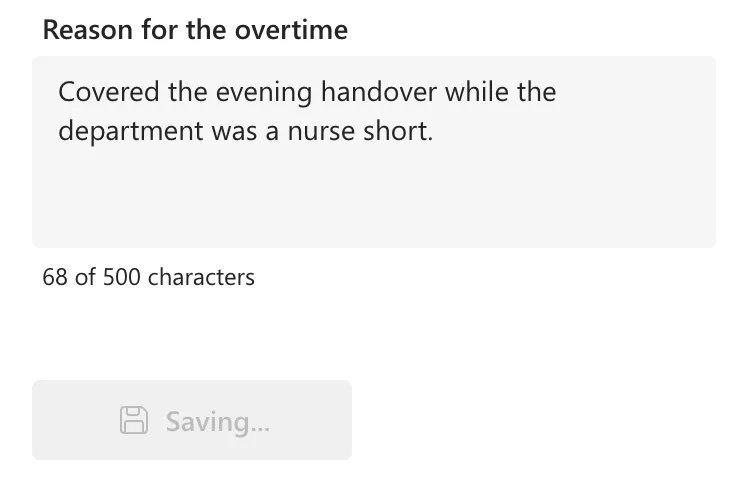
In Preview, while an entry was being saved, the button showed Saving... and was disabled:
Step 4: Set It Back on Both Paths
IfError has one path for a failed save and one for a successful save, and each sets the variable back to false:
UpdateContext({locIsSaving: true});
With(
    {
        Starts: ShiftStart(dpWorkDateLO.SelectedDate, cmbStartLO.Selected.Value),
        Ends: ShiftEnd(dpWorkDateLO.SelectedDate, cmbStartLO.Selected.Value, cmbEndLO.Selected.Value)
    },
    IfError(
        Patch(
            OvertimeEntries,
            Defaults(OvertimeEntries),
            {
                WorkDate: dpWorkDateLO.SelectedDate,
                StartTime: Starts,
                EndTime: Ends,
                BreakMinutes: numBreakLO.Value,
                Hours: Round((DateDiff(Starts, Ends, TimeUnit.Minutes) - numBreakLO.Value) / 60, 2),
                DepartmentId: cmbDepartmentLO.Selected.ID,
                Department: cmbDepartmentLO.Selected.Department,
                Reason: Trim(txtReasonLO.Text),
                EmployeeName: MyProfile.displayName,
                EmployeeEmail: MyEmail,
                Status: {Value: "Pending"},
                WorkMonth: Text(dpWorkDateLO.SelectedDate, "yyyy-mm")
            }
        ),
        UpdateContext({locIsSaving: false});
        Notify("Your overtime wasn't saved. " & FirstError.Message, NotificationType.Error),
        UpdateContext({locIsSaving: false});
        Notify("Your overtime was saved. It's waiting for approval.", NotificationType.Success);
        Back()
    )
)
- If Patch fails, the second argument runs: the button comes back, and the message says why, so the person can try again.
- If it works, the third argument runs: the button comes back, the person is told, and Back returns to the Home screen.
- What the Patch saves is its own guide: How to Save a Date and Time to a SharePoint List with Patch in Power Apps.
In the formula bar:

Step 5: Clear It When the Screen Opens
Microsoft's UpdateContext page: a context variable holds its value until the app is closed, even when the user switches to a different screen. So the screen's OnVisible sets it to false each time the screen opens, before resetting the fields (How to Run a Formula When a Screen Opens in Power Apps with OnVisible):
UpdateContext({locIsSaving: false});
Reset(dpWorkDateLO);
Reset(cmbStartLO);
Reset(cmbEndLO);
Reset(numBreakLO);
Reset(cmbDepartmentLO);
Reset(txtReasonLO)

Common Mistakes
| Mistake | What happens | Do this instead |
|---|---|---|
| Setting the variable after Patch | The button stays enabled while the save runs | Set it on the first line |
| Setting it back only after a successful save | After a failed save, the button stays disabled and says Saving... | Set it back on the error path too |
| Disabling the button without changing its text | People think the app has stopped working | If(locIsSaving, "Saving...", "Save") |
| A global variable (Set) for one screen's save | Any screen can change it | A context variable, with UpdateContext |
Troubleshooting
| Symptom | Likely cause | Fix |
|---|---|---|
| The button says Saving... after an error | The error path doesn't set the variable back | Add UpdateContext({locIsSaving: false}) to the IfError fallback |
| Save is disabled when the screen opens again | The variable kept its value from last time | Set it to false in OnVisible |
| Two entries saved from one form | The DisplayMode doesn't check the variable, or the variable is set after Patch | Check both |
FAQ
Does Back() wait for the save to finish?
Back is in the success path of IfError, which runs once Patch has returned the saved record. In the example, the success message appeared and the app returned to the Home screen after each save.
Is the button enough to stop duplicates?
It stops the double tap. The app also refuses a shift that overlaps one already logged: How to Check for Overlapping Times in Power Apps.
Conclusion
Set a context variable on the first line of OnSelect, disable the button and show Saving... while it's true, set it back on both the success and error paths, and clear it in OnVisible. One tap, one entry.
Additional Resources
- UpdateContext function: context variables and how long they keep their values.
- IfError function: a fallback when a formula fails.
