How to Split a Long Command over Several Lines in bash and zsh

A command with many options soon gets too long to read on one line. End a line with a backslash, and the shell reads the next line as part of the same command, so each part can go on a line of its own. This guide splits a short echo command over three lines, with real output from zsh 5.9 and bash 3.2.
Syntax
<command> <arguments> \
  <more arguments> \
  <last arguments>
| Part | What it means |
|---|---|
\ at the end of a line | The command goes on at the next line. It must be the last character on the line: nothing after it, not even a space |
The space before \ | Keeps the last word of this line apart from the first word of the next |
| The lines after it | Part of the same command. Indenting them is optional and only makes the command easier to read |
| The last line | Has no backslash, so pressing Enter there runs the whole command |
The bash manual: "If a \newline pair appears, and the backslash itself is not quoted, the \newline is treated as a line continuation (that is, it is removed from the input stream and effectively ignored)." The zsh manual says it more briefly: "‘\’ followed by a newline is ignored."
The Example
The example is an echo command with three fruit names, typed over three lines. echo prints its arguments on one line, so its output shows exactly what reached the command. It runs in zsh 5.9, the default shell on macOS, and every step was repeated in bash 3.2.
The output blocks show the whole screen, prompts included, because the prompts are part of what this guide is about. Your own prompt shows more, such as your folder; here it's shortened to %.
Prerequisites
- zsh or bash. This guide uses zsh 5.9, the default shell on macOS, and bash 3.2.
Step 1: Type a Command over Three Lines
Type the first line, ending with a space and a backslash, and press Enter. The shell doesn't run anything yet: it shows > and waits for the rest of the command. Type the second line the same way, then the last line without a backslash, and press Enter:
echo apples \
  bananas \
  cherries
% echo apples \
>   bananas \
>   cherries
apples bananas cherries
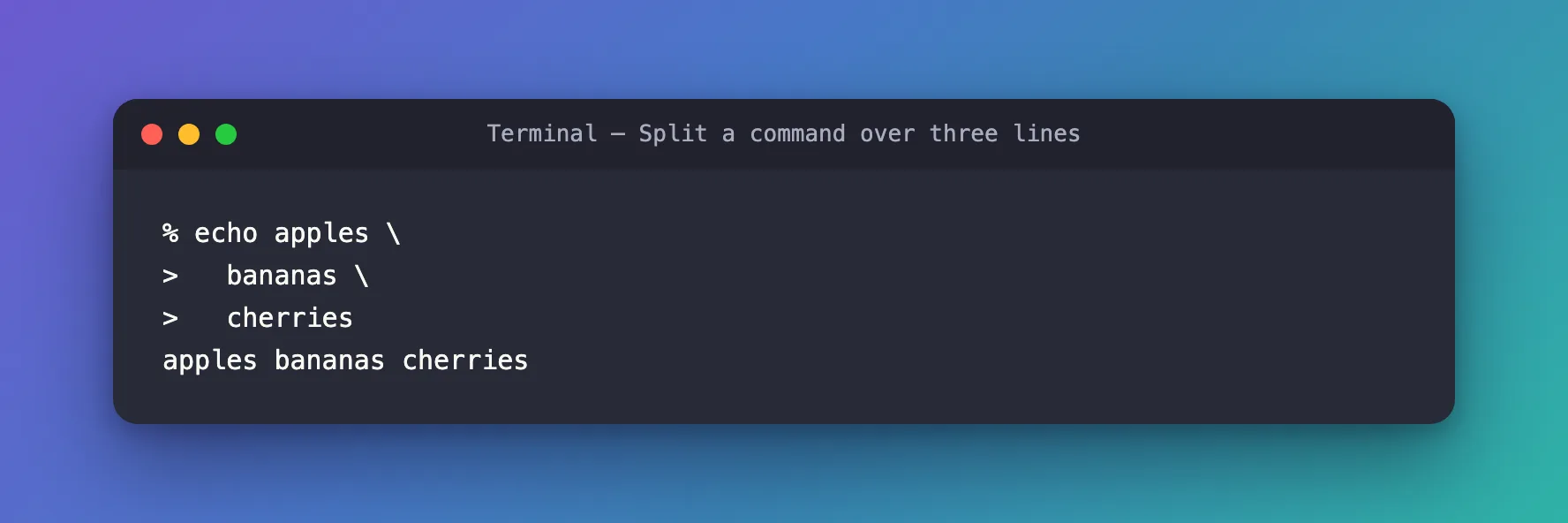
echo printed all three names on one line, so it received them as one command. The shell removed each backslash together with the line break after it, and the spaces at the start of the second and third lines only separated the words.
The > is the shell's secondary prompt, which the zsh manual describes as "The secondary prompt, printed when the shell needs more information to complete a command." In bash 3.2 the screen looked the same, apart from bash's $ prompt. The bash manual gives that prompt's default: "The default value is ‘> ’."
Step 2: See What a Space after the Backslash Does
Type the same three lines again, but press the space bar once after the first backslash, before you press Enter. The space is invisible on screen:
% echo apples \
apples
%   bananas \
>   cherries
zsh: command not found: bananas
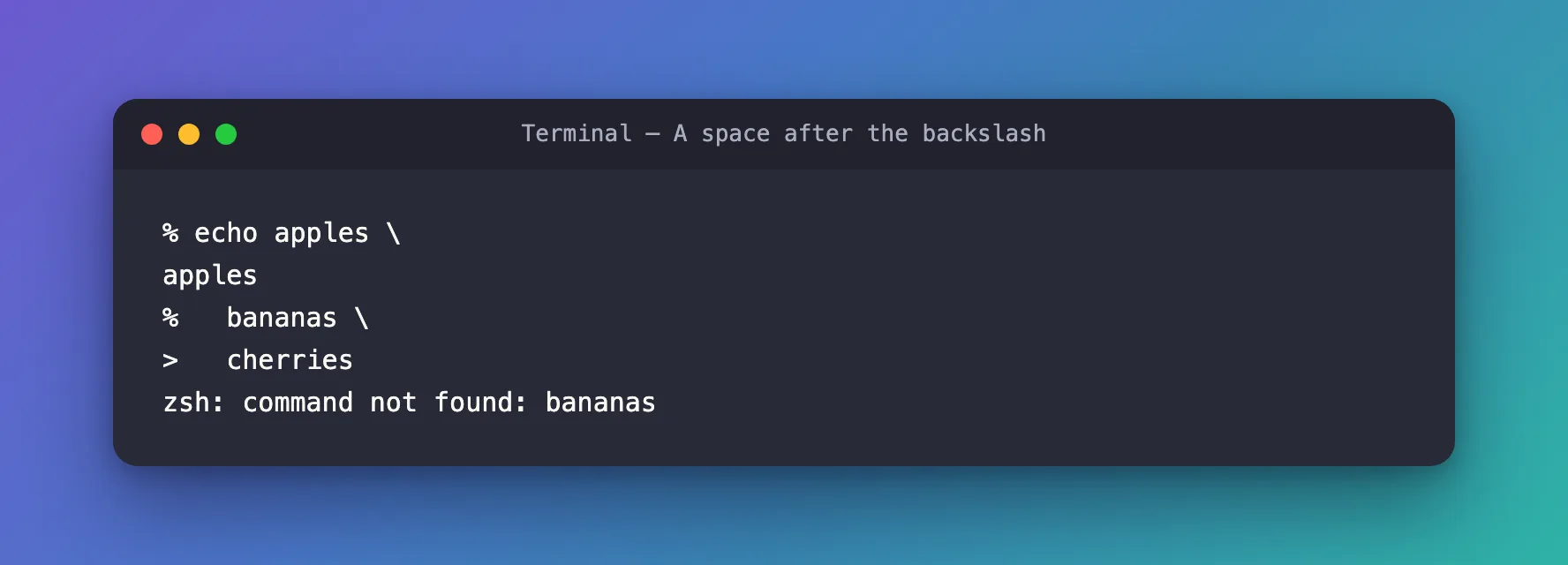
This time there was no > prompt: zsh ran echo as soon as Enter was pressed and printed apples alone. The backslash escaped the space instead of the line break, so the line break ended the command. The next two lines then became a command of their own, bananas cherries, and there's no program called bananas. bash 3.2 did the same and printed bash: bananas: command not found.
To fix it, delete the space, so that the backslash is the last character on the line.
Common Mistakes
| Mistake | What happens | Do this instead |
|---|---|---|
| A space after the backslash | The command runs at that line, and the next line becomes a separate command: zsh: command not found: bananas | Delete everything after the backslash |
No space before the backslash: echo apples\ and then bananas | The two words are glued together: echo printed applesbananas | Put a space before the backslash |
| A backslash at the end of the last line | The shell shows > and keeps waiting | Press Enter once more on the empty > line, which ran the command, and leave that backslash out next time |
Troubleshooting
| Symptom | Likely cause | Fix |
|---|---|---|
zsh: command not found: bananas in zsh or bash: bananas: command not found in bash, where bananas is the first word of a continued line | A space after the backslash on the line before it | Delete the space |
The shell shows > and nothing happens | The command isn't finished yet | Type the rest, or press Ctrl+C, which cancelled the command and brought the normal prompt back |
FAQ
Do I need a backslash after a pipe?
No. When a line ends with |, the shell waits for the rest of the pipeline by itself. zsh even shows what it's waiting for: after echo apples |, it showed pipe>, and the next line, tr a-z A-Z, which turns lowercase letters into capitals, printed APPLES. A line that ends with && continues the same way; zsh showed cmdand>. bash showed its usual > and printed APPLES too.
Does it work the same in a script?
Yes. Saved as fruits.sh, the three lines from Step 1 printed apples bananas cherries with both zsh fruits.sh and bash fruits.sh.
Conclusion
A backslash at the very end of a line let echo apples \ go on over two more lines, and the shell ran all three as one command. Put a space before each backslash and nothing after it, and leave it off the last line.
Additional Resources
- Escape Character — the backslash and line continuation in the bash manual.
- Bourne Shell Variables —
PS2, the>prompt, in bash. - zsh: Shell Grammar — quoting and the backslash in zsh.
- zsh: Parameters Used By The Shell —
PS2in zsh.
