How to Sort SharePoint Items and Get More Than 100 in Power Automate

Two advanced parameters of Get items decide what comes back and in what order. Order By sorts the items, such as StartTime for oldest first or StartTime desc for newest first. Top Count sets how many come back, up to 5,000. Microsoft's article says the default is 100, so set it whenever a list can grow.
The example is Get Waiting Approvals, a flow of the Overtime Timesheet app. It returns the overtime entries waiting for an approver, oldest shift first, and must not miss any.
Prerequisites
- A Get items action, usually with a filter (How to Filter SharePoint Items with a Filter Query in Power Automate).
Step 1: Sort with Order By
Under Advanced parameters, show Order By, and enter the column's internal name:
StartTime
Microsoft's in-depth Get items article gives the format: the column name followed by asc or desc, such as Title asc or Start_x0020_Date desc. StartTime with neither sorted the entries oldest first.
Step 2: Set Top Count
Show Top Count and enter how many items to return at most. I entered the highest the article allows without pagination:
5000
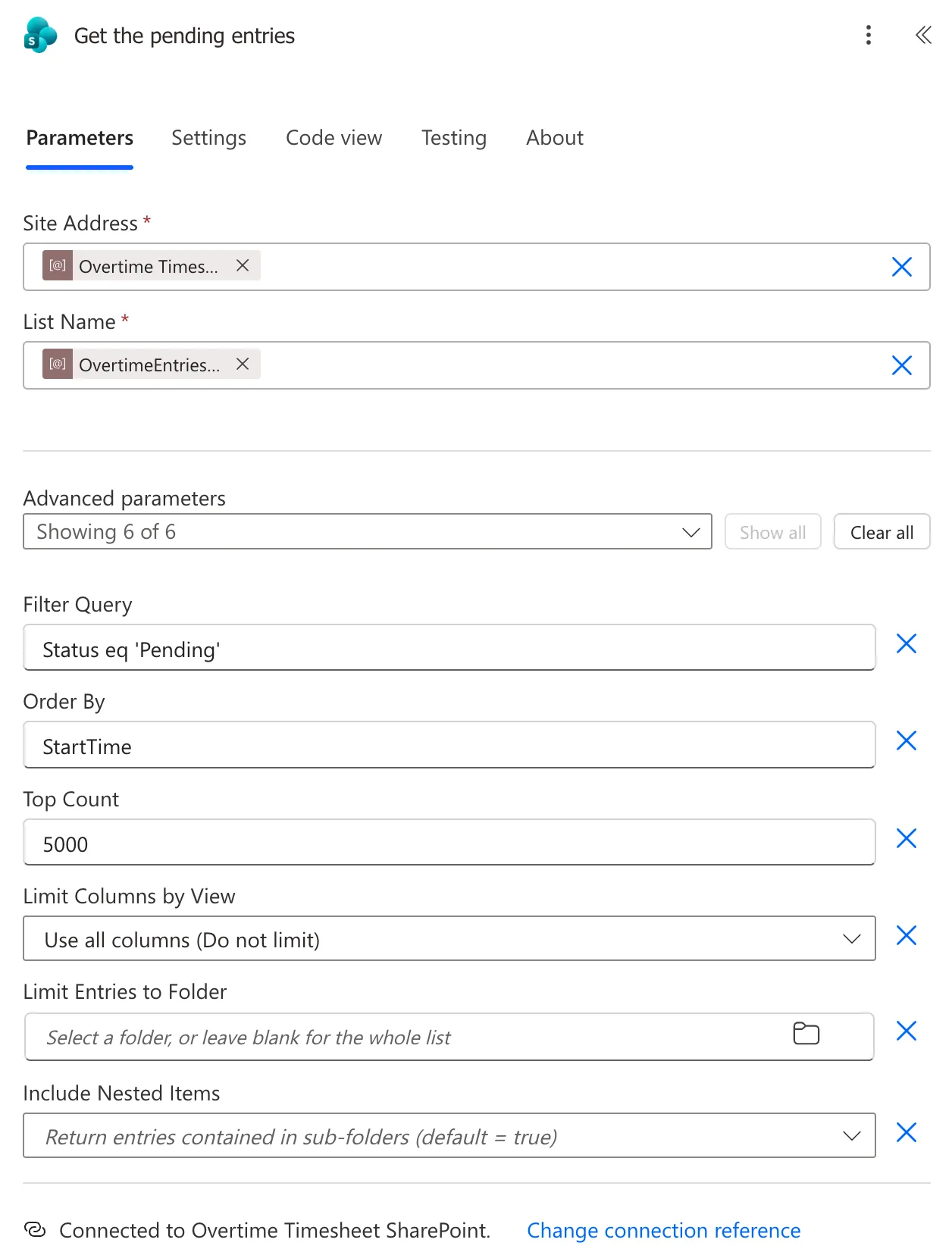
The article says:
- The default item limit is 100: with only the site and list set, the action returns 100 items.
- You can increase this limit up to the list view threshold limit of 5,000 with Top Count.
- If you go beyond 5,000 item limit, Power Automate fails and generates an error dialog.
The field's own hint says (default = all), which doesn't match the article. Setting Top Count yourself removes the doubt.
The Result
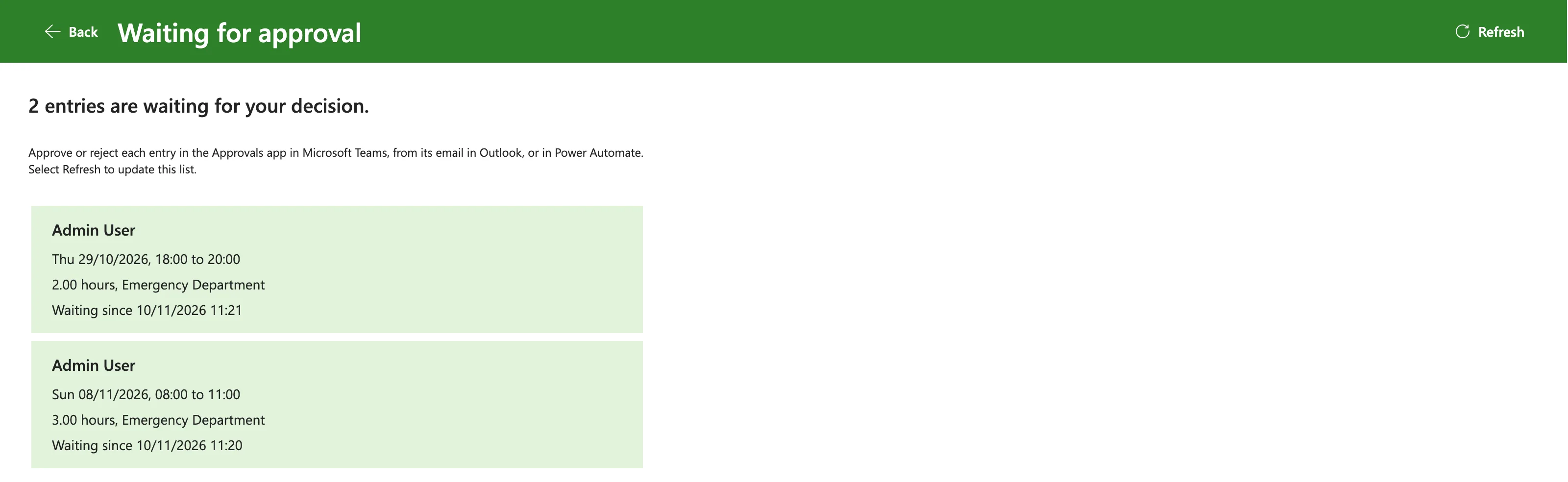
An approver with two entries waiting got them oldest shift first, 29 October before 8 November, and the app shows them in that order:
More Than 5,000 Items
This flow doesn't come near 5,000 pending entries, so I didn't turn on pagination. For lists that do, the article documents a known limitation: with a filter query on a list of more than 5,000 items, you may observe that no records are returned if there are no items matching the filter query in the first 5000 items. Its fix is to enable Pagination on Get items from the action settings menu.
Common Mistakes
| Mistake | What happens | Do this instead |
|---|---|---|
| Leaving Top Count empty | The article says only 100 come back | Set it |
| Top Count above 5,000 | The action fails | 5,000, or pagination |
| Sorting in the app instead | Extra work in the app | Order By in the flow |
| A display name with spaces in Order By | The column isn't found | The internal name, _x0020_ for spaces |
Troubleshooting
| Symptom | Likely cause | Fix |
|---|---|---|
| Exactly 100 items come back | Top Count isn't set | Set Top Count |
| Newest first instead of oldest | desc after the column | Remove desc, or add asc |
| No items on a very large list | No match in the first 5,000 | Turn on pagination in the action's settings |
FAQ
Can I sort by two columns?
Microsoft's SharePoint REST article says to specify a comma-separated list of fields, such as Department asc, StartTime asc.
Does sorting change what the filter returns?
No. Filter Query decides which items come back, Order By their order and Top Count how many.
Conclusion
Set Order By to sort the items, such as StartTime, and Top Count to how many you need, up to 5,000, instead of relying on the default of 100. Past 5,000, turn on pagination.
Additional Resources
- In-depth analysis into Get items and Get files
- Use OData query operations in SharePoint REST requests: sort returned items
