How to Sort a Table in Power Apps with Sort

Sort puts the rows of a table in order: people by name, requests by date, items by priority. Data from connectors comes back in whatever order the service chooses, so sorting it yourself makes lists predictable. Here's the syntax, the descending option, and a real example.
Syntax
Sort( Table, Formula [, SortOrder ] )
- Formula is worked out for each row, usually just a column name, and the rows are ordered by the result. It must give a number, text or true/false.
- SortOrder is
SortOrder.Ascending(the default) orSortOrder.Descending.
Sort returns a new table and doesn't change the original (Sort reference).
Prerequisites
- A table to sort. The example uses the direct reports of a manager from the Office 365 Users connector; see How to Get a User's Direct Reports in Power Apps.
Step 1: The Order You Get Without Sort
For Daniel, a manager in the example's demo organization, the connector returned Aisha Khan, Leo Martin. That happens to be alphabetical, but nothing guarantees it.
Step 2: Sort Descending
To see Sort change something, sort by name the other way:
Concat(
    Sort(Office365Users.DirectReportsV2("daniel.brooks@example.com").value, displayName, SortOrder.Descending),
    displayName,
    ", "
)
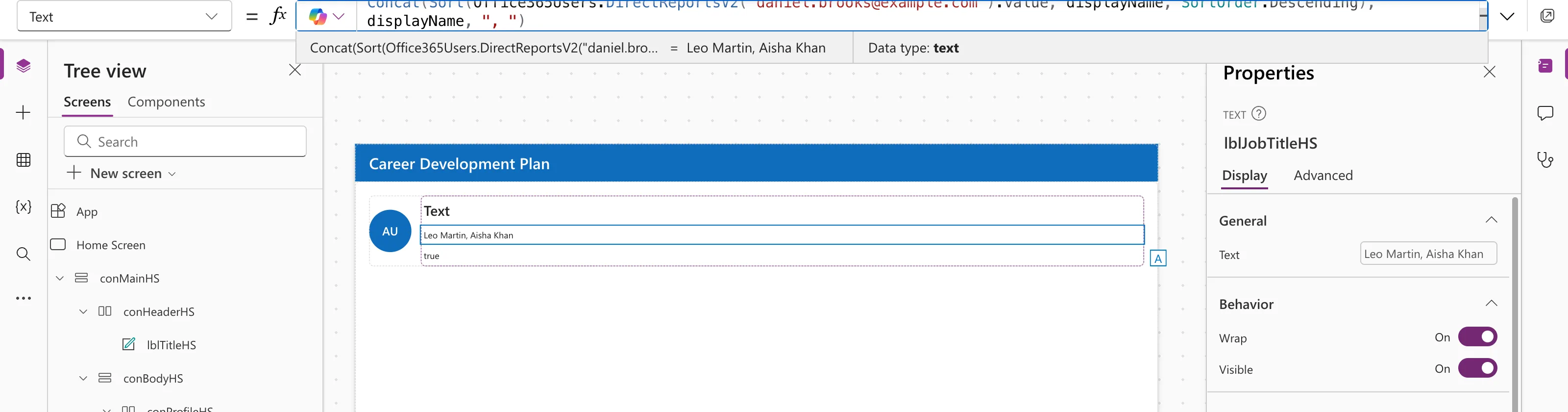
Concat just shows the result as one line of text; see How to Join Table Values into Text in Power Apps with Concat.
Step 3: Sort What You Filtered
The Career Development Plan app keeps a manager's team in name order, after removing disabled accounts:
MyDirectReports = Sort(
    Filter(
        Office365Users.DirectReportsV2(
            MyProfile.id,
            {'$select': "id,displayName,mail,userPrincipalName,jobTitle,accountEnabled"}
        ).value,
        accountEnabled
    ),
    displayName
);
No SortOrder means ascending: A to Z. See How to Filter a Table in Power Apps with Filter.
Sorting by More Than One Column
Nest Sort, innermost first:
Sort( Sort( Contacts, FirstName ), LastName )
or use SortByColumns with column names as text: SortByColumns(Contacts, "LastName", SortOrder.Ascending, "FirstName", SortOrder.Ascending).
Common Mistakes
| Mistake | What happens | Do this instead |
|---|---|---|
| Relying on a connector's order | It can change | Sort explicitly |
Sorting by a field you didn't '$select' | Every value is blank, so nothing is ordered | Add the field to '$select' |
| Sorting a big SharePoint list by a choice or lookup column | It may not be delegable, so results can be incomplete | Sort by a plain column, or sort a smaller filtered set |
Troubleshooting
| Symptom | Likely cause | Fix |
|---|---|---|
| The order didn't change | Already in that order | Try SortOrder.Descending to check |
| A delegation warning | The data source can't sort by that column | Sort by a delegable column |
FAQ
Is ascending A to Z?
Yes, for text. For numbers, smallest first; for dates, earliest first.
Does Sort change the data source?
No. It returns a sorted copy for your formula or gallery.
Sort or SortByColumns?
Sort can sort by any formula, such as Quantity + OnOrder. SortByColumns sorts by named columns and can take an explicit order list.
Conclusion
Sort(table, column) orders rows A to Z; add SortOrder.Descending for Z to A. Sort connector results explicitly, and combine Sort with Filter for lists that are both relevant and tidy.
Additional Resources
- Sort and SortByColumns functions: syntax and examples.
