How to Sign In to the Power Platform CLI with pac auth create

The Power Platform CLI, pac, exports, checks and imports solutions from a terminal, but first it has to sign in. This guide signs it in with a device code, chooses the environment it works with, and checks the result.
What the Sign-In Creates
pac auth create creates an authentication profile: a saved sign-in on your computer that later commands use (pac auth). A profile belongs to one account, and it can have an active environment, the Dataverse environment that commands such as pac solution export work with. You can keep several profiles, for example one per tenant, and switch between them.
Prerequisites
- .NET, version 10 recommended by Microsoft, and the Power Platform CLI installed as a .NET tool (Install Power Platform CLI with .NET tool). On Windows, Microsoft also offers an installer and a Visual Studio Code extension. Check both:
- macOS / Linux
- Windows (PowerShell)
dotnet --version
which pac
dotnet --version
Get-Command pac | Format-List
On the Mac used for this guide:
10.0.402
/Users/you/.dotnet/tools/pac
Running pac on its own prints its version on the second line:
Microsoft PowerPlatform CLI
Version: 2.14.1+g6f517e5 (.NET 10.0.13)
Online documentation: https://aka.ms/PowerPlatformCLI
Feedback, Suggestions, Issues: https://github.com/microsoft/powerplatform-build-tools/discussions
- An account that can work in a Power Platform environment with Dataverse. The example signs in as the admin of a Microsoft 365 developer tenant, whose default environment has Dataverse (How to Add a Dataverse Database to the Default Power Platform Environment).
Step 1: Start the Sign-In
pac auth create --deviceCode
--deviceCode makes the CLI print a code instead of signing you in itself. You finish the sign-in in any browser, which is handy when the browser where you're signed in isn't your default one. Microsoft's reference also has a --name for the profile and an --environment to choose the environment at the same time.
The CLI waits, with the address and the code:
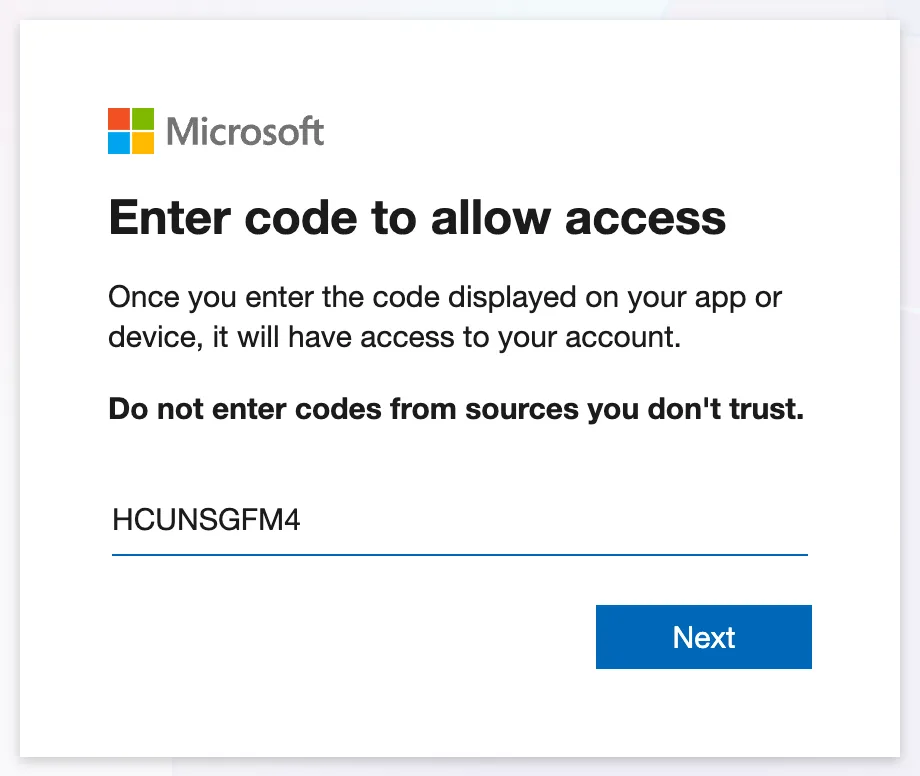
To sign in, use a web browser to open the page https://login.microsoft.com/device and enter the code HCUNSGFM4 to authenticate.
Each code works once and expires soon. Keep the terminal open until the sign-in ends.
Step 2: Enter the Code
Open https://login.microsoft.com/device in a browser, type the code from the terminal, and select Next:
Step 3: Choose the Account and Approve
The next page, Pick an account, says You're signing in to Power Platform CLI - pac on another device, and shows where the request comes from. Select the account you want the CLI to use. If you aren't signed in to it in this browser, sign in with it.
Microsoft then asks you to confirm:
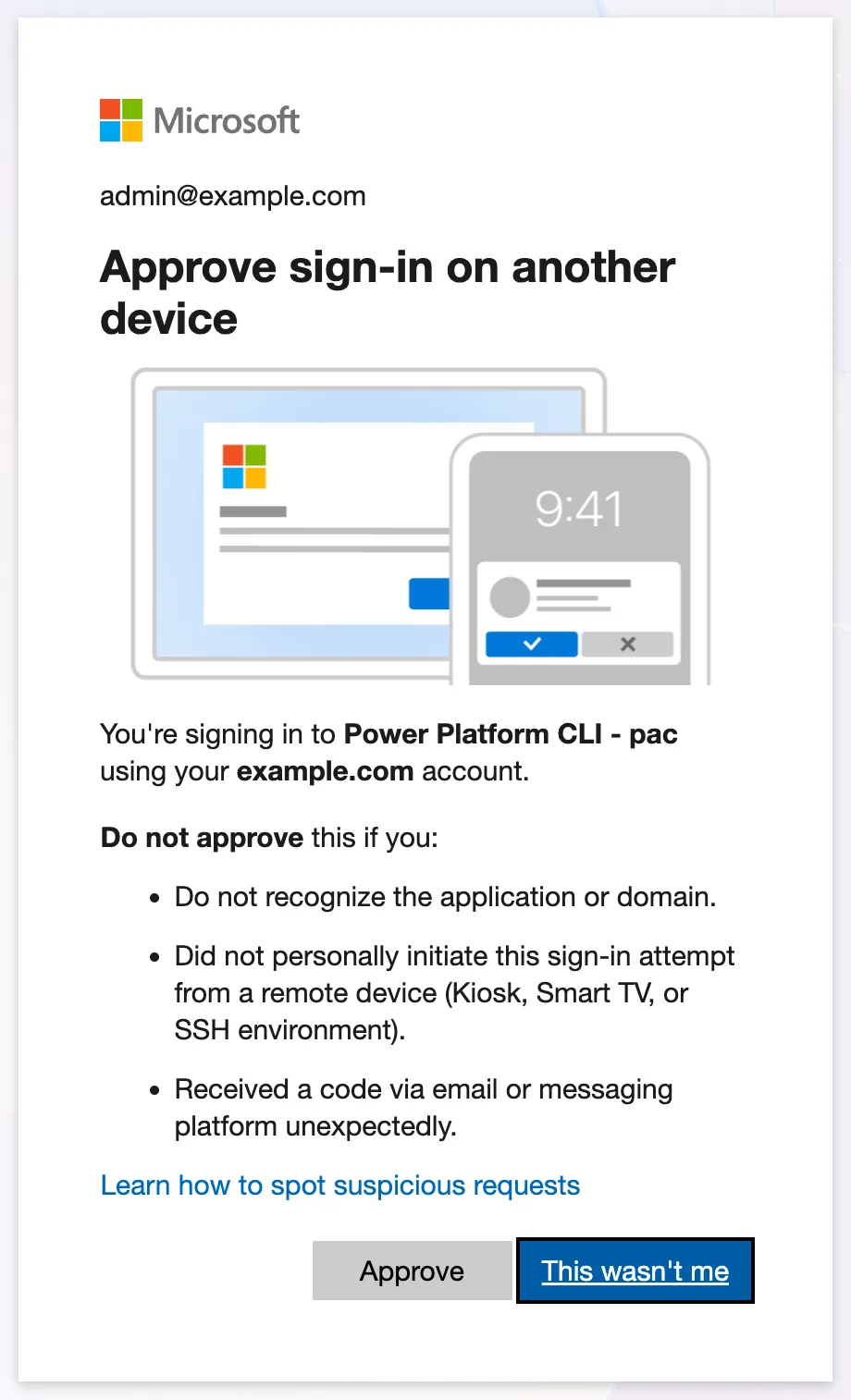
Check that it says Power Platform CLI - pac and that you ran the command yourself, a moment ago. Then select Approve. If anything doesn't match, select This wasn't me.
Step 4: Check the Terminal
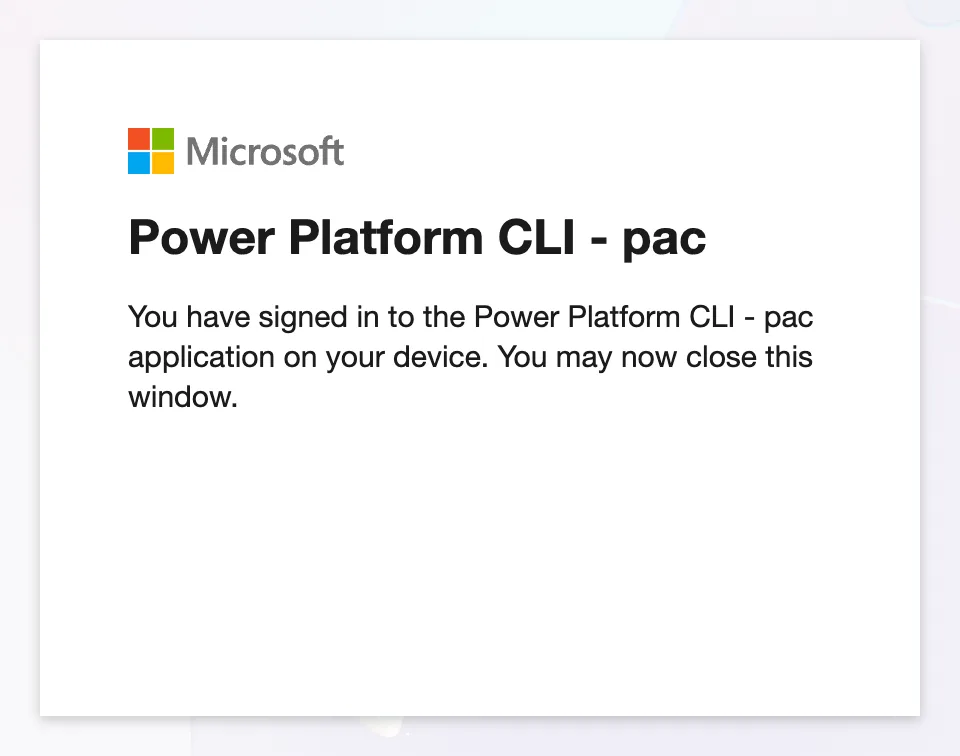
The browser confirms it:
And the terminal continues:
'admin@example.com' authenticated successfully.
Authentication profile created
    * UNIVERSAL                                : admin@example.com                    Public
* marks the profile as active. You can close the browser tab.
Step 5: Choose the Environment
Without --environment, the new profile had no active environment, so commands such as pac env who stopped with No active environment set for the current auth profile (the fix). List your environments:
pac env list
Connected as admin@example.com
Active Display Name        Environment ID                       Environment URL                         Unique Name
       Default Environment 00000000-0000-0000-0000-000000000000 https://org00000000.crm.dynamics.com/  unq00000000000000000000000000000000
Then select one, by its display name, URL or ID:
pac env select --environment "Default Environment"
Connected as admin@example.com
Looking for environment ''Default Environment''
Validating connection...
Connected to... Default Environment
Selected org 'Default Environment' 'https://org00000000.crm.dynamics.com/' for current authentication profile.
pac env was called pac org before version 1.32, and org still works (pac env).
Step 6: Check the Profile
pac env who shows who you are and where you're connected:
$ pac env who
Connected as admin@example.com
Connected to... Default Environment
Organization Information
  Org ID:                     00000000-0000-0000-0000-000000000000
  Unique Name:                unq00000000000000000000000000000000
  Friendly Name:              Default Environment
  Org URL:                    https://org00000000.crm.dynamics.com/
  User Email:                 admin@example.com
  User ID:                    00000000-0000-0000-0000-000000000000
  Environment ID:             00000000-0000-0000-0000-000000000000
pac auth list shows every profile on the computer, with the active one marked *:
$ pac auth list
Index Active Kind      Name User                  Cloud  Type Environment         Environment Url                        ERP URL
[1]   *      UNIVERSAL      admin@example.com     Public User Default Environment https://org00000000.crm.dynamics.com/
The CLI is ready. How to Export a Solution in Power Apps and How to Run the Solution Checker use it.
Sign Out When You're Done
The profile stays on your computer until you remove it. The CLI's own help lists two ways:
pac auth clearclears all authentication profiles stored on this computer.pac auth delete --index 1deletes one profile, by the indexpac auth listshows.
Common Mistakes
| Mistake | What happens | Do this instead |
|---|---|---|
| Approving a code you didn't request | Someone else's device gets into your account | Approve only a sign-in you started a moment ago |
Leaving out --environment | The profile has no active environment | Run pac env select, or add --environment |
| Picking the wrong account in the browser | The CLI works with that account's environments | Check pac env who |
Troubleshooting
| Symptom | Likely cause | Fix |
|---|---|---|
pac isn't found | The CLI isn't installed, or its folder isn't on your path | Install it as a .NET tool, then open a new terminal |
| No active environment set for the current auth profile | The profile has no environment | pac env select --environment "<name>" |
| The code is rejected | It expired or was already used | Run pac auth create --deviceCode again for a new one |
FAQ
Does the CLI store my password?
No password was typed in the terminal. The sign-in happened in the browser, and the CLI keeps the resulting profile until you clear it.
Can I use more than one tenant?
Yes. Create one profile per account, then switch with pac auth select --index <n> (pac auth).
Do I need to sign in every time?
No. The profile is saved, so later commands reuse it until you clear it.
Conclusion
pac auth create --deviceCode prints a code, you approve the sign-in in a browser, and the CLI saves a profile. Give the profile an environment with pac env select, check it with pac env who, and clear it with pac auth clear when you're done.
Additional Resources
- pac auth: every sign-in option.
- pac env: listing and selecting environments.
- What is Microsoft Power Platform CLI?: installing and managing profiles.
