How to Show Total Hours Over 24 in Excel

A total of times needs a different format from a time of day. hh:mm shows the clock, so 60 hours 15 minutes shows as 12:15. The custom format [h]:mm shows elapsed hours: 60:15.
The example is the total time worked on the Monthly totals sheet of the old overtime timesheet, from Part 1 of the Overtime Timesheet series: =SUM(OvertimeLog[Time worked]).
Prerequisites
- A cell that adds up times, such as the one in How to Add Up a Row or Column with SUM in Excel.
Step 1: Select the Total
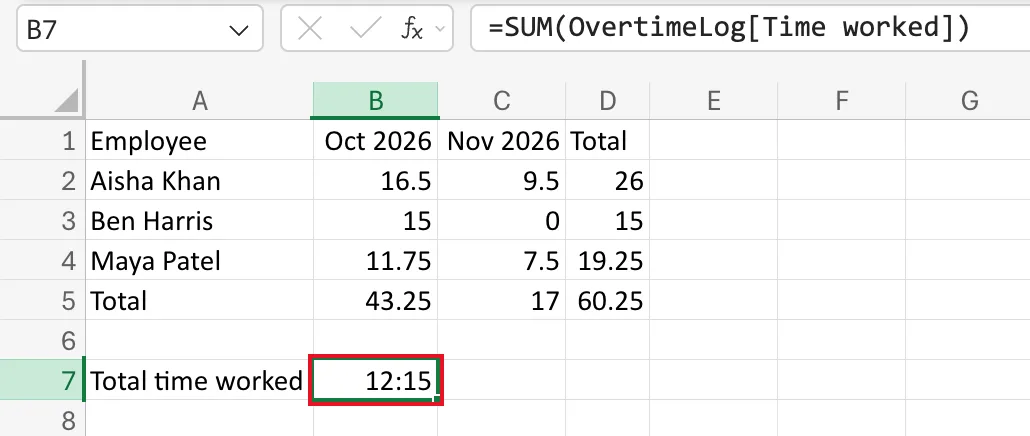
Select the cell with the total, here B7. It shows 12:15, because Excel gave it the same hh:mm format as the times it adds up:
Step 2: Open the Custom Formats
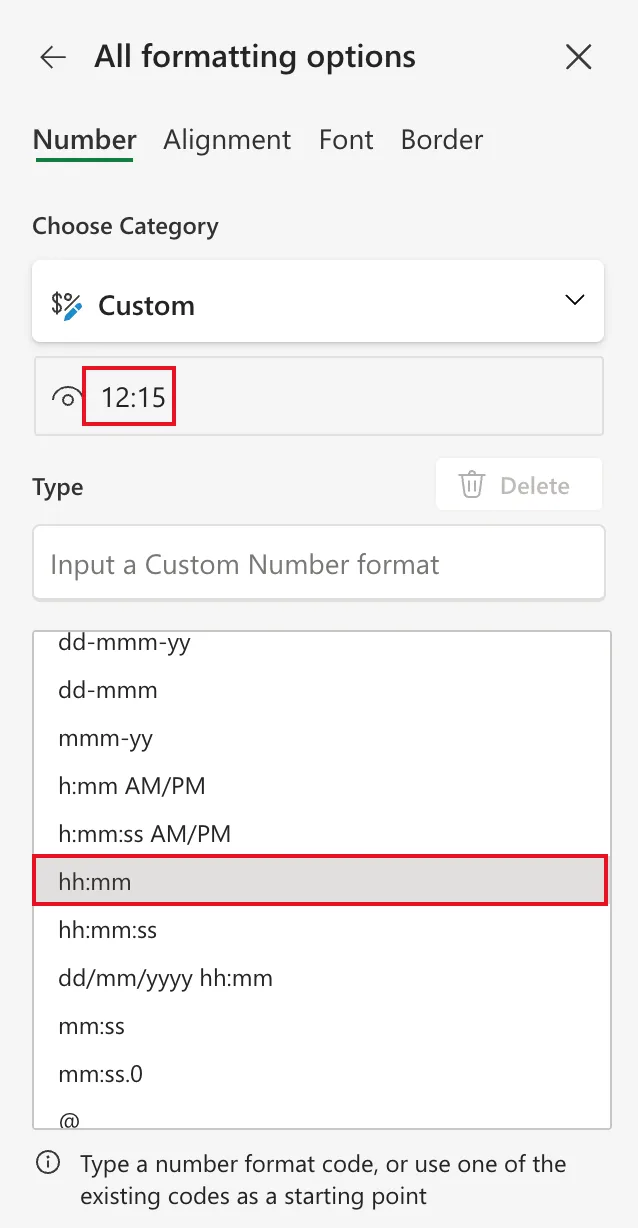
On the Home tab, open Number Format → More Number Formats. In the All formatting options pane, Choose Category is already Custom, with the current code, hh:mm, selected:
Step 3: Enter [h]:mm and Confirm
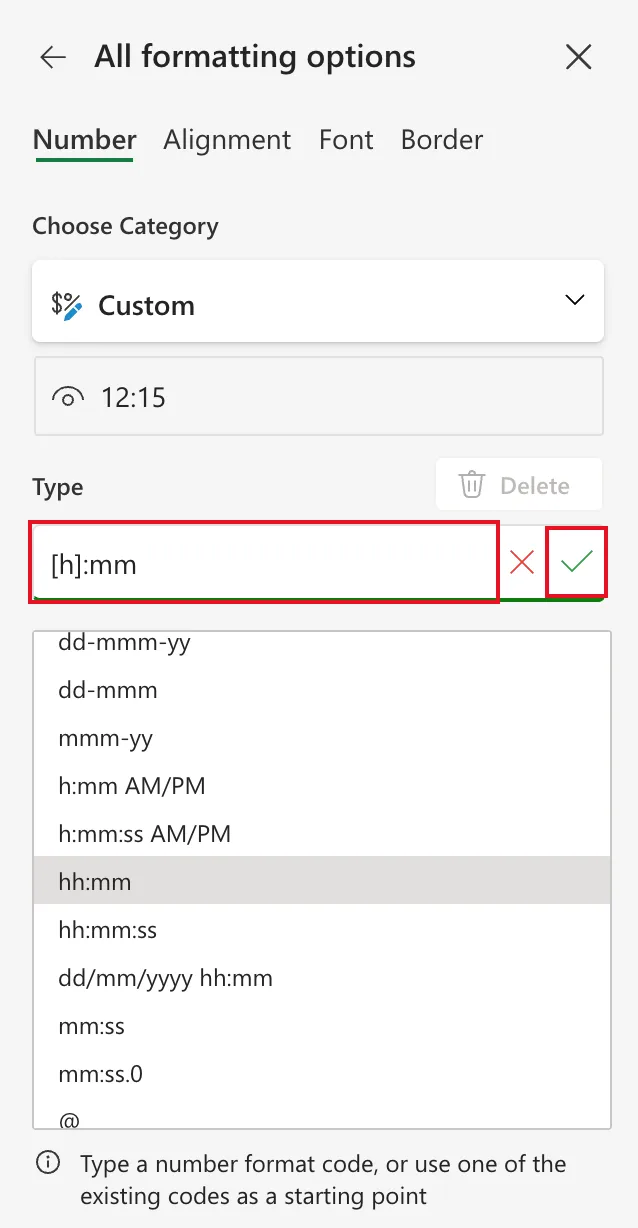
Type [h]:mm in Type and select the Confirm tick:
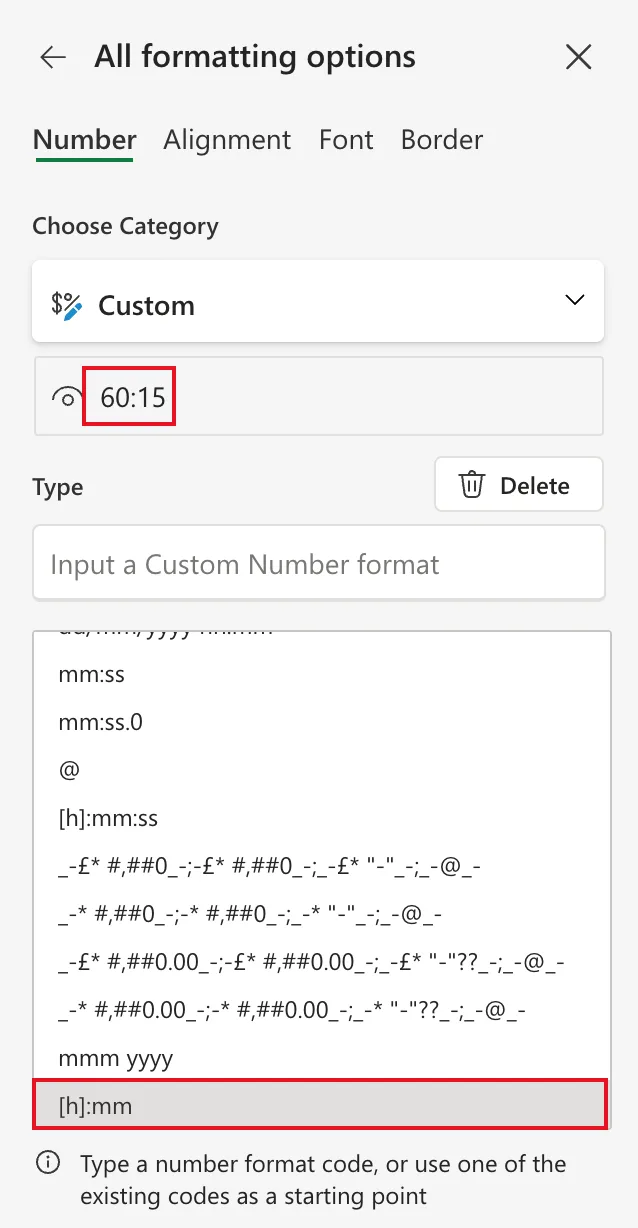
The preview changes to 60:15, and [h]:mm joins the list:
Step 4: Check the Total
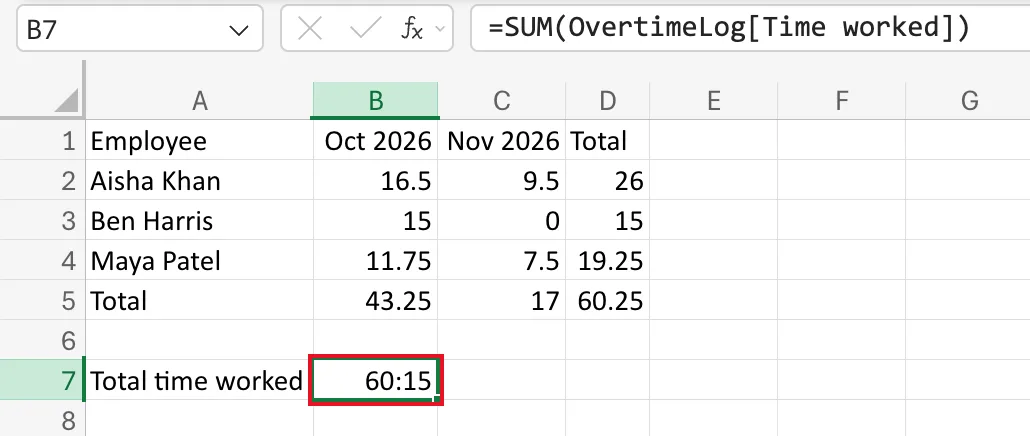
Close the pane. B7 shows 60:15:
Why the Brackets
Review guidelines for customizing a number format describes [h] as elapsed time in hours, for formulas that return more than 24 hours. Without brackets, h is the hour of the day, 0 to 23, and the whole days are dropped. [h]:mm:ss, already in the list, does the same with seconds.
Fixed: Excel Total of Times Wraps Around After 24 Hours tells how this came up, including Microsoft's pages that say Excel for the web can't apply custom formats.
Common Mistakes
| Mistake | What happens | Do this instead |
|---|---|---|
| Formatting the times you add up instead of the total | The total keeps its hh:mm format | Format the total cell |
| Choosing Time from the list | It's a clock-time format | Use [h]:mm |
| Forgetting Confirm | The format isn't applied | Select the tick |
Troubleshooting
| Symptom | Likely cause | Fix |
|---|---|---|
| Total is exactly a multiple of 24 hours short | hh:mm format | [h]:mm |
| The total shows a date | A date format on the total | [h]:mm |
FAQ
How do I show the total as a decimal instead?
Multiply by 24 and format as a number: How to Convert Time to Decimal Hours in Excel.
Is there the same thing for minutes?
Yes. The same Microsoft page lists [m] for elapsed minutes and [ss] for elapsed seconds.
Conclusion
Format totals of times with [h]:mm. Brackets round the h show every elapsed hour instead of the hour of the day.
