How to Show Times in 24-Hour Format in SharePoint

A SharePoint site with US settings shows a night shift starting at 10:00 PM. Hospitals, rotas and timesheets usually write that as 22:00. The site's Time format setting switches every time on the site to the 24-hour clock.
This guide uses the site of the Overtime Timesheet series, where staff log shifts that often run past midnight.
Before: 12-Hour Times
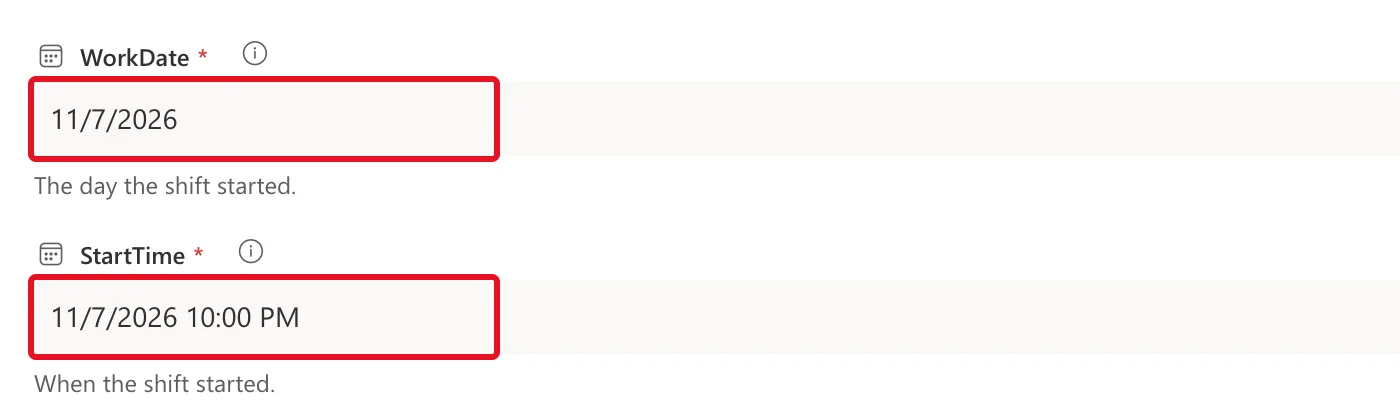
In the list's New item form, a start time of 22:00 on 7 November showed as 11/7/2026 10:00 PM:
Prerequisites
- A SharePoint site you own. If you created it, you're its owner.
Step 1: Open Regional Settings
Select Settings (the gear) → Site information → View all site settings, then Regional settings under Site Administration. How to Change the Time Zone of a SharePoint Site shows each of those screens.
Step 2: Set Time Format to 24 Hour
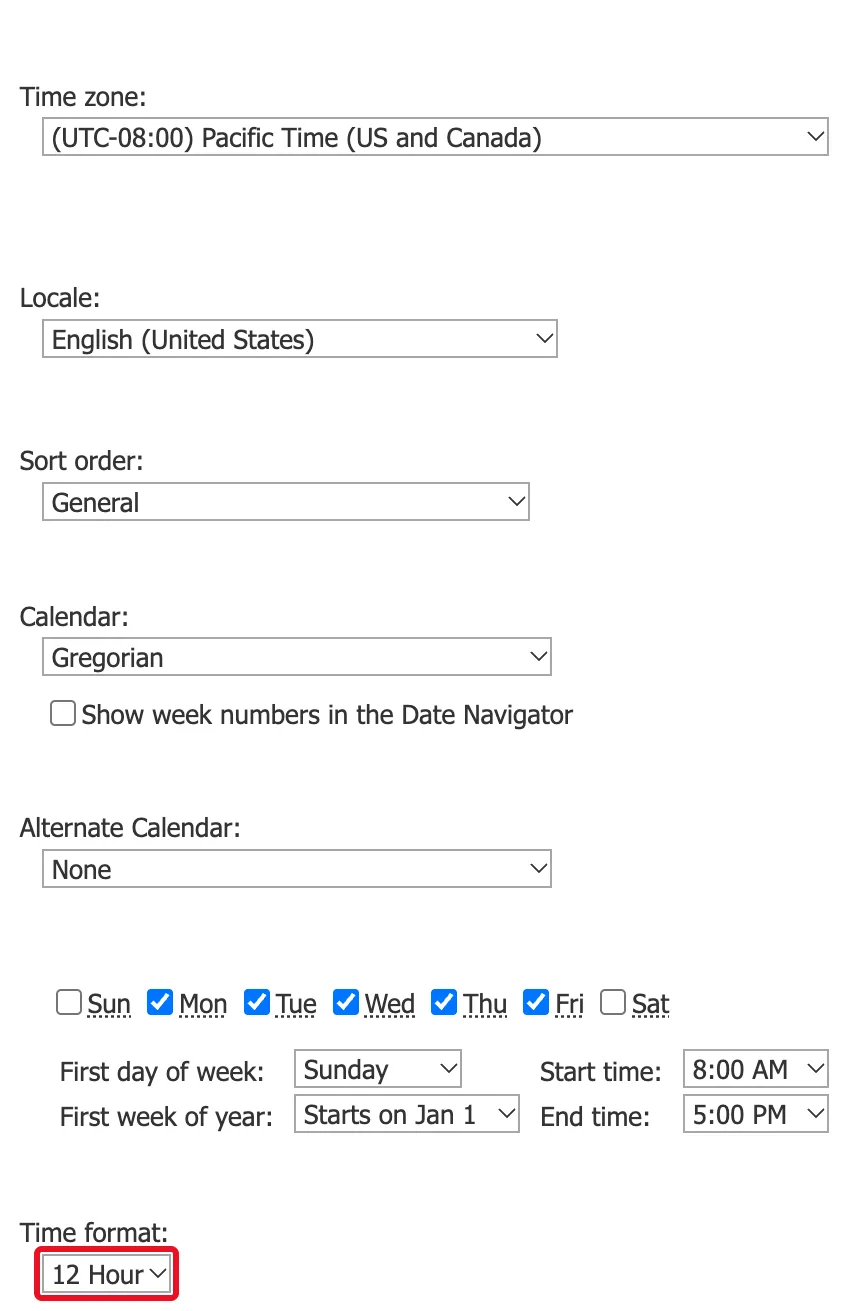
Time format is the last setting on the page. With the English (United States) locale it's 12 Hour:
Choose 24 Hour:
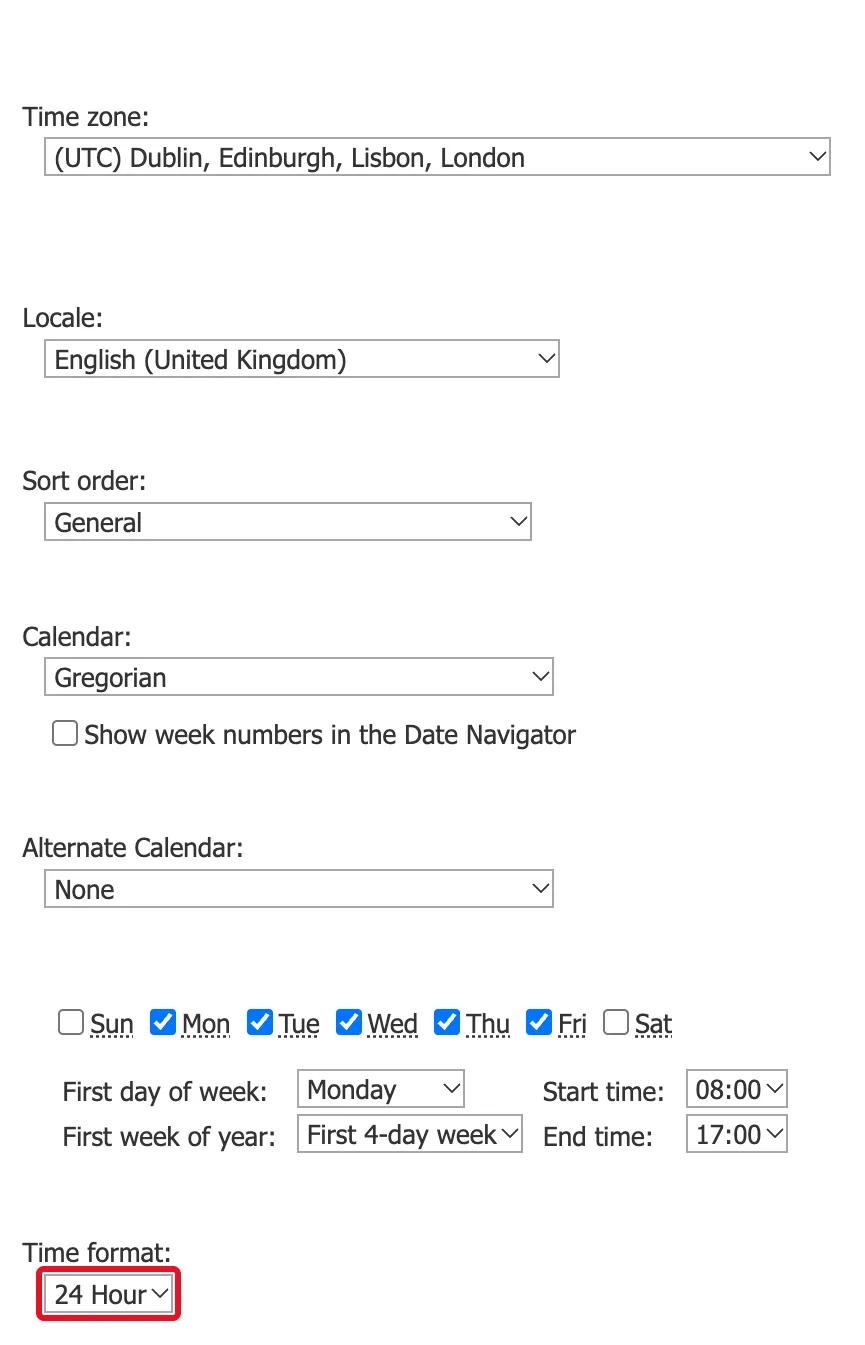
Changing the Locale resets the other regional settings, the time format included, to that locale's defaults. On this site, choosing English (United Kingdom) set the time format to 24 Hour straight away. So if you're changing the locale too, change it first, as How to Change the Date Format of a SharePoint Site explains, then check Time format. Microsoft's Change regional settings for a site adds that, depending on the locale, "you may be able to select only the 24-hour format."
Step 3: Save with OK
Select OK at the bottom of the page. SharePoint goes back to Site Settings without a message.
After: 24-Hour Times
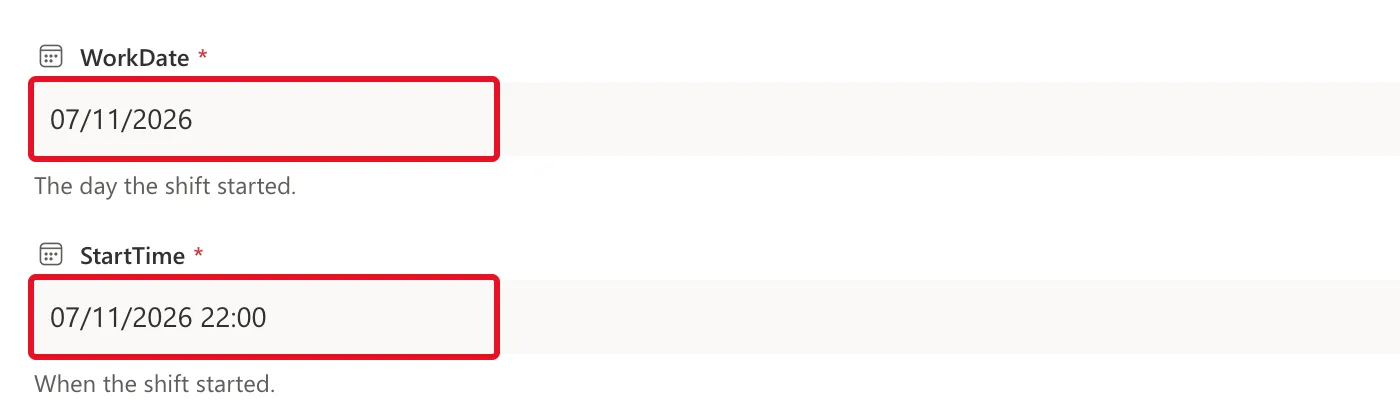
The same start time now shows as 22:00, and the date is day first because the locale changed too:
The Time Box in the Date Picker
There's one place this setting didn't reach. When you pick a date and time, the picker has a small time box under the calendar. In my browser it still showed 10:00 PM after the change, while the field above it said 22:00:
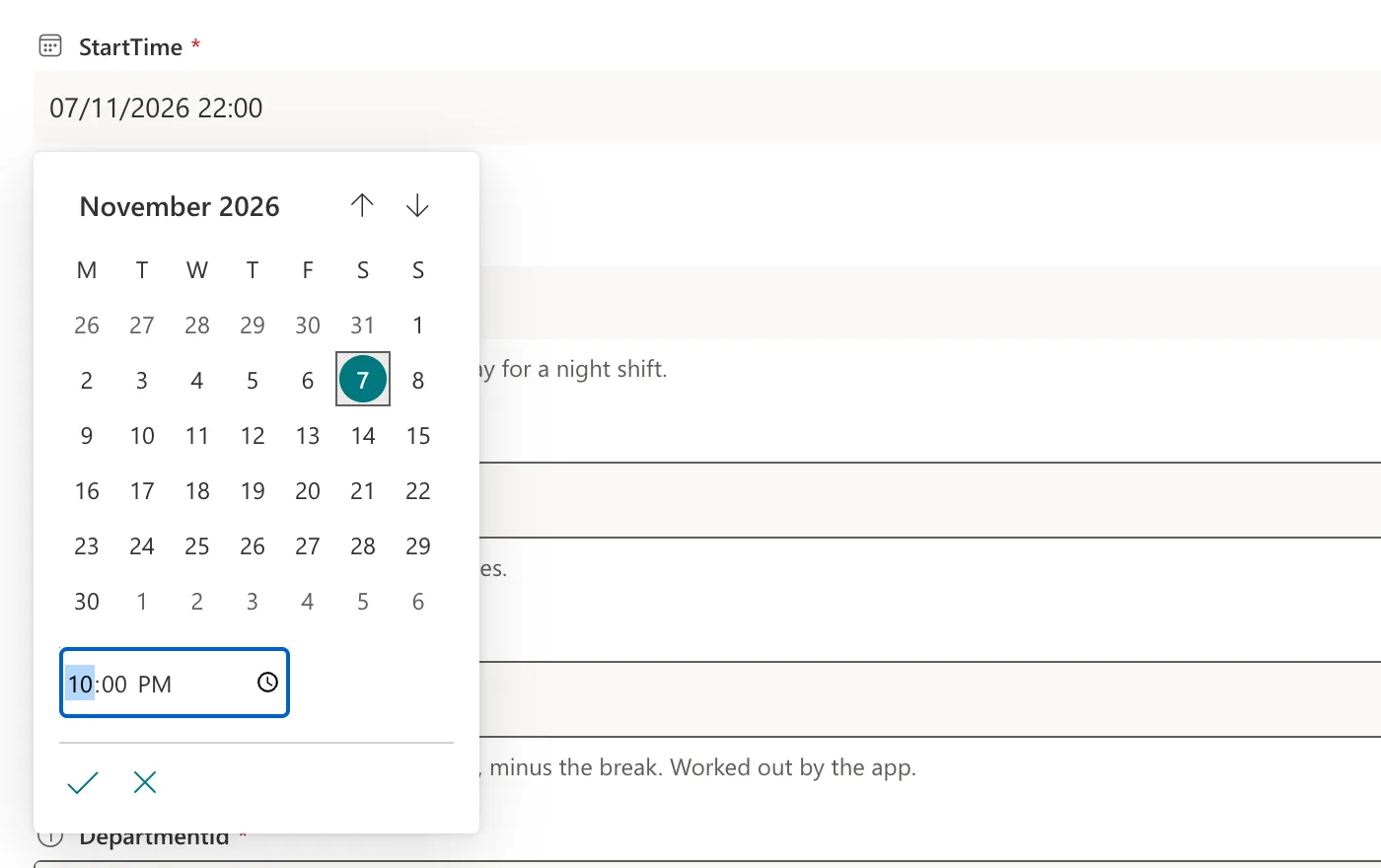
That box is the browser's own time control, not part of SharePoint's settings, so it can stay on the 12-hour clock. Whatever it shows, check the field above it: that's the value SharePoint saves, in the site's format.
Common Mistakes
| Mistake | What happens | Do this instead |
|---|---|---|
| Setting 24 Hour, then changing the locale | The locale puts the time format back to its own default | Change the locale first |
| Judging the setting by the picker's time box | It's the browser's control and may still show PM | Look at the field, where SharePoint shows the saved value |
Troubleshooting
| Symptom | Likely cause | Fix |
|---|---|---|
| Times still show AM and PM after saving | The change wasn't saved with OK, or you use personal regional settings | Check Time format again, and your own regional settings |
| Only 24 Hour is offered | The locale only allows the 24-hour format | Nothing to fix: that's the locale's rule |
FAQ
Does this change the times that are stored?
No. It changes how the site shows them. 10:00 PM and 22:00 are the same time.
Can each person choose their own time format?
Yes. Microsoft's page says individual users can choose their own personal settings, "which would override the site-level settings."
Conclusion
Regional settings → Time format → 24 Hour → OK puts the whole site on the 24-hour clock. Change the locale first if you're changing it, because it resets the time format too.
