How to Show the Names in a SharePoint Person Column in Power Apps

A SharePoint Person column that allows several people reaches Power Apps as a table, with a record for each person. To show the names in a label, join the records' DisplayName values with Concat.
Syntax
Concat(Item.PersonColumn, DisplayName, Separator)
| Part | What it is |
|---|---|
| Item | The item whose people you show, such as ThisItem in a gallery's row. |
| PersonColumn | A Person column that allows several people: a table with one record per person. |
| DisplayName | The field to join, the person's name. Each person record also has Email, Department and JobTitle. |
| Separator | The text between two names, such as ", ". Microsoft's Concat reference puts it between the values, not after the last one. |
The example below is a gallery of departments, each showing the people who approve its overtime.
Prerequisites
- A list with a Person column that allows multiple selections (How to Add a Person Column to a SharePoint List). The example's Departments list has an Approvers column for the people who approve each department's overtime.
- A gallery showing the list (How to Add a Vertical Gallery in Power Apps and Connect It to a SharePoint List).
How Power Apps Sees a Person Column
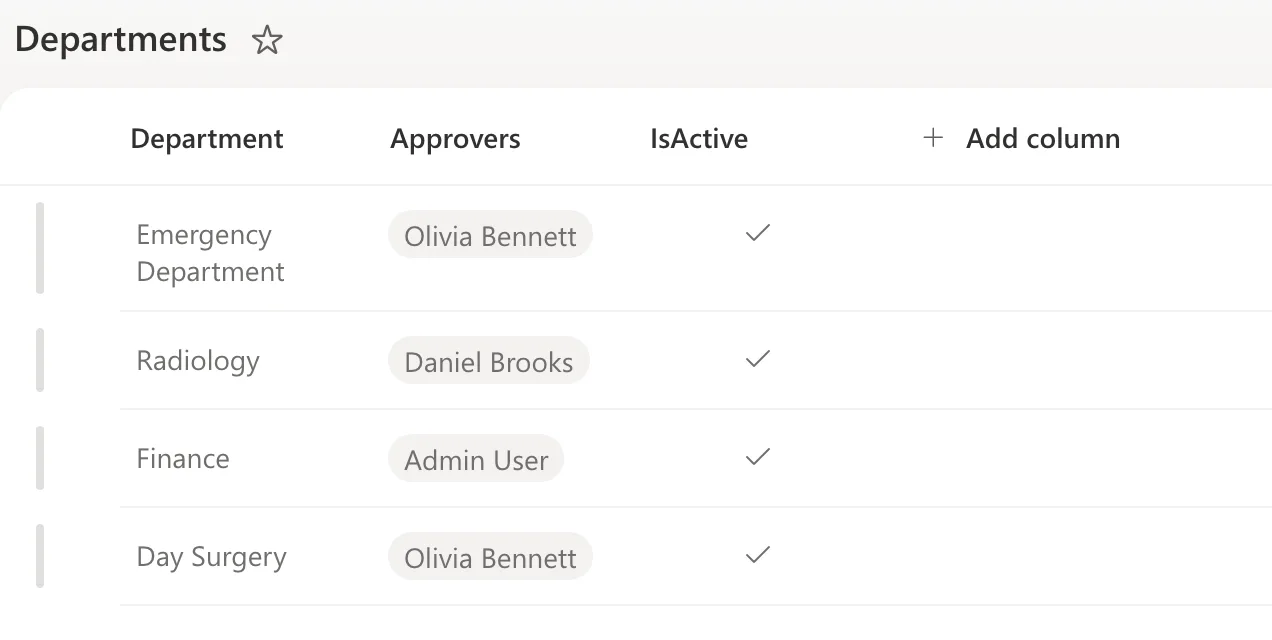
Each person is a record with fields such as DisplayName and Email. When the column allows several people, the value is a table of those records (How to Check If the Current User Is in a SharePoint Person Column in Power Apps). In SharePoint, the example's Approvers column shows each person as a chip:
Step 1: Join the Names with Concat
In the gallery's row, set a text control's Text to the people's names, separated by a comma and a space (How to Join Table Values into Text in Power Apps with Concat):
"Approvers: " & Concat(ThisItem.Approvers, DisplayName, ", ")
ThisItem.Approversis the table of people in the row's department (How to Use ThisItem in a Power Apps Gallery)."Approvers: "in front labels the line.
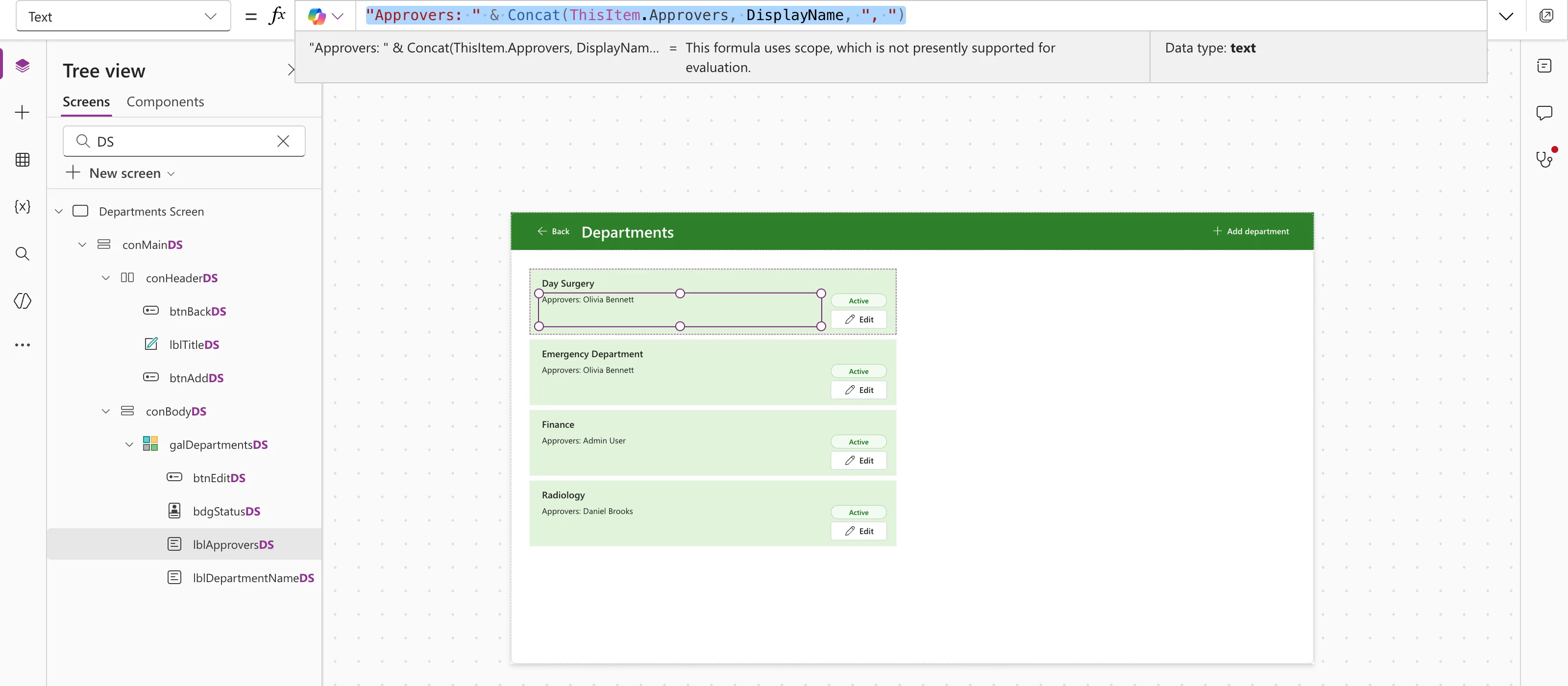
The preview strip can't work out formulas that use ThisItem and says so; the rows on the canvas show the result (How to See What a Formula Returns in Power Apps Studio).
Step 2: Leave Room for Several Names
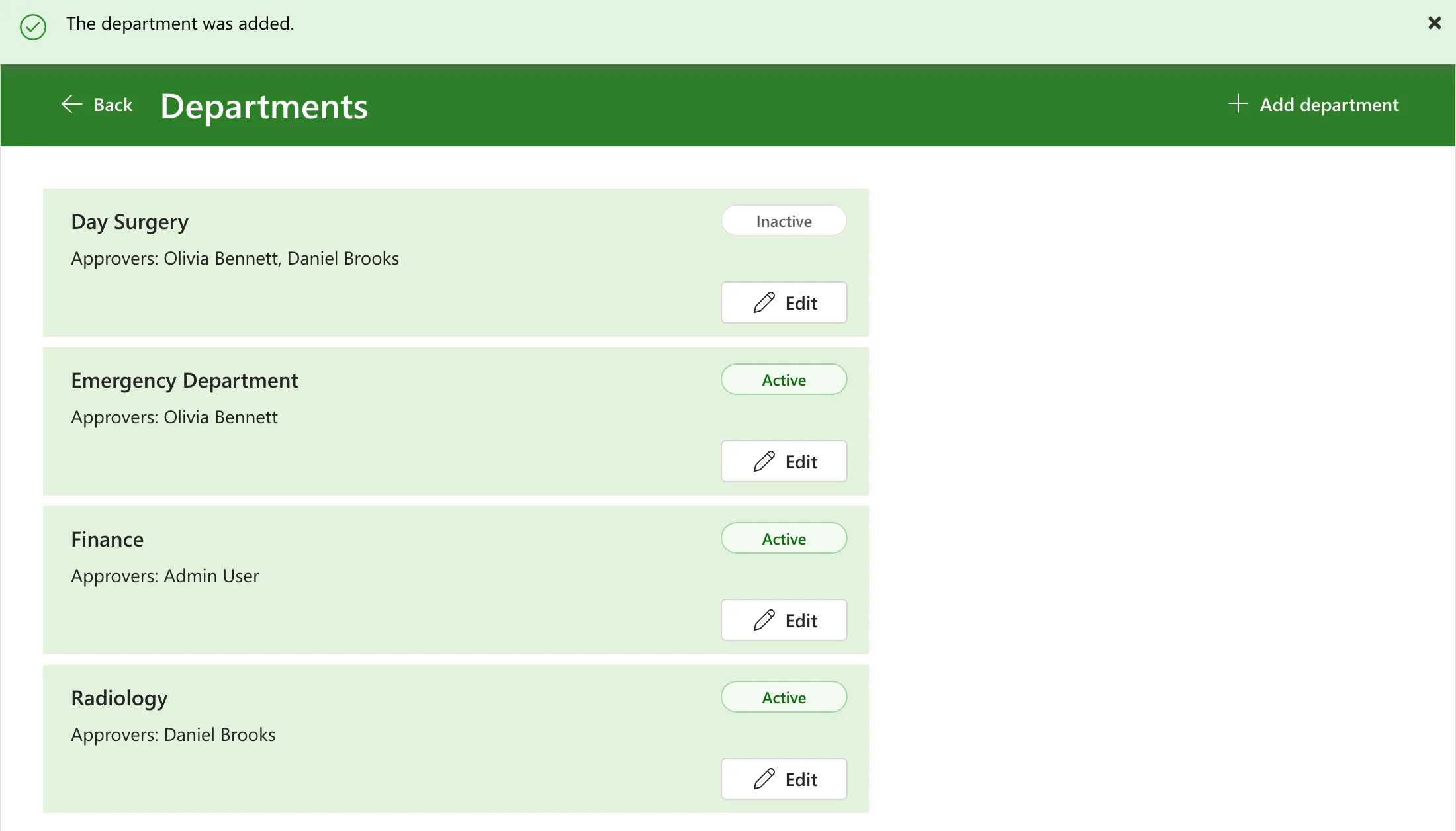
Two or three names make a long line. In the example, the label is 56 pixels high with Vertical align set to Top, so the names wrap onto a second line inside the row. A department with two approvers:
Common Mistakes
| Mistake | What happens | Do this instead |
|---|---|---|
ThisItem.Approvers.DisplayName in a text control | It's a table of names, not text | Concat(ThisItem.Approvers, DisplayName, ", ") |
| Joining Email to show people | Readers see addresses instead of names | Join DisplayName |
| A one-line label for the names | Long lists are cut off | More height, Vertical align Top |
Troubleshooting
| Symptom | Likely cause | Fix |
|---|---|---|
| This formula uses scope, which is not presently supported for evaluation. | Studio's preview strip can't work out ThisItem | Check the rows on the canvas, or in Preview |
| The line is empty | The item has nobody in the column | Show a word for that case, such as If(IsEmpty(ThisItem.Approvers), "No approvers", ...) |
FAQ
What about a column that allows only one person?
Then the value is one record, not a table, so ThisItem.Approver.DisplayName gives the name, with your column's name in place of Approver.
Can I show emails instead?
Yes: join Email instead of DisplayName. The example shows names, because people recognize them more easily than addresses.
Conclusion
A multi-person column is a table of people. Concat(column, DisplayName, ", ") turns it into one line of names, and a taller label with Vertical align Top keeps longer lists readable.
Additional Resources
- Concat and Concatenate functions
- Connect to SharePoint from a canvas app: how SharePoint column types map to Power Apps.
