How to Show Progress Updates in the Microsoft 365 Agents SDK in C#

When an agent works through several slow steps, a typing indicator says it's busy but not with what. Informative updates say it: Building the app..., Running the tests..., Deploying to staging..., each replacing the last, until the answer takes their place. In the Microsoft 365 Agents SDK, QueueInformativeUpdateAsync sends them.
How It Works
Microsoft's Teams documentation describes them: Informative updates are short texts that an agent can optionally display while preparing to stream a response to a user message. They're shown directly beneath the chat message to which the agent is responding, not in message bubbles, and are accompanied by an animated icon. Each new update the agent sends replaces the previous one.
In the Agents SDK, they belong to the turn's stream, turnContext.StreamingResponse:
QueueInformativeUpdateAsync(text)sends a status line. The first one opens the stream; each later one replaces the text.- The answer goes into the same stream, with
QueueTextChunk(text), and replaces the status line. EndStreamAsync()sends the final message and closes the stream.
They only show on channels that stream: Microsoft Teams, Web Chat and Direct Line. On other channels the SDK skips them, and the answer arrives as an ordinary message when you end the stream.
The Example
A deploy agent: send deploy, and it builds, tests and deploys an app, naming each step as it goes, then says which version went live. The steps aren't real: each is a two-second Task.Delay. The agent is one class in an ASP.NET Core project with the Agents SDK 1.9.205, hosted with AddAgentDefaults().AddAgent<DeployAgent>() and MemoryStorage, listening on port 3978.
Prerequisites
- The Microsoft 365 Agents Playground.
agentsplayground --versionshould print0.2.30. If the command isn't found, install it withnpm install -g @microsoft/m365agentsplayground.
Step 1: Send an Update Before Each Step
using Microsoft.Agents.Builder;
using Microsoft.Agents.Builder.App;
using Microsoft.Agents.Builder.State;
using Microsoft.Agents.Core.Models;

namespace DeployProgress;

public class DeployAgent : AgentApplication
{
    public DeployAgent(AgentApplicationOptions options) : base(options)
    {
        OnMessage("deploy", DeployAsync);
        OnActivity(ActivityTypes.Message, HelpAsync, rank: RouteRank.Last);
    }

    private async Task DeployAsync(ITurnContext turnContext, ITurnState turnState, CancellationToken cancellationToken)
    {
        try
        {
            // Each delay stands in for a slow step of a real deployment.
            await turnContext.StreamingResponse.QueueInformativeUpdateAsync("Building the app...", cancellationToken);
            await Task.Delay(TimeSpan.FromSeconds(2), cancellationToken);

            await turnContext.StreamingResponse.QueueInformativeUpdateAsync("Running the tests...", cancellationToken);
            await Task.Delay(TimeSpan.FromSeconds(2), cancellationToken);

            await turnContext.StreamingResponse.QueueInformativeUpdateAsync("Deploying to staging...", cancellationToken);
            await Task.Delay(TimeSpan.FromSeconds(2), cancellationToken);

            turnContext.StreamingResponse.QueueTextChunk("Version 1.4.2 is live on staging.");
        }
        finally
        {
            await turnContext.StreamingResponse.EndStreamAsync(cancellationToken);
        }
    }

    private Task HelpAsync(ITurnContext turnContext, ITurnState turnState, CancellationToken cancellationToken)
        => turnContext.SendActivityAsync("Send **deploy** to deploy the app to staging.", cancellationToken: cancellationToken);
}
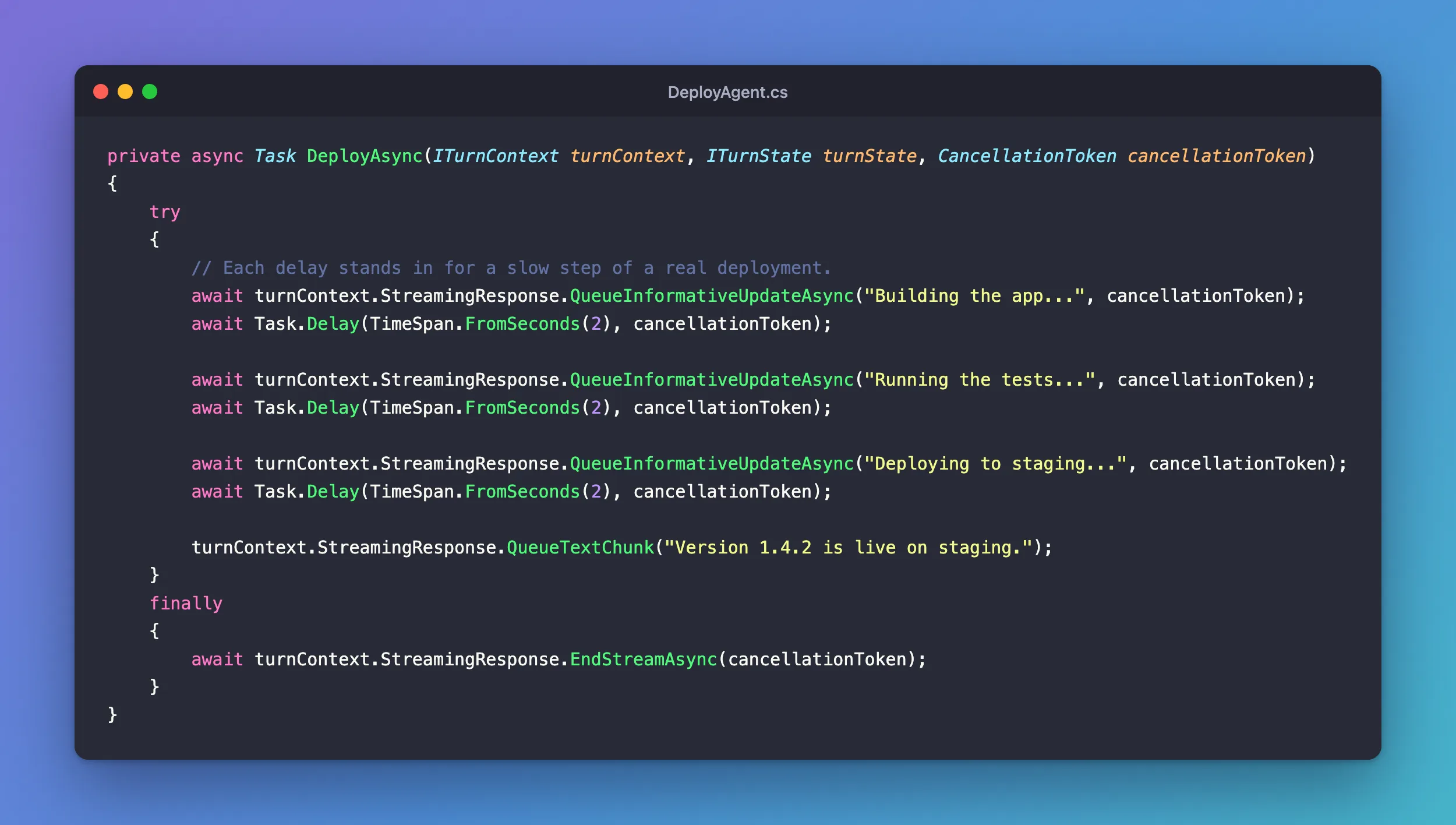
- Each update comes before the step it describes, so the person reads Running the tests... while the tests run.
QueueTextChunkputs the answer into the stream that the updates opened, so it takes their place.EndStreamAsyncinfinallycloses the stream even if a step throws.
Step 2: Watch It in the Teams Channel
Run the agent with dotnet run. Progress updates only show on a channel that streams, so start the Agents Playground in a second terminal as Microsoft Teams:
agentsplayground -e http://localhost:3978/api/messages -c msteams
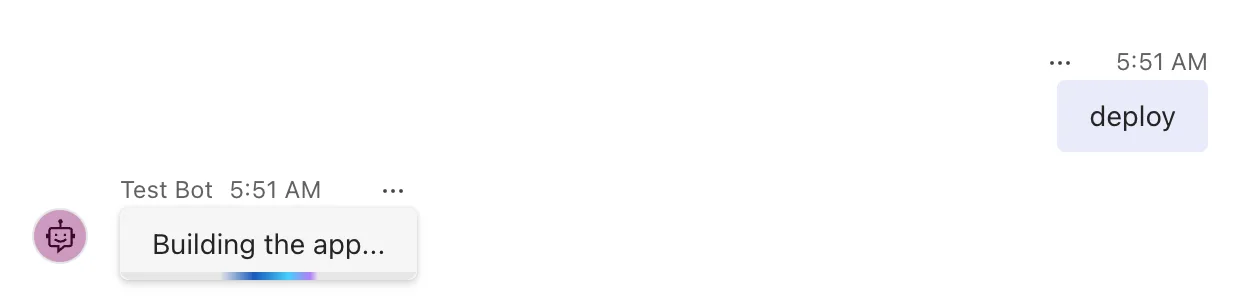
Send deploy. The first update appears straight away, under your message, with a moving bar:
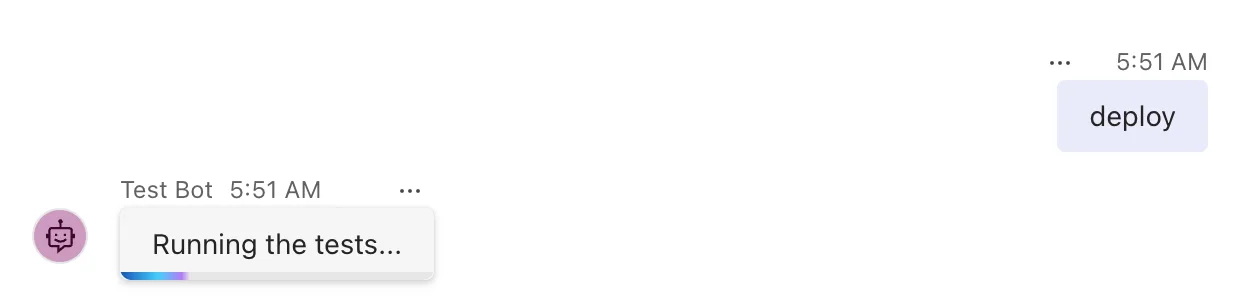
Two seconds later, it changes in place:
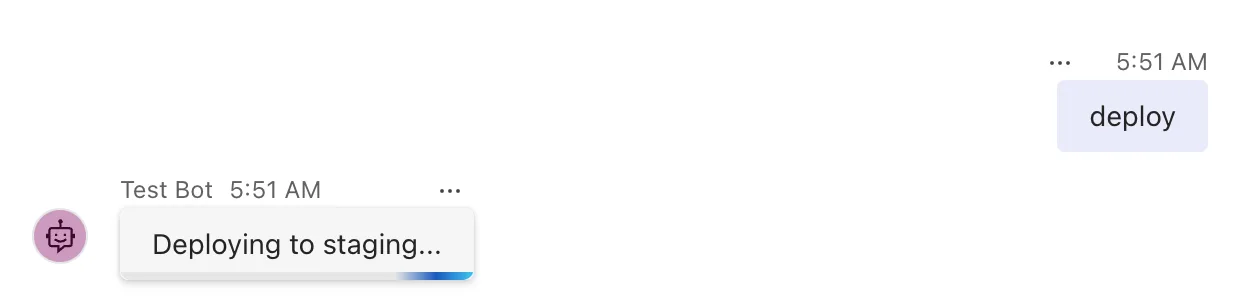
And again:
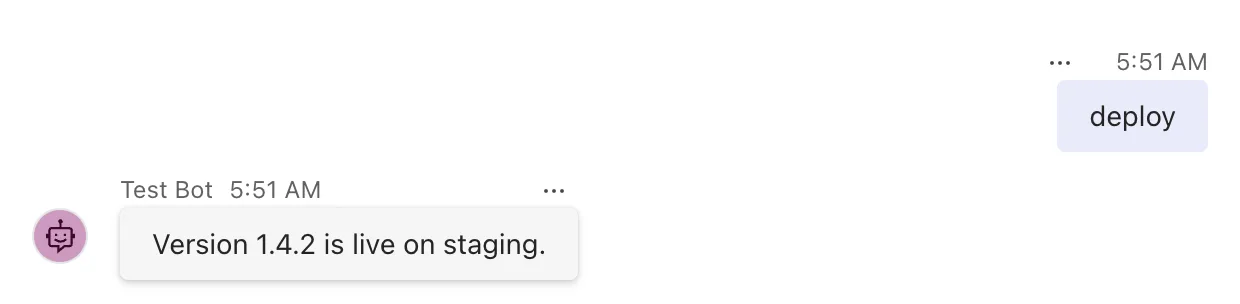
Then the answer replaces the last update, as one ordinary message:
The Playground's Log Panel shows the stream behind it:
[5:51:24 AM] Microsoft 365 Agents Playground -> User Application message 202 deploy
[5:51:24 AM] User Application -> Microsoft 365 Agents Playground typing 201 Building the app...
[5:51:26 AM] User Application -> Microsoft 365 Agents Playground typing 202 Running the tests...
[5:51:28 AM] User Application -> Microsoft 365 Agents Playground typing 202 Deploying to staging...
[5:51:30 AM] User Application -> Microsoft 365 Agents Playground typing 202 Version 1.4.2 is live on staging.
[5:51:31 AM] User Application -> Microsoft 365 Agents Playground message 202 Version 1.4.2 is live on staging.
Each update is a typing activity carrying the status text. The first came back 201, Created, because it opened the stream. The answer went out as streamed text, then as the final message that closed the stream.
Common Mistakes
| Mistake | What happens | Do this instead |
|---|---|---|
Sending the answer with SendActivityAsync | An extra No text was streamed message appears above it | Put the answer into the stream, then call EndStreamAsync |
| Sending an update after the answer has started | Teams doesn't show it once streamed text has begun | Send every update before the first QueueTextChunk |
Testing on the emulator channel | The updates never appear: that channel doesn't stream | Start the Playground with -c msteams |
Troubleshooting
| Symptom | Likely cause | Fix |
|---|---|---|
| Only the answer appears, no updates | The channel doesn't stream | Expected on emulator; test with -c msteams |
| No text was streamed above the answer | The stream ended without text, because the answer was sent another way | Fixed: "No text was streamed" |
FAQ
How long can an update be?
Microsoft's Teams documentation says Each informative update text must not be more than 1 kb or 1000 characters. Keep them short: they're a status line, not a message.
Do updates notify people?
No. The Teams documentation says Updates don't create notifications or trigger the unread message badge for the conversation, and that in group chats, channels and meeting chats, everyone in the conversation sees them.
Can I show updates and then stream a long answer?
Yes: that's what the stream is for. Send the updates first, then queue the answer piece by piece with QueueTextChunk as it's written. How to Stream a Response in the Microsoft 365 Agents SDK in C# shows the second half.
Conclusion
Informative updates tell people what your agent is doing, one step at a time. Send them with QueueInformativeUpdateAsync before each slow step, put the answer into the same stream with QueueTextChunk, and end the stream with EndStreamAsync in finally. They show on channels that stream, and channels that don't simply get the answer.
Additional Resources
- Stream agent messages — informative updates in Teams, and their limits.
- IStreamingResponse interface —
QueueInformativeUpdateAsyncand the rest of the stream.
