How to Show or Hide a Control in Power Apps with Visible

Every control in a canvas app has a Visible property. Set it to a formula that's true or false, and the control appears or disappears as the formula changes. It's how you show a My team button only to managers, or a message only when something is missing.
Prerequisites
- A control to show or hide. The example is the My team button (
btnMyTeamHS) on the Career Development Plan app's Home screen, from Part 4 of the series. - A true-or-false value to decide with. The example uses
IsManager, a named formula that's true when the signed-in person has direct reports; see How to Use Not in Power Apps for how it's built.
Step 1: Set Visible to a Formula
Select the control, choose Visible in the property list, and enter a formula that gives true or false:
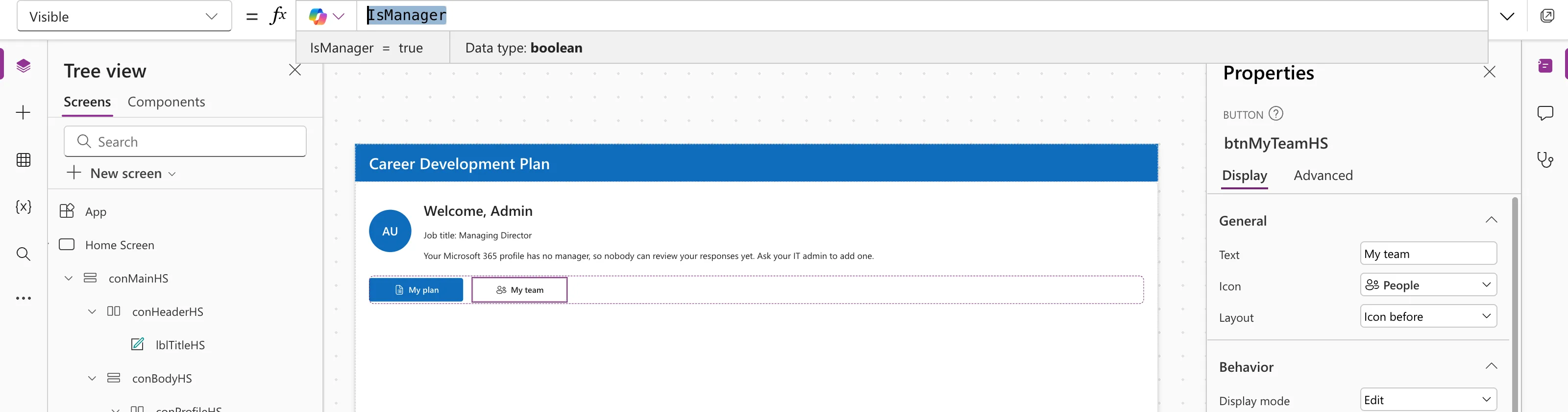
IsManager
The preview strip shows the current value. For the signed-in admin in the example, who has a direct report, it's true, and both buttons show:
Step 2: See It Hidden
To check what non-managers see, the example temporarily reversed the condition:
!IsManager
The value becomes false, and the button disappears from the canvas:
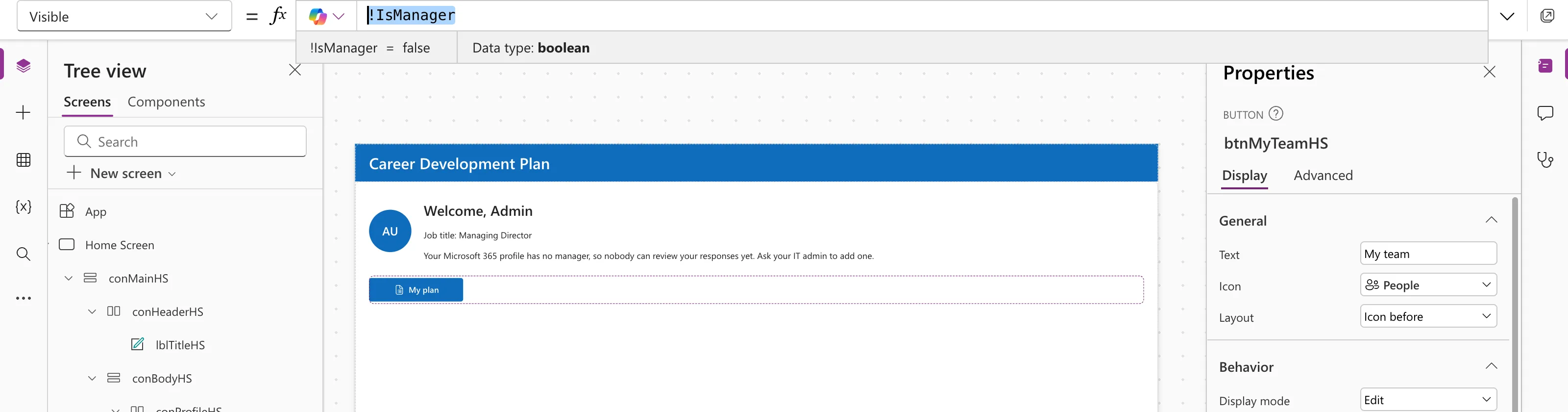
Because the buttons sit in a horizontal container, the hidden button leaves no gap. Set it back to IsManager afterwards.
Formulas You Can Use
Anything that gives true or false works:
| Show the control when… | Visible |
|---|---|
| The person is a manager | IsManager |
| They aren't | !IsManager |
| A value is missing | IsBlank(MyManager) |
| A table has rows | !IsEmpty(MyDirectReports) |
| Always / never | true / false |
IsBlank vs IsEmpty in Power Apps explains the two tests.
Hiding Isn't Security
Visible only changes what the screen shows. Someone who shouldn't see data can't be stopped by hiding a button: the data source's own permissions have to stop them. In the Career Development Plan series, SharePoint permissions do that job; the app's visibility rules just keep the screens tidy.
Common Mistakes
| Mistake | What happens | Do this instead |
|---|---|---|
Leaving a test condition such as !IsManager in place | Managers lose the button | Set it back after testing |
| Relying on Visible to protect data | The data is still reachable | Protect the data source with permissions |
| Testing only as yourself | You never see the other state | Reverse the condition briefly, or test as another user |
Troubleshooting
| Symptom | Likely cause | Fix |
|---|---|---|
| The control never appears | The formula is always false, or blank | Check the value in the preview strip |
| A gap is left where it was | It isn't in an auto-layout container | Put it in a horizontal or vertical container |
| It shows for the wrong people | The condition is the wrong way round | Check for a missing or extra ! |
FAQ
Does a hidden control still cost anything?
Little. Studio's Settings → Updates → Retired lists an optimization, on unless you disable it, under which hidden controls are only created when they become visible.
Can I hide a whole group?
Yes. Hide the container, and everything inside goes with it.
What's the difference between hidden and disabled?
Hidden (Visible false) removes the control from view. Disabled (DisplayMode = DisplayMode.Disabled) shows it greyed out so people know it exists.
Conclusion
Set Visible to a true-or-false formula, check both states while building, and let containers close the gap. Use it for tidiness, and keep real access control in your data source.
Additional Resources
- Core properties: Visible: the property in Microsoft's reference.
- Operators: logical negation:
!andNot.
