How to Show Only the Icon on a Button on Phones in Power Apps

On a phone, a header with two text buttons leaves little room for the title. The modern Button has a Layout property, and ButtonLayout.IconOnly shows just the icon. Switch to it only when the screen is phone-sized, ScreenSize.Small, and keep the button's accessible label.
The Properties
Microsoft's Button modern control reference lists three values for Layout:
| Value | What it shows |
|---|---|
ButtonLayout.IconBefore | The icon, then the text. The default. |
ButtonLayout.IconAfter | The text, then the icon. |
ButtonLayout.IconOnly | Only the icon. |
The button needs an Icon for this (How to Add an Icon to a Button). The same reference says to give an icon-only button an AccessibleLabel that describes it, and it has a Tooltip property for text on hover.
Prerequisites
- A modern Button with an icon. The example uses the header buttons of the Career Development Plan app: Back with
"ArrowLeft"and Refresh with"ArrowClockwise"(How to Add a Refresh Button to a Screen). - Scale to fit off, so screens resize with the device (Part 3 sets this).
Step 1: Know When the Screen Is Phone-Sized
Microsoft's responsive layout article explains the screen's Size property. It compares the screen's width with the app's breakpoints and gives one of four named sizes, with ScreenSize.Small for phones. In a tablet app, the default breakpoints are 600, 900 and 1200.
Microsoft's examples read the size with Parent.Size, for controls placed directly on a screen. The header buttons here sit inside containers, so the formulas read the size of the screen being shown, App.ActiveScreen.Size. That's also the same formula on every screen, so it survives copy and paste:
App.ActiveScreen.Size = ScreenSize.Small
Step 2: Set Layout and Width
Select the button and set:
If(App.ActiveScreen.Size = ScreenSize.Small, ButtonLayout.IconOnly, ButtonLayout.IconBefore)
If(App.ActiveScreen.Size = ScreenSize.Small, 40, 112)
The width matters too: an icon in a 112-wide button would still take 112. In the example, every header button got the same two formulas, with its own wide width: 96 for Back and 112 for Refresh.
Step 3: Keep It Understandable
| Property | Value |
|---|---|
| AccessibleLabel | What the button does, such as "Refresh this screen" |
| Tooltip | A short label for mouse users, such as "Refresh this screen" |
Screen readers read the AccessibleLabel whether or not the text is visible.
Step 4: Test It
Preview at a phone size (How to Test on Phone and Tablet Sizes). At Apple iPhone 12, 13, 14, the Review screen's header showed two icons and the full title:
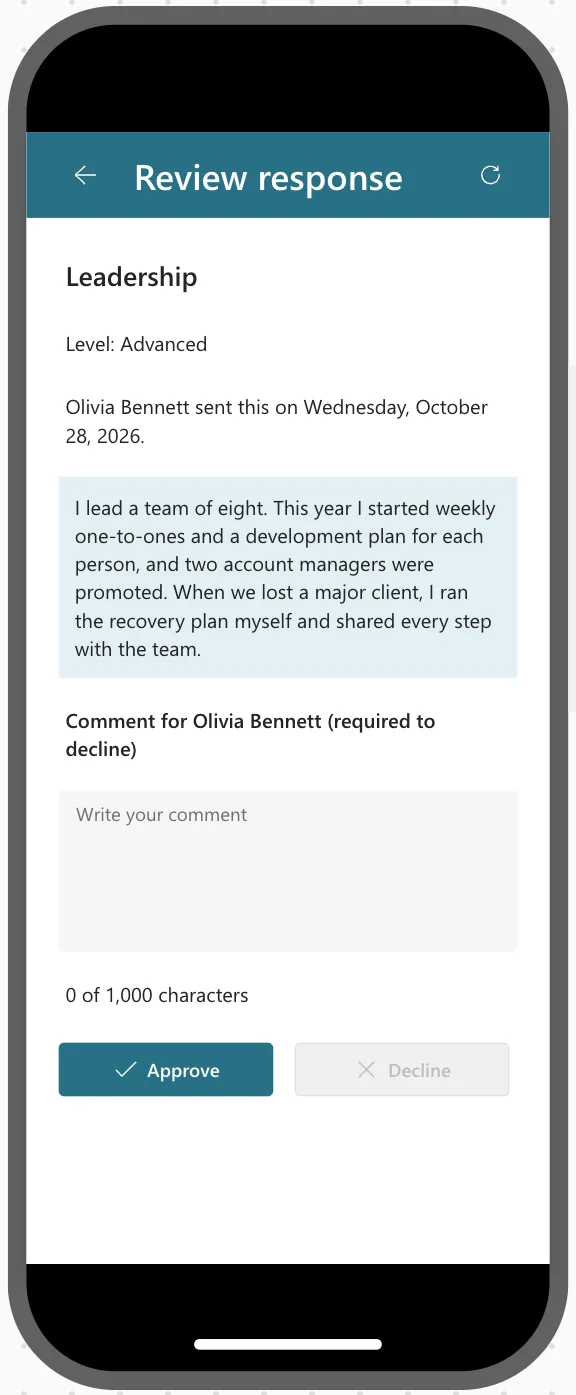
One thing to know about Studio. When I switched the preview to the phone size while a screen was already open, its buttons kept their text until I went to another screen and back. Microsoft's responsive layout article says the authoring canvas doesn't respond to sizing formulas, and to test in the published app at different window sizes.
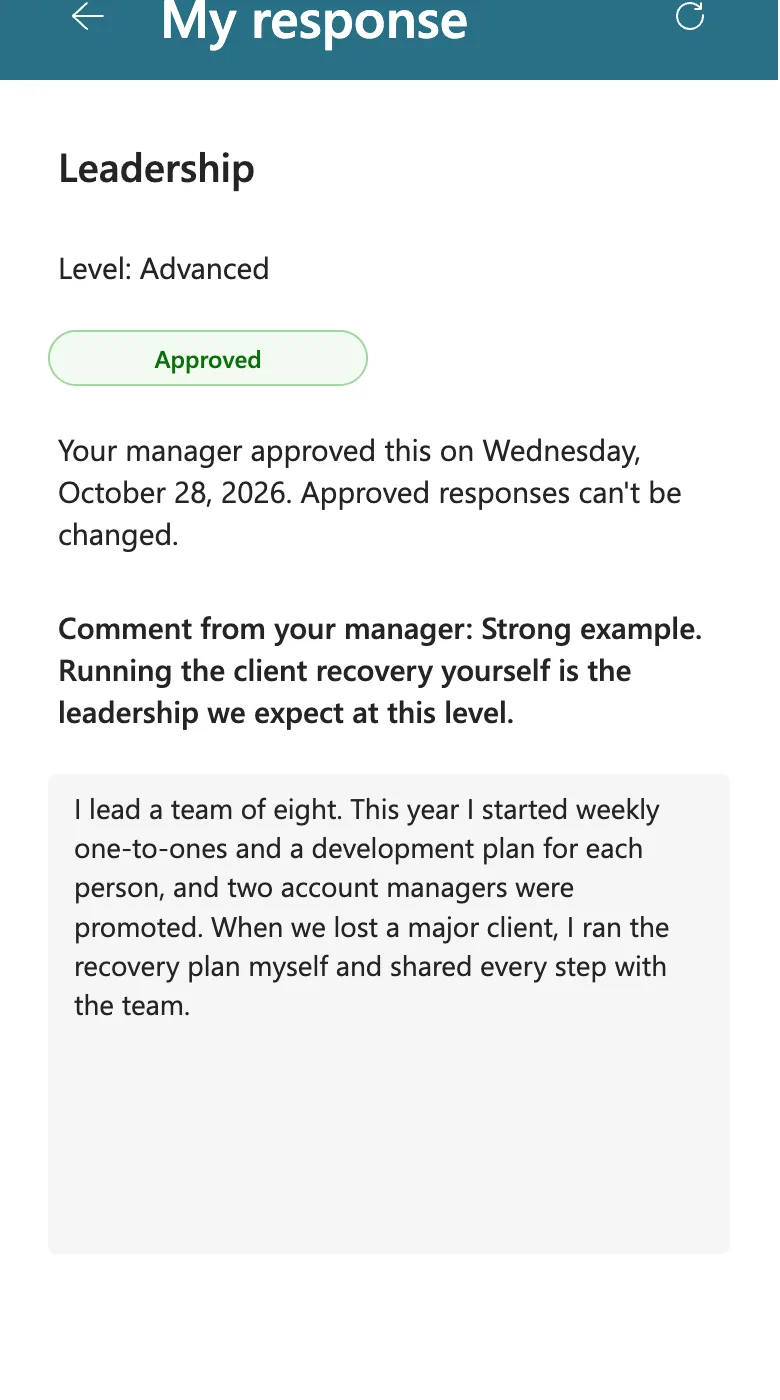
So I also tested the published app. With the browser window narrowed to 390 × 844, the header showed icons only. Widened again, the text came back at once, without leaving the screen:
Buttons in Gallery Rows
A button in each row of a gallery, there for keyboard users, takes room from the row's text. In Part 9 of the series, at 360 pixels wide, a 96-pixel Open button left a team member's row only enough room for Olivia and Head of. The same two formulas, with a chevron icon, fix it:
| Property | Value |
|---|---|
| Icon | "ChevronRight" |
| Layout | If(App.ActiveScreen.Size = ScreenSize.Small, ButtonLayout.IconOnly, ButtonLayout.IconAfter) |
| Width | If(App.ActiveScreen.Size = ScreenSize.Small, 40, 96) |
Then let the text's width follow the button, so the text gets the room the icon frees:
Parent.TemplateWidth - btnOpenMTS.Width - 112
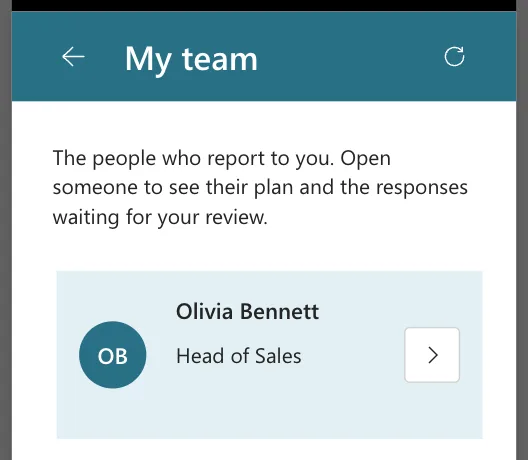
The whole row stays clickable on every screen size. Fixed: Text and Buttons Cut Off on Narrow Phones has the before and after.
Common Mistakes
| Mistake | What happens | Do this instead |
|---|---|---|
| Changing Layout but not Width | The icon sits in a wide, mostly empty button | Narrow the width on small screens too |
| Making only one of two header buttons an icon | The title may still not fit | Check the narrowest phone size with your longest title |
| Leaving AccessibleLabel empty | Screen readers have nothing to announce | Describe the action |
Troubleshooting
| Symptom | Likely cause | Fix |
|---|---|---|
| Buttons keep their text in a phone preview | The preview size changed while the screen was open | Go to another screen and back, or test the published app |
| Buttons are icons on a tablet | The app's breakpoints treat that width as small | Check App.SizeBreakpoints |
| No icon shows at all | Icon is empty | Pick an icon (How to Add an Icon to a Button) |
FAQ
Why not hide the button on phones?
People need it on phones too. An icon keeps the action and frees most of the space.
Can I use App.Width instead of the screen size?
You can compare widths yourself, but ScreenSize uses the app's breakpoints, so every screen agrees on what counts as small.
Conclusion
ButtonLayout.IconOnly with App.ActiveScreen.Size = ScreenSize.Small turns a button into an icon on phones and keeps its text elsewhere. Narrow its width at the same time, keep its accessible label, and test the published app at a phone width.
