How to Show Dates as dd/mm/yyyy in a Power Apps Date Picker

The modern Power Apps date picker's built-in formats follow the language the app runs in, so the same date can read differently from one person to the next. For an app used in the UK, set Format to the pattern "dd/mm/yyyy" so every date reads day first, and set StartOfWeek to Monday so the calendar matches a UK week.
The example is dpWorkDateLO on the Log overtime screen of the Overtime Timesheet app, used by a UK team. How to Add a Date Picker in Power Apps adds the control.
Why Not the Built-in Formats?
Format accepts three built-in values, DatePickerFormat.LongAbbreviated, .Short and .Long, or a pattern you write yourself (Date picker modern control).
The built-in values don't fix the order of day and month. Microsoft's table shows Short as 1/15/2024. In my English (United Kingdom) browser, the same Short showed 08/11/2026:

The default, Long abbreviated, did the same: Jan 15, 2024 in Microsoft's table, 08 November 2026 here. A pattern such as "dd/mm/yyyy" names the order outright; Microsoft's table shows it as 15/01/2024.
Step 1: Set Format to a Pattern
Select the date picker and set Format to the pattern, in double quotes:
"dd/mm/yyyy"
dd is the day with two digits, mm the month with two digits and yyyy the four-digit year. The date picker now shows 08/11/2026:

Outside the UK, write your own order, such as "mm/dd/yyyy" in the US or "yyyy-mm-dd" for ISO dates. Use four-digit years: Microsoft's date and time troubleshooting guide warns that two-digit years are ambiguous.
Step 2: Start the Week on Monday
The calendar starts each week on Sunday by default. Set StartOfWeek:
StartOfWeek.Monday

The Result
In Preview, the date reads 08/11/2026 and the calendar's columns run Monday to Sunday:
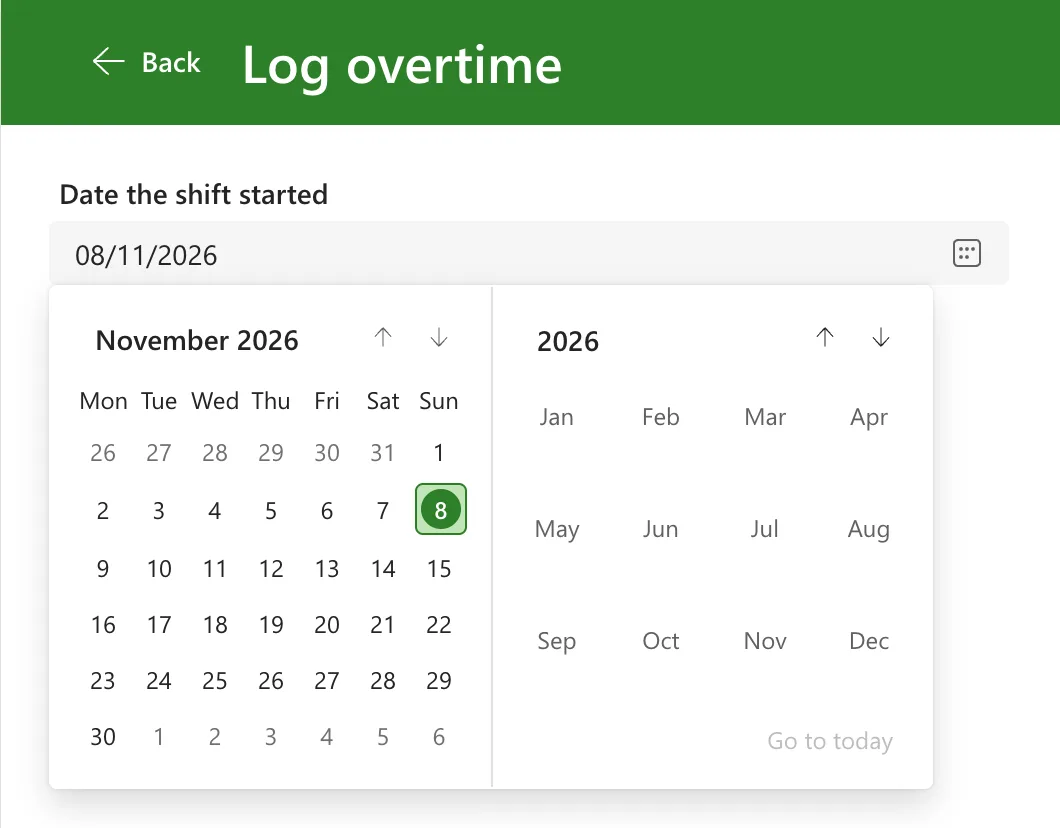
Format only changes how the date looks. SelectedDate is still a date value, so formulas such as Year(dpWorkDateLO.SelectedDate) work the same whatever pattern you show (How to Get the Year, Month and Day of a Date in Power Apps).
Common Mistakes
| Mistake | What happens | Do this instead |
|---|---|---|
| Relying on DatePickerFormat.Short for UK dates | The order follows the app's language | Set the pattern "dd/mm/yyyy" |
| Leaving out the quotes | Studio doesn't read it as a pattern | Write "dd/mm/yyyy" |
Two-digit years, "dd/mm/yy" | Dates such as 08/11/26 are ambiguous | Use yyyy |
| Changing only Format | The calendar still starts on Sunday | Set StartOfWeek too |
Troubleshooting
| Symptom | Likely cause | Fix |
|---|---|---|
| The date shows month first | A built-in format in a US-English app | Use "dd/mm/yyyy" |
| The calendar starts on Sunday | StartOfWeek is the default | StartOfWeek.Monday |
| Formulas give a different date from the one shown | A text value is being converted somewhere | Read SelectedDate, which is a date |
FAQ
Can't I set ContentLanguage to en-GB instead?
ContentLanguage is the language used for formatting dates and calendar display, according to Microsoft. When I set it to "en-US", the Short format in this English (UK) app still showed 08/11/2026, in Studio and in Preview:

A pattern in Format gave the order I wanted without depending on the language, so that's what the example uses.
Does this change dates in SharePoint?
No. The app sends the date itself, not the text you see. SharePoint shows dates in the site's own regional format: How to Change the Date Format of a SharePoint Site.
What other patterns can I use?
Microsoft's table lists "dd-mm-yyyy", "dd-mm", "yyyy-mm-dd", "dd/mm/yyyy" and "mm/dd/yyyy". To format a date in a text control instead, the Text function has its own list of codes: How to Format a Date in Power Apps with Text.
Conclusion
Set Format to "dd/mm/yyyy" and StartOfWeek to StartOfWeek.Monday, and the date picker shows UK dates and UK weeks to everyone, whatever language their browser uses.
Additional Resources
- Date picker modern control in canvas apps: Format, its built-in values and patterns, and StartOfWeek.
- Troubleshoot date and time issues in Power Apps canvas apps: time zones and two-digit years.
