How to Show a Typing Indicator in the Microsoft 365 Agents SDK in C#

When an agent needs a few seconds to answer, a typing indicator tells people it got their message and is working on it. Agents built with the Microsoft 365 Agents SDK can send one for you: turn on StartTypingTimer for every message, or start the timer in the one handler that's slow.
How It Works
A typing indicator is an activity of type typing, the same activity a chat app sends while a person types. The agent sends it to the channel, and channels that support it, such as Microsoft Teams, show their typing animation.
One typing activity isn't enough, because the animation times out. Microsoft's Agent 365 documentation, describing Teams, says typing indicators have a built-in visual timeout of about 5 seconds and that must be refreshed in a loop around every four seconds. So AgentApplication uses a typing timer: it sends typing activities on a schedule until the turn ends. You can turn it on two ways:
| How | Scope |
|---|---|
"StartTypingTimer": true in the AgentApplication section of appsettings.json | Every incoming message |
StartTypingTimer(turnContext) in a handler | That turn only |
The Example
A slow echo agent: it answers every message with You said: ..., but only after five seconds, which stand in for slow work such as calling a service. The agent is one class in an ASP.NET Core project with the Agents SDK 1.9.205, hosted with AddAgentDefaults().AddAgent<SlowEchoAgent>() and MemoryStorage, listening on port 3978:
using Microsoft.Agents.Builder;
using Microsoft.Agents.Builder.App;
using Microsoft.Agents.Builder.State;
using Microsoft.Agents.Core.Models;

namespace SlowEcho;

public class SlowEchoAgent : AgentApplication
{
    public SlowEchoAgent(AgentApplicationOptions options) : base(options)
    {
        OnActivity(ActivityTypes.Message, EchoAsync);
    }

    private async Task EchoAsync(ITurnContext turnContext, ITurnState turnState, CancellationToken cancellationToken)
    {
        // Stands in for slow work, such as calling a service.
        await Task.Delay(TimeSpan.FromSeconds(5), cancellationToken);

        await turnContext.SendActivityAsync($"You said: {turnContext.Activity.Text}", cancellationToken: cancellationToken);
    }
}
Prerequisites
- The Microsoft 365 Agents Playground.
agentsplayground --versionshould print0.2.30. If the command isn't found, install it withnpm install -g @microsoft/m365agentsplayground.
Step 1: Turn It On for Every Message
Add an AgentApplication section with StartTypingTimer to appsettings.json:
{
  "Logging": {
    "LogLevel": {
      "Default": "Information",
      "Microsoft.AspNetCore": "Warning"
    }
  },
  "AllowedHosts": "*",
  "AgentApplication": {
    "StartTypingTimer": true
  }
}
AddAgent<SlowEchoAgent>() fills the options the agent receives in its constructor from this section, and StartTypingTimer is off unless you turn it on. Nothing else changes: the code above stays as it is.
Run the agent with dotnet run, and start the Playground in a second terminal. I started it as the Teams channel, where typing indicators matter most:
agentsplayground -e http://localhost:3978/api/messages -c msteams
Send hello. Five seconds later the echo arrives, and the chat shows nothing in between:
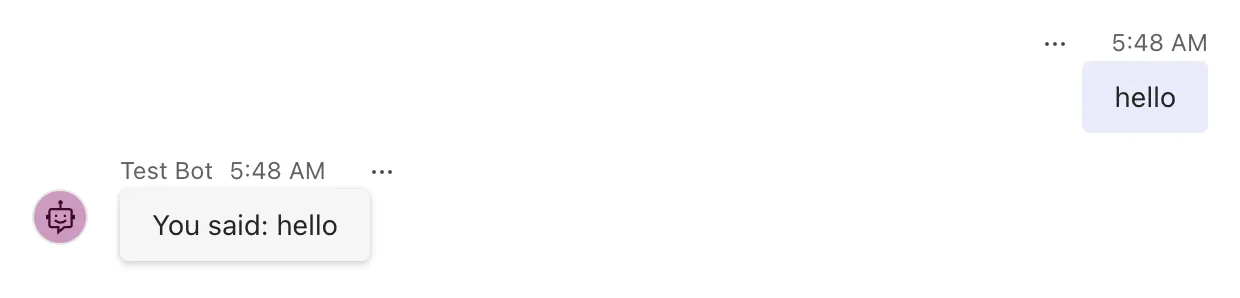
That's the Playground, not your agent: Microsoft's Playground documentation lists Typing indicator as Not Available. The Playground's Log Panel, which lists every activity, shows what the agent sent:
[5:48:52 AM] Microsoft 365 Agents Playground -> User Application message 202 hello
[5:48:53 AM] User Application -> Microsoft 365 Agents Playground typing 202
[5:48:55 AM] User Application -> Microsoft 365 Agents Playground typing 202
[5:48:57 AM] User Application -> Microsoft 365 Agents Playground typing 202
[5:48:57 AM] User Application -> Microsoft 365 Agents Playground message 201 You said: hello
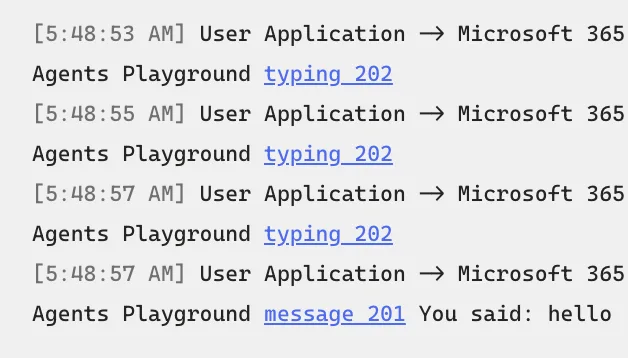
The first typing activity went out within a second of the message, and another every two seconds while the agent worked. In Teams, that keeps the animation going until the answer arrives.
Step 2: Start It for One Handler
Turning the timer on for every message also starts it for messages your agent answers instantly. When only one handler is slow, start the timer there instead. Remove the AgentApplication section from appsettings.json, and call StartTypingTimer at the top of the handler. This version also answers Let me think about that... straight away, to see what the timer does after a message:
    private async Task EchoAsync(ITurnContext turnContext, ITurnState turnState, CancellationToken cancellationToken)
    {
        StartTypingTimer(turnContext);
        await turnContext.SendActivityAsync("Let me think about that...", cancellationToken: cancellationToken);

        // Stands in for slow work, such as calling a service.
        await Task.Delay(TimeSpan.FromSeconds(5), cancellationToken);

        await turnContext.SendActivityAsync($"You said: {turnContext.Activity.Text}", cancellationToken: cancellationToken);
    }
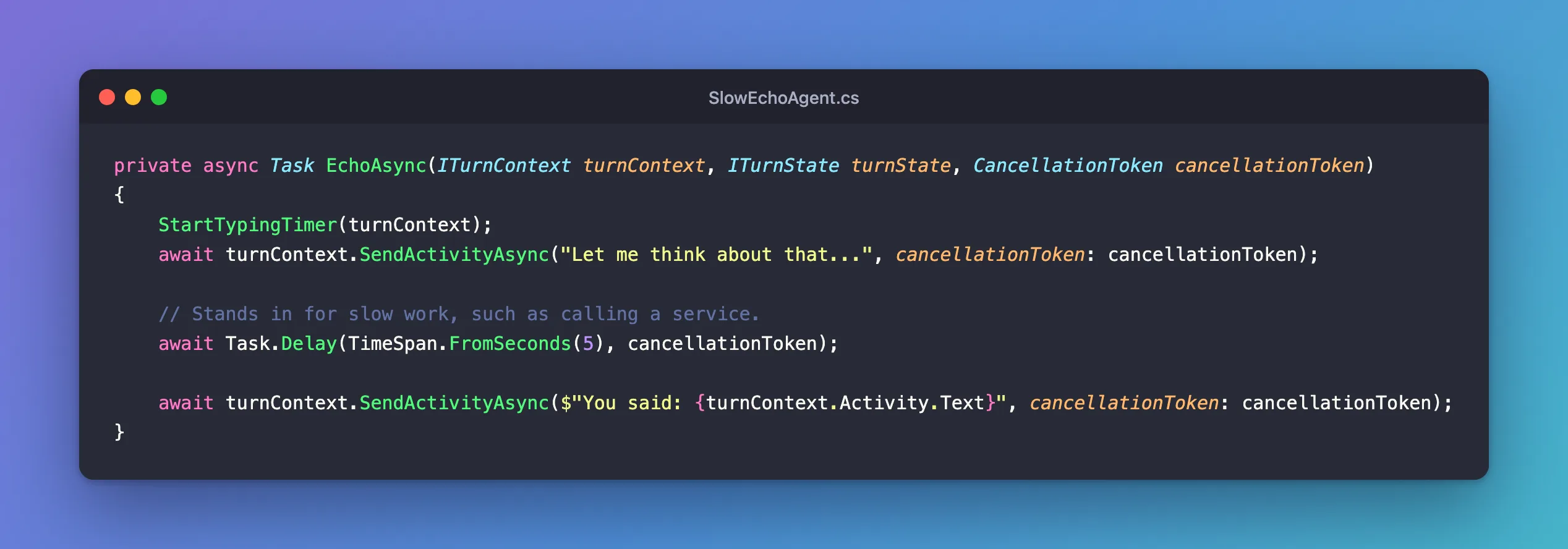
StartTypingTimer is a method of AgentApplication, so every agent has it. It starts the same timer the setting does, for this turn, and AgentApplication stops it when the turn ends. Calling it twice in one turn does nothing the second time.
Restart the agent and send what time is it:
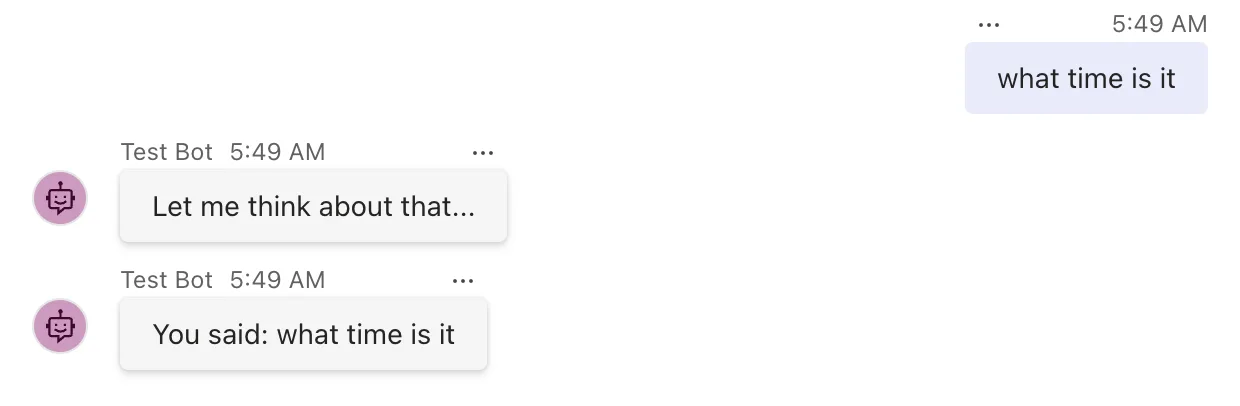
[5:49:29 AM] Microsoft 365 Agents Playground -> User Application message 202 what time is it
[5:49:29 AM] User Application -> Microsoft 365 Agents Playground message 201 Let me think about that...
[5:49:30 AM] User Application -> Microsoft 365 Agents Playground typing 202
[5:49:32 AM] User Application -> Microsoft 365 Agents Playground typing 202
[5:49:34 AM] User Application -> Microsoft 365 Agents Playground typing 202
[5:49:34 AM] User Application -> Microsoft 365 Agents Playground message 201 You said: what time is it
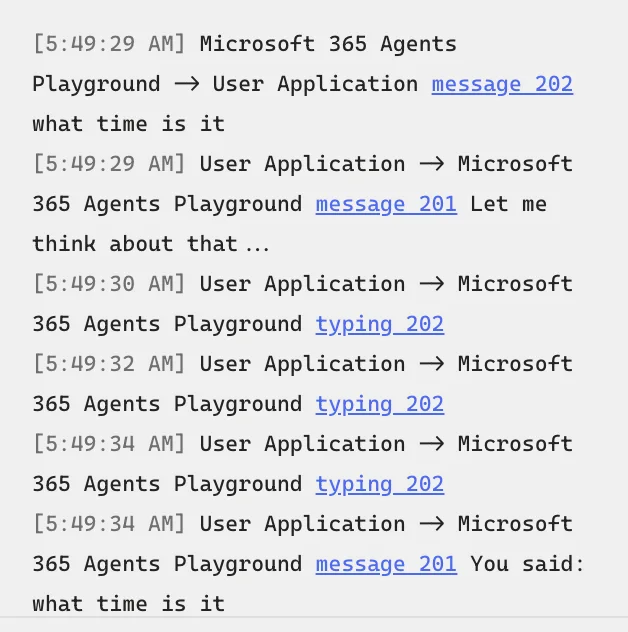
The timer kept going after Let me think about that..., every two seconds, until the turn ended. That's not what Microsoft's API reference for StartTypingTimer says: The timer waits 1000ms to send its initial "typing" activity and then send an additional "typing" activity every 1000ms. The timer will automatically end once an outgoing activity has been sent. The log shows the 1.9.205 behavior instead, which matches the SDK's source: its TypingOptions default to 500 milliseconds before the first typing activity and 2,000 between them, and a message the agent sends restarts the countdown rather than stopping the timer.
Common Mistakes
| Mistake | What happens | Do this instead |
|---|---|---|
| Expecting to see the indicator in the Playground | Nothing shows, though the agent sends it | Read the Log Panel, or test in Teams |
Sending one typing activity before slow work | The animation times out after about five seconds | Use the typing timer, which keeps sending them |
Putting StartTypingTimer in the wrong section | The timer doesn't start | It belongs in the AgentApplication section |
Troubleshooting
| Symptom | Likely cause | Fix |
|---|---|---|
No typing entries in the Log Panel | The setting isn't on, or the handler doesn't call StartTypingTimer | Check AgentApplication:StartTypingTimer in appsettings.json |
typing entries keep coming after your first message | That's how the timer behaves in 1.9.205 | Expected: it runs until the turn ends |
FAQ
Where does Teams show typing indicators?
Microsoft's Agent 365 documentation says they're only visible in one-on-one chats and small group chats, not in channels.
Can I stop the timer before the turn ends?
Yes: await StopTypingTimer(turnContext); stops it for the current turn. Without it, AgentApplication stops the timer when the turn ends.
Can I change the timings?
They're in TypingOptions, on the AgentApplicationOptions your agent is built with: InitialDelayMs and IntervalMs. In 1.9.205 they're set in code, not read from appsettings.json.
Should I use a typing indicator when my agent streams its answer?
On channels that stream, such as Teams, the stream's informative updates already show that the agent is working, and say what it's doing. Part 7 of the Microsoft 365 Agents SDK Fundamentals starts the typing timer only where the channel doesn't stream.
Conclusion
A typing indicator is the cheapest way to say "I'm working on it". Turn on StartTypingTimer in the AgentApplication section of appsettings.json for every message, or call StartTypingTimer(turnContext) in the handler that's slow, and AgentApplication keeps sending typing activities until the turn ends.
Additional Resources
- AgentApplicationOptions.StartTypingTimer property — the setting.
- AgentApplication.StartTypingTimer method — the method, and the remark that 1.9.205 doesn't follow.
- Microsoft 365 Agents Playground: limitations — why the Playground doesn't show typing indicators.
- Handle messages in Agent 365 — how Teams shows typing indicators.
