How to Show a SharePoint Choice Column's Value in Power Apps

A SharePoint Choice column looks like text in the list, but Power Apps gets it as a record. To show the choice, or to compare it with some text, use its Value: ThisItem.Level.Value, not ThisItem.Level.
Why a Choice Is a Record
Microsoft's data type mappings for SharePoint put Choice, Lookup, Person and some other columns in the Complex group. These arrive as records with subfields, and the subfields are the basic types. For a Choice column, the text you chose is in Value.
In the example, the RoleCompetencies list's Level column is a Choice column with Beginner, Intermediate, Advanced and Expert (How to Create a List and Add Columns in SharePoint Online).
Showing the Value
In a gallery, ThisItem.Level is the record. The formula bar's preview strip shows Data type: Record, and a Text property set to it gives the error Expected Text value.
Add .Value to get the text:
"Level: " & ThisItem.Level.Value
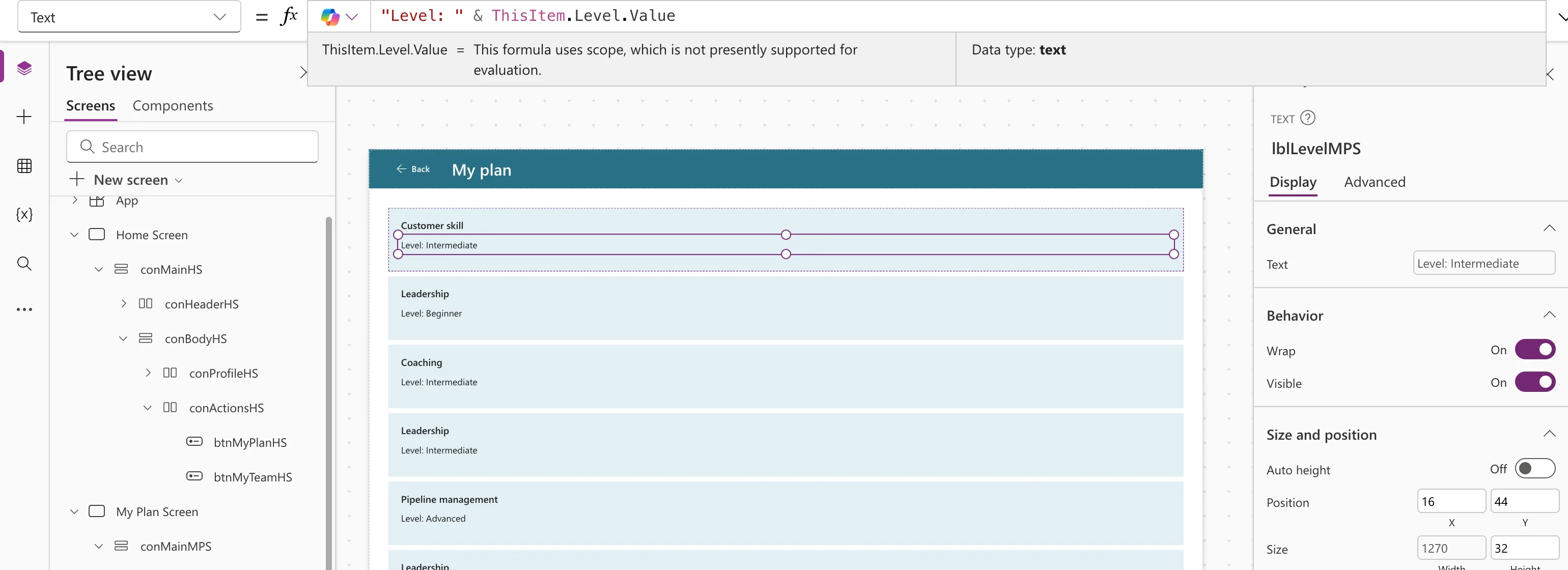
Comparing a Choice With Text
Compare the Value too. In the Career Development Plan app, responses store the level as plain text, so a response is matched to its competency like this:
Level = planItem.Level.Value
planItem.Level.Value is the competency's Choice, as text; Level on the left is the response's text column (How to Use the As Operator in Power Apps explains planItem).
Delegation With Choice Columns
For SharePoint, Microsoft says delegation of a Complex column depends on the subfield you use (SharePoint delegation). The same table lists Sort as not delegable for Complex columns. To sort a big list, sort by a text, number or date column instead. See What Is Delegation in Power Apps?
Common Mistakes
| Mistake | What happens | Do this instead |
|---|---|---|
ThisItem.Level in a Text property | Expected Text value | ThisItem.Level.Value |
| Comparing the Choice itself with text | You're comparing a record, not its text | Compare .Value |
| Sorting a big list by a Choice column | It can't be delegated to SharePoint | Sort by a text or number column |
Troubleshooting
| Symptom | Likely cause | Fix |
|---|---|---|
| The preview strip says Data type: Record | You're using the whole Choice | Add .Value |
| A red error icon on the control and Expected Text value | A Text property set to the Choice | Add .Value |
FAQ
Does this apply to Lookup and Person columns too?
They're Complex columns as well, with their own subfields. Microsoft's SharePoint article says only Email and DisplayName are delegable for Person columns.
Why does the column show text in SharePoint?
SharePoint displays the choice. Power Apps receives the whole record behind it.
Conclusion
A SharePoint Choice column is a record in Power Apps. Use .Value to show it or compare it, and don't sort large lists by it.
Additional Resources
- Connect to SharePoint from a canvas app: data type mappings and delegation.
