How to Show a Notification in Power Apps with Notify

Notify shows a banner across the top of the app. Use it to tell people their save worked, or why it didn't.
Syntax
Notify( Message, NotificationType, Timeout )
- Message: the text, up to 500 characters.
- NotificationType (optional):
Error,Information(the default),SuccessorWarning, which sets the color and icon. - Timeout (optional): how long it stays, in milliseconds; the default is 10 seconds.
Notify works only in behavior formulas, such as OnSelect, and always returns true (Notify function).
Prerequisites
- A behavior formula, such as a button's OnSelect (How to Add a Button in Power Apps).
Example: Confirm a Save
In the Career Development Plan app, the Send button saves a response, confirms it, and goes back to the plan:
Notify("Your response was sent to your manager.", NotificationType.Success);
Back()
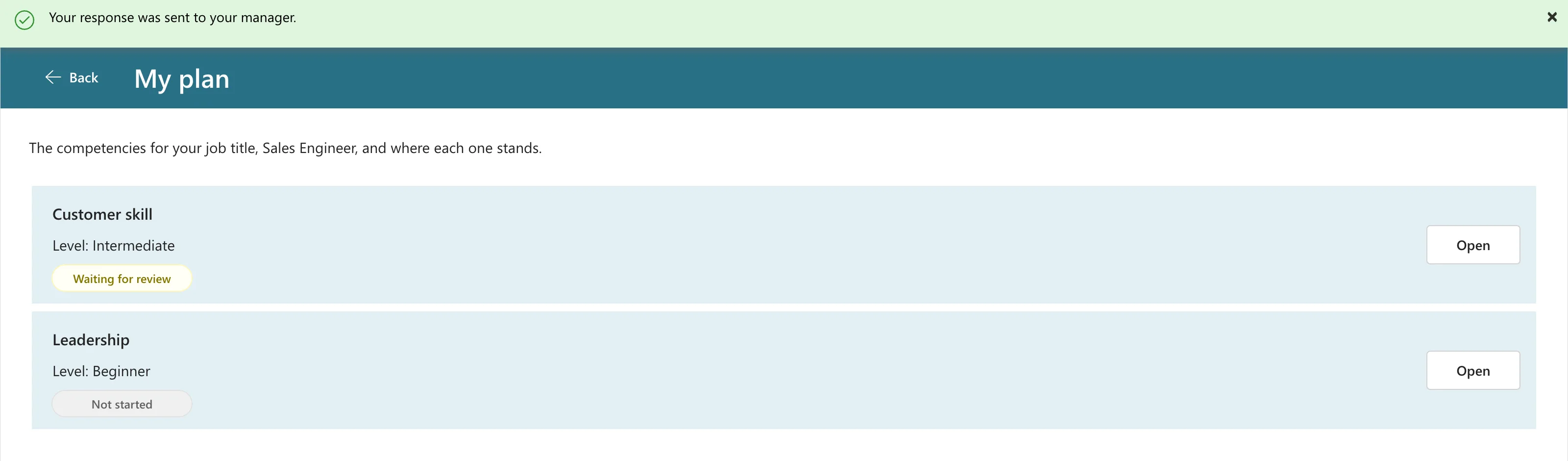
The banner stays while the next screen opens, so people see both the confirmation and the new status:
Example: Explain a Failure
With IfError, the error branch can say what went wrong (How to Handle Errors in Power Apps with IfError):
Notify(
    If(
        FirstError.Kind = ErrorKind.Conflict,
        "This response changed while you were editing it. Go back, open it again and make your change.",
        "Your response wasn't sent. " & FirstError.Message
    ),
    NotificationType.Error
)
The error type is red, with a cross icon:

Each banner has a × to close it.
Writing Good Messages
- Say what happened, in the person's words: Your response was sent, not Patch succeeded.
- For an error, say what to do next.
- Keep technical details for the cases you can't explain; Microsoft's own example adds
FirstError.Message.
Common Mistakes
| Mistake | What happens | Do this instead |
|---|---|---|
| Notify in a Text property | An error: it's a behavior function | Use it in OnSelect and similar |
| Success shown before the save finishes | People are told it worked when it didn't | Put success in IfError's last argument |
| Long technical messages | People can't act on them | Explain in plain words |
Troubleshooting
| Symptom | Likely cause | Fix |
|---|---|---|
| No banner appears | The formula stopped before Notify | Check the error branch runs |
| The banner disappears too fast | The default 10-second timeout | Pass a longer Timeout, or 0 to keep it |
FAQ
Can I keep the banner until it's closed?
Microsoft's reference describes the timeout argument; a timeout of 0 keeps the notification until it's dismissed.
Is this a push notification?
No. Push notifications are a different feature; Notify shows only inside the app.
Conclusion
Notify("Message", NotificationType.Success) confirms an action, and NotificationType.Error with IfError explains a failure. Keep the words plain and useful.
