How to Show a Measure with Two Decimal Places in Power BI

A new measure has the General format, which lets each visual decide how many decimals to show. For money or hours you usually want the same two decimals everywhere. Setting the format on the measure in the model does that for every visual and report. Here's how.
The example formats Total amount, a measure that adds up expense claims, in a semantic model in the Power BI service (How to Add Up a Column in Power BI with SUM).
Step 1: Select the Measure
Open the model in Editing mode and select the measure in the Data pane. The Properties pane shows its settings.
Step 2: Open Formatting
In Properties, expand Formatting. A new measure's Format is General:
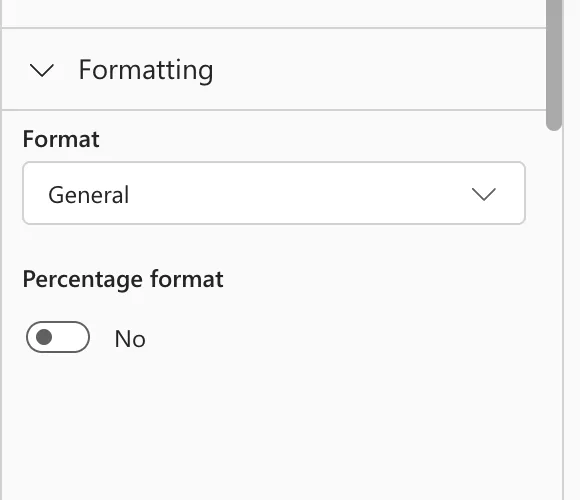
Step 3: Choose Decimal Number
Change Format to Decimal number. More settings appear: Thousands separator and Decimal places. In the example, Decimal places was already 2; set it if yours isn't:
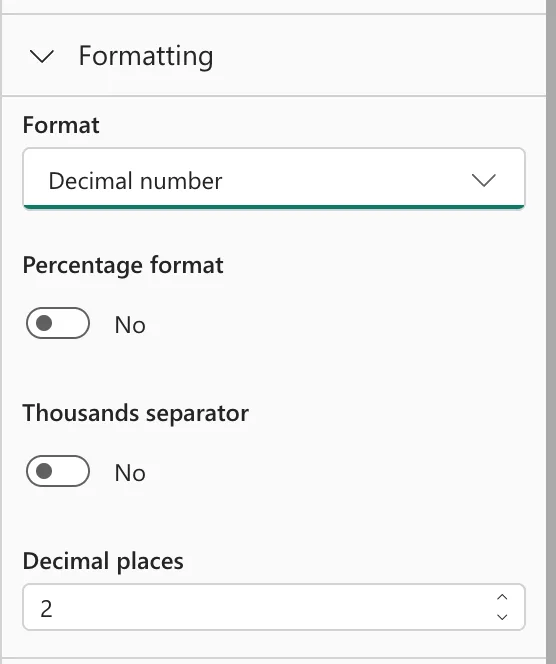
The model saves the change at once.
Step 4: Check a Visual
Every visual that uses the measure now shows two decimals, such as a card with 293.70:
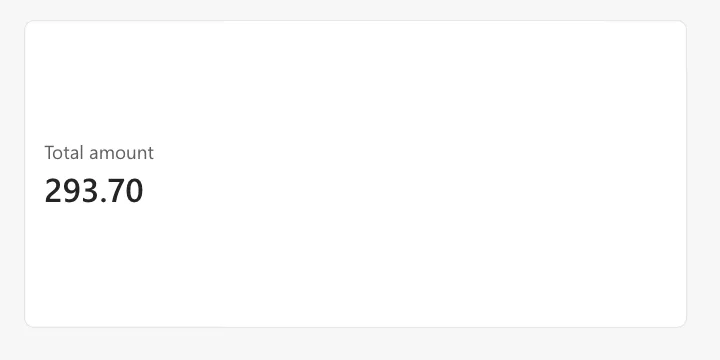
With General, a chart's data labels can round instead: in one report, 44.50 hours showed as 45 (Fixed: Power BI Data Labels Show 45 Instead of 44.50).
Common Mistakes
| Mistake | What happens | Do this instead |
|---|---|---|
| Formatting each visual separately | The next visual or report shows the old format | Format the measure in the model |
| Leaving General on amounts | Visuals choose their own decimals | Decimal number, 2 places |
| Turning on Percentage format for a plain number | 0.5 shows as 50% | Leave it off unless the value is a fraction |
Troubleshooting
| Symptom | Likely cause | Fix |
|---|---|---|
| Formatting is missing in Properties | A table or column is selected, not the measure | Select the measure |
| The settings are greyed out | The model is in Viewing mode | Switch to Editing |
| A visual still shows another format | The visual overrides it in its own format settings | Reset the visual's value format |
FAQ
Can I format a column the same way?
Yes: select the column instead of the measure. Its Properties have the same Formatting section.
What about currency symbols?
The Format list has more choices than Decimal number; Microsoft's custom format strings article covers formats such as currency.
Conclusion
Select the measure, expand Formatting in Properties, and choose Decimal number with 2 decimal places. The example's Total amount showed 293.70 on its card.
