How to Share Build Settings Across .NET C# Projects with Directory.Build.props

A solution with several projects usually wants the same rules in all of them: warnings as errors, the same analysis level, the same language settings. Copying them into every .csproj works until someone adds a project and forgets. Directory.Build.props is a file MSBuild picks up automatically for every project below it, so the rules live in one place. This guide creates one, proves each project reads it, overrides it in one project, and shows the trap with a second file further down.
How MSBuild Finds It
Microsoft's customize-by-directory page explains: "When MSBuild runs, Microsoft.Common.props searches your directory structure for the Directory.Build.props file. If it finds one, it imports the file and reads the properties defined within it." The search starts at each project: "MSBuild walks the directory structure upwards from your project location $(MSBuildProjectFullPath), stopping after it locates a Directory.Build.props file."
Two consequences: the file applies to every project in its folder and below, and "The location of the solution file is irrelevant to Directory.Build.props."
Prerequisites
- The .NET SDK. The
buildpropstemplate was added in .NET 8; this guide uses .NET 10. - A solution with more than one project. The examples use a class library,
src/Demo.Data, and a console app,src/Demo.App, that references it.
Step 1: Create the File
In the solution's root folder:
dotnet new buildprops
The template "MSBuild Directory.Build.props file" was created successfully.
<Project>
  <!-- See https://aka.ms/dotnet/msbuild/customize for more details on customizing your build -->
  <PropertyGroup>


  </PropertyGroup>
</Project>
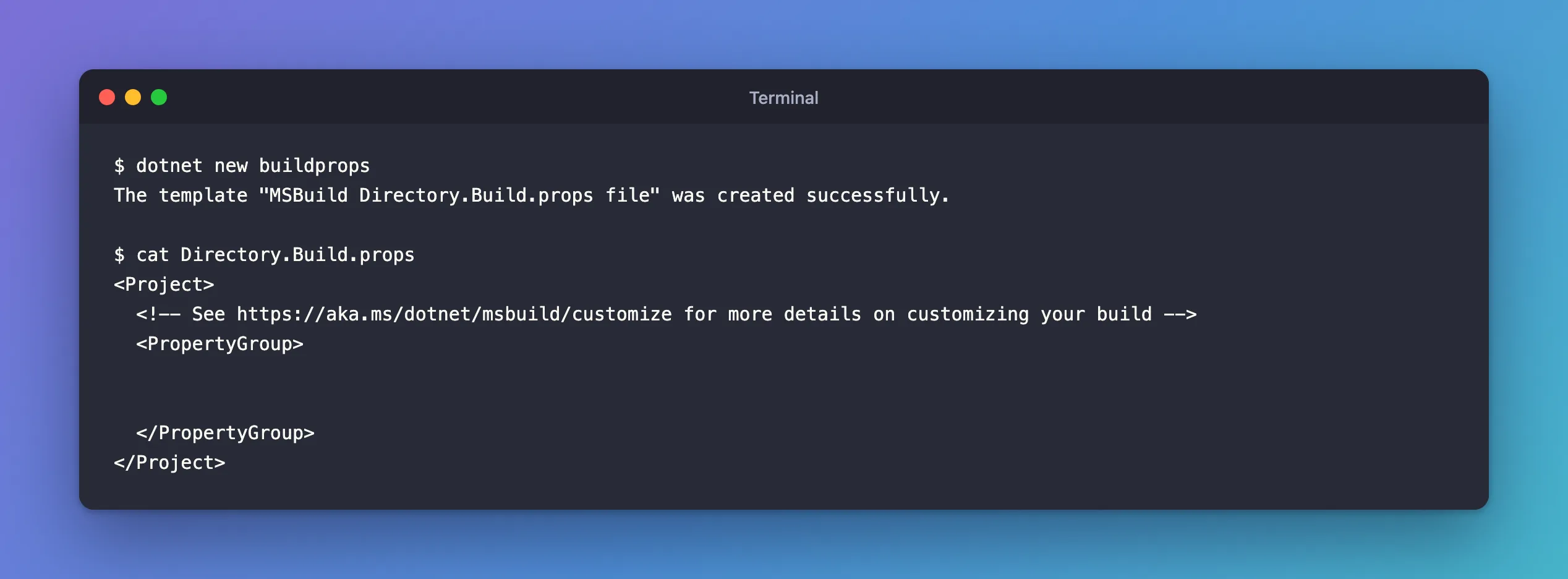
An empty PropertyGroup, ready for the properties every project should share. The name matters exactly; the docs warn: "Linux-based file systems are case-sensitive. Make sure the casing of the Directory.Build.props filename matches exactly, or it won't be detected during the build process."
Step 2: Add a Shared Setting
As an example, stop every build on warnings:
<Project>
  <!-- See https://aka.ms/dotnet/msbuild/customize for more details on customizing your build -->
  <PropertyGroup>
    <!-- Stop the build on any warning, so problems get fixed while they're small. -->
    <TreatWarningsAsErrors>true</TreatWarningsAsErrors>
  </PropertyGroup>
</Project>
The class library had a nullable warning, CS8618. Before the file, it was a warning; now:
Restore complete (0.4s)
  Demo.Data net10.0 failed with 1 error(s) (0.1s)
    /Users/you/projects/props-demo/src/Demo.Data/Customer.cs(5,19): error CS8618: Non-nullable property 'Name' must contain a non-null value when exiting constructor. Consider adding the 'required' modifier or declaring the property as nullable.

Build failed with 1 error(s) in 0.6s
No project file changed; the setting reached the library from the root. How to Treat Warnings as Errors in .NET C# Projects covers that property in depth.
Step 3: Check What a Project Really Gets
dotnet msbuild -getProperty prints a property's final value for one project, after every import, without building:
dotnet msbuild src/Demo.App/Demo.App.csproj -getProperty:TreatWarningsAsErrors -getProperty:TargetFramework -getProperty:Nullable
{
  "Properties": {
    "TreatWarningsAsErrors": "true",
    "TargetFramework": "net10.0",
    "Nullable": "enable"
  }
}
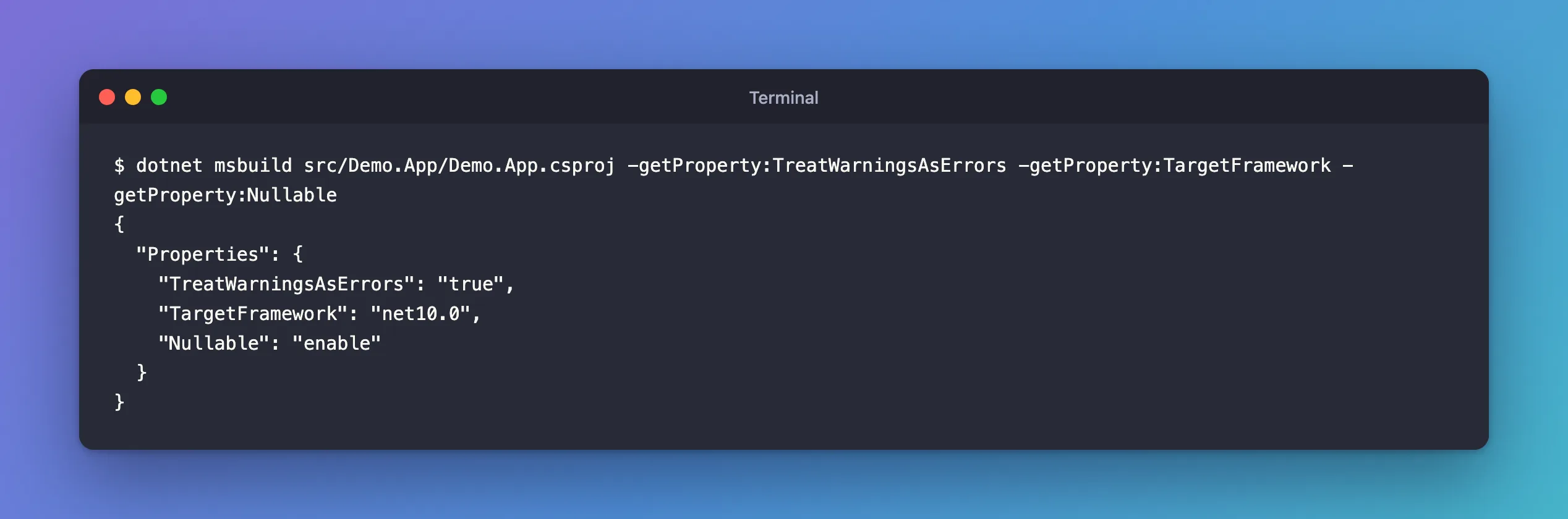
The console app got TreatWarningsAsErrors from the root file too. With one -getProperty, the output is just the value; with several, it's JSON. This is the fastest way to answer "is my setting applied?".
Step 4: Override It in One Project
The docs describe the order: "Properties that are set in Directory.Build.props can be overridden elsewhere in the project file or in imported files, so you should think of the settings in Directory.Build.props as specifying the defaults for your projects." I added the opposite value to the console app's project file:
  <PropertyGroup>
    <!-- ... -->
    <TreatWarningsAsErrors>false</TreatWarningsAsErrors>
  </PropertyGroup>
false
The project file wins, because Directory.Build.props is imported before the project's own properties. Use that for real exceptions, and say why in a comment.
Step 5: Watch Out for a Second File
Because the search stops at the first file it finds, a Directory.Build.props inside a project's folder hides the one at the root. I created an empty one in src/Demo.App with the same template and checked the app:
{
  "Properties": {
    "TreatWarningsAsErrors": "false",
    "WarningsNotAsErrors": ""
  }
}
The root settings were gone for that project: it now read only the nearer, empty file. The template's --inherit option fixes that; the docs: "adds an Import element for the closest Directory.Build.props file in the parent directory hierarchy."
dotnet new buildprops --inherit --force
--force lets it replace the existing file. The new file imports its parent:
<Project>
  <!-- See https://aka.ms/dotnet/msbuild/customize for more details on customizing your build -->
  <Import Project="$([MSBuild]::GetPathOfFileAbove('Directory.Build.props', '$(MSBuildThisFileDirectory)../'))"
          Condition="$([MSBuild]::GetPathOfFileAbove('Directory.Build.props', '$(MSBuildThisFileDirectory)../')) != ''" />
  <PropertyGroup>


  </PropertyGroup>
</Project>
{
  "Properties": {
    "TreatWarningsAsErrors": "true",
    "WarningsNotAsErrors": "CS8618"
  }
}
The root settings are back, and anything added to the nested file's PropertyGroup applies on top, for that folder only. (At that point the root file also had WarningsNotAsErrors, which is why it shows up.) I removed the nested file afterwards; a single file at the root is easier to reason about.
What to Put in It
Properties that every project should share, for example:
- Build strictness:
TreatWarningsAsErrors,AnalysisLevel,EnforceCodeStyleInBuild. - Language settings:
Nullable,ImplicitUsings,LangVersion. - Metadata:
Company,Authors,Copyright.
Keep TargetFramework in the projects unless they really all target the same framework, and keep package versions in Directory.Packages.props, which is for exactly that: How to Use Central Package Management for NuGet in a .NET C# Solution.
Common Mistakes
| Mistake | What happens | Do this instead |
|---|---|---|
A second Directory.Build.props lower down, without an import | Projects below it lose the root settings | dotnet new buildprops --inherit, or keep one file |
Wrong casing, such as directory.build.props | Ignored on Linux | Use Directory.Build.props exactly |
| Putting the file next to the solution file, but projects live elsewhere | Projects outside that folder tree don't get it | Put it at the root of all projects |
| Guessing whether a setting applies | Wrong assumptions about the build | Check with dotnet msbuild -getProperty |
FAQ
Do I have to reference the file from each project?
No. MSBuild imports it on its own for every project below it; that's the whole point. If a setting seems ignored, check it with dotnet msbuild -getProperty, which shows the value the build really uses.
Is there a Directory.Build.targets too?
Yes, for targets and for properties that must be set after the project's own, but most solutions only need .props.
Conclusion
Directory.Build.props at the root of a solution sets MSBuild properties once for every project below it: create it with dotnet new buildprops, add the shared properties, and check any project's final values with dotnet msbuild <project> -getProperty:<Name>. A project file can still override a value, and a nested Directory.Build.props replaces the root one unless it imports it, which --inherit sets up for you.
Additional Resources
- Customize your build by folder — Directory.Build.props and Directory.Build.targets.
- dotnet new templates: buildprops
