How to Share a Flow with Run-Only Users in Power Automate

Run-only users can start a flow but can't open, edit or change it. Add them on the flow's details page: Run only users > Edit, then the people or a group, then Save. A canvas app's users need this for every solution flow the app runs.
Microsoft's Share a cloud flow article: Any user you add as a run-only user doesn't have access to edit or modify the flow in any way. They have permissions only to trigger the flow. Its guide to sharing adds that run-only users can't see the flow's run history either, and get the flow only where they can run it, for example, on a button or within an app.
The example is Get Waiting Approvals, a flow the Overtime Timesheet app runs for two approvers, Olivia and Daniel. Sharing the app with them wasn't enough: until they were run-only users of the flow, the app's call failed (Fixed: "Does Not Have ReadAccess Right(s) … of Entity Process" When Power Apps Runs a Flow).
Prerequisites
- A flow you own with a manual trigger, such as the Power Apps (V2) trigger (How to Create a Flow That Power Apps Can Run in Power Automate).
- Its connections decided (How to Choose the Connections Run-Only Users Use in Power Automate).
Step 1: Open the Run Only Users Card
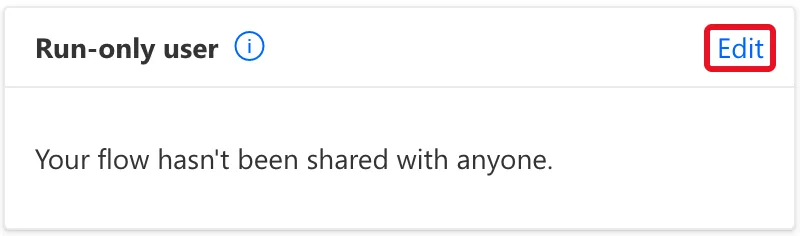
Open the flow's details page (How to Run an Instant Cloud Flow in Power Automate shows how). The Run-only user card said the flow wasn't shared yet. Select Edit:
Step 2: Add the People
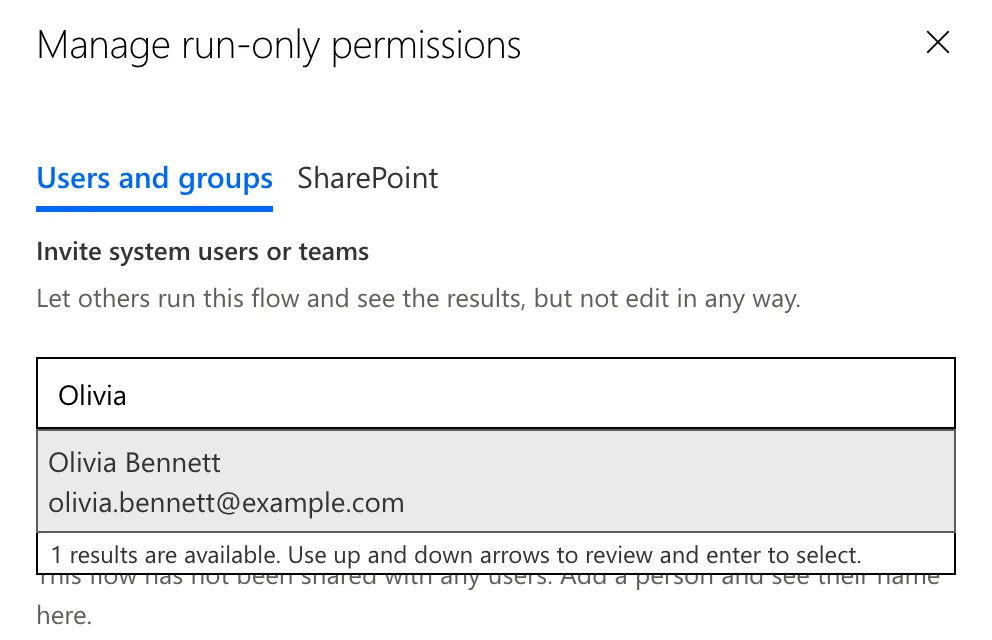
The Manage run-only permissions panel opens on Users and groups: Invite system users or teams. Let others run this flow and see the results, but not edit in any way. Type a name in Enter names or email addresses and select the person:
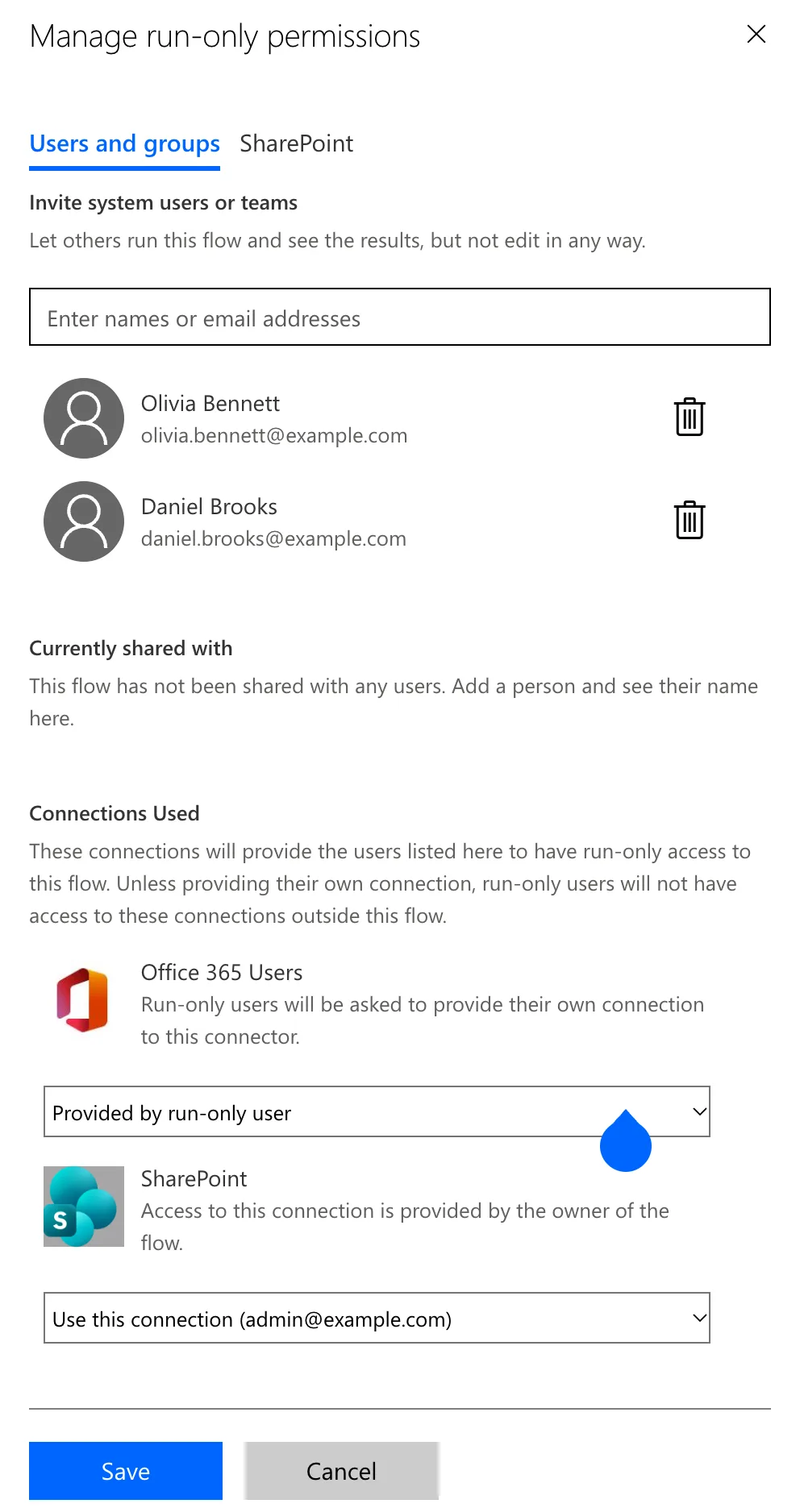
I added Olivia, then Daniel. Each appears in a list with a delete button:
For a whole team, add a security group instead: Microsoft's guide recommends groups for run-only access at scale, so people join or leave through the group, not through the flow.
Step 3: Check Connections Used and Save
Below the people, Connections Used shows what each connector runs with. I kept the choices made earlier: Office 365 Users as Provided by run-only user, and SharePoint on my connection. Select Save.
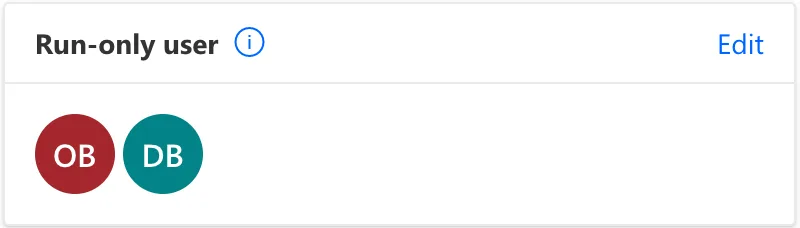
The card now shows each person's initials:
The Result
The app tab Daniel already had open still failed. When he opened the app again, the flow ran for him, and its run history showed runs started from his session (How to See a Flow's Run History in Power Automate).
Common Mistakes
| Mistake | What happens | Do this instead |
|---|---|---|
| Sharing the app but not the flow | The flow fails for everyone but its owners | Add the app's users as run-only users |
| Making people co-owners to let them run it | They can edit and delete the flow | Run-only |
| Adding a whole organization one person at a time | Every joiner needs a change to the flow | A security group |
| Testing in an app tab opened before the change | It keeps failing | Open the app again |
Troubleshooting
| Symptom | Likely cause | Fix |
|---|---|---|
| A person can't be found in the box | Spelling, or the account is outside the tenant | Search by email |
| The app still fails after Save | The open app session predates it | Close the app and open it again |
| A run-only user is asked to allow a connection | That connector is Provided by run-only user | Expected; or use your connection for it |
FAQ
Can run-only users see what the flow does?
No. Microsoft's guide says they can't open the flow in edit mode, see its internal logic, or view past run history.
How do I remove someone?
Open Edit again, select the delete button next to the person, and Save. Microsoft's article describes the same steps.
Conclusion
Run-only users can start a flow and nothing else. On the flow's details page, select Run only users > Edit, add the people or a group, check Connections Used and Save. For a canvas app, do it for each flow the app runs, in the same step as sharing the app.
