How to Share a Canvas App with Specific People in Power Apps

To let particular people use a canvas app, select it in Apps, choose Share, add each person by name, leave their permission as User, and select Share. Before you do, check Additional data access: anything listed there, such as a flow, needs sharing with the same people.
Microsoft's Share a canvas app article describes the two permissions: User can use the app only, and Co-Owner can use, edit, and share the app but not delete or change owners. For a whole team, share with a security group instead (How to Share a Canvas App with a Security Group in Power Apps). Named people suit a test before that.
The example is the Overtime Timesheet app, shared with two approvers, Olivia and Daniel, to test its Waiting for Approval screen.
Prerequisites
- The app published (How to Publish a Canvas App in Power Apps).
- People who have access to its data. The app's SharePoint lists need their own permissions; sharing the app doesn't grant them.
Step 1: Select the App and Share
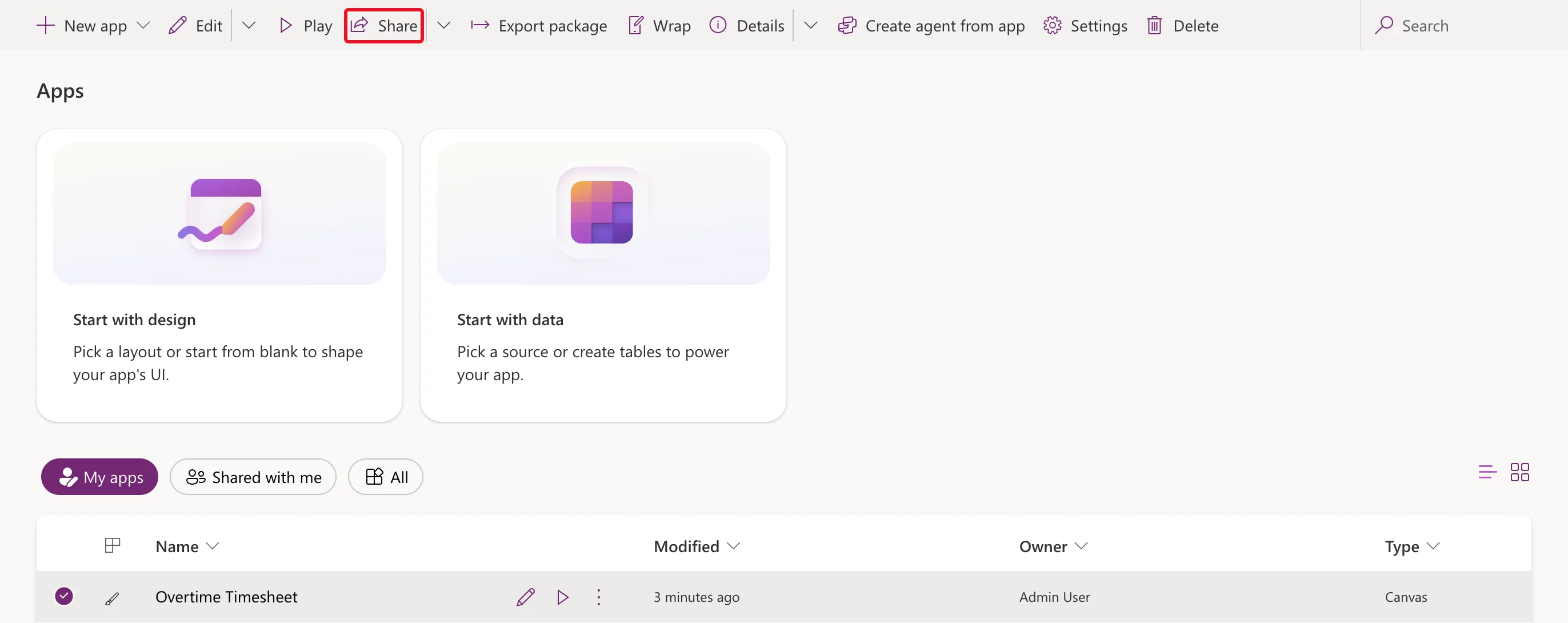
In Power Apps, select Apps, select the app's row, and select Share on the command bar:
Step 2: Review the Data Access Requirements
The dialog notes that this app contains data that may require additional permissions:
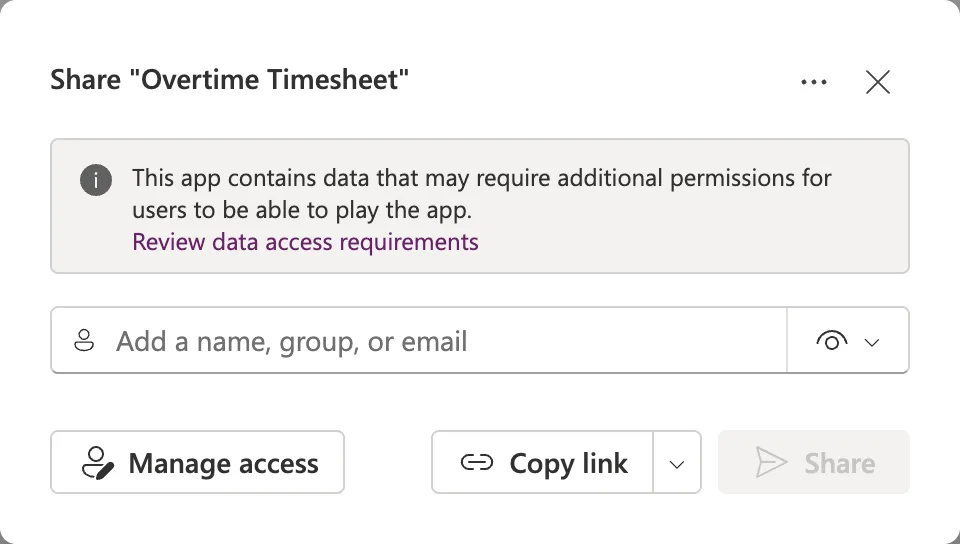
Review data access requirements opens Manage access on Additional data access. For this app, it listed the flow Get Waiting Approvals as Logic flows, and Office 365 Users:
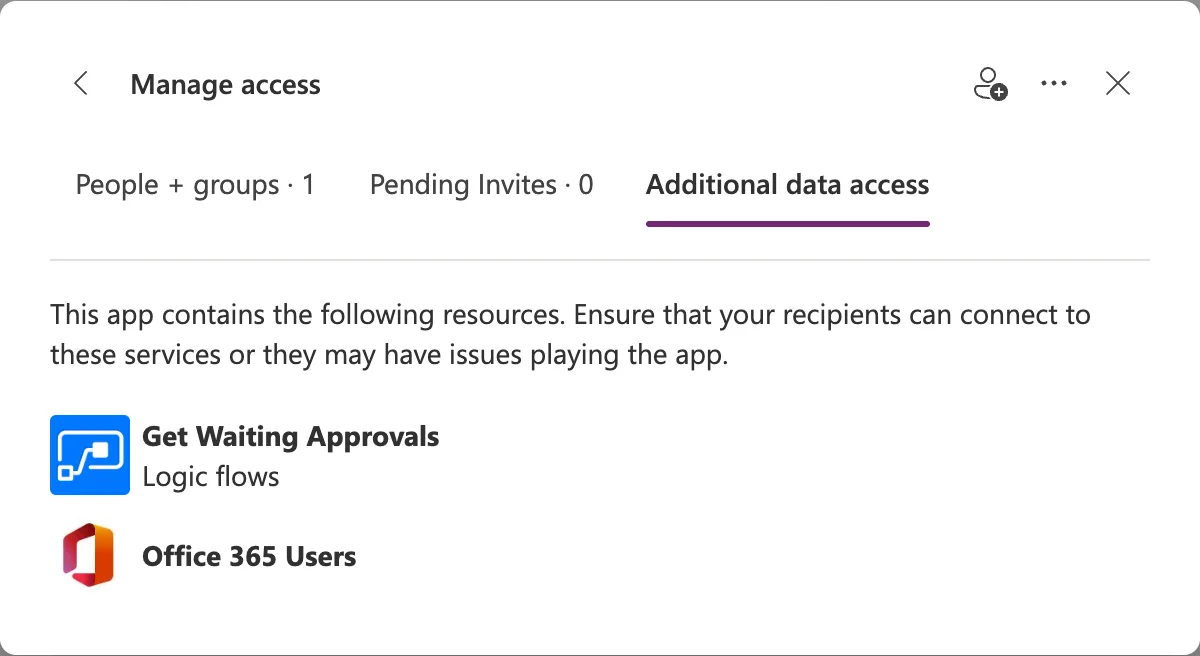
A flow listed here has to be shared with the same people, as run-only users (How to Share a Flow with Run-Only Users in Power Automate). I shared the app first and the flow afterwards, and in between, the flow failed for both approvers (Fixed: "Does Not Have ReadAccess Right(s) … of Entity Process" When Power Apps Runs a Flow).
Step 3: Add Each Person
Back in the dialog, type a name in Add a name, group, or email and select the person:
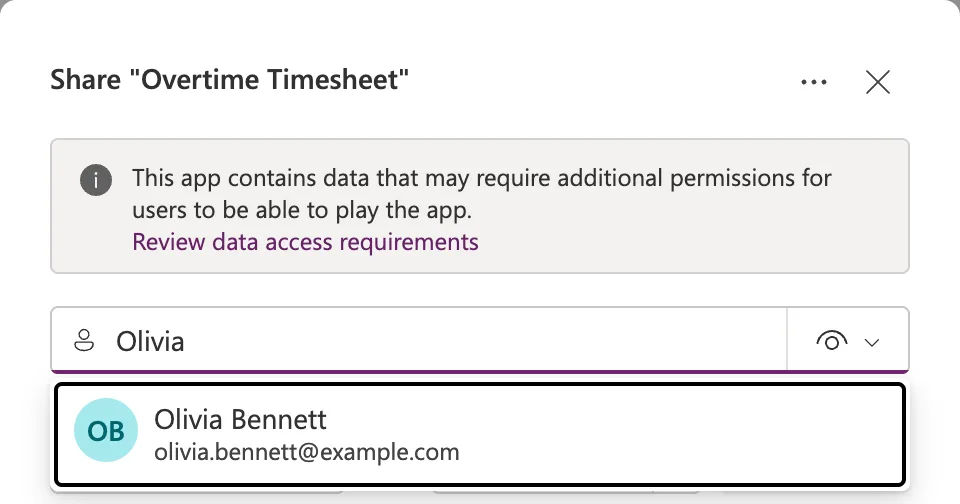
Each person becomes a chip. I added Olivia and Daniel:
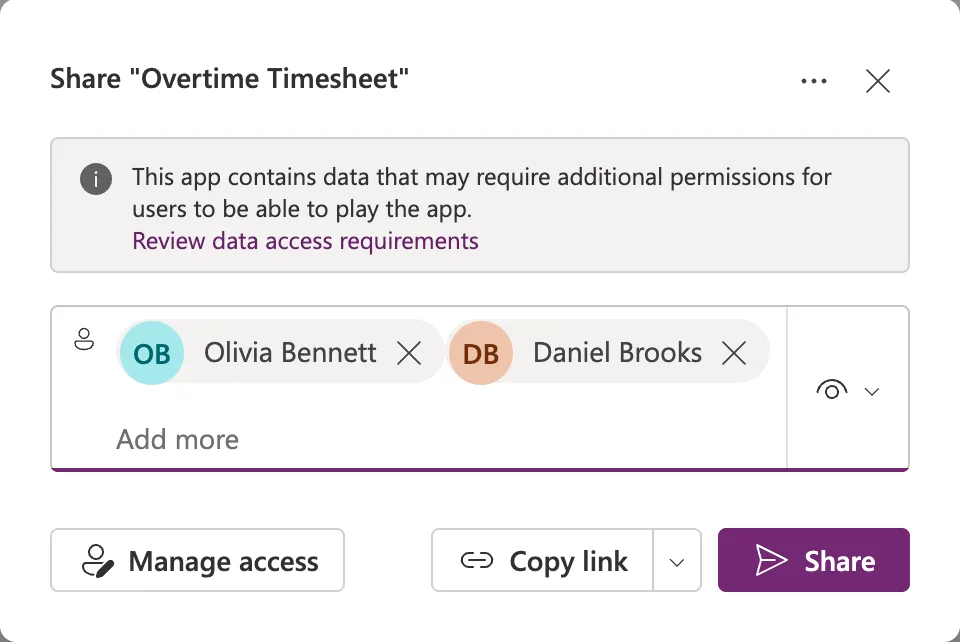
Step 4: Keep the User Permission and Share
The menu at the right of the box, with the eye icon, sets the permission. User is the default; leave it unless these people should edit the app. Select Share:
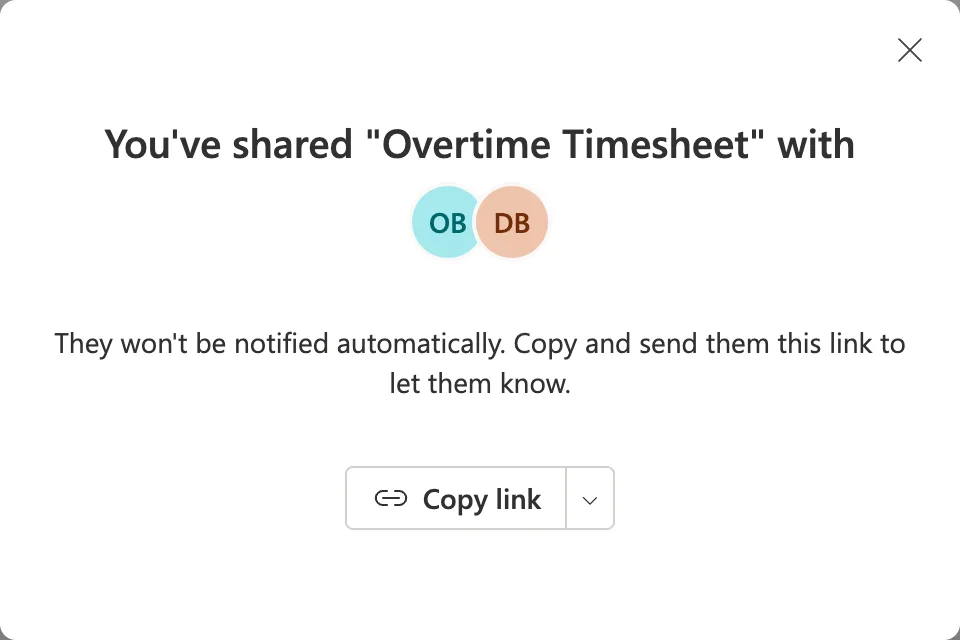
As it says, nobody is told. Send them the app's link yourself, with Copy link (How to Find the Web Link of a Canvas App in Power Apps).
Step 5: Check Who Has Access
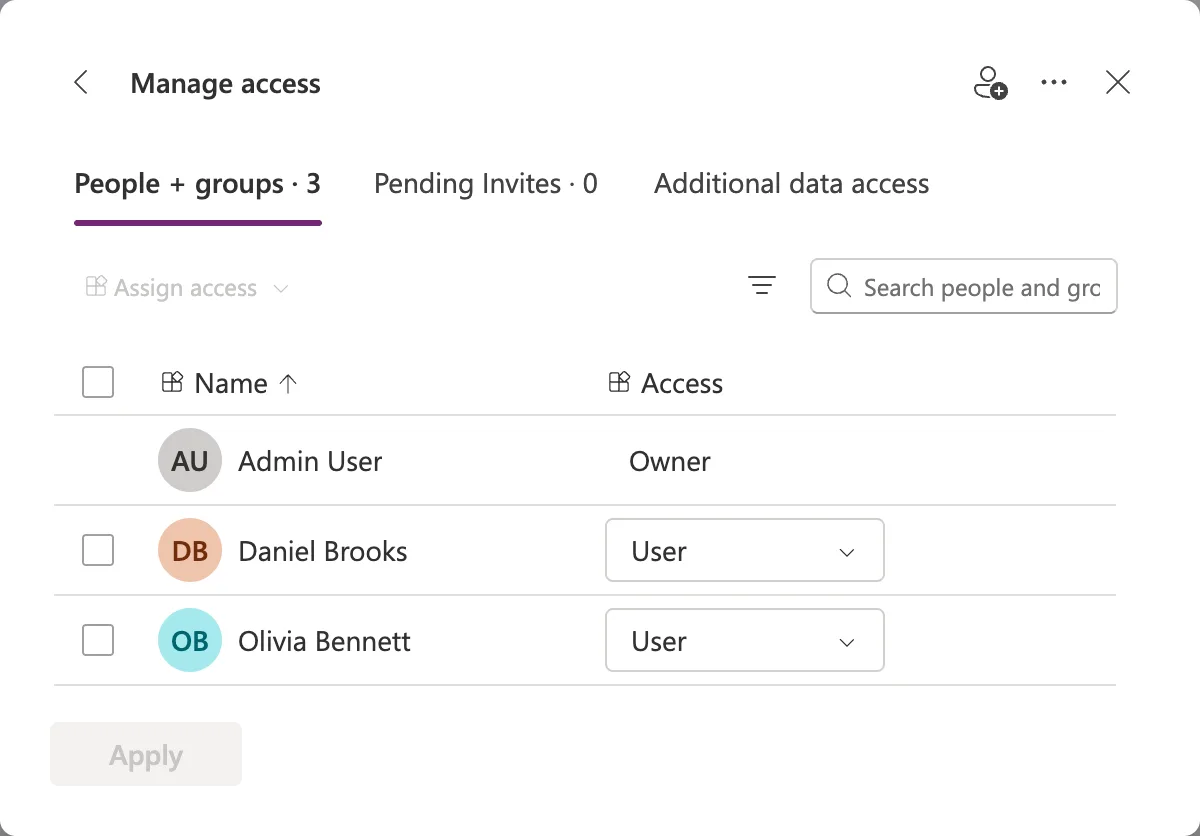
Manage access on the People + groups tab lists everyone with access:
The Result
Both approvers found the app under Apps > Shared with me and opened it with Play (How to Find Apps Shared with You in Power Apps). The first time, each was asked to allow the app's connections, including the one its flow uses.
Common Mistakes
| Mistake | What happens | Do this instead |
|---|---|---|
| Sharing the app but not a flow it uses | The flow fails for them | Share the flow with run-only users too |
| Giving Co-owner to people who only use the app | They can edit and share it | User |
| Expecting an email | They aren't notified | Send them the link |
| Adding a whole team one by one | Every joiner needs another share | A security group |
Troubleshooting
| Symptom | Likely cause | Fix |
|---|---|---|
| They can't find the app | Another environment, or not shared | Check Manage access, and their environment |
| The app opens, but a flow fails | The flow isn't shared with them | Run-only users on the flow |
| They see no data | No access to the data source | Give access where the data lives |
FAQ
Does sharing the app give access to its SharePoint lists?
No. Additional data access lists what people must be able to reach, and the lists' own permissions decide what they see.
Can these people share the app further?
No. A User can use the app only; sharing it needs Co-owner.
Conclusion
Select the app, Share, add each person, keep User, and Share. Then share whatever Additional data access lists, flows included, and send the people the app's link.
