How to Share a Canvas App with a Security Group in Power Apps

Sharing a canvas app with a security group lets every member run it, and anyone added to the group later gets the app without another share. This guide shares an app in the new Share dialog and covers two things it doesn't do: give access to your data, and tell people.
Prerequisites
- A published app. Microsoft says to save and publish before sharing (How to Publish a Canvas App in Power Apps).
- A Microsoft Entra security group with the people as members (How to Create a Security Group in the Microsoft Entra Admin Center). Microsoft notes that owners of the group must also be members to get the app.
- Access to the app's data. Sharing the app doesn't share its data sources. In the example, the group has Contribute on the SharePoint site (How to Give a Security Group Access to a SharePoint Site).
The example is the Career Development Plan app, shared with the group Career Development Plan Users.
Step 1: Select the App and Share
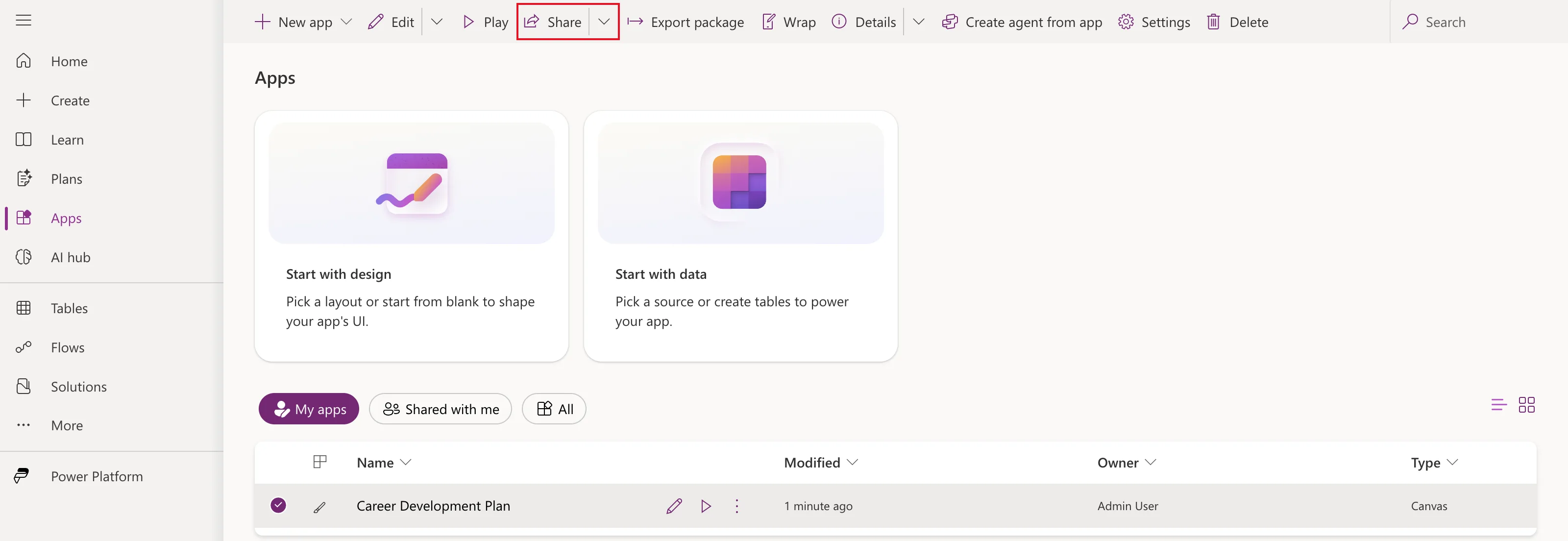
In Power Apps, open Apps, select the app's row, and choose Share on the command bar:
Step 2: Check the Data Access Note
The dialog opens with a note: the app contains data that may require additional permissions:
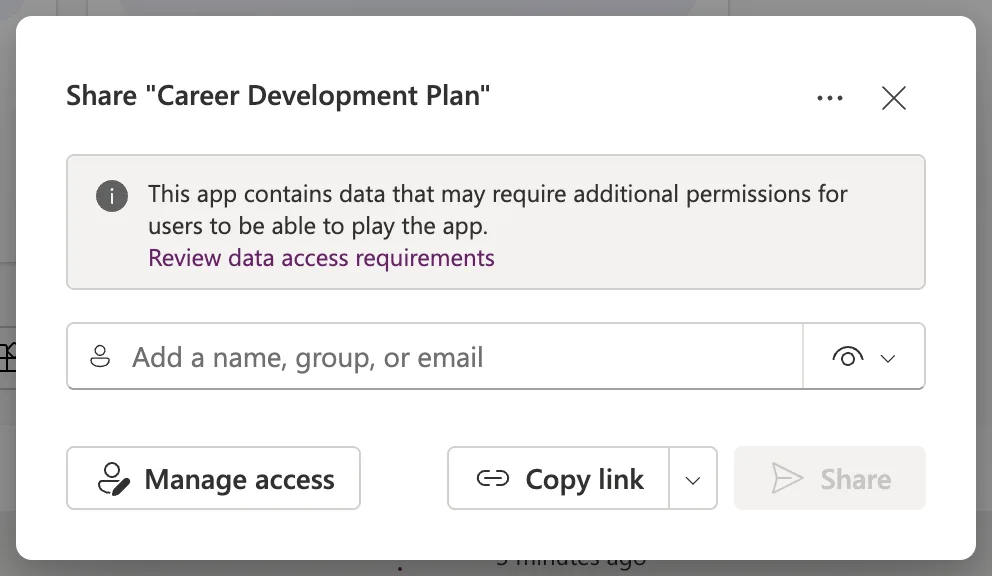
Review data access requirements opens Manage access → Additional data access, which lists what the app connects to. People need their own access to each:
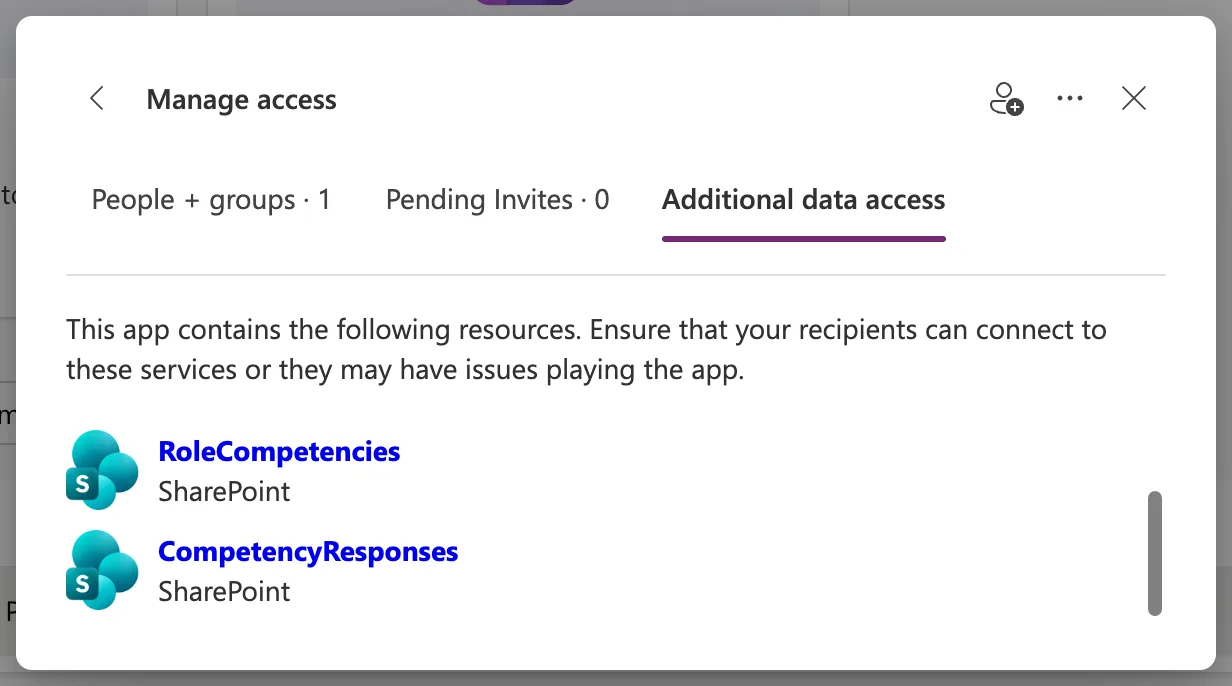
Here, Office 365 Users reads each person's own Microsoft 365 profile, and the SharePoint lists use the site permission from the prerequisites. Use the back arrow to return to the share dialog.
Step 3: Add the Group
Type the group's name in Add a name, group, or email, and select it in the suggestions:
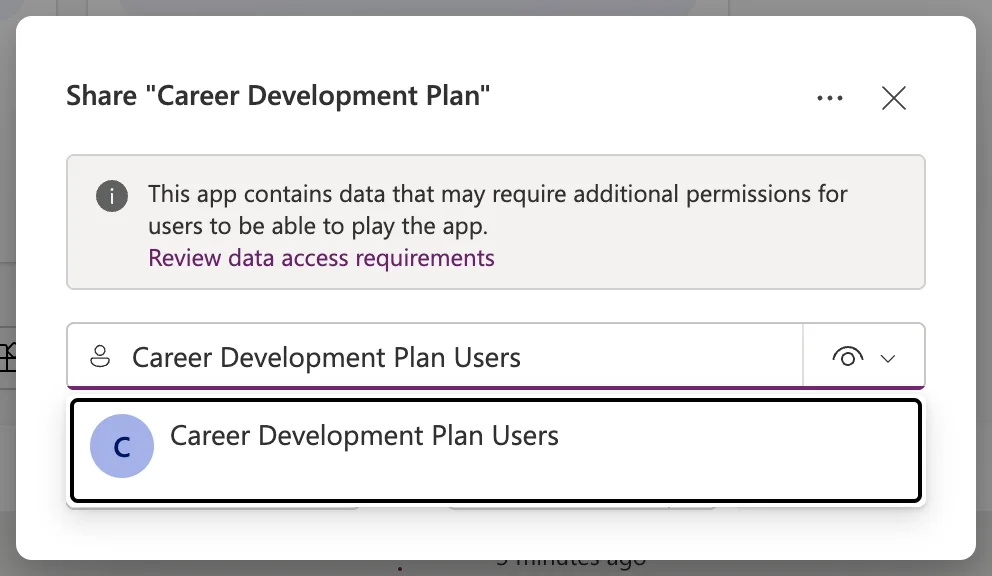
It's added as a chip:
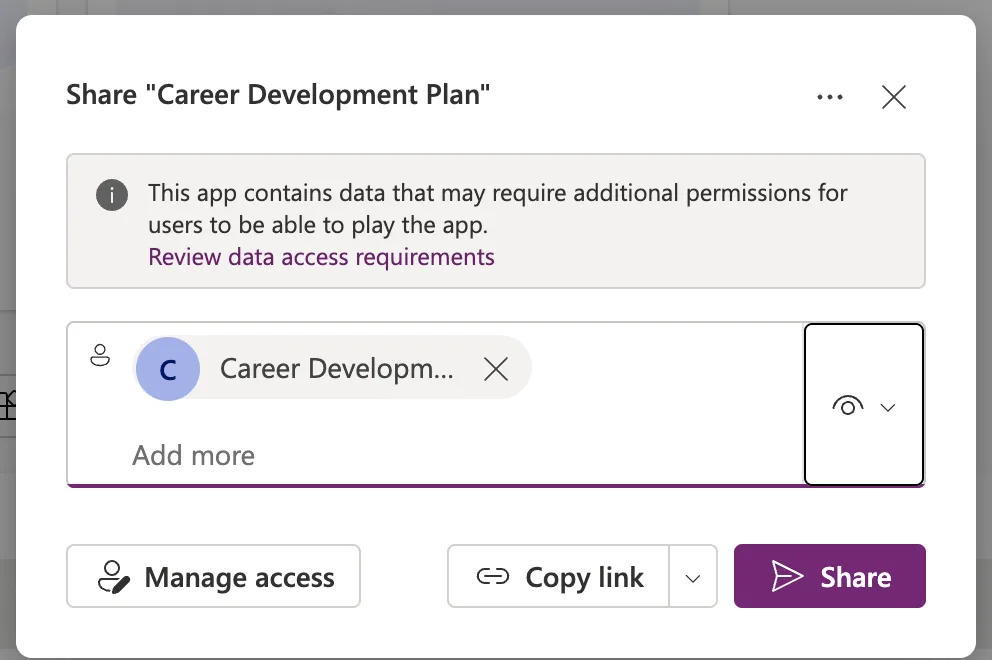
Step 4: Choose User or Co-owner
The icon at the end of the box sets the access. User is selected by default:
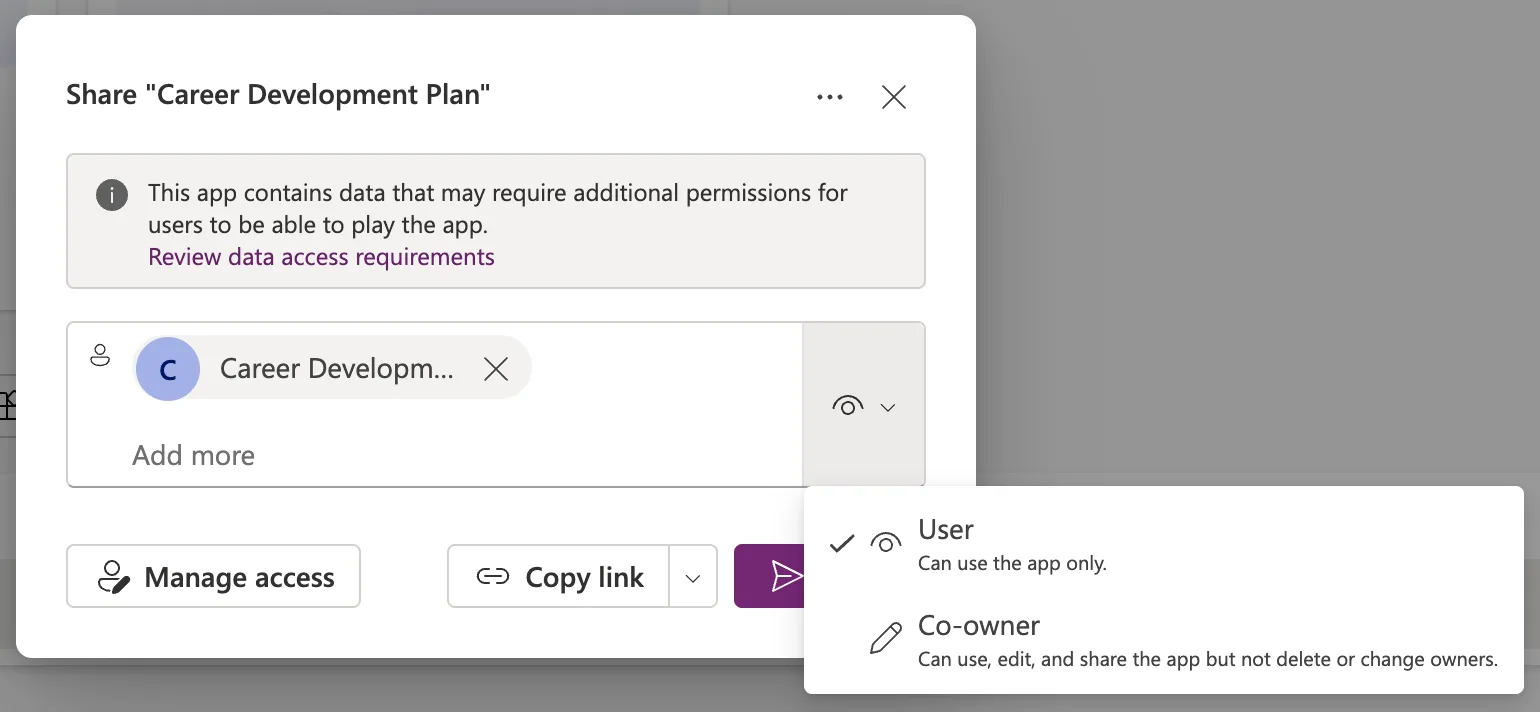
Keep User for people who only run the app. Microsoft's article notes that for an app created inside a solution, the sharing interface can't make a security group a co-owner.
Step 5: Share
Select Share. The dialog confirms who it's shared with, and says what it didn't do:
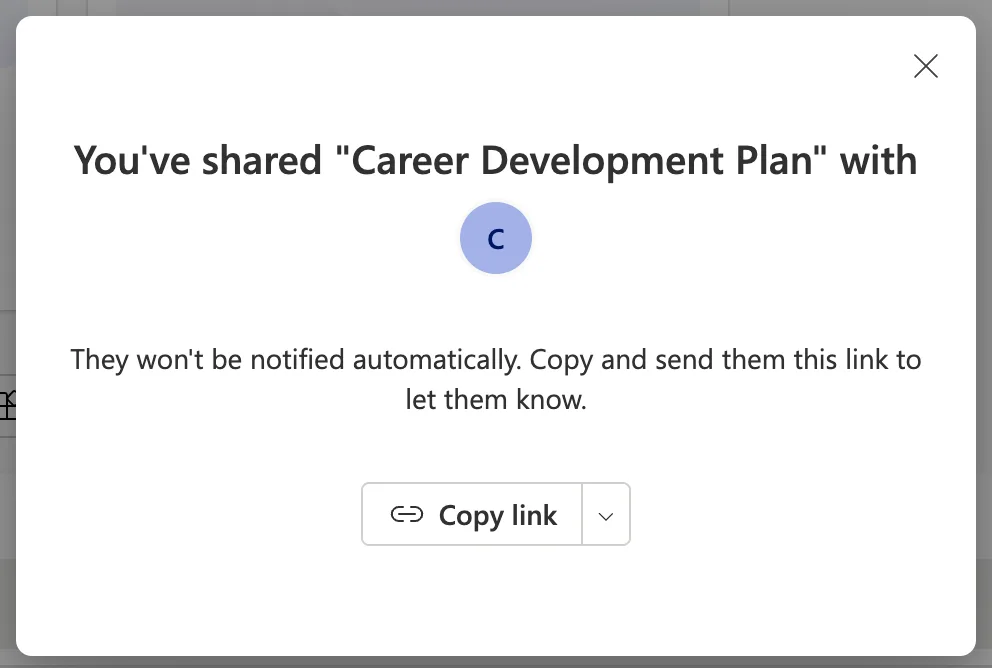
Nobody was emailed. To tell people, select Copy link and send the link yourself. Its menu has Copy link to play app and Copy link to edit app; the default copies the play link:
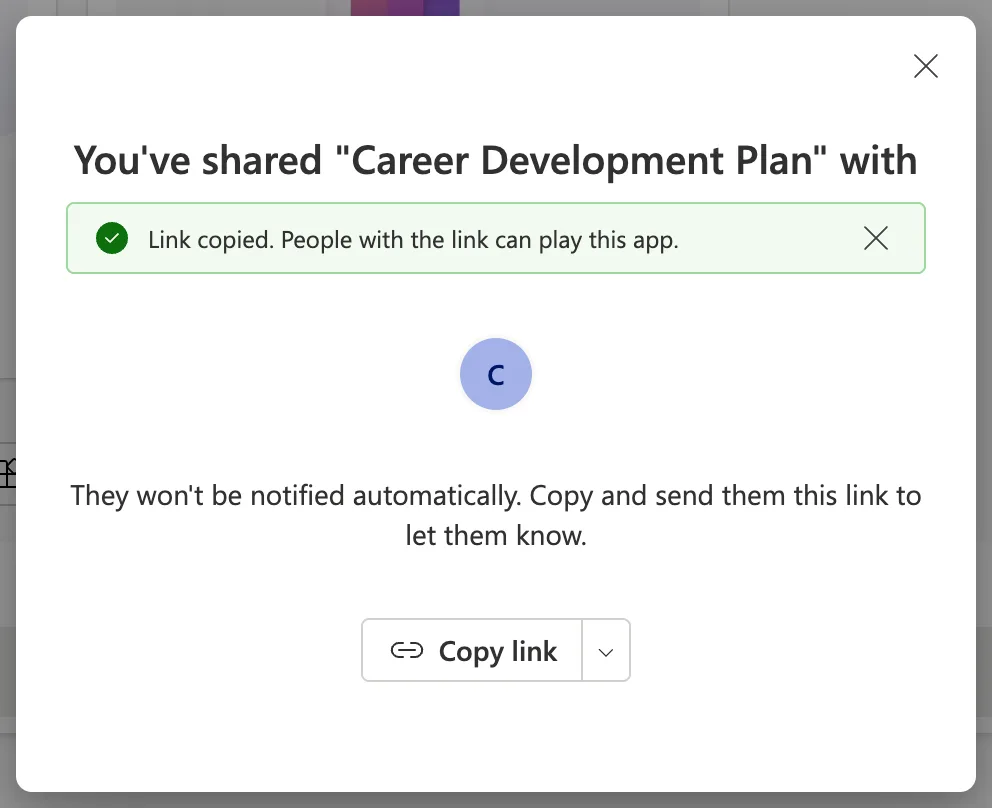
The same link is on the app's details page (How to Find the Web Link of a Canvas App in Power Apps).
Step 6: Check Who Has Access
Open Share again and select Manage access. People + groups lists the owner and the group with User access:
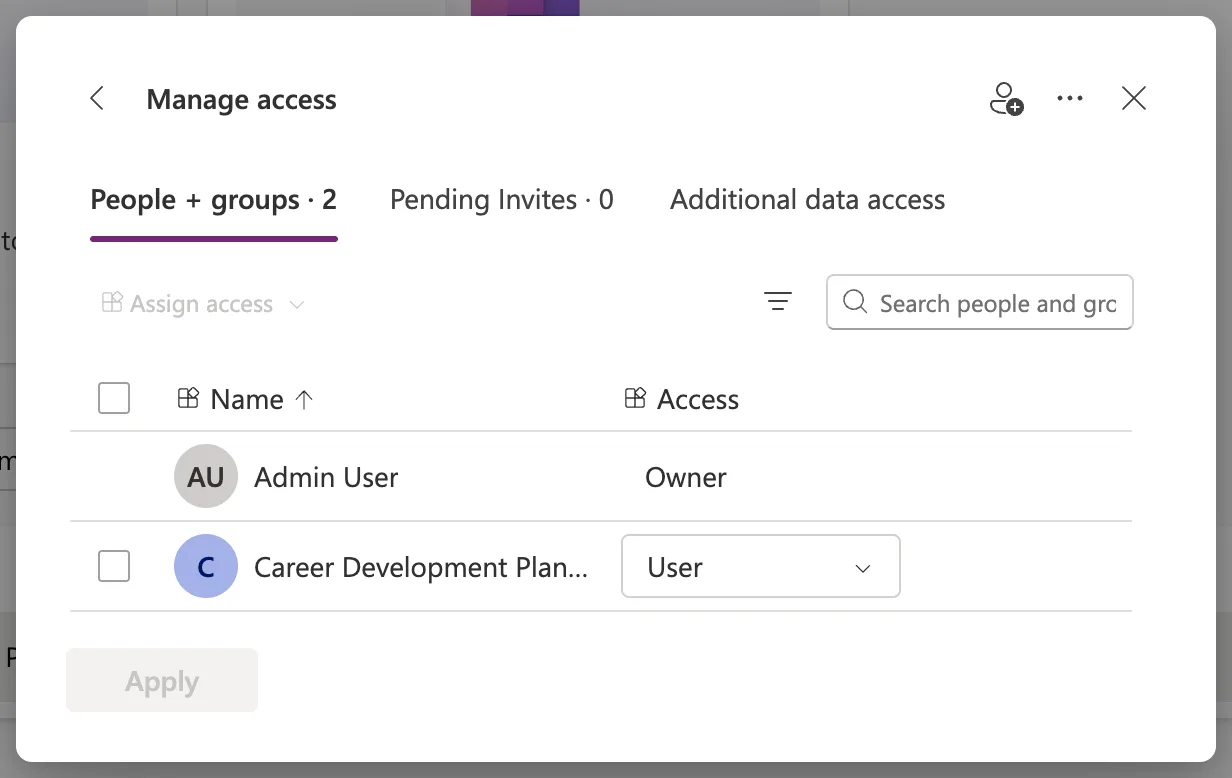
To stop sharing later, remove the group here.
How Group Sharing Behaves
From Microsoft's sharing article:
- Everyone in the group gets the access you chose, and people added later get it too.
- People who leave the group lose access through it.
- Microsoft recommends a security group rather than individual people once an app has more than 100 users.
Common Mistakes
| Mistake | What happens | Do this instead |
|---|---|---|
| Sharing without access to the data | The app opens, but its lists don't load | Give the group access to the data sources too |
| Expecting the dialog to email people | Nobody knows the app exists | Copy the link and send it |
| Owning the group but not being a member | You don't get the app through the group | Add yourself as a member |
| Making a group co-owner | Members could edit and share the app | Keep User; add co-owners one by one |
Troubleshooting
| Symptom | Likely cause | Fix |
|---|---|---|
| The group doesn't appear in the suggestions | It's a Microsoft 365 group without security enabled, or a distribution list | Use a security group |
| A member can't open the app | The app isn't published, or they aren't a member | Publish, and check the group's members |
FAQ
Does sharing the app give access to the SharePoint lists?
No. Additional data access lists what people need; grant it where the data lives.
Can I still send an email invitation?
In my test, the new dialog didn't send one. The ... menu has Use classic sharing, and Microsoft's article describes a Send an email invitation to new users check box there.
Conclusion
Share with a security group, keep User access, and give the group access to the app's data separately. The new dialog doesn't notify anyone, so copy the link and send it.
