How to Set the Start Screen in Power Apps with App.StartScreen

By default, a canvas app opens on the first screen in the tree view. App.StartScreen lets you say which screen opens first, on purpose and in one place. It replaces putting Navigate in App.OnStart, which Microsoft has retired because it slows loading.
Why StartScreen Instead of Navigate in OnStart
Microsoft's code optimization guidance explains the difference. If OnStart contains a Navigate, the app must finish all of OnStart before it shows any screen. StartScreen is declarative: Power Apps knows the first screen straight away and can show it before OnStart finishes.
Studio also has a setting, on by default in the example app, that builds on this. Under Settings → Updates → New, Enable defer loading unused screens with App.StartScreen says that only the start screen is loaded at launch.
Prerequisites
- A canvas app with the screen you want first. The example is the Career Development Plan app from the Career Development Plan series, with a screen named Home Screen. To rename a screen, see How to Rename a Screen or Control in Power Apps.
Step 1: Set App.StartScreen
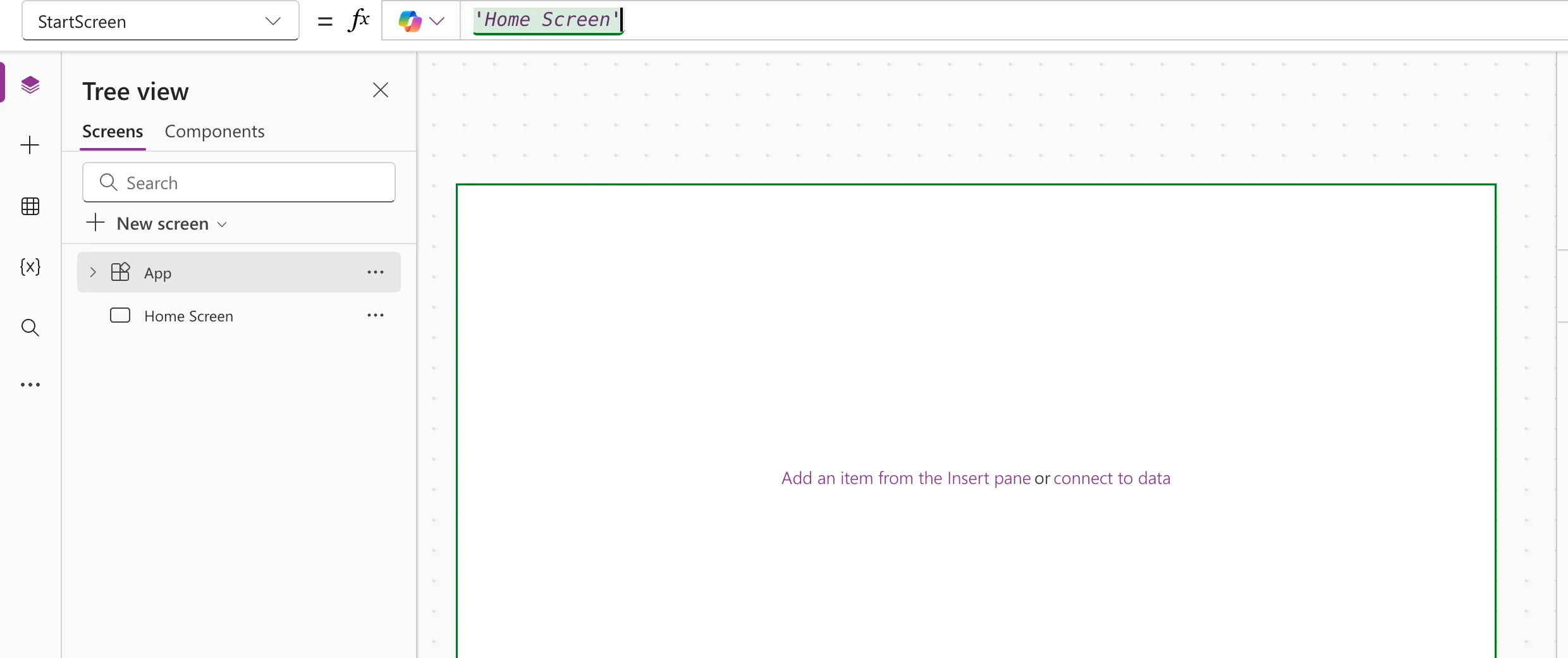
Select App in the tree view, choose StartScreen in the property list, and enter the screen:
'Home Screen'
The screen name has a space, so it goes in single quotes. Studio outlines the screen you've referenced in green on the canvas:
Step 2: Test It in Studio
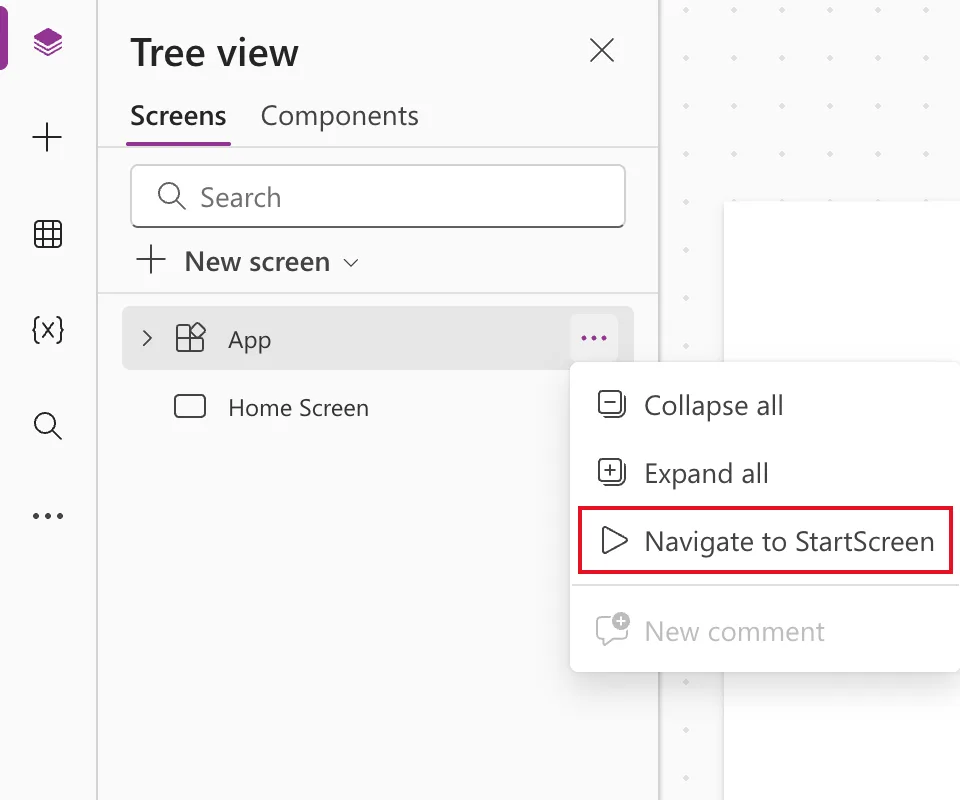
Hover App in the tree view, select …, and choose Navigate to StartScreen. Studio shows the start screen as if the app had just opened:
Choosing the Screen with a Condition
StartScreen can be any formula that returns a screen, as long as it doesn't perform actions. Microsoft's examples include choosing by an app parameter:
If( Param( "admin-mode" ) = 1, HomeScreen, AdminScreen )
Two rules from the App object reference matter here:
- Global variables and collections, even ones set in OnStart, aren't available in StartScreen. Named formulas are; see How to Use Named Formulas in Power Apps.
- If StartScreen returns an error, the app opens on the first screen in the tree view. Wrap risky formulas in IfError to choose a fallback; see How to Handle Errors in Power Apps with IfError.
Common Mistakes
| Mistake | What happens | Do this instead |
|---|---|---|
Home Screen without quotes | A syntax error | 'Home Screen' |
| Navigate in App.OnStart | Slower loading; the feature is retired | Use App.StartScreen |
| Using a variable from OnStart in StartScreen | It isn't available there | Use a named formula |
Troubleshooting
| Symptom | Likely cause | Fix |
|---|---|---|
| The app opens on the wrong screen | StartScreen returned an error | Check the formula; add IfError |
| Navigate to StartScreen is missing | App isn't the item you opened the menu on | Use the … on App in the tree view |
| The screen name shows an error | The screen was renamed | Update the name in StartScreen |
FAQ
What if I leave StartScreen empty?
The app opens on the first screen in the tree view. Setting it explicitly makes the choice obvious to anyone who edits the app later.
Can StartScreen call a connector?
Yes. Microsoft lists API calls through a connector among the things StartScreen can use, with the advice to make sure the call returns quickly.
Is StartScreen evaluated again later?
No. It's evaluated once, when the app loads.
Conclusion
Set App.StartScreen to the screen that should open first, in single quotes if its name has spaces, and test it with Navigate to StartScreen. It's faster and clearer than Navigate in OnStart.
Additional Resources
- App object: StartScreen property: rules and examples.
- Code optimization: start screen: why StartScreen loads faster.
