How to Set Environment Variable Values When Importing a Solution

Environment variables keep a solution's settings apart from what uses them: which SharePoint site and lists an app reads, for example. When a solution's variables arrive without a value, the import asks you for them, so the same solution can point at a different site in every environment. This guide fills them in during the import, and in a settings file for the CLI.
When the Import Asks
Microsoft's Environment variables overview says variables without a default value or value prompt for a value, and that you won't see this screen if values are already present in your solution or the target environment.
So the step only appears when the solution was exported without values (How to Keep Environment Variable Values Out of an Exported Solution), and the first time the solution goes into an environment. The example is the Career Development Plan app's solution, whose three variables point the app at a SharePoint site and two lists (How to Create Environment Variables for a SharePoint Site and List).
Prerequisites
- The solution zip, without values. The example is
CareerDevelopmentPlan_1_0_0_0_managed.zipfrom Part 12. - The site and lists in the new environment's tenant. You pick them from what exists, so create them first. In the example, a setup flow created them (How to Run an Instant Cloud Flow).
- The import started as How to Import a Solution in Power Apps shows, up to its Details step.
Step 1: Check the SharePoint Connection
After Details, the import shows a Connections step for the variables, even though this solution has no connection references: SharePoint, Required for Environment Variables of type Data source SharePoint:
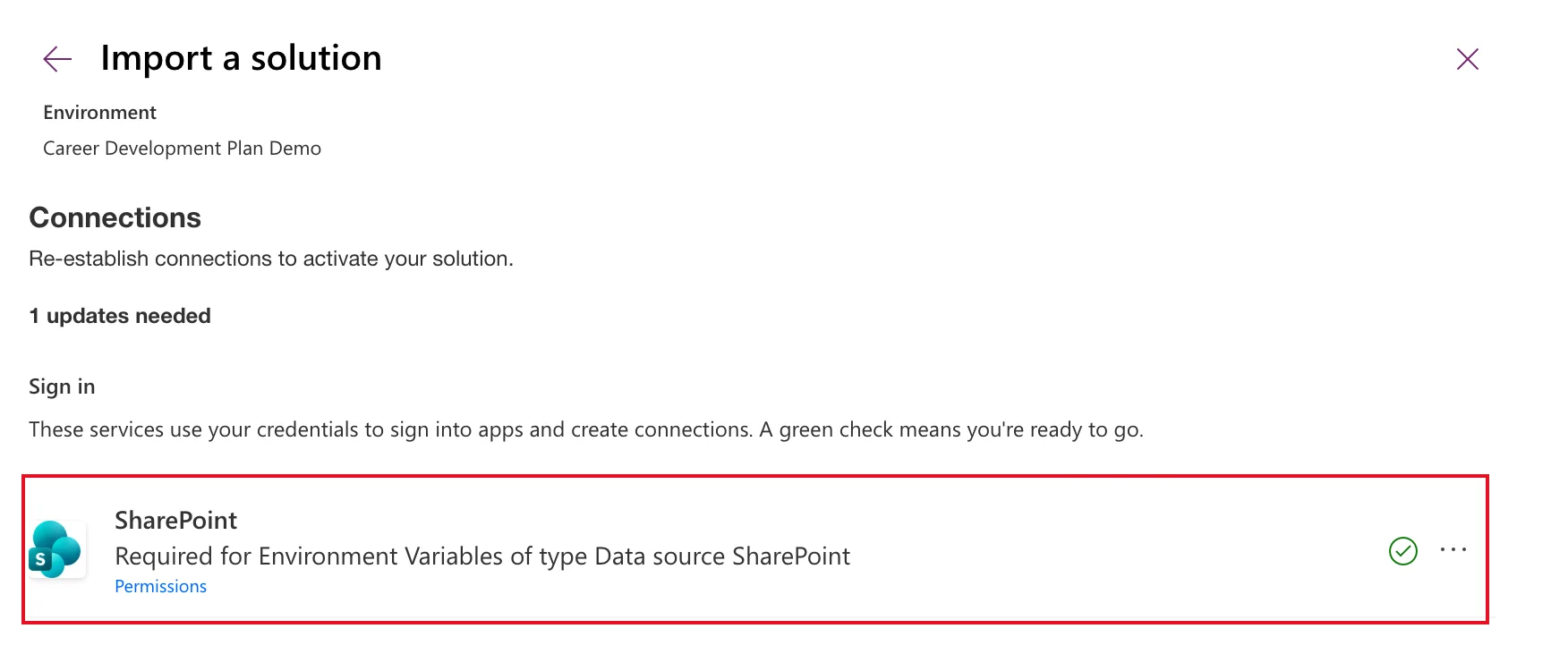
The connection is only used to list the sites and lists you can choose from: Microsoft's article says a data source variable stores the site or list, not the connection. It had a green check, from the connection the Setup solution's import had made. Select Next.
Step 2: The Environment Variables Step
Environment Variables says Enter information for each field, so your app works properly. You can edit your environment variables later. Each variable has a box on the left, and its connector, schema name and description on the right:
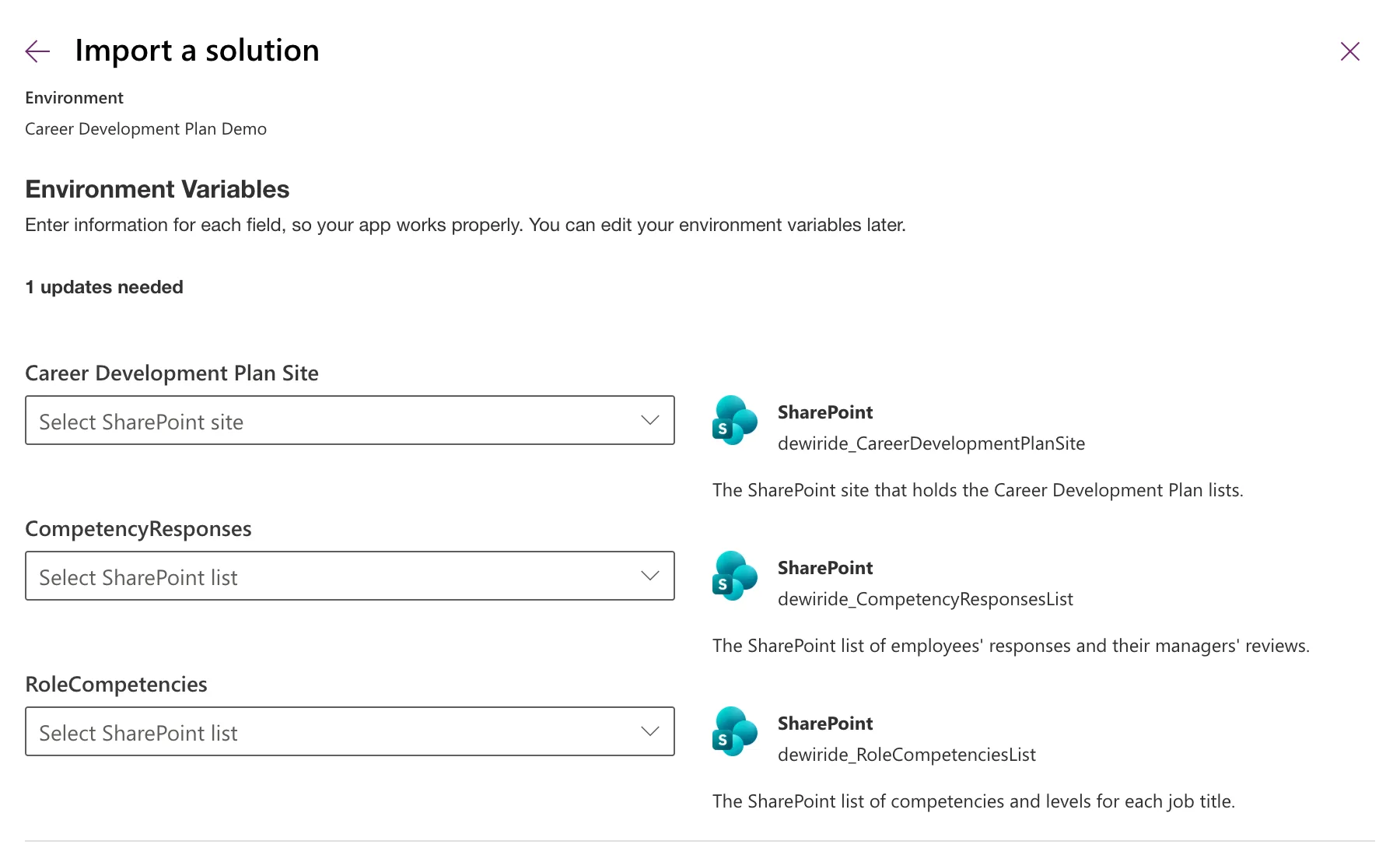
The names on the left are the variables' display names, and the descriptions are the ones written when the variables were created, which is why they're worth writing.
Step 3: Pick the Site
Open Select SharePoint site. It lists the sites the connection can see, by title:
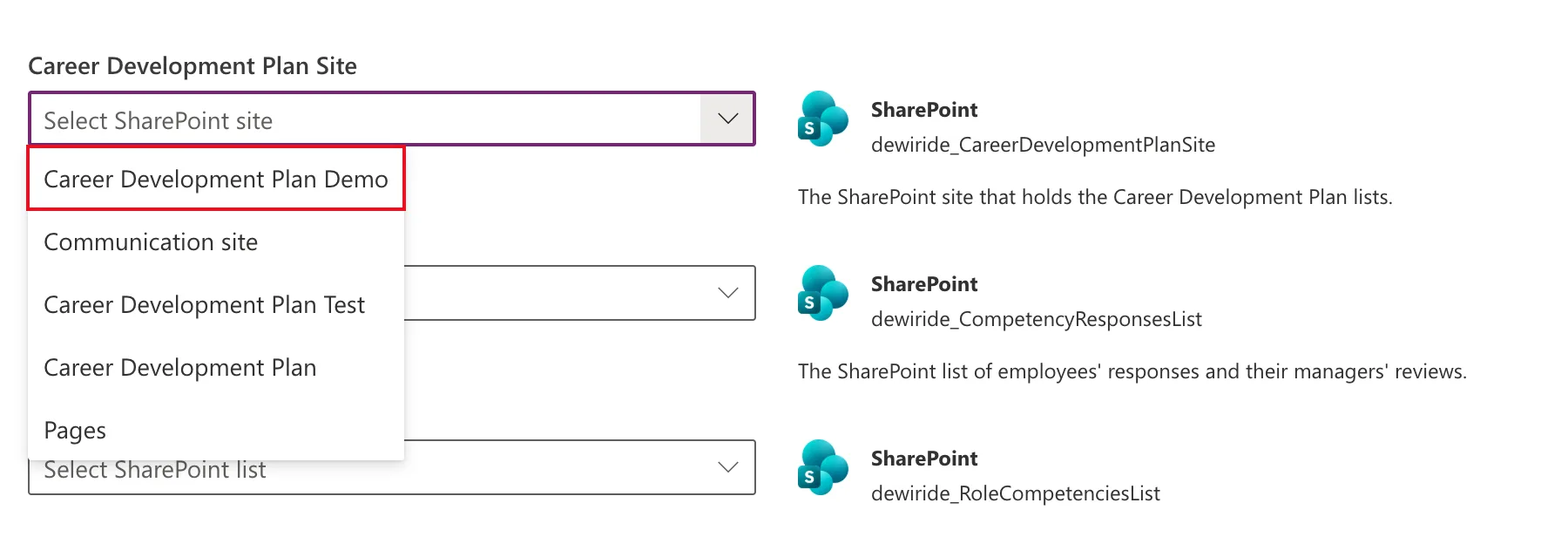
Choose the site for this environment, here Career Development Plan Demo. The original site, Career Development Plan, is in the list too, because both are in the same tenant: picking it would point this installation at the development data.
Step 4: Pick the Lists
Each list variable's picker now lists that site's lists:
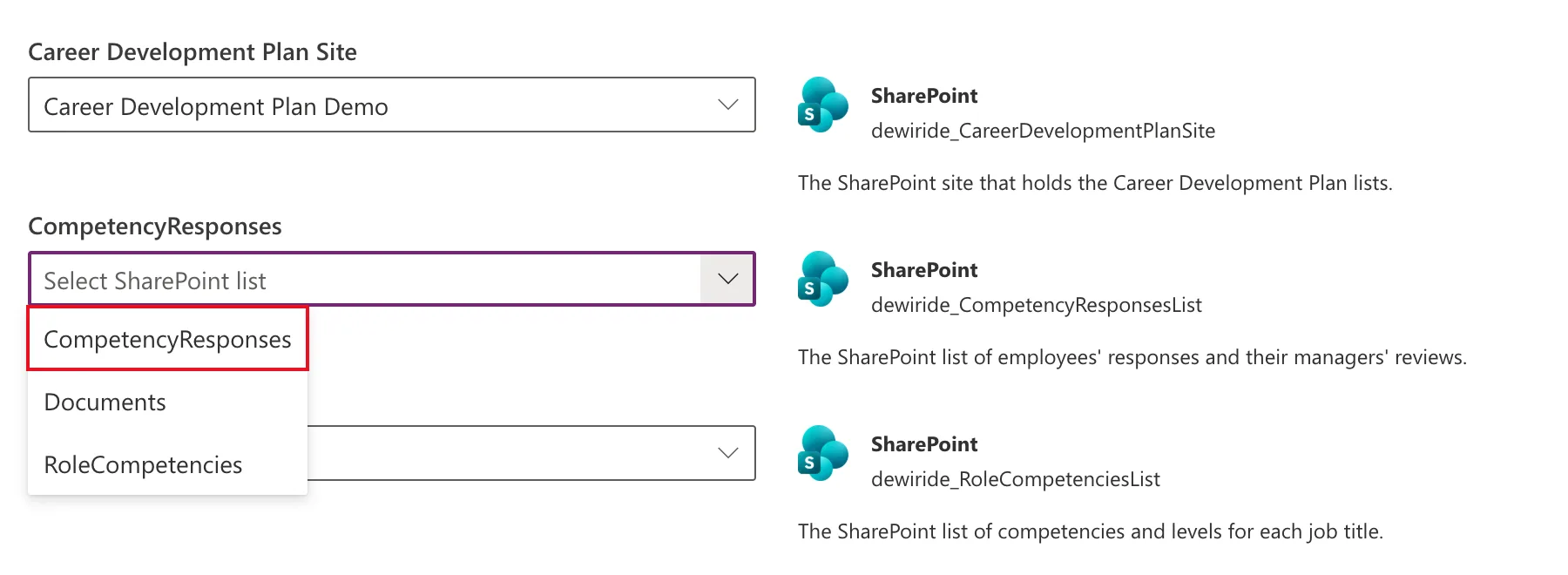
Choose the list with the variable's name for each:
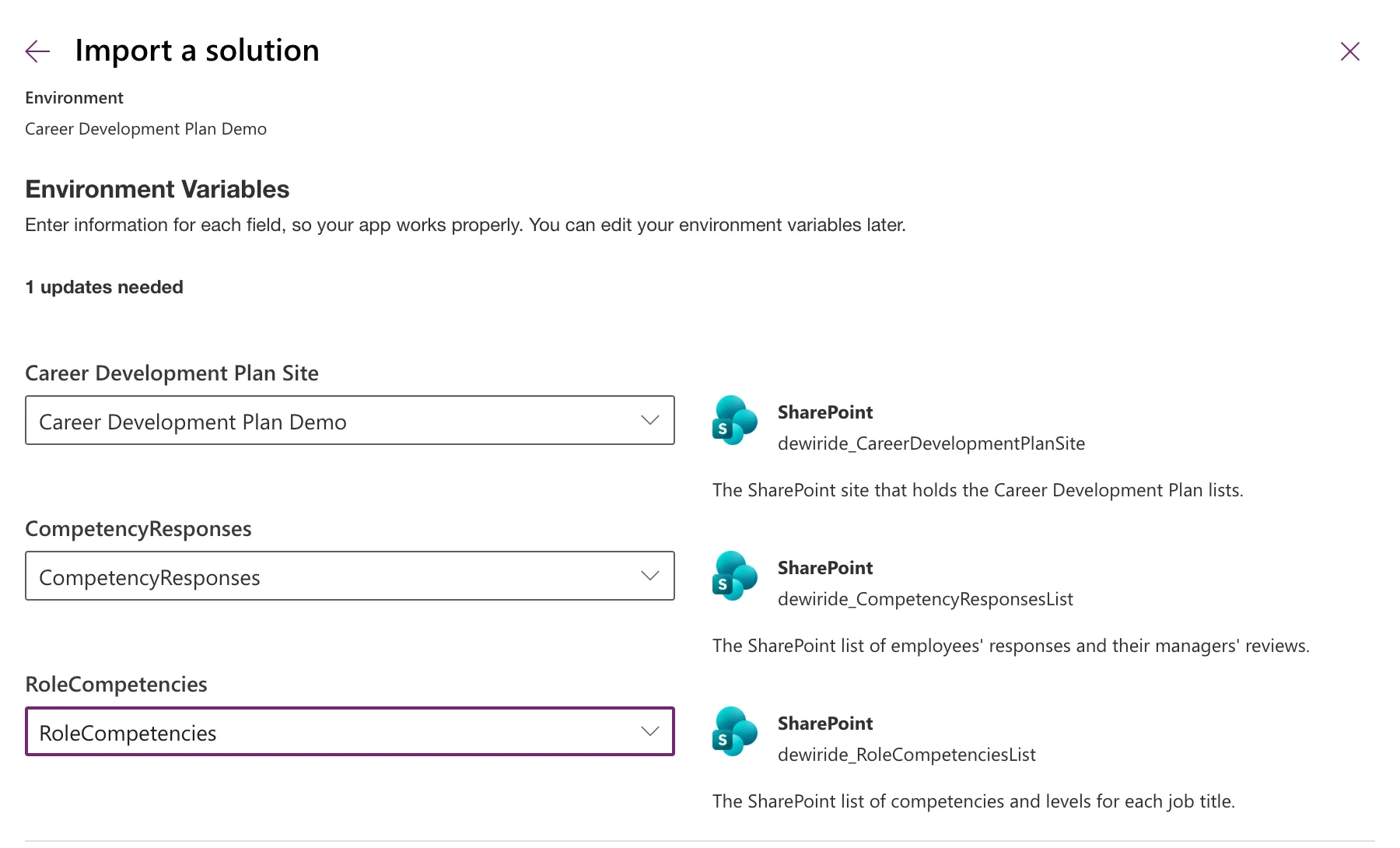
The boxes show names, but Microsoft's canvas app article says what's stored: the site's address, and each list's ID.
Step 5: Import
Select Import. The app solution imported in about 36 seconds: Solution "Career Development Plan" imported successfully.
The app then used the new values: in Part 13, a manager's first competency landed in the new site's list, not in the original one.
Do It with the CLI
pac solution import can't ask, so it takes the values from a deployment settings file (Pre-populate connection references and environment variables). The CLI creates the file from the zip, offline.
Create the settings file
pac solution create-settings --solution-zip release/CareerDevelopmentPlan_1_0_0_0_managed.zip --settings-file cdp-settings.json
Extracting Dataverse connection references and/or environment variables from: /Users/you/cdp/release/CareerDevelopmentPlan_1_0_0_0_managed.zip
Deployment settings file created: /Users/you/cdp/cdp-settings.json
The file lists each variable with an empty Value, and each connection reference, here none:
{
  "EnvironmentVariables": [
    {
      "SchemaName": "dewiride_CareerDevelopmentPlanSite",
      "Value": "",
      "Name": {
        "Default": "Career Development Plan Site",
        "ByLcid": {
          "1033": "Career Development Plan Site"
        }
      },
      "TypeId": 100000004,
      "Description": {
        "Default": "The SharePoint site that holds the Career Development Plan lists.",
        "ByLcid": {
          "1033": "The SharePoint site that holds the Career Development Plan lists."
        }
      },
      "IsRequired": false,
      "ParameterKey": "dataset",
      "ApiId": "/providers/microsoft.powerapps/apis/shared_sharepointonline"
    },
The two list variables follow, with "ParameterKey": "table" and "ParentSchemaName": "dewiride_CareerDevelopmentPlanSite", then "ConnectionReferences": [].
Fill in the values
Only Value changes:
| Variable | Value |
|---|---|
dewiride_CareerDevelopmentPlanSite | The site's address, such as https://contoso.sharepoint.com/sites/CareerDevelopmentPlanDemo |
dewiride_CompetencyResponsesList | The list's ID, such as 00000000-0000-0000-0000-000000000000 |
dewiride_RoleCompetenciesList | The list's ID |
I read the two lists' IDs with SharePoint's REST API, _api/web/lists?$select=Title,Id, the same endpoint the series' setup flow uses to find its lists (How to Check Whether a SharePoint List Exists).
Import with the file
pac solution import --path release/CareerDevelopmentPlan_1_0_0_0_managed.zip --settings-file cdp-settings.json
Connected as admin@example.com
Connected to... Career Development Plan Demo

Solution Importing...

Solution Imported successfully.
I ran it against the environment where the portal import had already set the same values, and the app kept working afterwards.
Change a Value Later
The step's own text says you can edit the variables later. Microsoft's FAQ adds two things to know:
- For a variable in a managed solution, the value shows only in the Default Solution.
- A changed value can take up to an hour to reach the apps and flows that use it.
Common Mistakes
| Mistake | What happens | Do this instead |
|---|---|---|
| Importing before the lists exist | There's nothing to pick | Create the lists first |
| Picking the original site because its name is familiar | The installation uses the development data | Pick the site made for this environment |
| Pairing a list with the wrong variable | The app reads the wrong list | Match each variable's name |
| Putting list names in the settings file | Microsoft's article says the value must be the list's ID | Use each list's ID |
Troubleshooting
| Symptom | Likely cause | Fix |
|---|---|---|
| No Environment Variables step | The zip or the environment already has values | Check the zip (How to See What's Inside a Solution Zip) |
| A site or list is missing from a picker | The connection's account can't see it | Use a connection with access, or give it access |
| An Access denied warning on a value | Microsoft says it means you don't have access to the connection or source; it doesn't block the import | Check you can open the site |
FAQ
Do I need a SharePoint connection even without connection references?
Yes, to fill in data source variables: the step said so, and Microsoft's article says the connection is what lists the sites and lists.
Can the settings file also set connection references?
Yes: its ConnectionReferences section takes a connection for each. This solution has none, so its list was empty.
Conclusion
Leave the values out of the zip, create the site and lists first, then pick them in the import's Environment Variables step. For the CLI, create a settings file with pac solution create-settings, put the site's address and the lists' IDs in its Value fields, and pass it to pac solution import.
Additional Resources
- Environment variables overview: values, imports and the FAQ.
- Use data source environment variables in canvas apps: SharePoint site and list values.
- Pre-populate connection references and environment variables: the deployment settings file.
- pac solution create-settings: the command's options.
