How to Set Different Log Levels per Environment in appsettings.json

On your machine you want to see every SQL statement. In Production you don't: it's noise, and it costs money to store. ASP.NET Core reads appsettings.json, then the file for the current environment on top of it, so one setting in each gives you both. This guide does that for EF Core's SQL log, and checks it in both environments.
Prerequisites
- An ASP.NET Core project. The examples use a .NET 10 minimal API with EF Core, whose connection string is in user secrets.
Step 1: Set the Level for Every Environment
appsettings.json applies everywhere, so keep it quiet. The SQL log's category is Microsoft.EntityFrameworkCore.Database.Command, and at Warning it only reports failures:
{
  "Logging": {
    "LogLevel": {
      "Default": "Information",
      "Microsoft.AspNetCore": "Warning",
      "Microsoft.EntityFrameworkCore.Database.Command": "Warning"
    }
  }
}
Step 2: Turn It Up for Development
appsettings.Development.json only loads in the Development environment, and its values win over the ones above:
{
  "Logging": {
    "LogLevel": {
      "Default": "Information",
      "Microsoft.AspNetCore": "Warning",
      "Microsoft.EntityFrameworkCore.Database.Command": "Information"
    }
  }
}
ASP.NET Core's logging page explains how the category is chosen: "The most specific rule for each provider and category pair is selected from the available rules." So Microsoft.EntityFrameworkCore.Database.Command beats Default for that one category, and everything else stays as it was.
Step 3: Check It in Development
dotnet run uses the launch profile, which sets Development:
dotnet run --project src/Dewiride.Inventory.Api
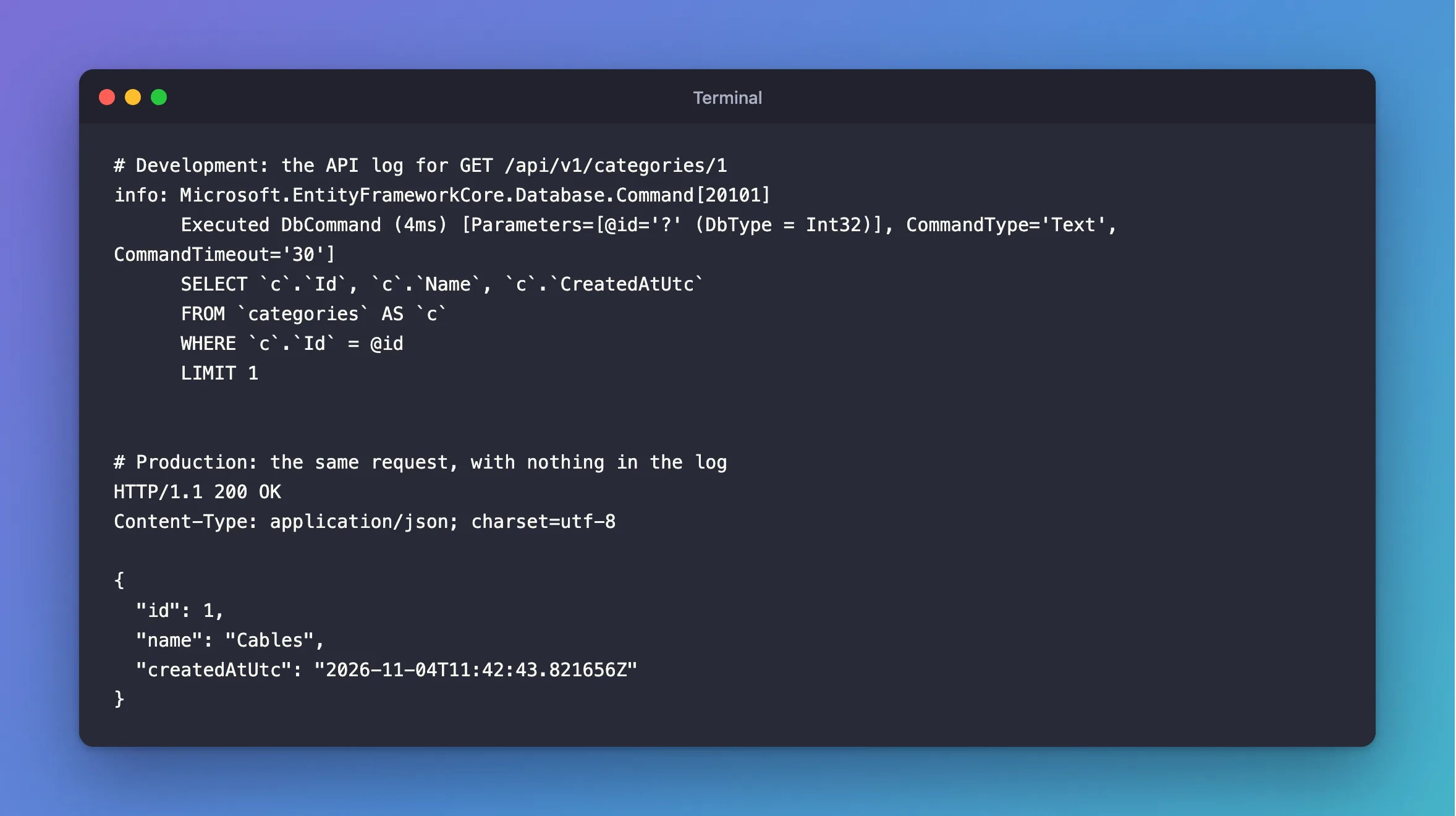
Then GET /api/v1/categories/1. The SQL shows up in the log:
info: Microsoft.EntityFrameworkCore.Database.Command[20101]
      Executed DbCommand (4ms) [Parameters=[@id='?' (DbType = Int32)], CommandType='Text', CommandTimeout='30']
      SELECT `c`.`Id`, `c`.`Name`, `c`.`CreatedAtUtc`
      FROM `categories` AS `c`
      WHERE `c`.`Id` = @id
      LIMIT 1
Step 4: Check It in Production
User secrets only load in Development, so read the connection string out and pass it as an environment variable. dotnet run -e sets a variable for the app, and it wins over the launch profile:
- bash / zsh
- PowerShell
CONN="$(dotnet user-secrets list --project src/Dewiride.Inventory.Api | sed -n 's/^ConnectionStrings:Inventory = //p')"
dotnet run --project src/Dewiride.Inventory.Api -e ASPNETCORE_ENVIRONMENT=Production -e ConnectionStrings__Inventory="$CONN"
$conn = (dotnet user-secrets list --project src/Dewiride.Inventory.Api | Select-String '^ConnectionStrings:Inventory = (.+)$').Matches[0].Groups[1].Value
dotnet run --project src/Dewiride.Inventory.Api -e ASPNETCORE_ENVIRONMENT=Production -e "ConnectionStrings__Inventory=$conn"
Using launch settings from src/Dewiride.Inventory.Api/Properties/launchSettings.json...
Building...
info: Microsoft.Hosting.Lifetime[14]
      Now listening on: http://localhost:5190
info: Microsoft.Hosting.Lifetime[0]
      Application started. Press Ctrl+C to shut down.
info: Microsoft.Hosting.Lifetime[0]
      Hosting environment: Production
The same request gets the same answer, and the log stays empty:
HTTP/1.1 200 OK
Content-Type: application/json; charset=utf-8

{
  "id": 1,
  "name": "Cables",
  "createdAtUtc": "2026-11-04T11:42:43.821656Z"
}
Change a Level for One Run
Command-line arguments are also configuration, and they win over both files, so you don't have to edit anything. This runs in Development with the SQL log off:
dotnet run --project src/Dewiride.Inventory.Api -- --Logging:LogLevel:Microsoft.EntityFrameworkCore.Database.Command=Warning
The same GET now answers with nothing in the log. This form suits a name with dots in it, which is awkward in an environment variable.
Common Mistakes
| Mistake | What happens | Do this instead |
|---|---|---|
Setting Information in appsettings.json only | Production logs every statement too | Keep it Warning there |
| Editing a Production value in the Development file | It doesn't apply in Production | Use the file for that environment |
dotnet run -e Production | The app still starts in Development | -e ASPNETCORE_ENVIRONMENT=Production |
Using EnableSensitiveDataLogging to see values | Real values reach the log | Leave it off outside your own machine |
| Expecting user secrets in Production | The connection string is missing | Pass it as an environment variable |
FAQ
Which level should Default be?
Information is what the templates use, and it suits most apps. It's the categories that are noisy which need their own lines.
What are the levels?
From most to least detail: Trace, Debug, Information, Warning, Error, Critical, and None to turn a category off. A setting includes that level and everything more serious.
Conclusion
Put the quiet value in appsettings.json and the detailed one in appsettings.Development.json, using the category's full name. The most specific rule wins, so Microsoft.EntityFrameworkCore.Database.Command follows its own setting, and you see SQL on your machine and none in Production.
Additional Resources
- Logging in .NET and ASP.NET Core — levels, categories and rules.
- Configuration in ASP.NET Core — the order configuration sources load in.
