How to Set a User's Manager and Job Title in the Microsoft Entra Admin Center

Microsoft 365 only knows who reports to whom if somebody tells it. That "somebody" is the Manager field on each person's account, next to their Job title. Fill them in, and Outlook, Teams and the apps you build all know who someone's manager and direct reports are, and what their role is.
What You Will Build
In this guide you will set the job title, department and manager for a small sales team in the Microsoft Entra admin center. Microsoft Entra ID is the directory behind every Microsoft 365 account, and its admin center is where you edit what it holds.
| Person | Job title | Department | Manager |
|---|---|---|---|
| Admin User (you) | Managing Director | Management | — |
| Olivia Bennett | Head of Sales | Sales | Admin User |
| Daniel Brooks | Sales Manager | Sales | Olivia Bennett |
| Aisha Khan | Sales Engineer | Sales | Daniel Brooks |
| Leo Martin | Sales Engineer | Sales | Daniel Brooks |
You'll do it three ways:
- One person at a time in the admin center (Daniel).
- The same manager for several people at once (Aisha and Leo).
- With Microsoft Graph PowerShell (Olivia's manager, and your own job title).
The finished organization looks like this:
This is the demo team for the Career Development Plan app series. In that series the app shows each manager their direct reports and works out what each person should learn from their job title, so both fields matter.
Prerequisites
- The users already exist. If you're following along, add them first with How to Add a User and Assign a License in the Microsoft 365 Admin Center.
- An admin account with at least the User Administrator role. That's the least-privileged role Microsoft lists for editing user profiles. Global Administrator works too, but keep it for emergencies.
- For the PowerShell section only: PowerShell 7, which Microsoft recommends for the Microsoft Graph PowerShell SDK on every platform. It's free. Install it from Microsoft's guide for Windows or macOS.
Nothing in this guide costs anything. Job titles and managers are free fields on every account.
You don't add direct reports to a manager. You set a manager on each employee, and the manager's list of direct reports is worked out from those settings. To move Aisha to a new manager, you edit Aisha, not her old manager or her new one.
Step 1: Open Entra ID Users
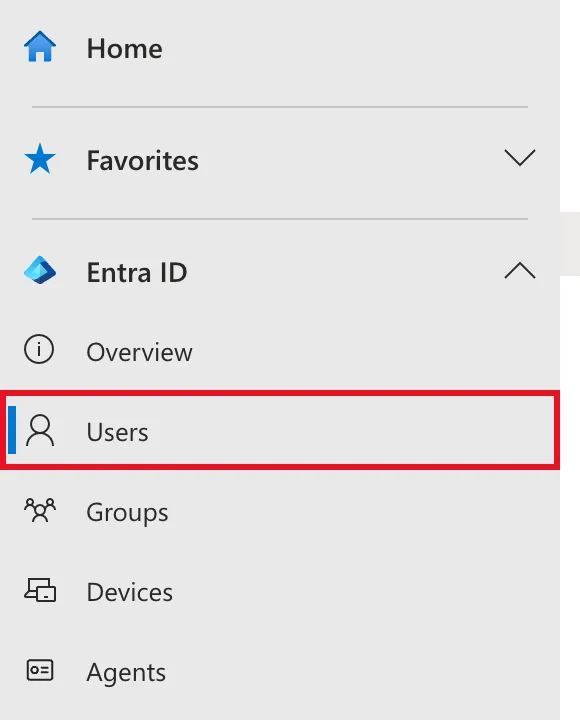
Sign in to the Microsoft Entra admin center and select Entra ID → Users in the left-hand menu.
Step 2: Open the Person You Want to Change
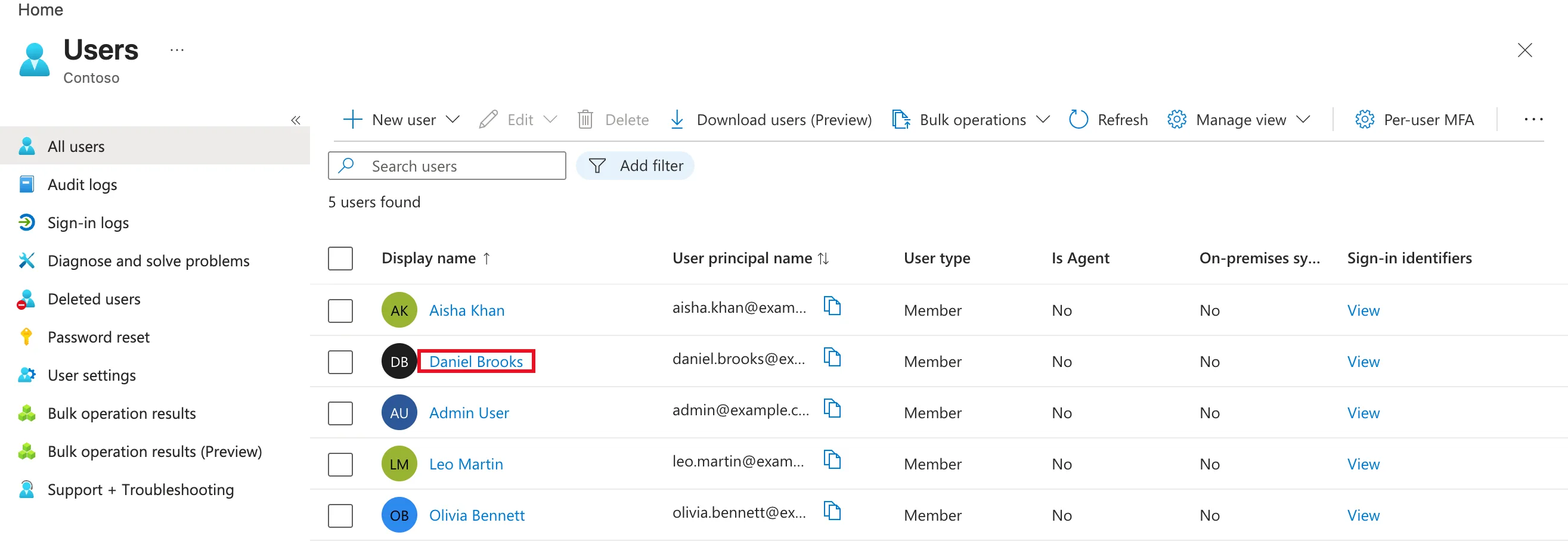
All users lists everyone in your organization. Select the person's name, here Daniel Brooks.
Step 3: Select Edit Properties
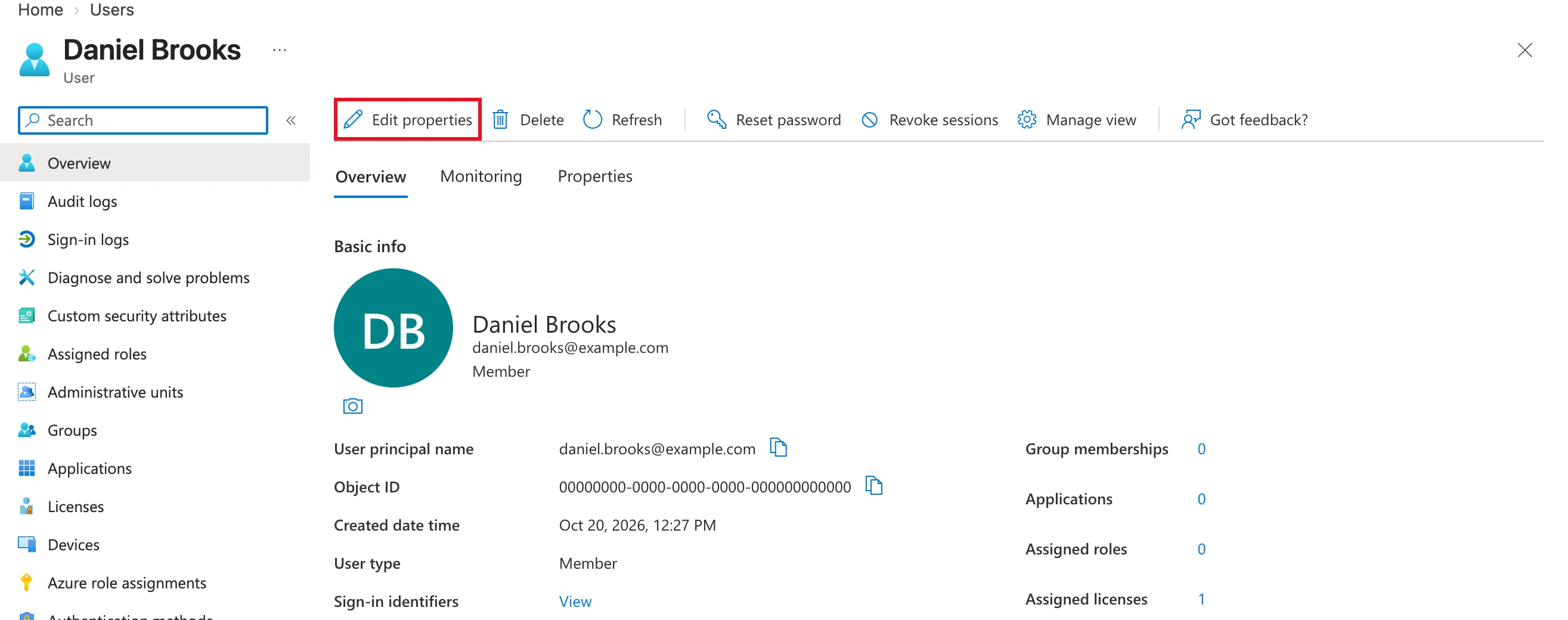
Daniel's profile opens on its Overview tab, with his sign-in name, object ID and creation date. Select Edit properties in the command bar.
Step 4: Fill In the Job Information
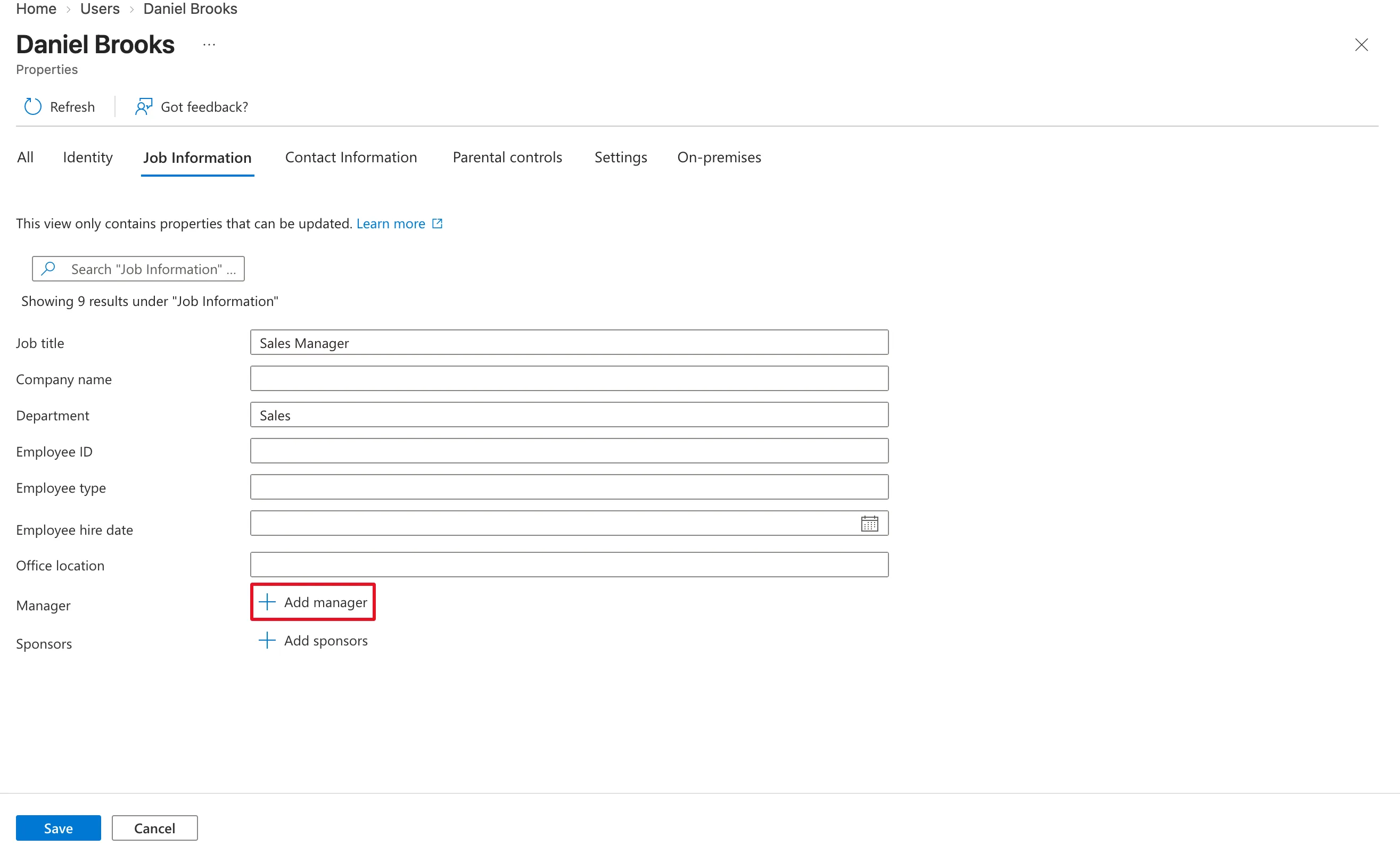
The editor opens on the Identity tab. Its tabs group the profile's fields: All, Identity, Job Information, Contact Information, Parental controls, Settings and On-premises. Select Job Information, then fill in:
- Job title:
Sales Manager - Department:
Sales
Type job titles exactly the same way for everyone who has the same role. People read Sales Engineer and Sales engineer as the same title; apps don't.
Step 5: Add the Manager
Under Manager, select Add manager. The Edit Manager panel lists the people in your directory. Type part of the manager's name into the panel's own Search box, here Olivia. Tick Olivia Bennett. She appears under Selected (1) on the right. Then select Select.
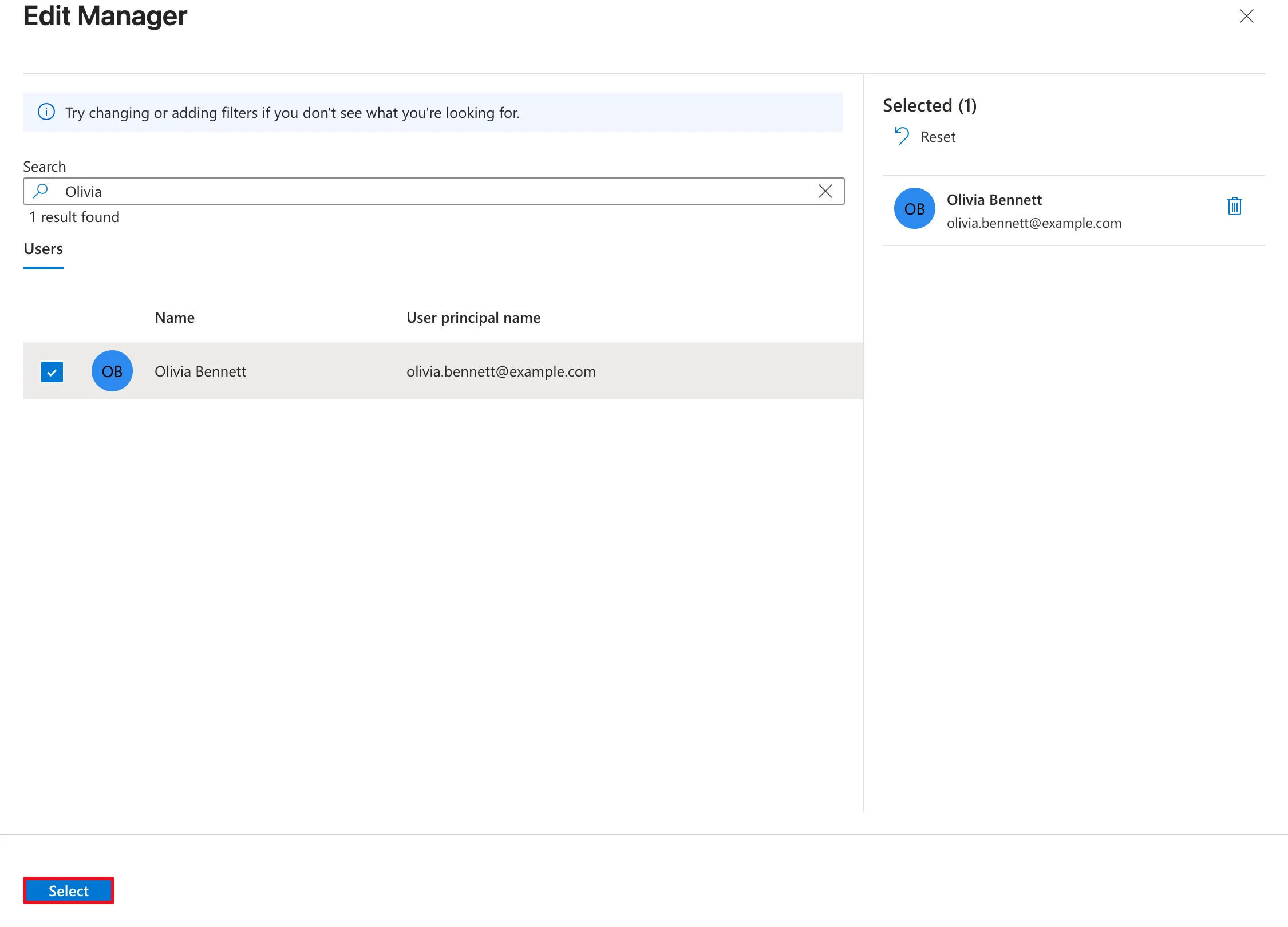
The admin center also has a search bar across the very top of the page, labelled Search resources, services, and docs. Typing a name there searches the whole portal and doesn't pick anyone. Click into the Search box inside the Edit Manager panel first. Also avoid Esc: it closes the panel.
Step 6: Save
The Manager row now shows Olivia Bennett, with an Edit link if you picked the wrong person. Nothing is saved yet: select Save at the bottom of the page.
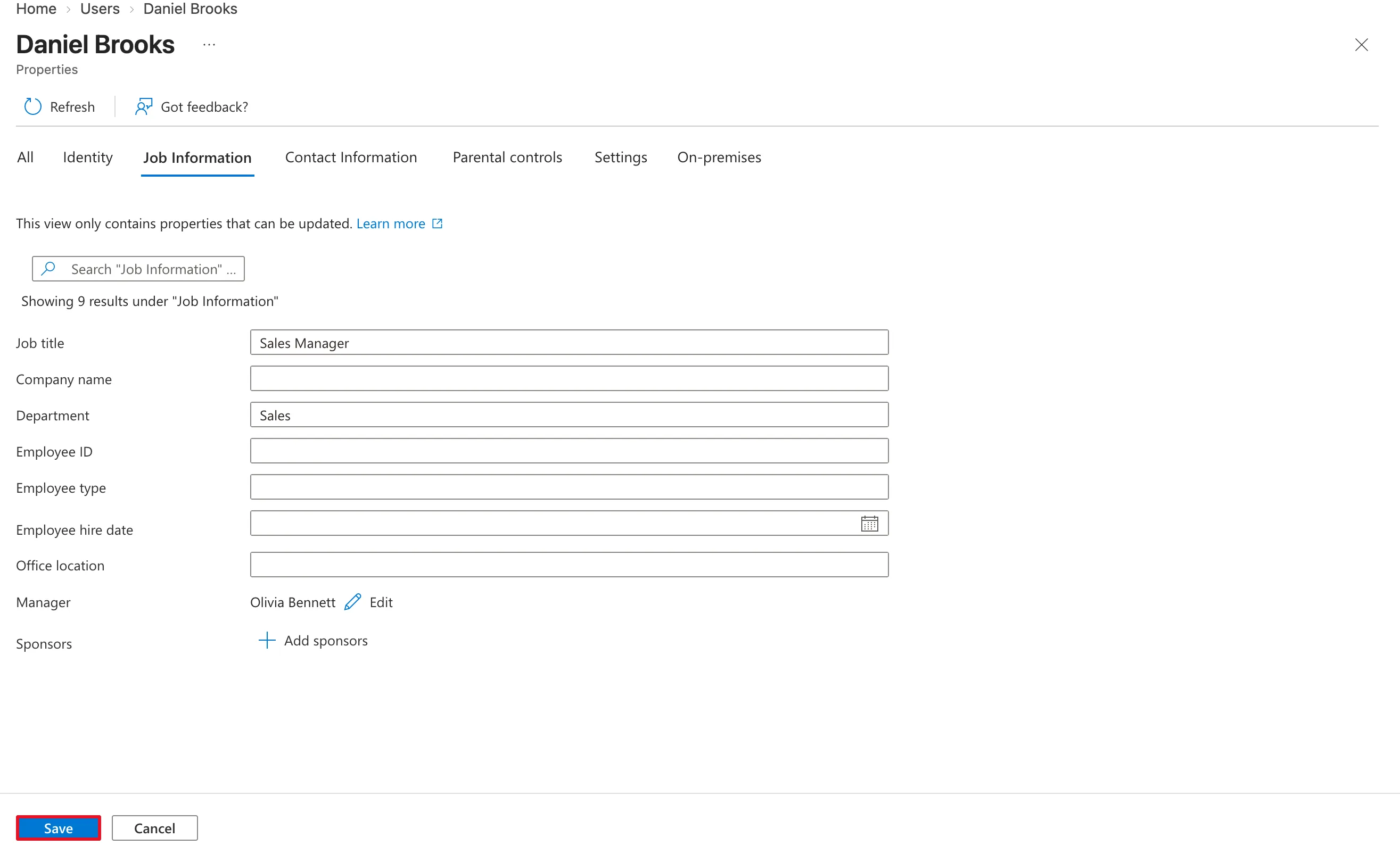
Entra saves the changes and takes you back to the profile's Overview tab.
Step 7: Check the Saved Values
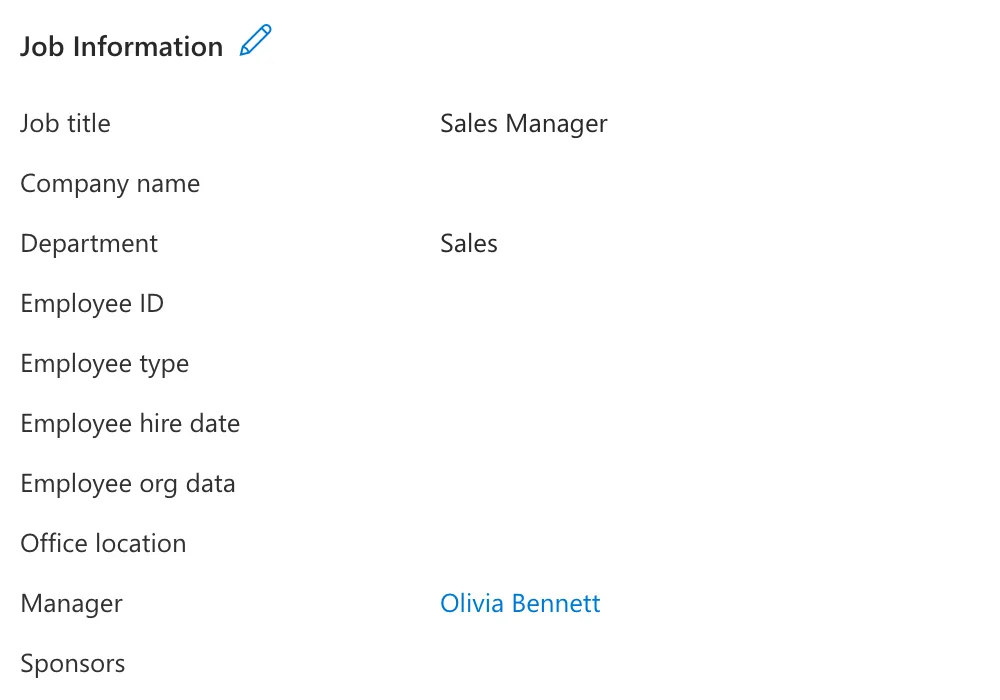
Select the Properties tab and scroll down to Job Information. Job title, Department and Manager show the values you saved, and the manager's name is a link to her own profile.
Do the same for each person whose job title you need to set. For the demo team, Aisha Khan and Leo Martin both get Sales Engineer in Sales. Their manager can wait for the next section, which sets it for both at once.
Give Several People the Same Manager at Once
When a whole team reports to the same person, you don't have to open every profile:
- On All users, tick each person who gets the new manager, here Aisha Khan and Leo Martin. The count above the list changes to (2 users selected).
- Open Edit in the command bar and select Add manager.
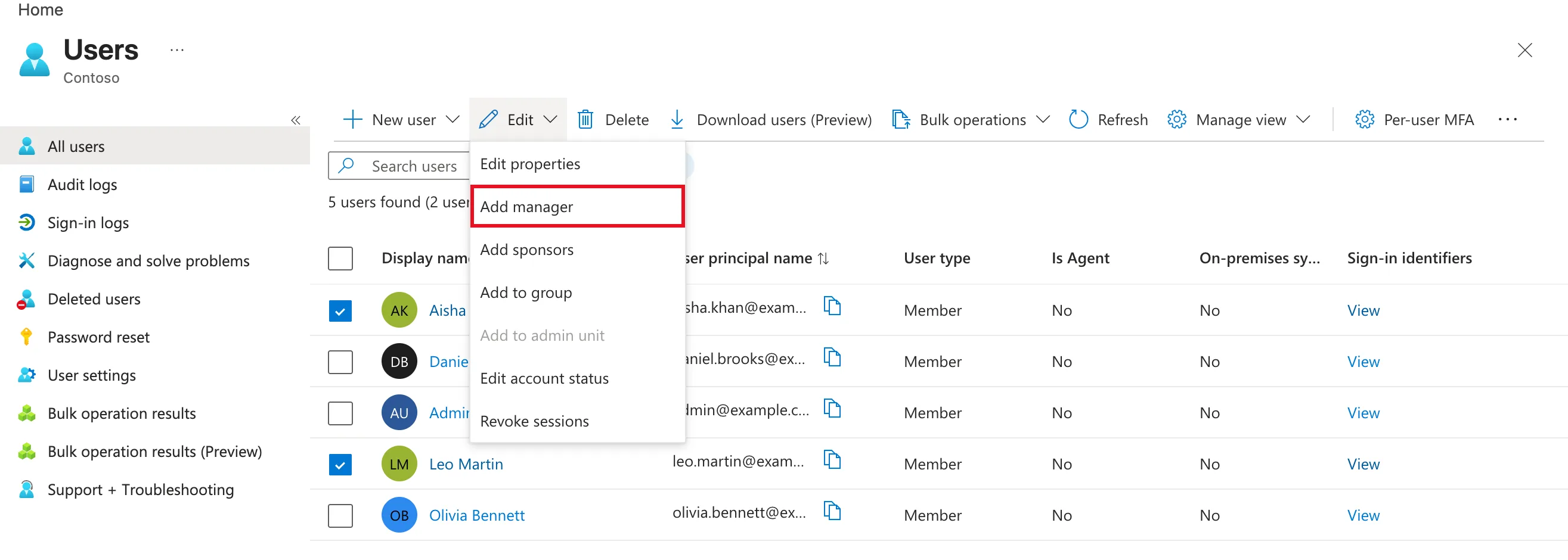
- The Add manager panel works like Edit Manager in Step 5, but takes exactly one person. Search for
Daniel, tick Daniel Brooks and select Select.
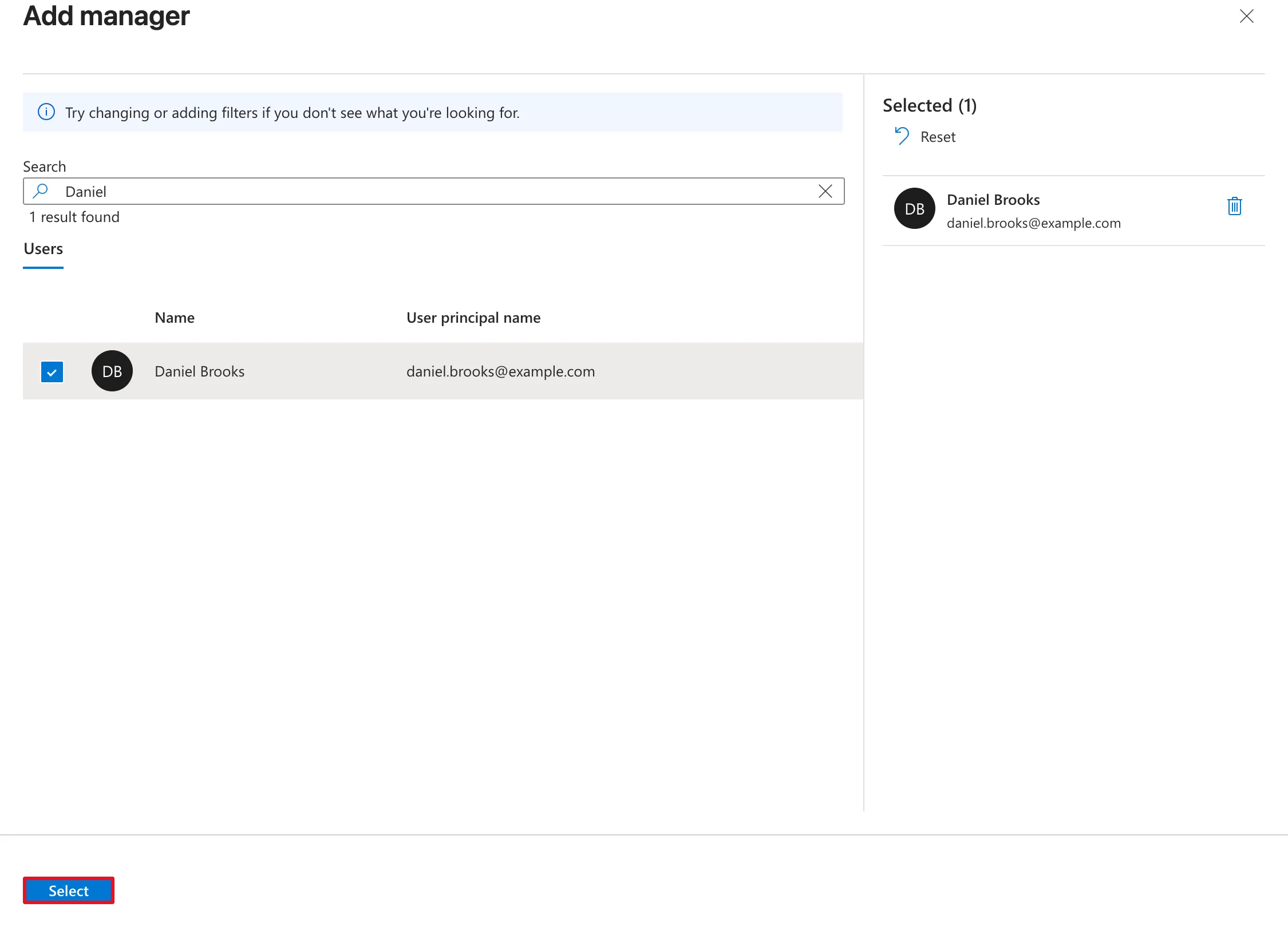
There's no separate Save here: the manager is set as soon as you choose Select. Open Leo's Properties tab and it now shows Manager: Daniel Brooks under Job Information. Aisha's shows the same.
Do It with PowerShell
Every step in this section was run for this guide, and the output shown is the real output, with names and addresses masked. It finishes the team: it gives you (the admin) a job title and makes you Olivia's manager.
Microsoft Graph PowerShell is Microsoft's PowerShell module for the same directory the admin center edits. The commands work unchanged in PowerShell 7 on Windows, macOS and Linux.
Install the Users module
Microsoft recommends installing only the sub-modules you need rather than the whole SDK, which pulls in more than 47 modules. Everything here is in Microsoft.Graph.Users:
Install-Module Microsoft.Graph.Users -Scope CurrentUser -Repository PSGallery -Force
-Scope CurrentUser installs the module for your account only, so it needs no administrator rights on your computer. -Force skips the question about installing from the PowerShell Gallery. The Microsoft.Graph.Authentication module, which handles sign-in, is installed with it automatically.
Sign in
Connect-MgGraph -Scopes "User.ReadWrite.All" -NoWelcome
-Scopes names the permission the commands need. User.ReadWrite.All lets them change any user's profile. -NoWelcome hides the welcome banner. A Microsoft sign-in page opens. Sign in with your admin account, and the first time, accept the Permissions requested screen for Microsoft Graph Command Line Tools. That's Microsoft's own app for these commands.
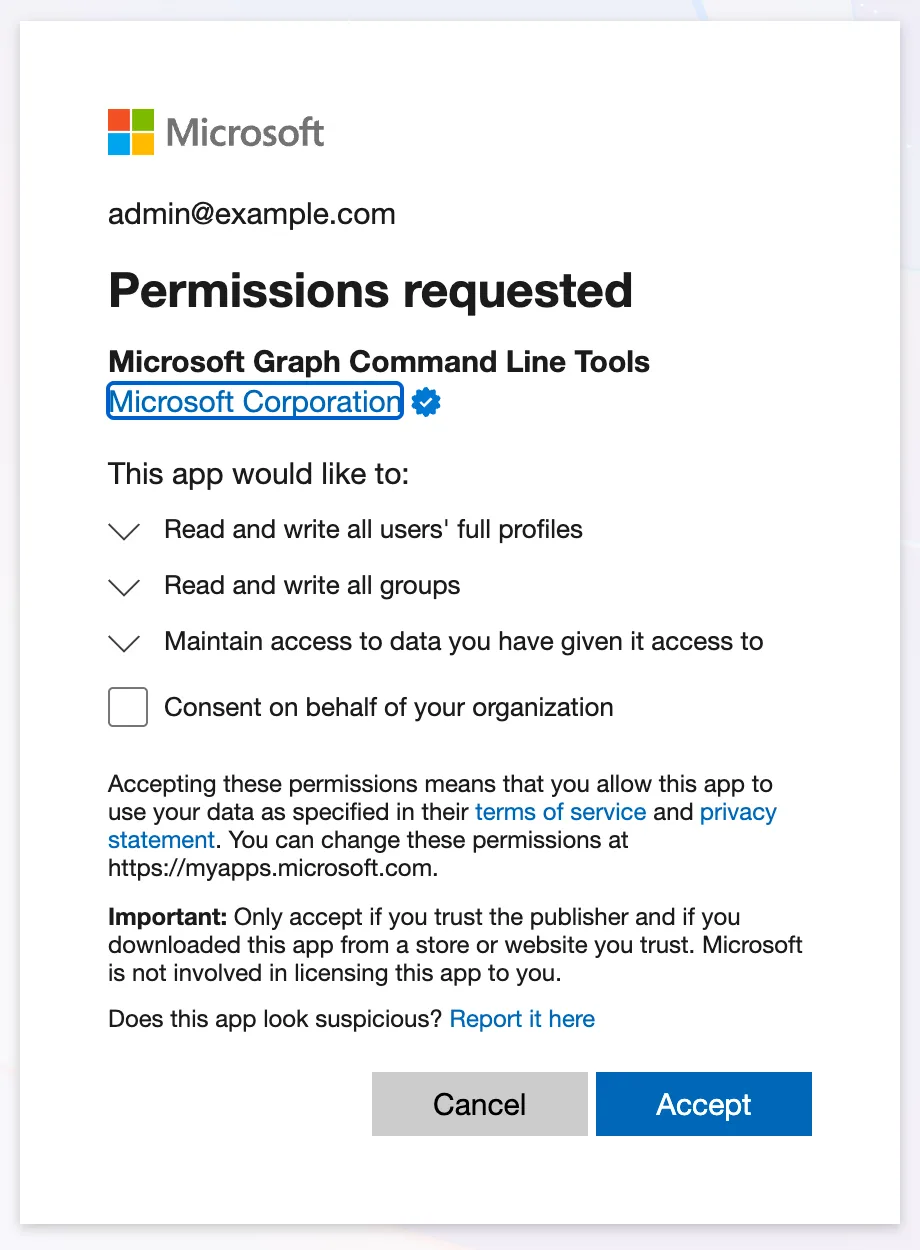
My screen also lists Read and write all groups, because I asked for the group permission in the same sign-in for the security group guide. With the command above, you'll only see the user permission. As an admin, you can tick Consent on behalf of your organization so other admins aren't asked again.
Set a job title
Update-MgUser -UserId "admin@example.com" -JobTitle "Managing Director" -Department "Management"
Get-MgUser -UserId "admin@example.com" -Property DisplayName,JobTitle,Department |
    Select-Object DisplayName, JobTitle, Department | Format-List
Update-MgUser changes the fields you name and leaves every other field alone. -UserId accepts the person's sign-in name. Get-MgUser reads the person back. -Property asks only for the fields you want to see.
DisplayName : Admin User
JobTitle    : Managing Director
Department  : Management
Set a manager
A manager is a link to another user rather than a piece of text, so you point at the manager's account by its ID:
$manager = Get-MgUser -UserId "admin@example.com"
$newManager = @{ "@odata.id" = "https://graph.microsoft.com/v1.0/users/$($manager.Id)" }
Set-MgUserManagerByRef -UserId "olivia.bennett@example.com" -BodyParameter $newManager
$managerholds the manager's account, including itsId.$newManageris the reference Microsoft Graph expects: the manager's address in Graph.Set-MgUserManagerByRefsets it as Olivia's manager. It prints nothing when it works.
Check the result
Get-MgUser -UserId "olivia.bennett@example.com" -Property DisplayName,JobTitle,Department -ExpandProperty Manager |
    Select-Object DisplayName, JobTitle, Department,
        @{Name='Manager';Expression={$_.Manager.AdditionalProperties.displayName}} | Format-List
-ExpandProperty Manager fetches the manager together with the user. The last @{...} line pulls the manager's display name out of what comes back.
DisplayName : Olivia Bennett
JobTitle    : Head of Sales
Department  : Sales
Manager     : Admin User
The other direction works too. Get-MgUserDirectReport lists everyone whose manager is the person you name. Here it confirms Daniel's team from the previous section:
Get-MgUserDirectReport -UserId "daniel.brooks@example.com" |
    Select-Object @{Name='DisplayName';Expression={$_.AdditionalProperties.displayName}},
                  @{Name='JobTitle';Expression={$_.AdditionalProperties.jobTitle}} | Format-Table
DisplayName JobTitle
----------- --------
Aisha Khan  Sales Engineer
Leo Martin  Sales Engineer
When you're done, sign out of Microsoft Graph:
Disconnect-MgGraph
Common Mistakes
| Mistake | What happens | Do this instead |
|---|---|---|
| Trying to add direct reports on the manager's profile | There's no such field; nothing changes | Set the Manager on each employee |
| Typing the manager's name in the portal's top search bar | The portal shows search results; no manager is picked | Use the Search box inside the Edit Manager panel |
| Leaving without selecting Save after Step 5 | The new job title and manager are lost | Select Save at the bottom of Edit properties |
| Typing the same job title in different ways | Apps and reports treat each spelling as a different role | Agree a list of titles and type them exactly |
| Editing a user who is synchronized from on-premises Active Directory | The next sync overwrites your change | Change job information in on-premises Active Directory, as Microsoft's guide says |
| Signing in to PowerShell with more permissions than you need | The tool can change more than the task needs | Ask only for the scope the commands use, here User.ReadWrite.All |
Troubleshooting
| Symptom | Likely cause | Fix |
|---|---|---|
| Edit properties or Save is greyed out | Your role can't edit this user | Use an account with the User Administrator role |
| The Edit Manager panel closed while you were typing | Esc closes the panel | Select Add manager again |
| Edit → Edit properties for several users shows every property greyed out | Bulk property editing wasn't available for these users. It happened while writing this guide | Set job titles one person at a time (Steps 2–6), or with Update-MgUser |
Connect-MgGraph asks you to sign in a second time on macOS or Linux | The SDK couldn't save its sign-in for reuse | Add -ContextScope Process, which keeps the sign-in for the current PowerShell session only, and run all your commands in that session |
Connect-MgGraph -UseDeviceCode fails with "Authentication timed out after 120 seconds" | The device code wasn't entered within two minutes | Run the command again and enter the new code straight away, or leave out -UseDeviceCode to sign in through the browser |
Update-MgUser or Set-MgUserManagerByRef returns an authorization error | The sign-in doesn't include User.ReadWrite.All | Run Connect-MgGraph -Scopes "User.ReadWrite.All" again and accept the permission |
FAQ
Where is the manager stored?
On the employee's account in Microsoft Entra ID, as a link to the manager's account. A manager's direct reports aren't stored anywhere. They're everyone whose Manager points to them, which is what Get-MgUserDirectReport and apps such as Power Apps read.
Can someone have two managers?
No. Manager holds one person. Sponsors, the field under it, is something different: it names the people responsible for a guest user from another organization.
Why does the job title matter to apps?
Apps built on Microsoft 365 can read it. For example, Power Apps' Office 365 Users connector returns a person's jobTitle, along with their manager and direct reports. The Career Development Plan series uses exactly that to decide what each person should learn.
Can I set the manager in the Microsoft 365 admin center instead?
Only the long way round. Microsoft documents a route through Exchange: open the user in Active users, select Mail, then Edit Exchange properties → organization → Manager. It's in Microsoft's article on team calendars that don't show a manager's reports. The Entra admin center is the direct way, and its Job Information tab keeps the job title, department and manager together.
Do these changes cost anything or need a license?
No. They're ordinary profile fields. Only the admin needs a role that's allowed to edit users.
How long until Outlook and Teams show the new manager?
The Entra admin center shows the change straight away. Other Microsoft 365 services pick it up as they refresh their own data, so allow some time before checking profile cards and org charts.
Conclusion
Job titles and managers are two small fields with a big effect. Set them under Edit properties → Job Information:
- For one person, fill in the fields, choose Add manager and select Save.
- For a whole team, tick them on All users and choose Edit → Add manager once.
- From a script, use
Update-MgUserfor the job title andSet-MgUserManagerByReffor the manager.
Remember that the manager lives on the employee: direct reports follow on their own.
The demo team now has a complete chain from you down to Aisha and Leo. Next, put them all in one group so you can share apps and sites with the team at once: How to Create a Security Group in the Microsoft Entra Admin Center.
Additional Resources
- How to Create a Security Group in the Microsoft Entra Admin Center: the next step for the demo team.
- How to Add a User and Assign a License in the Microsoft 365 Admin Center: adding the people in the first place.
- Add or update a user's profile information and settings: Microsoft's guide to Edit properties, including editing several users at once.
- Install the Microsoft Graph PowerShell SDK: installing the modules used above.
- Set-MgUserManagerByRef: the cmdlet reference, with Microsoft's own example.
