How to Set a Time to Live on an Azure Cosmos DB Container

Azure Cosmos DB can delete old items for you. Give a container a time to live, in seconds, and every item disappears that many seconds after its last write, with no cleanup job of your own. Here's how to set it in Data Explorer and with the Azure CLI, and what I saw happen to existing and new items.
Microsoft's documentation describes time to live (TTL) like this: Azure Cosmos DB automatically removes these items after the time period, since the time they were last modified. Each item's last write time is its _ts property, so every write starts the clock again. Data that only matters for a while, such as sessions, carts or logs, is what it's for.
My example is a small notes app's container, notes in the database notesdb. To watch TTL work without waiting days, I set it to 60 seconds; then I set it to an hour with the Azure CLI.
Step 1: Open the Container's Settings
In your account's Data Explorer, expand the database and the container, and select Settings under the container. The Settings tab opens with Time to Live at the top.
Step 2: Choose the Time to Live
Time to Live has three options:
| Option | What happens | In code, the container's DefaultTimeToLive |
|---|---|---|
| Off | Items never expire, and a ttl on an item is ignored | null |
| On (no default) | Items don't expire, unless an item has its own ttl | -1 |
| On, with a number of seconds | Every item expires that many seconds after its last write; an item's own ttl overrides it | The seconds |
Select On, type 60 and select Save in the toolbar:
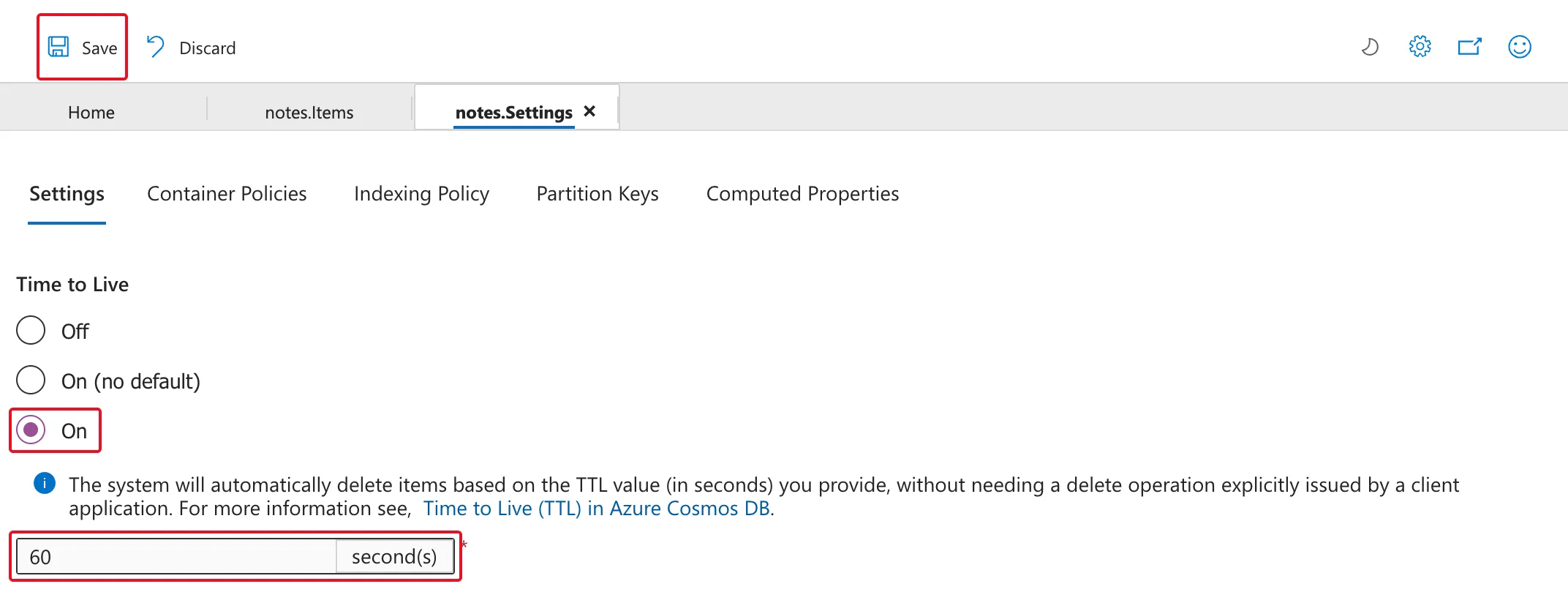
The setting applies to the container from that moment, including to the items already in it.
Step 3: Watch the Items Expire
The container held one note, note-1, last written about 50 seconds before I saved the setting. When I listed the items 23 seconds after saving, it was gone:
By then its last write was about 70 seconds old, more than the 60-second time to live, so it had expired. Microsoft's documentation: An item no longer appears in query responses immediately after the TTL expires, even if it's not yet permanently deleted from the container. The deletion itself runs in the background.
Then I wrote two new notes with the console app from How to Connect to Azure Cosmos DB with Microsoft Entra ID in C#:
Saved note-1: 201 Created, 6.1 RU
Saved note-2: 201 Created, 6.1 RU
Read note-1: "Buy milk", 1 RU
Both were new, 201 Created, because the expired note-1 no longer existed. In Items, the new note-1 has the _ts 1795506879, the number of seconds since 1 January 1970: 07:54:39 UTC.

I refreshed the list at 07:56:13, a minute and a half later. Both notes were gone:
Do It with the Azure CLI
The container's time to live is the defaultTtl of its resource. Read it:
- bash / zsh
- PowerShell
az cosmosdb sql container show \
    --account-name cosmos-howto-4224 \
    --resource-group rg-maf-servicedesk \
    --database-name notesdb \
    --name notes \
    --query "resource.defaultTtl"
az cosmosdb sql container show `
    --account-name cosmos-howto-4224 `
    --resource-group rg-maf-servicedesk `
    --database-name notesdb `
    --name notes `
    --query "resource.defaultTtl"
60
The 60 seconds from the portal. To change it, az cosmosdb sql container update takes --ttl, in seconds. An hour is 3600:
- bash / zsh
- PowerShell
az cosmosdb sql container update \
    --account-name cosmos-howto-4224 \
    --resource-group rg-maf-servicedesk \
    --database-name notesdb \
    --name notes \
    --ttl 3600 \
    --query "{container:name, defaultTtl:resource.defaultTtl}"
az cosmosdb sql container update `
    --account-name cosmos-howto-4224 `
    --resource-group rg-maf-servicedesk `
    --database-name notesdb `
    --name notes `
    --ttl 3600 `
    --query "{container:name, defaultTtl:resource.defaultTtl}"
{
  "container": "notes",
  "defaultTtl": 3600
}
Use your own account, resource group, database and container. The CLI reference describes --ttl: If the value is missing or set to "-1", items don't expire. If the value is set to "n", items will expire "n" seconds after last modified time. Both commands manage the container with your Azure role, so they work with key-based authentication turned off. az cosmosdb sql container create takes the same --ttl, to set it when you create a container.
Give One Item Its Own Time to Live
An item can override the container's setting with a ttl property of its own, in seconds. Microsoft's rules:
- Item-level TTL only comes into play if the TTL property is set at the container level and is NOT set to
null, so the container must be On or On (no default). - An item with
"ttl": -1never expires, even if the container has a time to live. - With the container On (no default), only items that have a
ttlexpire.
Common Mistakes
| Mistake | What happens | Do this instead |
|---|---|---|
| Turning TTL on for a container that already holds data | Every item older than the TTL disappears at once | Check the oldest _ts first, or start with a long TTL |
Setting ttl on items while the container's TTL is Off | The items never expire | Set the container to On or On (no default) |
| Treating the TTL as an exact deadline | Expired items disappear from reads at once, but are deleted in the background | Don't rely on the exact moment the storage is freed |
| Measuring from when the item was created | Every write starts the time again | Expect an item to live TTL seconds after its last write |
FAQ
Does deleting expired items cost anything?
On a serverless account, yes: the deletion of expired items is charged in RUs at the same rate as delete item operations. On a provisioned-throughput account, it uses throughput that your requests didn't need.
What's the longest time to live?
The maximum value for TTL is 2,147,483,647 seconds, the approximate equivalent of 24,855 days or 68 years.
Can I bring an expired item back?
Not from the container: it no longer appears in reads or queries. Write it again if you still have it.
Conclusion
A time to live makes Azure Cosmos DB delete items a set number of seconds after their last write. In Data Explorer, set Time to Live to On with the seconds on the container's Settings tab and select Save; with the Azure CLI, use az cosmosdb sql container update --ttl. It applies to existing items at once, so turn it on with care, and use an item's own ttl for items that need a different lifetime.
Additional Resources
- Time to live in Azure Cosmos DB — the rules for containers and items, and how expired items are deleted.
- Configure time to live in Azure Cosmos DB — setting it in the portal and with the SDKs.
- az cosmosdb sql container update — the
--ttlparameter.
