How to Set a Minimum and Maximum Value for a SharePoint Number Column with the REST API in Power Automate

A number column can refuse values outside a range, such as a score below 0 or above 100. When a flow creates the column with the REST API, two attributes in its XML, Min and Max, set that range, and SharePoint enforces it in the item form.
Syntax
The column is one Field element, sent to createfieldasxml with Send an HTTP request to SharePoint. How to Add a Column to a SharePoint List with CreateFieldAsXml explains the request; only the XML changes here:
<Field Type='Number' Name='<internal name>' StaticName='<internal name>' DisplayName='<display name>' Description='<description>' Decimals='<places>' Min='<lowest>' Max='<highest>' Required='TRUE' />
From Microsoft's Field element reference:
Type='Number': a number column. The reference listsDecimals,MinandMaxamong the attributes a number column can use.Min='<lowest>': the minimum value allowed for the field.Max='<highest>': the maximum value allowed for the field.Decimals='<places>'(optional): the number of decimals to display. It sets how the number shows, such as0for whole numbers.Required='TRUE'(optional): the column must have a value.
You can set Min alone, Max alone, or both. Each is a plain number in quotes, such as Min='0'.
The Example
A blank list called Quiz Scores gets a required Score column that takes whole numbers from 0 to 100. The flow has the trigger Manually trigger a flow and one Send an HTTP request to SharePoint called Add Score.
Prerequisites
- Permission to change the list, such as Edit or Full Control on the site, for the account the flow's SharePoint connection uses.
Step 1: Add the Column
Add Send an HTTP request to SharePoint, rename it Add Score, and fill it in:
| Field | Value |
|---|---|
| Site Address | Your site |
| Method | POST |
| Uri | _api/web/lists/getbytitle('Quiz Scores')/fields/createfieldasxml |
| Headers | Accept: application/json;odata=nometadata |
Content-Type: application/json;odata=verbose |
The headers are under Advanced parameters. The body:
{
  "parameters": {
    "__metadata": { "type": "SP.XmlSchemaFieldCreationInformation" },
    "SchemaXml": "<Field Type='Number' Name='Score' StaticName='Score' DisplayName='Score' Description='The score out of 100.' Required='TRUE' Decimals='0' Min='0' Max='100' />",
    "Options": 25
  }
}
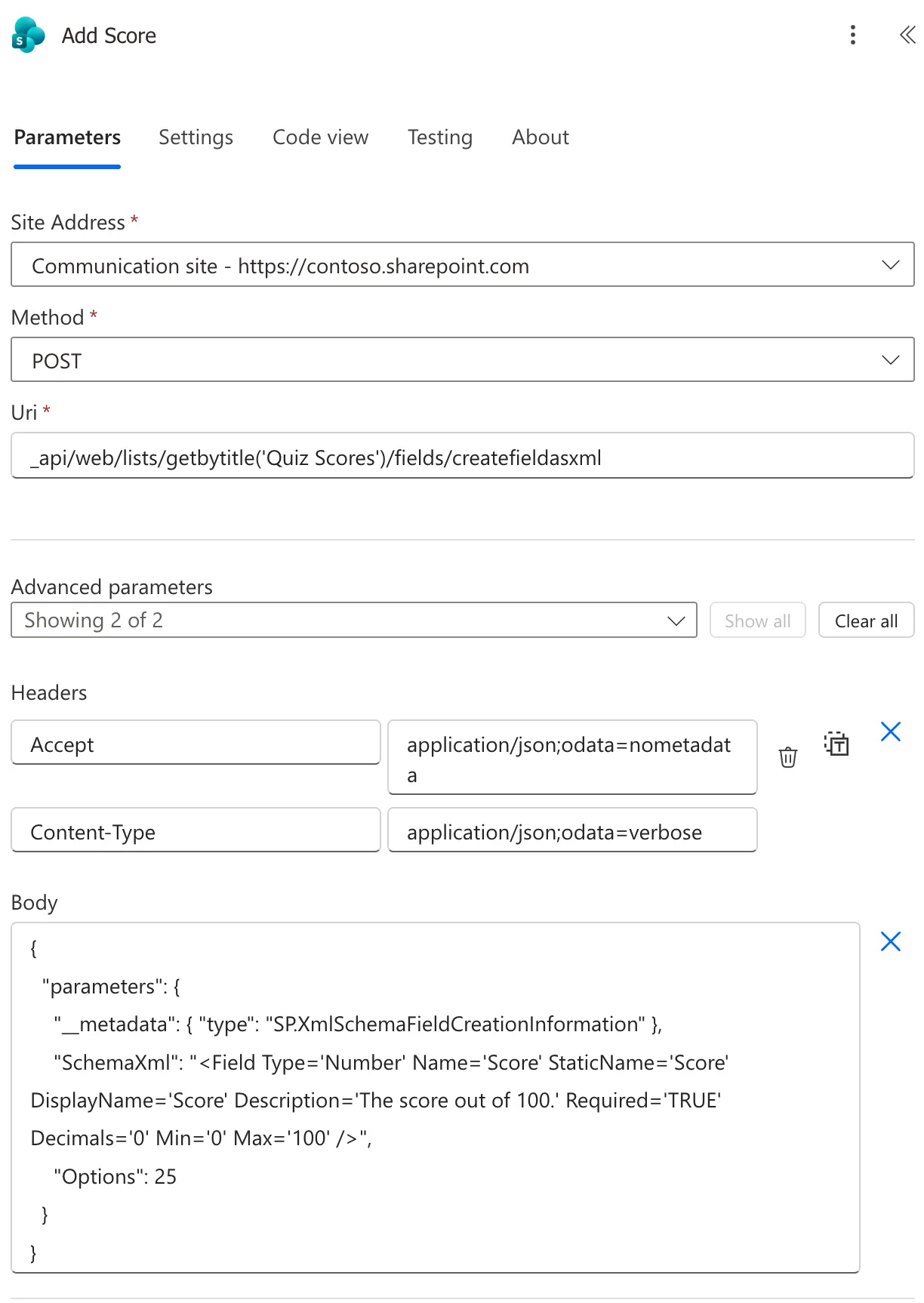
The list title has a space, and it goes into getbytitle('…') as it is.
Step 2: Run the Flow
Save the flow and test it manually (How to Test a Cloud Flow Manually in Power Automate). Add Score succeeded, and the list has its new column.
The Result
In the list, I selected New, typed Ada as the title and 120 as the score, and selected Save. SharePoint refused it, at the top of the form and under the column:
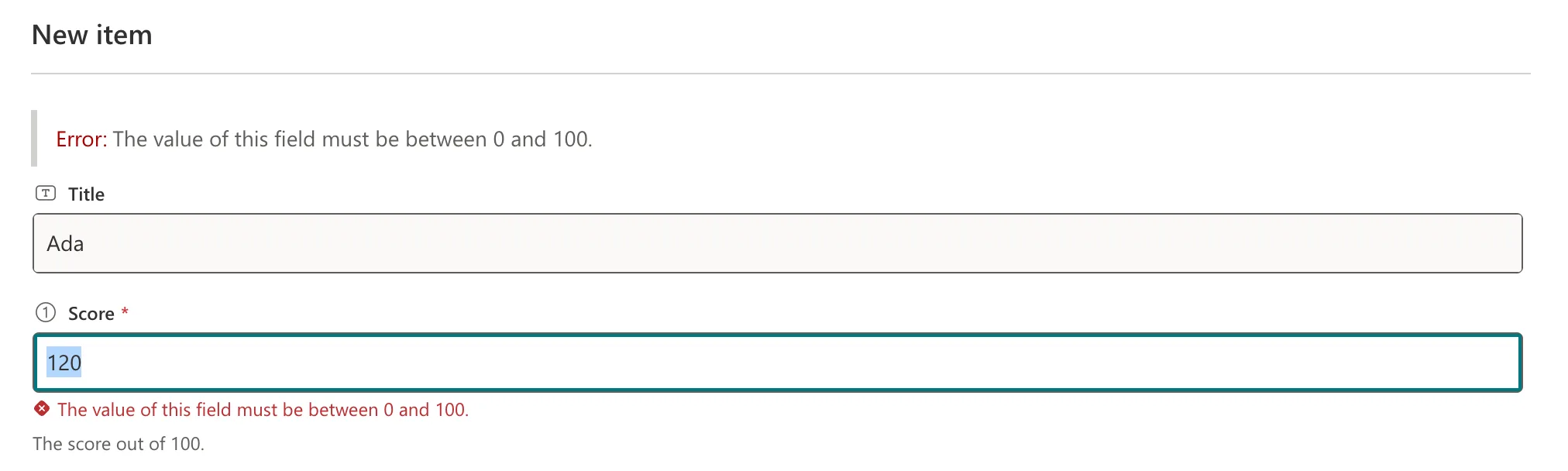
The message names the range from the XML: The value of this field must be between 0 and 100.
Common Mistakes
| Mistake | What happens | Do this instead |
|---|---|---|
Min and Max the wrong way round | The range doesn't mean what you meant | Min is the lowest, Max the highest |
Expecting Decimals='0' to stop decimals being typed | The reference describes Decimals as what's displayed | Treat it as the display format |
| Double quotes inside the XML | The JSON body breaks | Use single quotes in the XML |
| Running the flow again unchanged | It tries to add the column a second time | Check that the column is missing first |
Troubleshooting
| Symptom | Likely cause | Fix |
|---|---|---|
| The value of this field must be between … | The value is outside Min and Max | Enter a value in the range |
| Status 404 | No list with that title on the site | Check the title in getbytitle('…') |
| Status 403 | The connection's account can't change the list | Give it Edit or Full Control |
FAQ
Can I add a range to a column that already exists?
This request creates a new column. For one you already have, set Minimum allowed value and Maximum allowed value in its settings (How to Set a Minimum and Maximum Value for a SharePoint Number Column).
Does this need a premium licence?
No. Send an HTTP request to SharePoint is part of the standard SharePoint connector.
Conclusion
Put Min and Max in a number column's Field element, with Decimals for how it shows, and create it with createfieldasxml. A value outside the range gets The value of this field must be between 0 and 100., with your own numbers in it.
Additional Resources
- Field element (List):
Number,Min,MaxandDecimals. - Working with lists and list items with REST: creating fields with REST.
