How to Set a Minimum and Maximum Value for a SharePoint Number Column

A Number column accepts any number unless you tell it otherwise. Minimum allowed value and Maximum allowed value set the range, and SharePoint refuses to save anything outside it. It's the simplest guard a list can have.
In the Overtime Timesheet series, the Hours column of the OvertimeEntries list holds the hours worked in one shift. That can't be less than 0 or more than 24, so those are its limits.
Prerequisites
- A list with a Number column, or a new one you're adding: How to Add a Number Column to a SharePoint List.
Step 1: Open More Options
In the Create a column panel for a Number column, select More options. For a column that already exists, open Settings (the gear) → List settings and select the column under Columns.
Step 2: Set the Range
Fill in Minimum allowed value and Maximum allowed value. For Hours, they're 0 and 24:
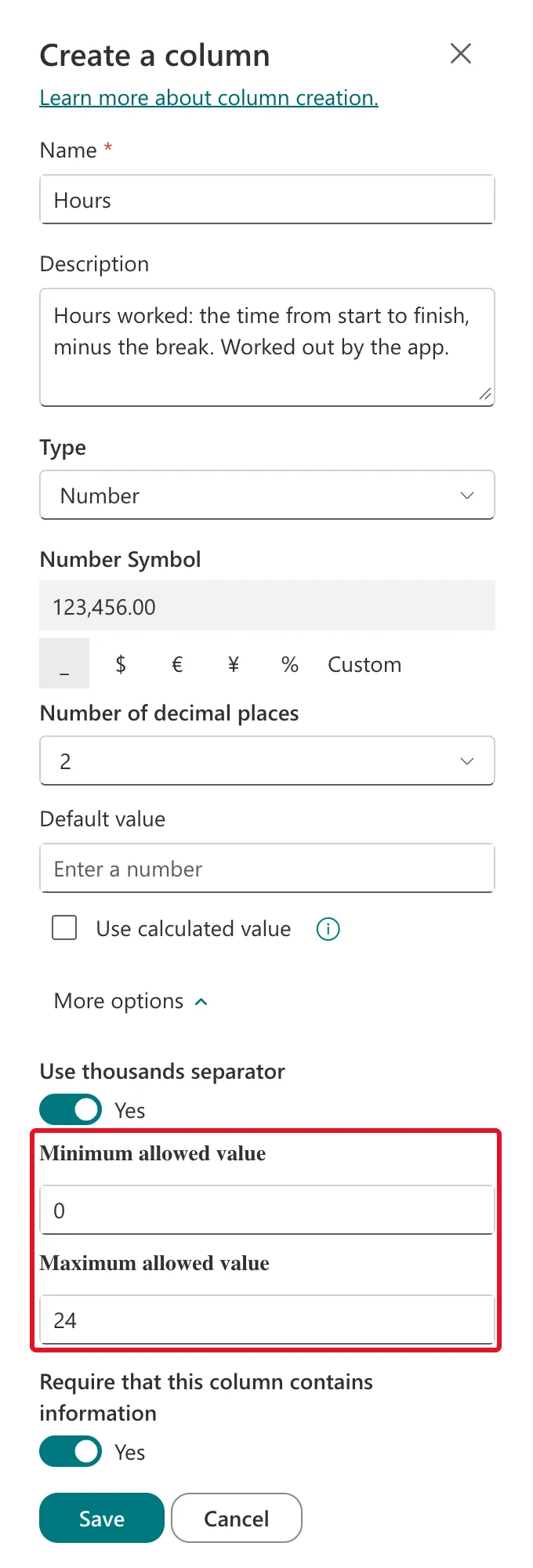
Either box can stay empty. BreakMinutes, in the same list, has only a minimum, 0: a break can't be negative, and the list's validation rule makes sure it's shorter than the shift (How to Add List Validation in SharePoint to Compare Two Columns).
Select Save.
What Happens Outside the Range
I filled in a new item with a valid night shift, 22:00 to 06:00 the next morning, and 25 in Hours:

Leaving the field showed no message. Selecting Save did: SharePoint refused the item and showed this at the top of the form:
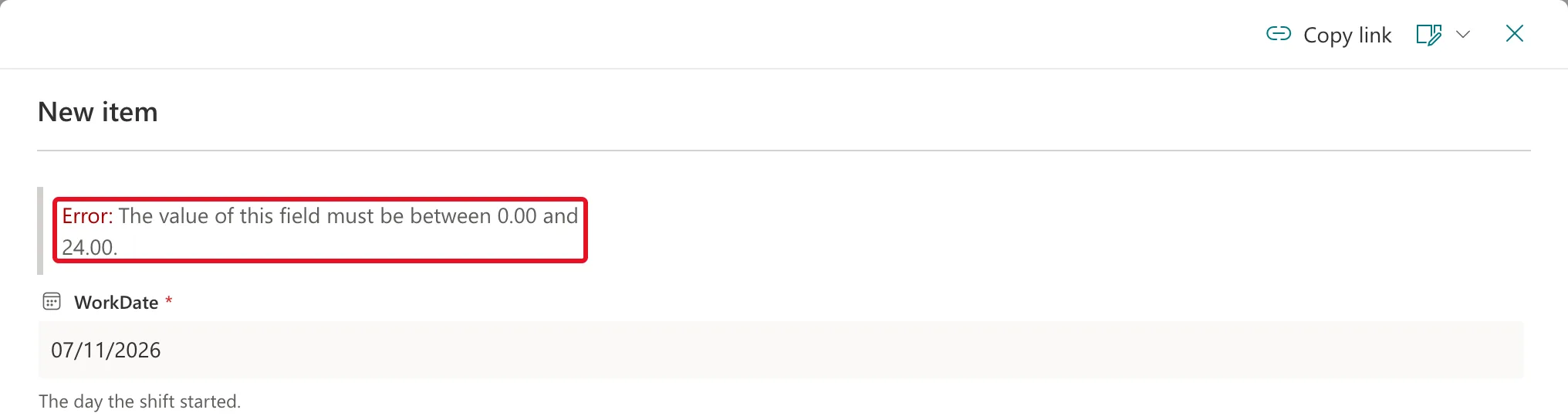
The limits appear with two decimal places, like the column. Nothing was saved, and the list stayed empty.
Two things to know about when the check runs:
- On save, not as you type. The form doesn't warn you when you leave the field.
- After the required fields. With required fields still empty, the form first shows You can't leave this blank. under each of them, and only checks the range once they're filled in.
Common Mistakes
| Mistake | What happens | Do this instead |
|---|---|---|
| Setting a maximum on a column that totals things | Real totals get refused | Limit single values, such as one shift, not running totals |
| Expecting a warning as you type | The message only comes when you save | Check the top of the form after Save |
| Using the range to compare two columns | A range can only hold fixed numbers | Use list validation to compare columns |
Troubleshooting
| Symptom | Likely cause | Fix |
|---|---|---|
| The value of this field must be between … | The value is outside the range | Enter a value inside it, or widen the range |
| Old items have values outside a new range | The range applies when items are saved | Edit those items, or leave the range wider |
| The range fields aren't there | The column isn't a Number column | Check the column's type in List settings |
FAQ
Can the minimum be negative?
Yes. Leave Minimum allowed value empty for no lower limit, or enter any number.
Does the range apply to apps and flows too?
The range is a setting of the column, not of the form. Even so, an app should check its own values before saving: the Overtime Timesheet app checks the hours itself, so people see a clear message in the app instead of a save error.
Conclusion
More options → Minimum allowed value and Maximum allowed value → Save. SharePoint then refuses any value outside the range with The value of this field must be between…, when the item is saved.
