How to Set a Default Value for a SharePoint List Column

A default value is what a column holds in a new item before anyone touches it. A status that starts at Pending, a break that starts at 0, a Yes for "still in use": defaults save typing and make the starting point the same for everyone.
The examples come from the two lists of the Overtime Timesheet series:
| List | Column | Type | Default |
|---|---|---|---|
| Departments | IsActive | Yes/No | Yes |
| OvertimeEntries | BreakMinutes | Number | 0 |
| OvertimeEntries | Status | Choice | Pending |
Prerequisites
- A SharePoint list, and permission to change it. How to Create a List and Add Columns in SharePoint Online creates one.
Where the Default Value Is
Default value sits in the main part of the Create a column panel, just below the type's own settings. What you can enter depends on the type. For a column that already exists, open Settings (the gear) → List settings and select the column under Columns.
Yes/No: a list with Yes or No
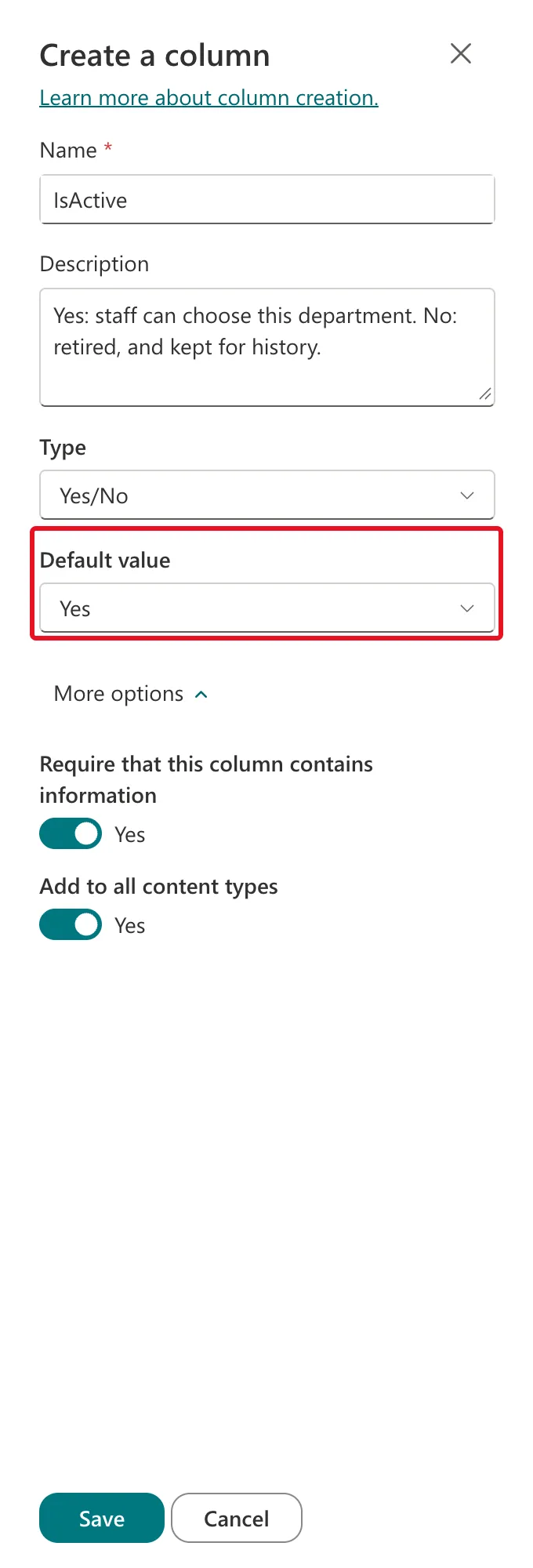
A new Yes/No column already defaults to Yes. IsActive keeps it, so every new department starts in use:
Number: a box for a number
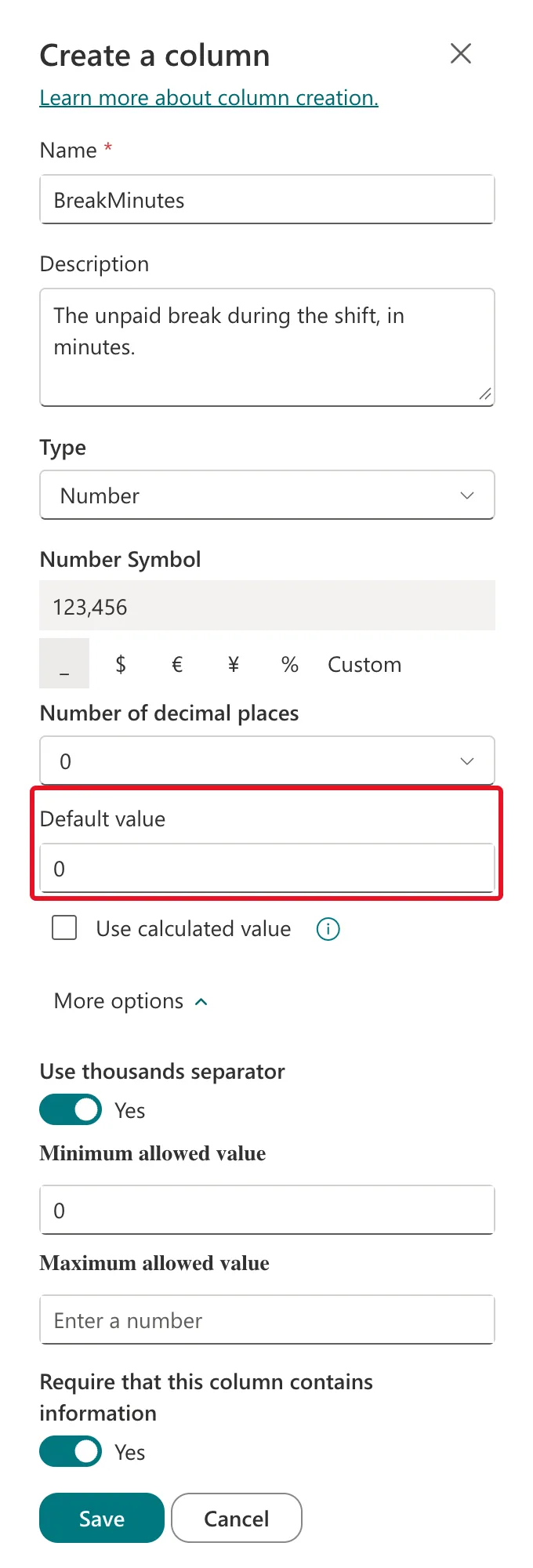
Type the number. BreakMinutes starts at 0, because many shifts have no unpaid break:
Choice: a list of the choices
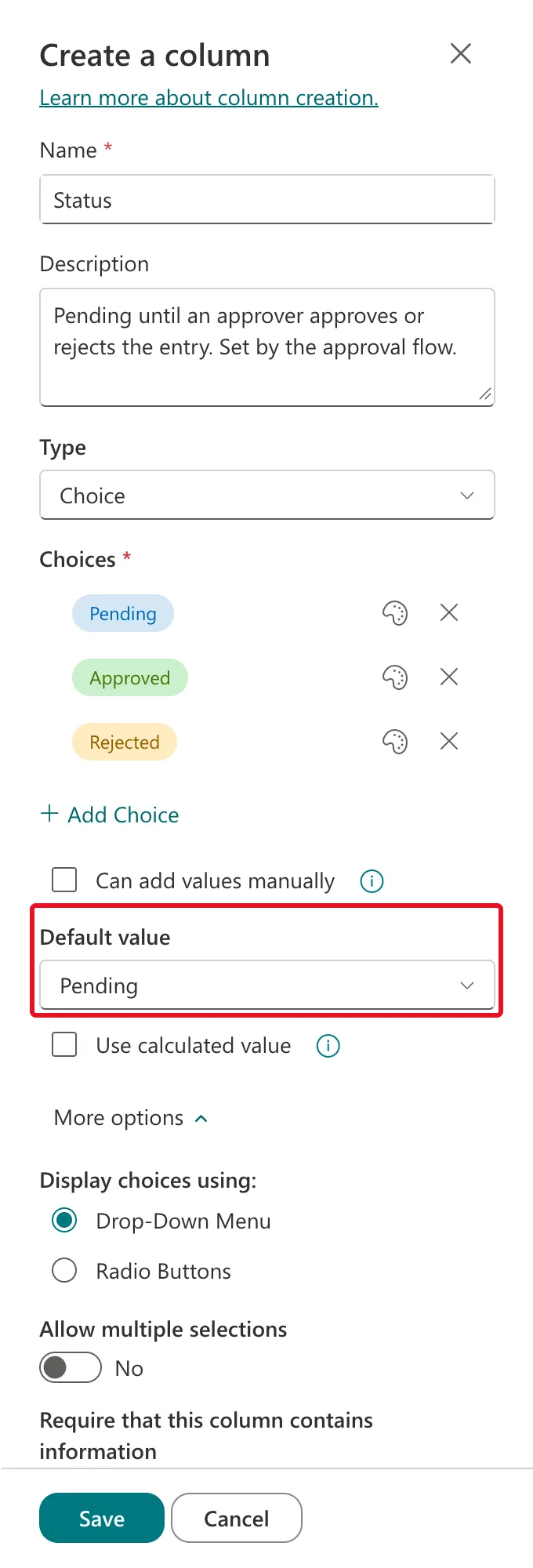
After you've typed the choices, Default value lists them, plus None. Status starts at Pending, so every new overtime entry starts out waiting for approval:
Date and time: none, today or a fixed date
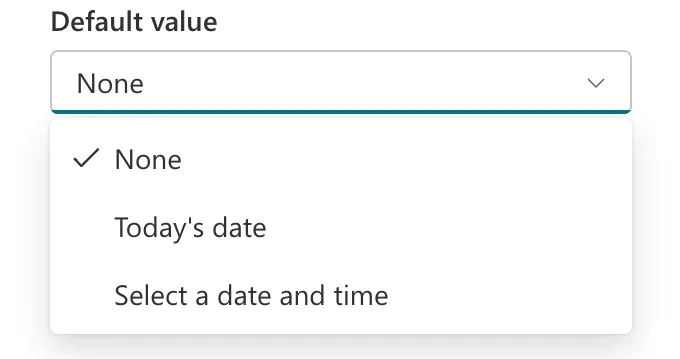
A date column offers None, Today's date and Select a date and time:
Text: a box for text
Type the starting text, or leave it empty.
What the Default Looks Like in the Form
Select Save, then + New. The fields start with their defaults:


People can still change them before saving. Microsoft's List and library column types and options describes a default as a value SharePoint shows "when someone adds a new item, while also allowing people to enter different text."
Calculated Defaults
Under Default value, Use calculated value turns the box into a formula. Microsoft's Introduction to SharePoint formulas and functions notes two things about it:
- "The TODAY and ME functions are not supported in calculated columns but are supported in the default value setting of a column."
- "You cannot reference another column in a formula that creates a default value for a column."
So a default can be today's date plus 30 days, but not "the same as another column".
Common Mistakes
| Mistake | What happens | Do this instead |
|---|---|---|
| Expecting a default to change existing items | It's only used for new items | Edit existing items if they need the value |
| Giving a status column no default | New items start with no status | Default to the first stage, such as Pending |
| Using a default to copy another column | A default formula can't reference other columns | Have the app or a flow set it |
Troubleshooting
| Symptom | Likely cause | Fix |
|---|---|---|
| Can't find Default value under More options | It's in the main part of the panel | Look below the type's own settings, above More options |
| A date default of today isn't in the list | It's called Today's date | Choose Today's date |
FAQ
Do apps and flows get the default too?
A default is a setting of the column. Even so, the Overtime Timesheet app sets Status and BreakMinutes itself when it saves an entry, so it never relies on one.
Can a required column have a default?
Yes, and then it's never empty in a new item. IsActive is both required and defaults to Yes.
Conclusion
Set Default value in the column's panel: Yes for a Yes/No, a number, a starting choice, or a date option. New items start with it, and people can still change it.
