How to Send Values Back to Power Apps from a Flow in Power Automate

A flow that Power Apps runs gives the app its answer with Respond to a Power App or flow. Each output you add has a type, a name and a value. In the app, the name becomes a field of the flow's result: FlowName.Run().name.
The example is Get Waiting Approvals, a flow of the Overtime Timesheet app. It sends the app the overtime entries waiting for an approver, as one output named entries.
Prerequisites
- A flow with the When Power Apps calls a flow (V2) trigger (How to Create a Flow That Power Apps Can Run in Power Automate).
Step 1: Add the Response at the End
Add an action at the end of the flow, search for Respond to a Power App, and choose Respond to a Power App or flow under Power Apps. I named it Respond to the app.
Step 2: Add an Output and Choose Its Type
Select + Add an output. The pane asks for the type:
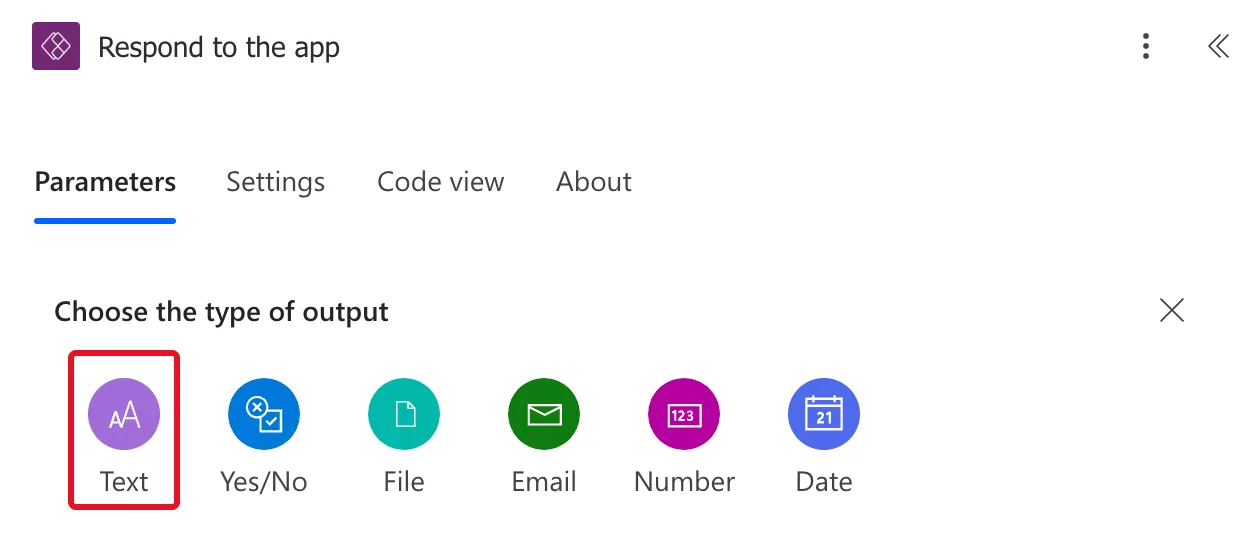
| Type | Use it for |
|---|---|
| Text | Words, or JSON text for a table |
| Yes/No | True or false |
| File | A file's content |
| An email address | |
| Number | A number |
| Date | A date |
There's no type for a list or table. To send one, use Text with JSON (How to Return a Table from a Flow to Power Apps as JSON in Power Automate).
Step 3: Name the Output and Set Its Value
The output gets a row with a name on the left and a value on the right. I named it entries, and set its value to an expression that turns the flow's list into text:
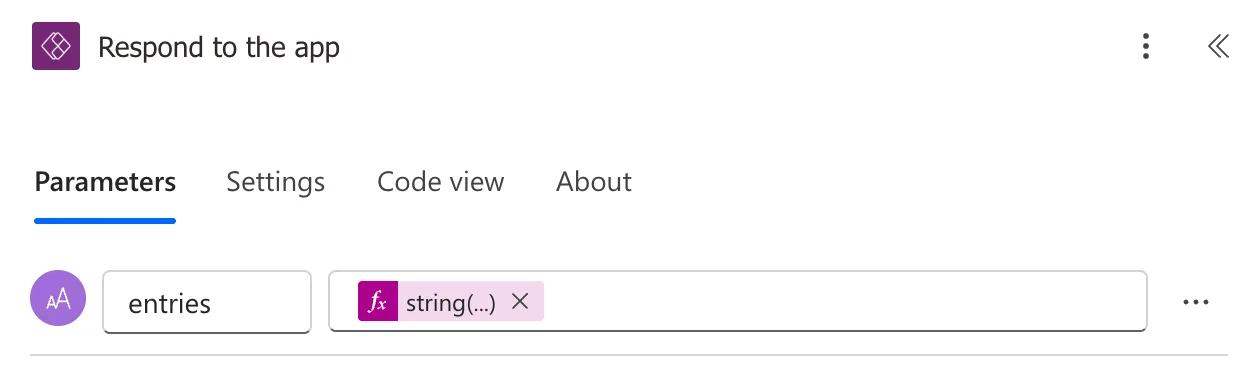
string(body('Waiting_entries'))
Choose the name with care: the app uses it in formulas, so short and lower case reads well.
Step 4: Read It in the App
After the flow is saved and published, add it to the app (How to Add a Flow to a Canvas App in Power Apps). The output is a field of what Run() returns:
GetWaitingApprovals.Run().entries
The app's full formula, with error handling, is in How to Run a Flow and Use Its Result in Power Apps.
Changing Outputs Later
Microsoft's flow integration troubleshooting lists removing an output from a Respond to Power Apps action among the changes most likely to break an app, and says that if a response output is removed, Power Apps treats the value as blank. After any change to the outputs, refresh the flow in the app and publish the app again (How to Refresh a Flow in a Canvas App in Power Apps).
Common Mistakes
| Mistake | What happens | Do this instead |
|---|---|---|
| A flow that takes longer than 2 minutes to respond | The call times out | Keep the work before the response short |
| Removing or renaming an output the app uses | The app gets a blank | Change the app at the same time |
| Several outputs for the rows of a list | A fixed number of outputs can't hold a list | One Text output with JSON |
Troubleshooting
| Symptom | Likely cause | Fix |
|---|---|---|
The output isn't offered after Run(). | The app has the flow's old definition | Refresh the flow in the app |
| The output is blank in the app | It was removed or renamed in the flow | Refresh the flow and update the formula |
| The value is text where a number was expected | A Text output | Use Number, or convert with Value() |
FAQ
Can a flow send several values?
Yes. Add an output for each, each with its own name and type. They're all fields of the result of Run().
Does the app wait for the response?
Yes, for up to 2 minutes. Microsoft's flow integration troubleshooting describes a ResponseTimeout when a flow run exceeds the maximum allowed execution time of 120 seconds. The result of Run() is what Respond to a Power App or flow sent.
Conclusion
Respond to a Power App or flow sends a flow's results back to the app that ran it. Add an output of the right type, give it a short name, and read it as FlowName.Run().name. For a table, send JSON text.
