How to Send an Email to Several People in Power Automate

Send an email (V2) takes several recipients in its To box, separated by semicolons. When the addresses come from earlier steps as a list, turn the list into one piece of text with join() and put that in To: one email goes to all of them.
The example sends Hello from Power Automate to two people whose addresses are in a list made by a Compose action. In a real flow, the list might come from a group (How to List the Members of a Group in Power Automate) or a SharePoint list.
Step 1: Make the List of Addresses
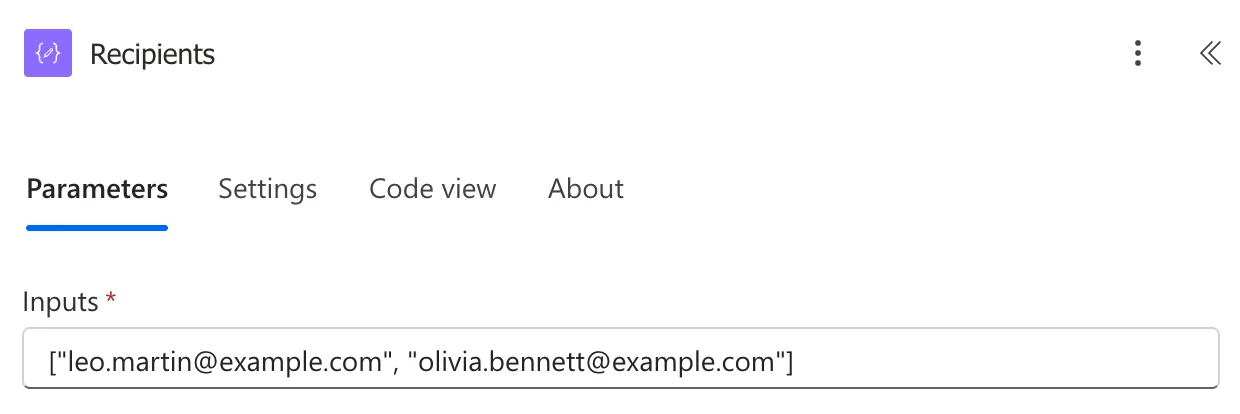
Add a Compose called Recipients (How to Use the Compose Action in Power Automate) with the addresses as a JSON list:
["leo.martin@example.com", "olivia.bennett@example.com"]
A list of records, such as a group's members, can be turned into a list of addresses with a Select in text mode (How to Pick One Field from Each Item with Select in Power Automate).
Step 2: Switch To to Dynamic Content
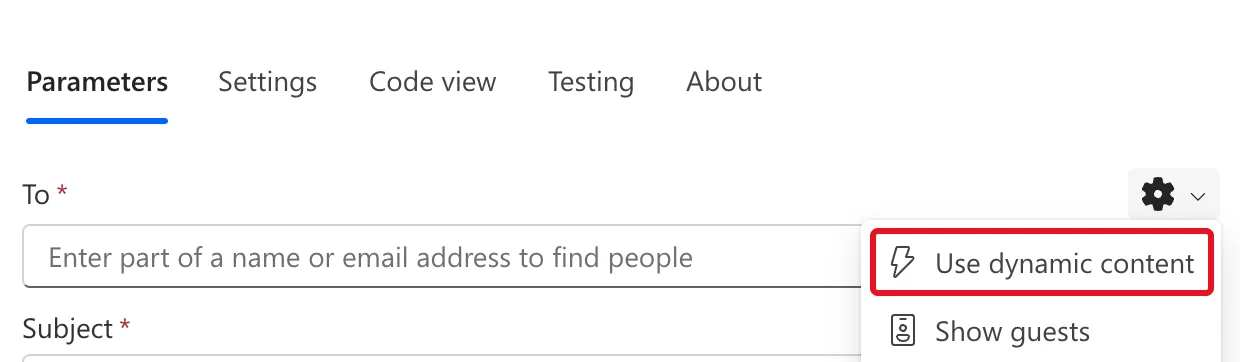
Add Send an email (V2) from Office 365 Outlook (How to Send an Email in Power Automate). Its To box is a people picker: Enter part of a name or email address to find people. To give it an expression instead, select the gear above the box, then Use dynamic content:
Step 3: Join the Addresses
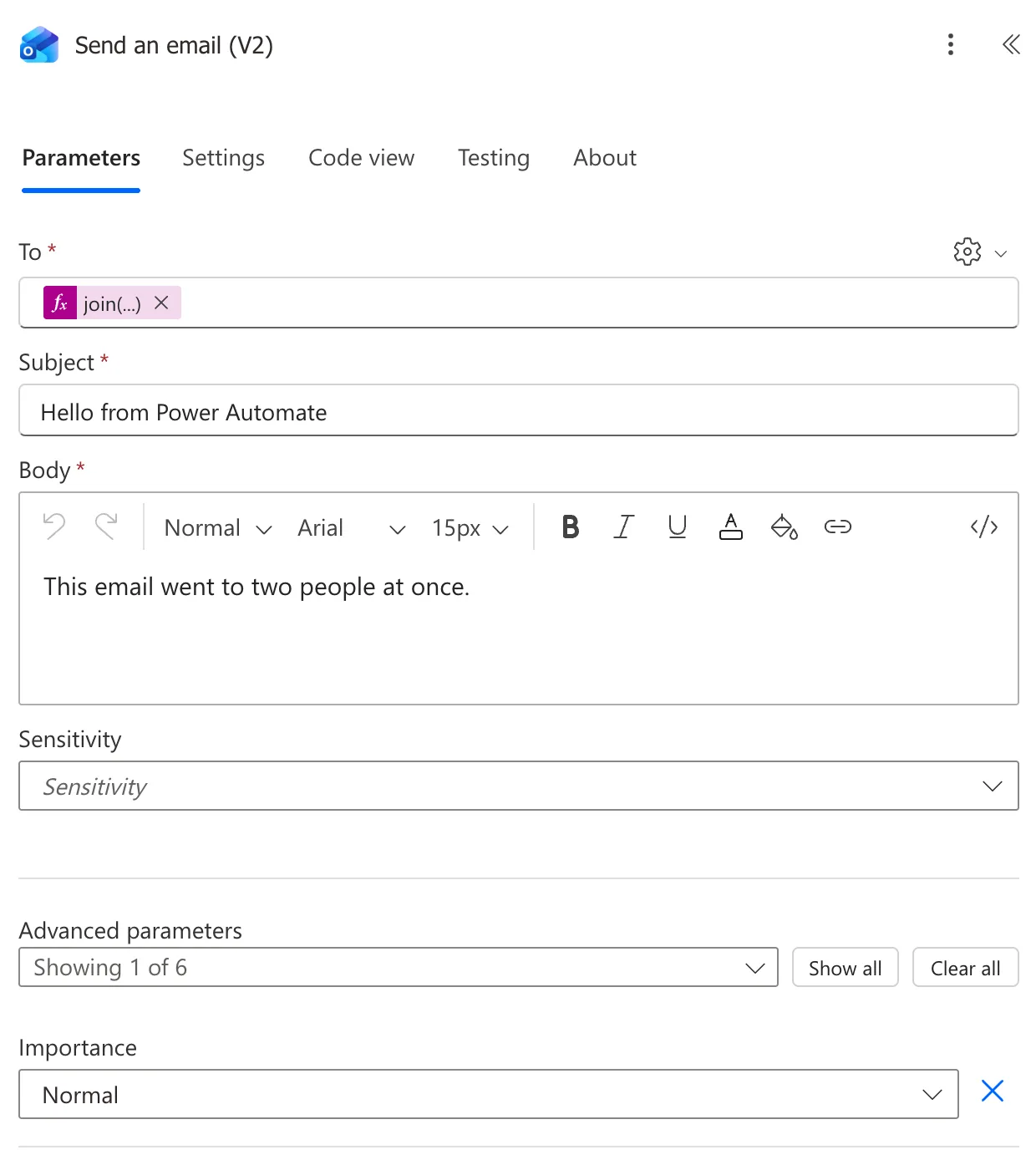
In To, add this expression (How to Add an Expression in Power Automate):
join(outputs('Recipients'), ';')
outputs('Recipients')is the list from the Compose.join(..., ';')puts the addresses into one piece of text with a semicolon between each (How to Join an Array into Text in Power Automate): the form To takes, as Microsoft's Office 365 Outlook connector reference puts it, email addresses separated by semicolons.
Fill Subject and Body as usual:
The Result
Save the flow and test it (How to Test a Cloud Flow Manually in Power Automate). In the run, the inputs of Send an email (V2) show To as both addresses with a semicolon between them:
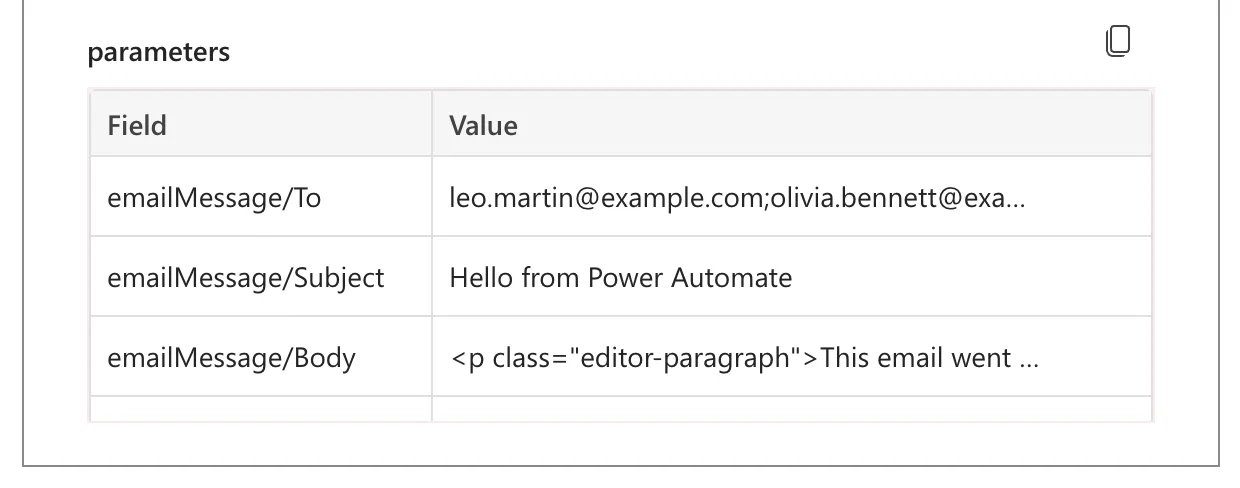
It's one email, with every address on its To line, so each person sees who else got it. To hide the addresses from each other, put the joined list in BCC instead, under Advanced parameters.
Common Mistakes
| Mistake | What happens | Do this instead |
|---|---|---|
| Putting the list itself in To | To takes text, not a list | join(<list>, ';') |
| Joining with a comma | The reference asks for semicolons | ';' |
| A For each with one email per address | Many emails instead of one | One email with the joined list |
Troubleshooting
| Symptom | Likely cause | Fix |
|---|---|---|
| To won't take the expression | It's still the people picker | Gear → Use dynamic content |
| The run fails on an address | An empty or badly formed address in the list | Check the list in the run, and leave out empty values |
| People see each other's addresses | They're all in To | Use BCC |
FAQ
Can I copy people in?
Yes. CC and BCC, under Advanced parameters, take addresses separated by semicolons too, so the same join() works there.
Can the list come from a SharePoint Person column?
Yes: use a Select to pick each person's email, then join() it the same way.
Conclusion
Make a list of addresses, switch To to dynamic content, and put join(<list>, ';') in it. One email goes to everyone on the list.
