How to Send an Email in Power Automate

The Office 365 Outlook action Send an email (V2) sends an email from a flow. Fill in To, Subject and Body, with dynamic content wherever the email needs a value from the flow. It's sent from the mailbox of the account behind the action's connection.
Microsoft's Office 365 Outlook connector reference describes it in one line: This operation sends an email message.
The example is the approval flow of the Overtime Timesheet app, which tells the person who logged overtime whether it was approved, by whom, and with what comment.
Prerequisites
- The values the email needs, earlier in the flow. Here, the decision saved by Record the decision and the shift's date, times and hours (How to Update a SharePoint List Item in Power Automate).
Step 1: Add the Action and a Connection
Add an action, search for Send an email (V2), and choose it under Office 365 Outlook. The first time, it asks for a connection. I named it Overtime Timesheet Outlook, kept Office 365 (sign in as user), and selected Sign in:
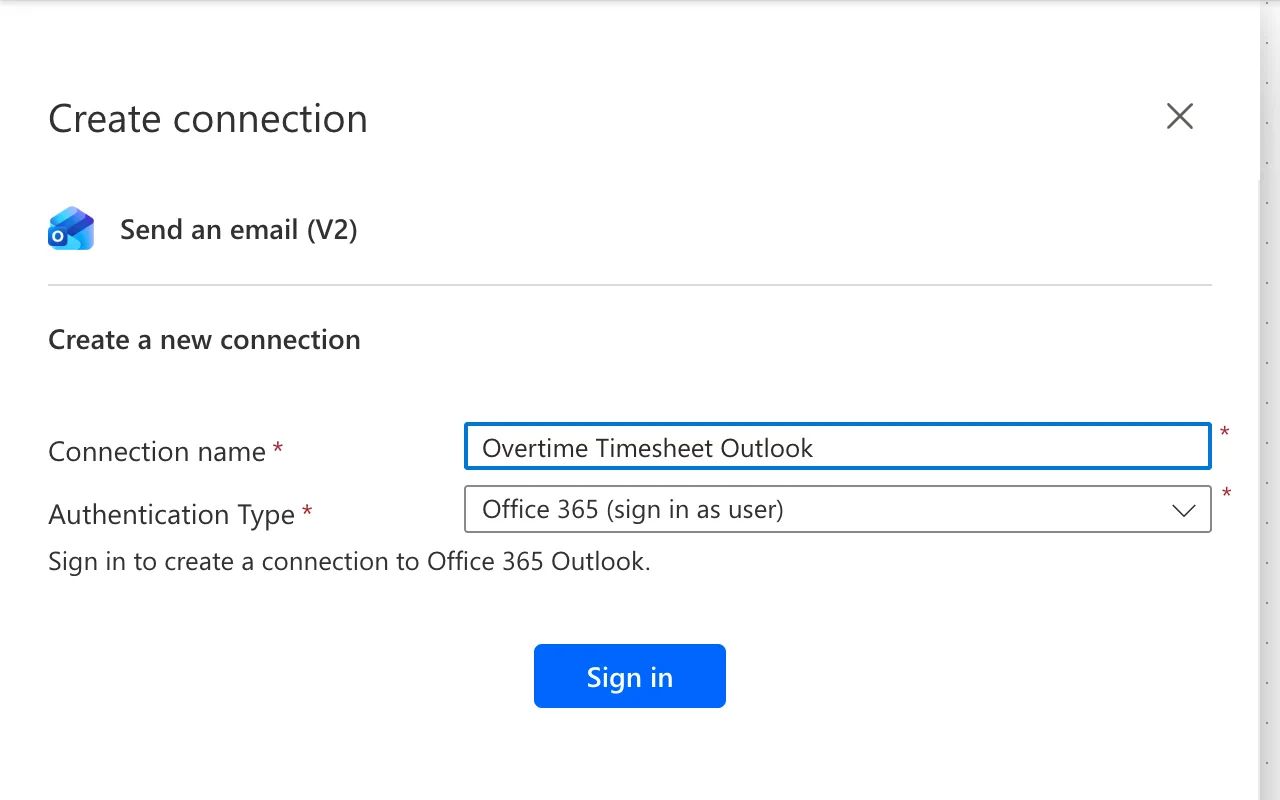
The account that signs in is the one the email comes from. I named the action Tell the employee.
Step 2: Address It
To is the trigger's Created By Email, the person who logged the overtime:
@triggerBody()?['Author/Email']
Step 3: Write the Subject
Plain text with values from earlier actions:
Overtime @{outputs('Record_the_decision')?['body/Status/Value']}: @{outputs('Shift_date')}, @{outputs('Hours_worked_out')} hours
Step 4: Write the Body
Body is a rich text box: each line you type becomes a paragraph, and dynamic content goes where the values belong:
Hello [Created By DisplayName],
Your overtime on [Shift date], [Shift times], was [Status Value] by [DecisionBy].
Hours: [Hours worked out]
Department: [Department]
Comment: [ApproverComment]
You can see all your entries on the My overtime screen of the Overtime Timesheet app.
The square brackets stand for tokens. In the designer, the Compose outputs showed as tokens named Body:
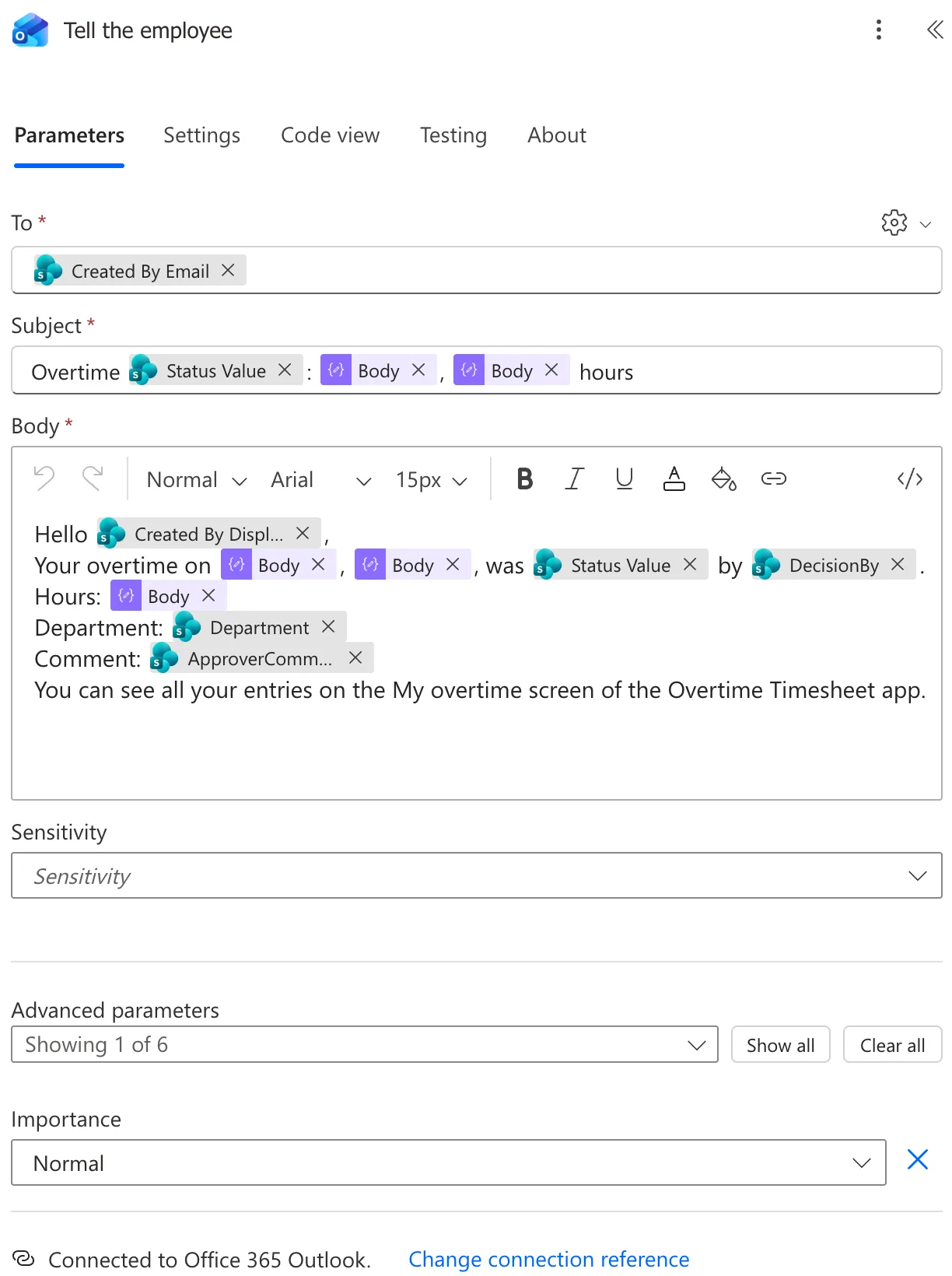
Code view shows which outputs they are, and that each line is an HTML paragraph:
<p class="editor-paragraph">Hello @{triggerBody()?['Author/DisplayName']},</p><p class="editor-paragraph">Your overtime on @{outputs('Shift_date')}, @{outputs('Shift_times')}, was @{outputs('Record_the_decision')?['body/Status/Value']} by @{outputs('Record_the_decision')?['body/DecisionBy']}.</p>
The Result
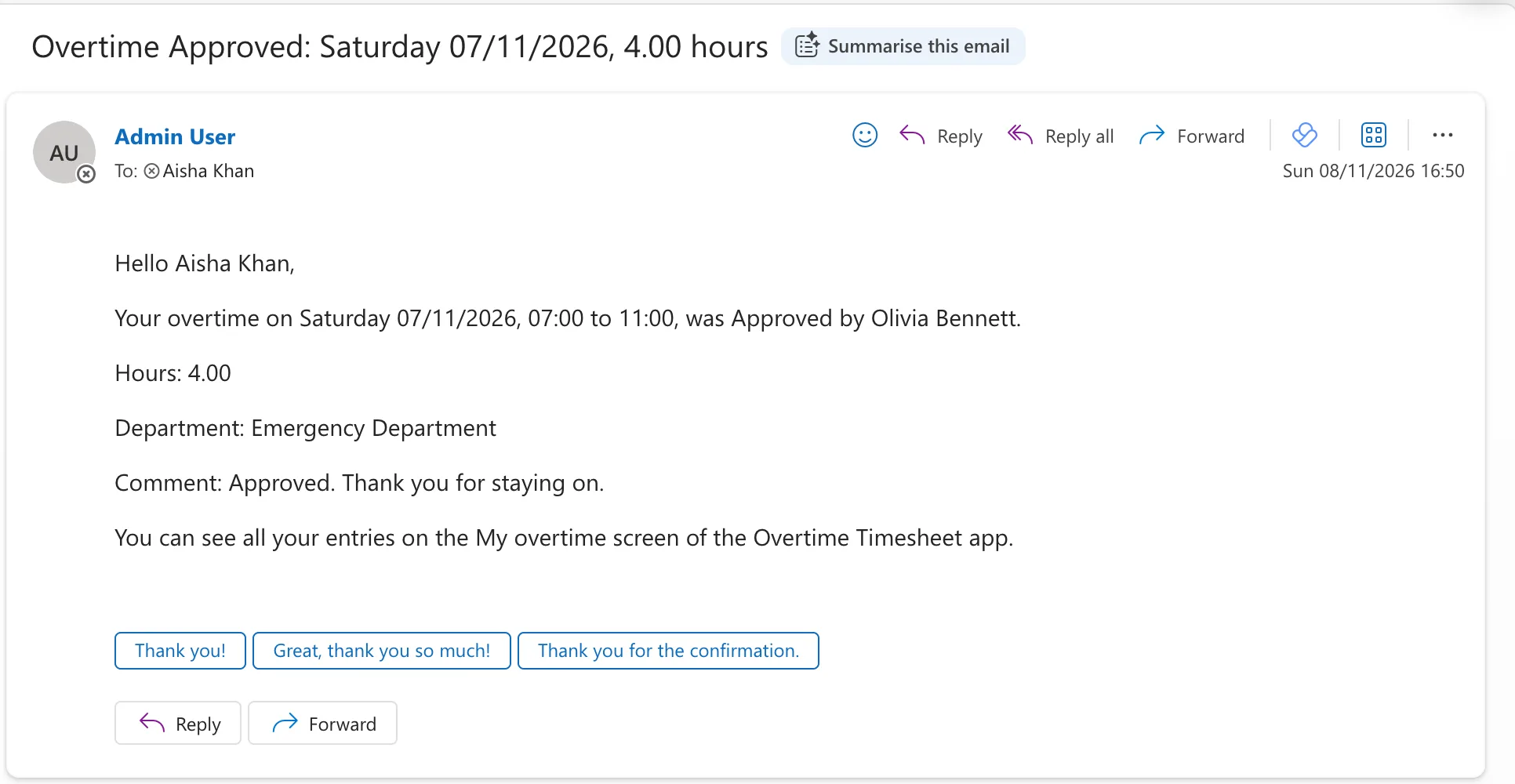
Aisha Khan's overtime was approved by Olivia Bennett, and the email arrived a few seconds after Olivia answered:
A rejection reads the same way, with the approver's reason as the comment:
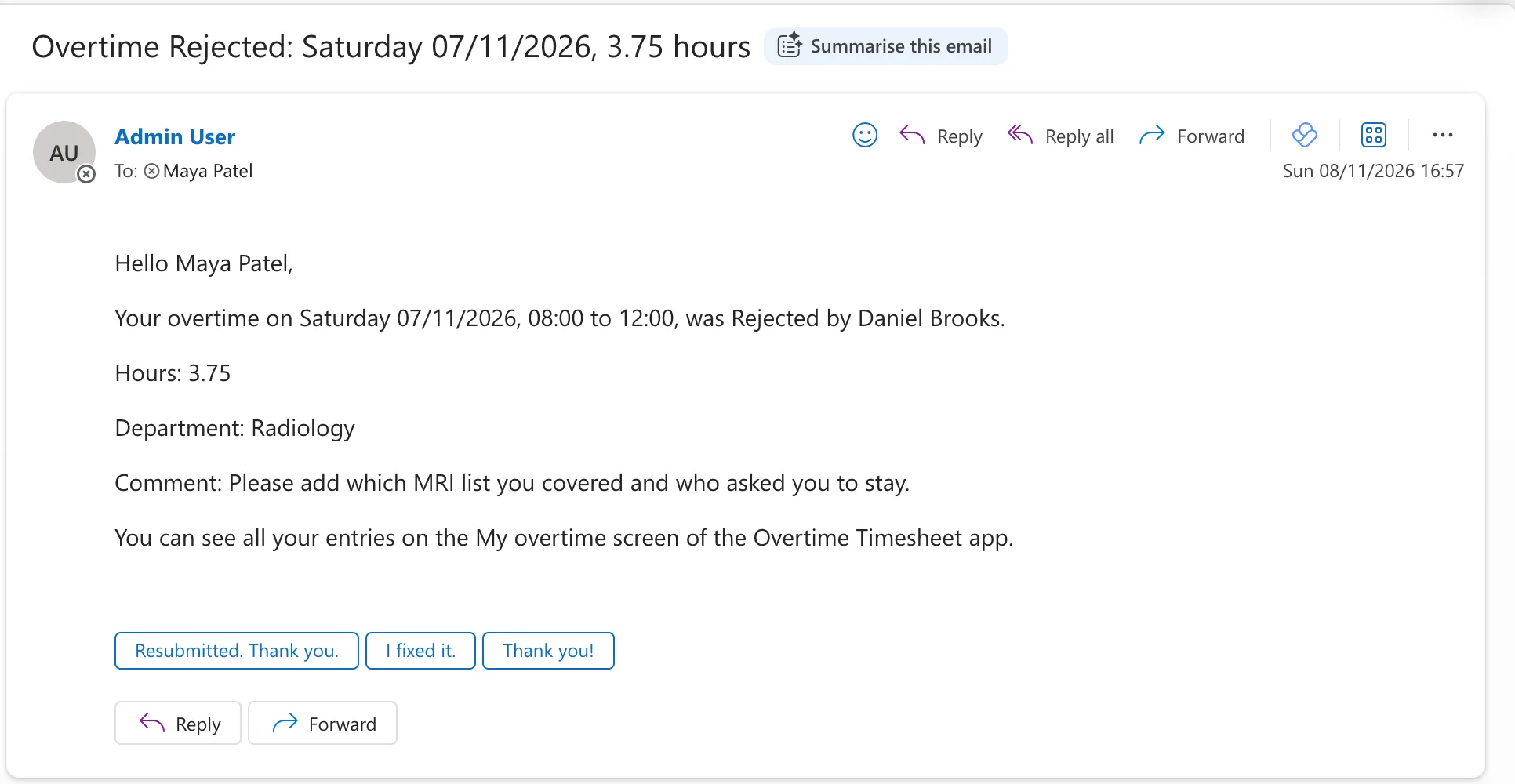
The emails came from Admin User, the account behind the connection. In production, connect with a mailbox meant for the app, so replies don't go to a person.
Common Mistakes
| Mistake | What happens | Do this instead |
|---|---|---|
| Connecting with your own account | Every email comes from you, and replies come to you | A mailbox meant for the app |
| UTC times in the email | An hour off in the UK summer | Convert them first (How to Convert UTC to Local Time in Power Automate with convertFromUtc) |
| Sending before the decision is saved | The email can say something the list doesn't | Send after Update item |
Troubleshooting
| Symptom | Likely cause | Fix |
|---|---|---|
| The email comes from the wrong person | The connection's account | Change the connection |
| Tokens named Body you didn't expect | The designer's name for Compose outputs | Check Code view |
| Everything on one line | Lines typed without Enter | Put each line in its own paragraph |
FAQ
Can it send from a shared mailbox?
Office 365 Outlook has a separate action for that, Send an email from a shared mailbox (V2). This flow doesn't use it.
Does the person need a license to receive it?
No. Anyone with a mailbox can receive it; only the account that sends it needs the connection.
Conclusion
Send an email (V2) sends from the connection's mailbox: To from dynamic content, a subject and a body with the flow's values, one paragraph per line. In the approval flow, it tells the person what was decided, by whom, and why.
Additional Resources
- Office 365 Outlook connector: Send an email (V2): the action and its parameters.
