How to Send an Adaptive Card in the Microsoft 365 Agents SDK in C#

An Adaptive Card shows information in a chat as a neat little layout instead of a wall of text, and the chat app draws it in its own style. In the Microsoft 365 Agents SDK, sending one takes an attachment with the right content type and one call to SendActivityAsync.
Syntax
Attachment card = new()
{
    ContentType = ContentTypes.AdaptiveCard,
    Content = cardJson
};

await turnContext.SendActivityAsync(MessageFactory.Attachment(card), cancellationToken);
Attachmentis the SDK's class for anything attached to a message: a file, a card, an image.ContentTypesays what the attachment is.ContentTypes.AdaptiveCardis the content type for Adaptive Cards,application/vnd.microsoft.card.adaptive.cardJsonis the card itself. Give it the card's JSON as aJsonNode, for exampleJsonNode.Parse(text)for JSON you've read from a file. Microsoft's example in the Agents SDK documentation assigns the JSON text directly, which the SDK also sends as JSON.MessageFactory.Attachment(card)builds a message activity that carries the attachment.turnContextandcancellationTokenare the ones your route handler receives.
The Example
The agent for this post answers menu with a card that shows today's lunch: a title and three dishes. The card lives in a JSON file of its own, Cards/MenuCard.json:
{
  "type": "AdaptiveCard",
  "$schema": "https://adaptivecards.io/schemas/adaptive-card.json",
  "version": "1.5",
  "body": [
    {
      "type": "TextBlock",
      "text": "Today's lunch",
      "size": "Large",
      "weight": "Bolder"
    },
    {
      "type": "FactSet",
      "facts": [
        { "title": "Soup", "value": "Tomato and basil" },
        { "title": "Main", "value": "Vegetable lasagne" },
        { "title": "Dessert", "value": "Apple crumble" }
      ]
    }
  ]
}
versionis the version of the card format. 1.5 is the highest that Microsoft Teams and Microsoft 365 Copilot Chat support, according to Microsoft's design guidance for agents.bodyis what the card shows, from top to bottom: a large boldTextBlockfor the title, then aFactSet, which lays out title and value pairs in two columns.
The agent is one class in an ASP.NET Core project with the Agents SDK, hosted with AddAgent<LunchMenuAgent>() and listening on port 3978.
Prerequisites
- The Microsoft 365 Agents Playground, to chat with the agent on your own machine.
agentsplayground --versionshould print0.2.30; if the command isn't found, install it withnpm install -g @microsoft/m365agentsplayground.
Step 1: Put the Card in the Project
Create a folder called Cards in the project folder and save the JSON above in it as MenuCard.json.
ASP.NET Core projects copy .json files into the build output every time they build, so the card ends up next to the agent's compiled files, in bin/Debug/net10.0/Cards, without any change to the project file.
Step 2: Send It from a Route
using System.Text.Json.Nodes;
using Microsoft.Agents.Builder;
using Microsoft.Agents.Builder.App;
using Microsoft.Agents.Builder.State;
using Microsoft.Agents.Core.Models;

namespace LunchMenu;

public class LunchMenuAgent : AgentApplication
{
    private static readonly string MenuCardJson =
        File.ReadAllText(Path.Combine(AppContext.BaseDirectory, "Cards", "MenuCard.json"));

    public LunchMenuAgent(AgentApplicationOptions options) : base(options)
    {
        OnMessage("menu", SendMenuAsync);
    }

    private async Task SendMenuAsync(ITurnContext turnContext, ITurnState turnState, CancellationToken cancellationToken)
    {
        Attachment card = new()
        {
            ContentType = ContentTypes.AdaptiveCard,
            Content = JsonNode.Parse(MenuCardJson)
        };

        await turnContext.SendActivityAsync(MessageFactory.Attachment(card), cancellationToken);
    }
}
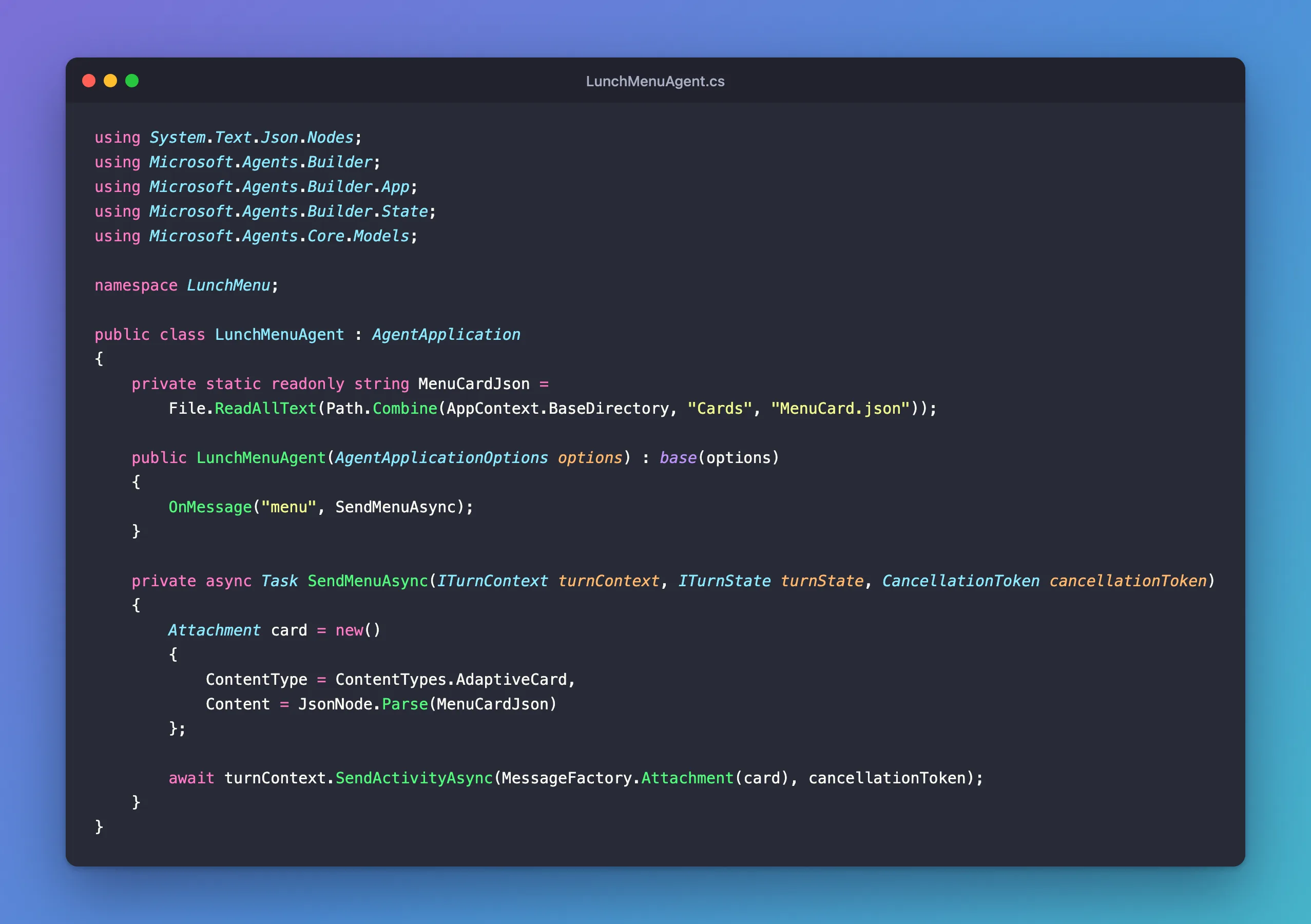
MenuCardJsonreads the file once, the first time the class is used. The SDK creates a new agent object for every message, so reading the file in astaticfield saves reading it again each time.AppContext.BaseDirectoryis the folder that holds the agent's compiled files.JsonNode.Parse(MenuCardJson)turns the text into JSON. It does that on every send, so each message gets its own copy of the card.OnMessage("menu", SendMenuAsync)sends the card whenever someone typesmenu.
Step 3: Try It
Run the agent with dotnet run, then start the Agents Playground in a second terminal:
agentsplayground -e http://localhost:3978/api/messages -c emulator
Send menu:
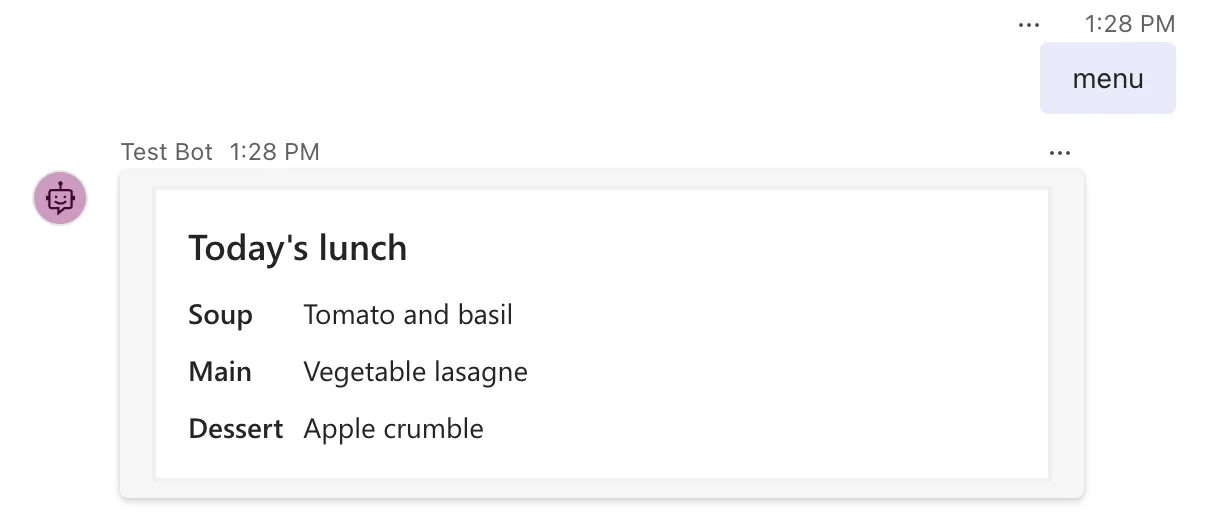
The Playground drew the JSON as a card: the title large and bold, and the facts in two neat columns. To change the menu, change the file and restart the agent; the code stays the same.
Common Mistakes
| Mistake | What happens | Do this instead |
|---|---|---|
| Typing the content type by hand | One wrong character and the attachment is no longer an Adaptive Card | Use the ContentTypes.AdaptiveCard constant |
| Using a version higher than the host supports | The host may not draw parts of the card | Use 1.5 for Teams and Microsoft 365 Copilot Chat |
| Reading the file from a relative path | It depends on the folder the agent was started from | Combine AppContext.BaseDirectory with the file's path |
Troubleshooting
| Symptom | Likely cause | Fix |
|---|---|---|
The agent doesn't answer menu | No route for it, or the agent isn't running | Check the route and the agent's terminal |
| The turn fails with an exception about the JSON | The card file isn't valid JSON | Check the file; a designer or editor with $schema support shows the error |
FAQ
Can I send text and a card in one message?
Yes. MessageFactory.Attachment takes the message text as its second parameter: MessageFactory.Attachment(card, "Here's today's lunch:").
Can I send more than one card in one message?
Yes. MessageFactory.Attachment also accepts a list of attachments, and MessageFactory.Carousel sends a list with the carousel layout, which chat apps that support it show side by side.
How do I design a card without writing the JSON by hand?
Use the Adaptive Cards Designer: How to Design an Adaptive Card with the Adaptive Cards Designer.
Conclusion
To send an Adaptive Card, put its JSON in an Attachment with the content type ContentTypes.AdaptiveCard, wrap it in a message with MessageFactory.Attachment, and send it with SendActivityAsync. Keeping each card in a JSON file of its own lets you change what it shows without touching the code.
Additional Resources
- Use adaptive cards in agents — sending cards and handling their actions in the Agents SDK.
- MessageFactory.Attachment method — the API reference.
- Adaptive Cards for agent design — design guidance and the versions each host supports.
