How to Send a Date to a Flow from Power Apps

A flow's Date input accepts a date written one way: yyyy-mm-dd, like 2026-11-01. A date in Power Apps doesn't go in that form on its own, so format it as you send it: Text(yourDate, "yyyy-mm-dd") inside the flow's Run.
Syntax
FlowName.Run(Text(DateValue, "yyyy-mm-dd"))
| Part | What it is |
|---|---|
| FlowName | The flow, as added to the app (How to Add a Flow to a Canvas App in Power Apps). |
| DateValue | The date to send: a variable, a date picker's SelectedDate, Today(), or any formula that gives a date. |
"yyyy-mm-dd" | The form the flow's Date input accepts: four-digit year, two-digit month, two-digit day, joined by hyphens. |
In a Text pattern, mm is the month here: Microsoft's Text function reads mm as minutes only right after h/hh or right before ss. The modern date picker reference shows "yyyy-mm-dd" writing 2024-01-15.
If the flow has other inputs, give them in Run too, a value for each.
The example is the Reports screen of the Overtime Timesheet app. It shows one month at a time and asks the flow Get Overtime Report for that month's approved overtime. The month is a context variable, locMonthRS: the first day of the month, a Date.
Prerequisites
- A flow with a Date input in its When Power Apps calls a flow (V2) trigger.
- The flow added to the app.
Step 1: Write the Call with the Date Formatted
Where the app runs the flow, put the date inside Text(..., "yyyy-mm-dd"). In the example, the Refresh button's OnSelect runs the flow and keeps its answer (How to Run a Flow and Use Its Result in Power Apps):
GetOvertimeReport.Run(Text(locMonthRS, "yyyy-mm-dd"))
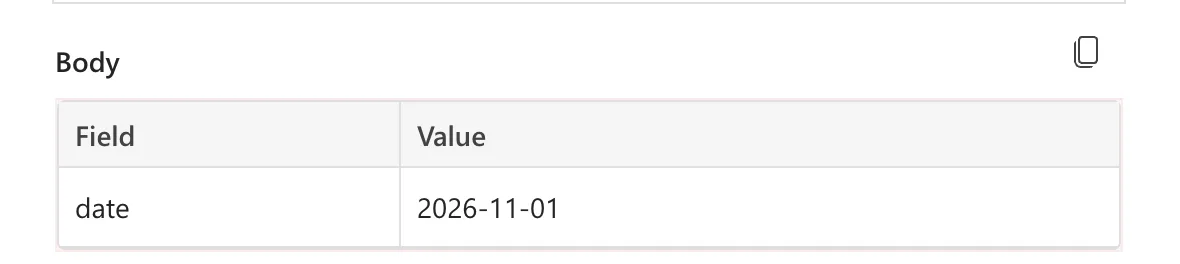
For November 2026, that's 2026-11-01. The whole formula, with the error handling around the call, is in Part 11.
Step 2: Run It and Check What the Flow Received
Run the app and do what calls the flow. In the flow's run history, open the run and select the trigger: its outputs show the value under the input's key (How to See a Flow's Run History in Power Automate):
The Result
The flow ran and answered, and the screen showed the month's report, here for an approver of Finance, which had no approved overtime that month:

Without Text, the same call failed: Power Apps sent the date as 01/11/2026, the user's own short date, and the flow's trigger refused it (Fixed: TriggerInputSchemaMismatch "String … Does Not Validate Against Format 'date'" When Power Apps Runs a Flow).
Common Mistakes
| Mistake | What happens | Do this instead |
|---|---|---|
| Passing the Date on its own | It goes in the user's own date format, and the trigger refuses it | Text(date, "yyyy-mm-dd") |
DateTimeFormat.ShortDate | Also the user's own format | The custom pattern "yyyy-mm-dd" |
DateTimeFormat.UTC | A date and time in UTC, like 2020-04-08T03:26:59.180Z, not a date | "yyyy-mm-dd" for a Date input |
"dd/mm/yyyy" because that's how users write dates | The input only takes yyyy-mm-dd | Keep the format the input asks for; show users their own |
Troubleshooting
| Symptom | Likely cause | Fix |
|---|---|---|
| does not validate against format 'date' | The date wasn't sent as yyyy-mm-dd | Wrap it in Text(..., "yyyy-mm-dd") |
| Run asks for a different number of values | The flow's inputs changed | Refresh the flow in the app (How to Refresh a Flow in a Canvas App in Power Apps) |
FAQ
Which date does Text write, local or UTC?
The date as the app shows it, in the user's time zone. Microsoft's Text function converts to UTC only with DateTimeFormat.UTC.
Can the flow's input be Text instead?
It can, but a Date input checks the value: anything that isn't a date is refused before the flow runs. A Text input lets anything in.
What about a date picker?
Its SelectedDate is a date like any other, so the pattern is the same: FlowName.Run(Text(DatePicker.SelectedDate, "yyyy-mm-dd")), with your control's name.
Conclusion
Send dates to a flow's Date input as yyyy-mm-dd, with Text(yourDate, "yyyy-mm-dd") inside Run. It's the form the input asks for, and it doesn't change with the user's language.
Additional Resources
- Text function: placeholders and predefined formats
- Use Power Automate pane: flows in canvas apps
- Customize or format date and time values in a flow: the Date input on the flow's side
