How to Send a Custom Activity from the Microsoft 365 Agents Playground

Some activities never come from typing: a web page telling your agent the user switched to dark mode, a thumbs-up on a reply. The Microsoft 365 Agents Playground can send them anyway. Its Custom activity option lets you write any activity as JSON and deliver it to your agent, so you can test the code that handles it on your own machine.
The Example
The agent for this post handles one event, an activity a client sends to tell the agent something happened. Events carry a name, which says what happened, and a value, with whatever data goes with it. This agent listens for an event named themeChanged and answers with what it received:
using Microsoft.Agents.Builder;
using Microsoft.Agents.Builder.App;
using Microsoft.Agents.Builder.State;

namespace EventDemo;

public class ThemeAgent : AgentApplication
{
    public ThemeAgent(AgentApplicationOptions options) : base(options)
    {
        OnEvent("themeChanged", OnThemeChangedAsync);
    }

    private async Task OnThemeChangedAsync(ITurnContext turnContext, ITurnState turnState, CancellationToken cancellationToken)
    {
        await turnContext.SendActivityAsync($"Got the {turnContext.Activity.Name} event with this value: {turnContext.Activity.Value}", cancellationToken: cancellationToken);
    }
}
OnEvent("themeChanged", ...) registers a handler for events with that name; the handler reads the event's Name and Value from turnContext.Activity. A chat box can't send this event, which is why the Playground's custom activity is the way to test it.
Prerequisites
- The Microsoft 365 Agents Playground, installed and able to reach your agent.
agentsplayground --versionshould print0.2.30. - An agent running locally, listening on a known port; this one listens on
http://localhost:3978.
Step 1: Start the Agent and the Playground
Start your agent, then start the Playground with its endpoint:
agentsplayground -e http://localhost:3978/api/messages -c emulator
The Playground opens in your browser and connects to the agent. Microsoft notes that Custom activity is there even in channels where a predefined trigger isn't; this post uses emulator.
Step 2: Open Custom Activity
Select Mock an Activity in the Playground's toolbar. The menu lists the activities it can send for you. In the emulator channel, that's adding or removing a user or an application, and Custom activity:
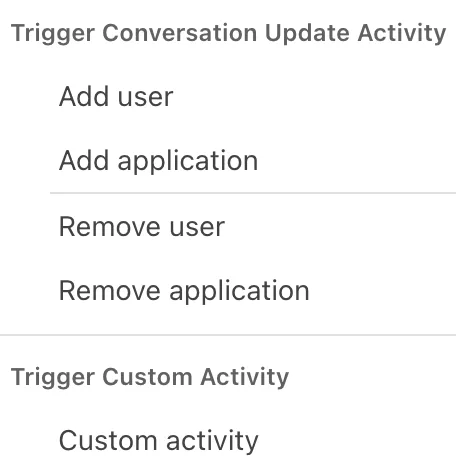
As Teams (-c msteams), the menu has more: installing and uninstalling the app, and channel and team events. Select Custom activity.
Step 3: Write the Activity
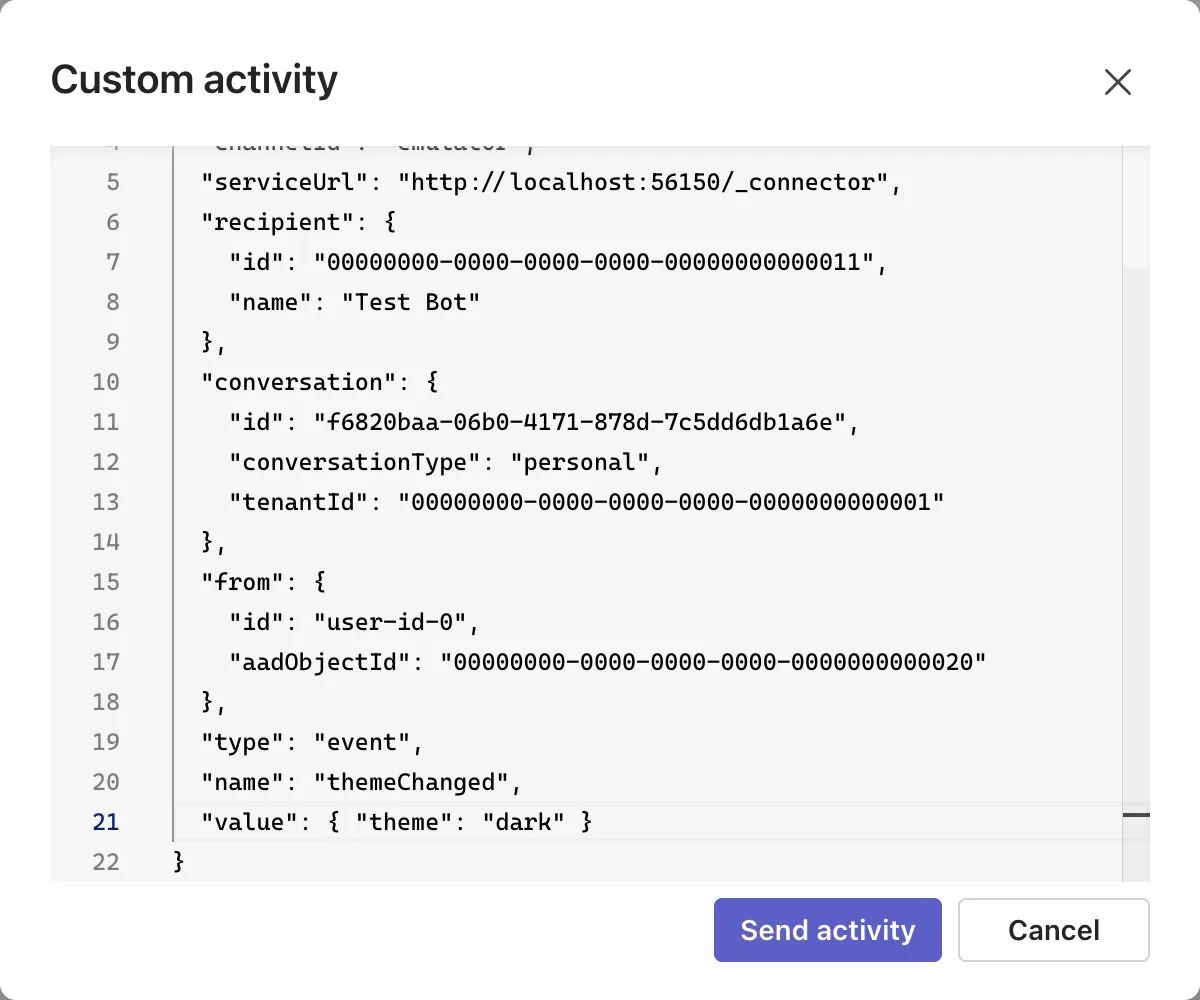
The Custom activity dialog opens with a JSON activity that's already addressed to your agent: an id, a timestamp, the channelId, the serviceUrl replies go to, the recipient (your agent), the conversation and the from (the Playground's made-up user). Its last line is a placeholder:
"type": "<custom-activity-type>"
Replace that line with the type you want and the fields it needs. For the example's event:
"type": "event",
"name": "themeChanged",
"value": { "theme": "dark" }
"type": "event"makes it an event activity."name"is the name your agent'sOnEventroute listens for."value"is the event's data; any JSON works, and here it's an object with one property.
Leave the prefilled fields as they are: they make sure the activity reaches your agent in the current conversation.
Step 4: Send It and Check the Result
Select Send activity. The agent's OnEvent route runs, and its answer appears in the chat:

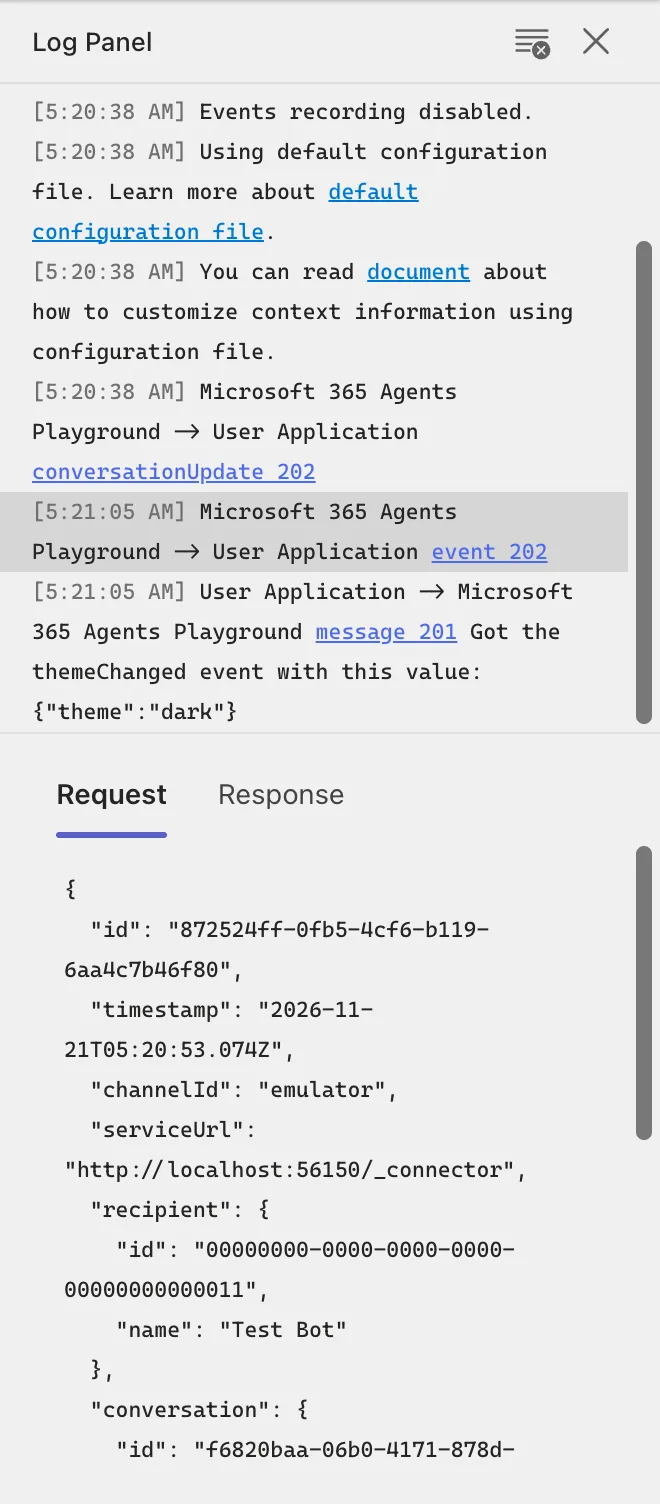
To see exactly what was sent, click the new event 202 line in the Log Panel. Its Request tab shows the whole activity:
{
  "id": "872524ff-0fb5-4cf6-b119-6aa4c7b46f80",
  "timestamp": "2026-11-21T05:20:53.074Z",
  "channelId": "emulator",
  "serviceUrl": "http://localhost:56150/_connector",
  "recipient": {
    "id": "00000000-0000-0000-0000-00000000000011",
    "name": "Test Bot"
  },
  "conversation": {
    "id": "f6820baa-06b0-4171-878d-7c5dd6db1a6e",
    "conversationType": "personal",
    "tenantId": "00000000-0000-0000-0000-0000000000001"
  },
  "from": {
    "id": "user-id-0",
    "aadObjectId": "00000000-0000-0000-0000-0000000000020"
  },
  "type": "event",
  "name": "themeChanged",
  "value": {
    "theme": "dark"
  }
}
The prefilled fields and your three lines, exactly as you wrote them. 202 next to it means your agent accepted the activity.
Other Activities to Send
The same dialog sends any activity type. Microsoft's own example sends a reaction: replace the type line with "type": "messageReaction", a reactionsAdded list such as [{ "type": "like" }], and a replyToId with the id of the agent message being reacted to, which you can copy from the Response tab of that message's line in the Log Panel. Whatever you send, your agent needs a route that matches it, or nothing answers.
Common Mistakes
| Mistake | What happens | Do this instead |
|---|---|---|
| Deleting or changing the prefilled fields | Your agent sees a different sender, recipient or conversation than the chat you're testing | Change only the type line and add your own fields |
| Leaving a comma after the last field, or none between fields | The dialog's JSON is invalid | Separate fields with commas, with none after the last one |
A name that differs from your route's | The agent receives the event but no route runs | Use exactly the name in OnEvent, letter for letter |
Using invoke for a one-way signal | Invokes expect an answer in the response to the request itself | Use event, which the protocol designed for signals |
Troubleshooting
| Symptom | Likely cause | Fix |
|---|---|---|
No answer, and the Log Panel shows event 202 | The agent accepted the event, but no route matched it | Check the event's name against your OnEvent route |
The answer shows the value as JSON, such as {"theme":"dark"} | Activity.Value holds the JSON from the activity | Deserialize it to your own type when you need its properties |
FAQ
Do I need to fill in the id and timestamp myself?
No. The dialog prefills them along with the rest of the addressing; you only change the type and add the fields that type needs.
Can I send the same custom activity again?
Open Custom activity again and write it again. Each send is a new activity with its own id.
Does this work for agents not built with the Agents SDK?
Yes. The Playground delivers the activity to whatever endpoint you gave it, so any agent that speaks the Activity Protocol receives it.
Conclusion
To test code for activities a chat box can't produce, open Mock an Activity → Custom activity in the Agents Playground, replace the "type": "<custom-activity-type>" line with your activity's type and fields, and select Send activity. The Log Panel's Request tab then shows exactly what your agent received.
Additional Resources
- Microsoft 365 Agents Playground: activity triggers — predefined and custom activity triggers.
- Understanding Activity Protocol — event, invoke and the other activity types.
