How to See Which Lists Have Unique Permissions in SharePoint

Once a few lists stop inheriting their site's permissions, it gets hard to remember which ones. The site's Permissions page keeps track for you: a Show these items link opens an Exceptions dialog listing every list and library with its own permissions, each with a link to manage them.
The Overtime Timesheet series gives three lists and libraries their own permissions. This guide checks that exactly those three are different from the site.
Prerequisites
- Owner of the site.
Step 1: Open the Site's Permissions Page
Select Settings → Site permissions → Advanced permissions settings. How to Give a Group Read-Only Access to a SharePoint Site shows those screens.
Step 2: Find the Message at the Top
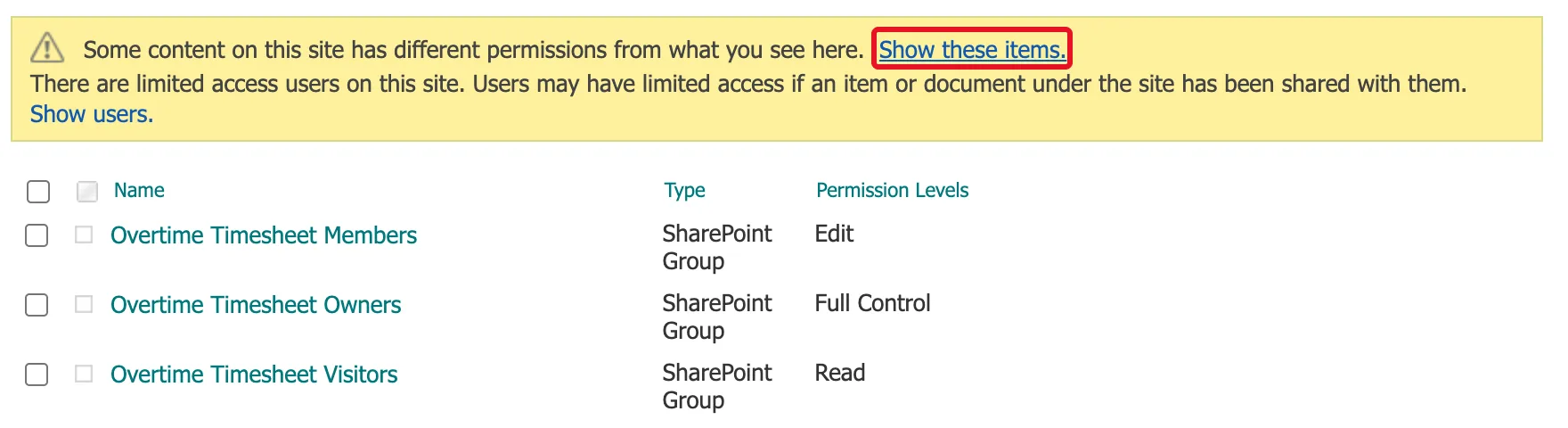
When anything on the site has its own permissions, a yellow message says so: Some content on this site has different permissions from what you see here. Select Show these items.:
Step 3: Read the Exceptions
The Exceptions dialog lists the lists that have unique permissions, each with a manage permissions link to its own Permissions page:
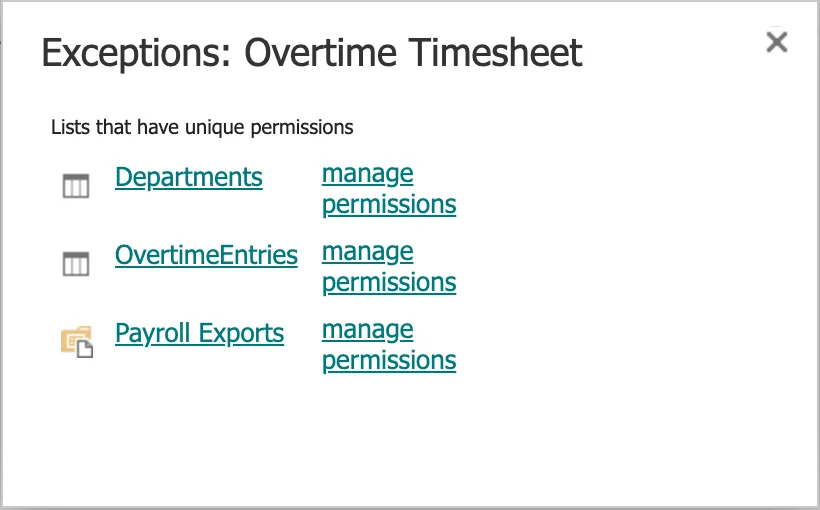
Here they're the three the series changed on purpose: Departments, OvertimeEntries and Payroll Exports, the last with a library icon. Anything else in this list would be worth asking about.
The Second Message: Limited Access
The page also says: There are limited access users on this site. Users may have limited access if an item or document under the site has been shared with them. Microsoft's Customize permissions for a SharePoint list or library explains: "When you share an item with a user, they are given limited access to the site in order to give them access to the item." On this site it appeared after groups were granted access to single lists. Limited Access lets them reach the list; it doesn't open anything else. Show users. lists who has it.
Common Mistakes
| Mistake | What happens | Do this instead |
|---|---|---|
| Checking only the site's group list | Lists with their own permissions don't appear there | Use Show these items |
| Assuming a list follows the site | It may have been given its own permissions long ago | Check the Exceptions list |
| Reading Limited Access as access to the site | It only allows reaching the shared list or item | Check the person with Check Permissions |
Troubleshooting
| Symptom | Likely cause | Fix |
|---|---|---|
| No Show these items link | Everything inherits the site's permissions | Nothing to review |
| A list you didn't expect | Someone gave it its own permissions, or shared something in it | Open manage permissions and review it |
FAQ
Does this list single items too?
The dialog here showed lists. Microsoft's article describes a similar link on a list's own Permissions page, Some items of this list may have unique permissions which are not controlled from this page. Show these items., for items within it.
How do I make a list follow the site again?
On its Permissions page, Delete unique permissions restores inheritance, as Microsoft's article explains. That removes the list's own permissions.
Conclusion
The site's Permissions page tells you when something is different: Show these items. opens the Exceptions list, and manage permissions takes you to each one. Check it whenever you change permissions, and whenever you inherit a site from someone else.
