How to See What Changed in a Git Repository Before You Commit (git status and git diff)

Before every commit, it pays to look at what you're about to save: which files changed, which lines, and which of those changes are actually going into the commit. Two Git commands answer all of that. This guide makes a small change in a .NET C# project and walks through git status and git diff with their real output, including the one surprise that confuses almost everyone: git diff showing nothing after git add.
Three Places a Change Can Be
Git keeps your files in three places, and every change you make moves through them:
| Place | What it holds |
|---|---|
| Working tree | The files on your disk, as you edit them |
| Index (also called the staging area) | What the next commit will contain. git add copies changes here |
| HEAD | The last commit |
git status tells you which files differ between these places. git diff shows the changed lines between two of them.
Prerequisites
- Git, installed and set up with your name and email. How to Create a Git Repository and Make Your First Commit covers both.
- A repository with at least one commit. The examples use a .NET C# solution with a web API project and a class library.
Step 1: Make Two Changes
To have something to look at, make two kinds of change: edit a file Git already tracks, and add a new one.
- In
src/Dewiride.Inventory.Api/appsettings.json, add a logging category, so EF Core's SQL statements stop showing in the log:
{
  "Logging": {
    "LogLevel": {
      "Default": "Information",
      "Microsoft.AspNetCore": "Warning",
      "Microsoft.EntityFrameworkCore.Database.Command": "Warning"
    }
  },
  "AllowedHosts": "*"
}
- Add a new class to the class library:
namespace Dewiride.Inventory.Data;

/// <summary>Settings for the database connection.</summary>
public sealed class DatabaseOptions
{
    public int CommandTimeoutSeconds { get; set; } = 30;
}
Step 2: See Which Files Changed
git status
On branch main
Changes not staged for commit:
  (use "git add <file>..." to update what will be committed)
  (use "git restore <file>..." to discard changes in working directory)
	modified:   src/Dewiride.Inventory.Api/appsettings.json

Untracked files:
  (use "git add <file>..." to include in what will be committed)
	src/Dewiride.Inventory.Data/DatabaseOptions.cs

no changes added to commit (use "git add" and/or "git commit -a")
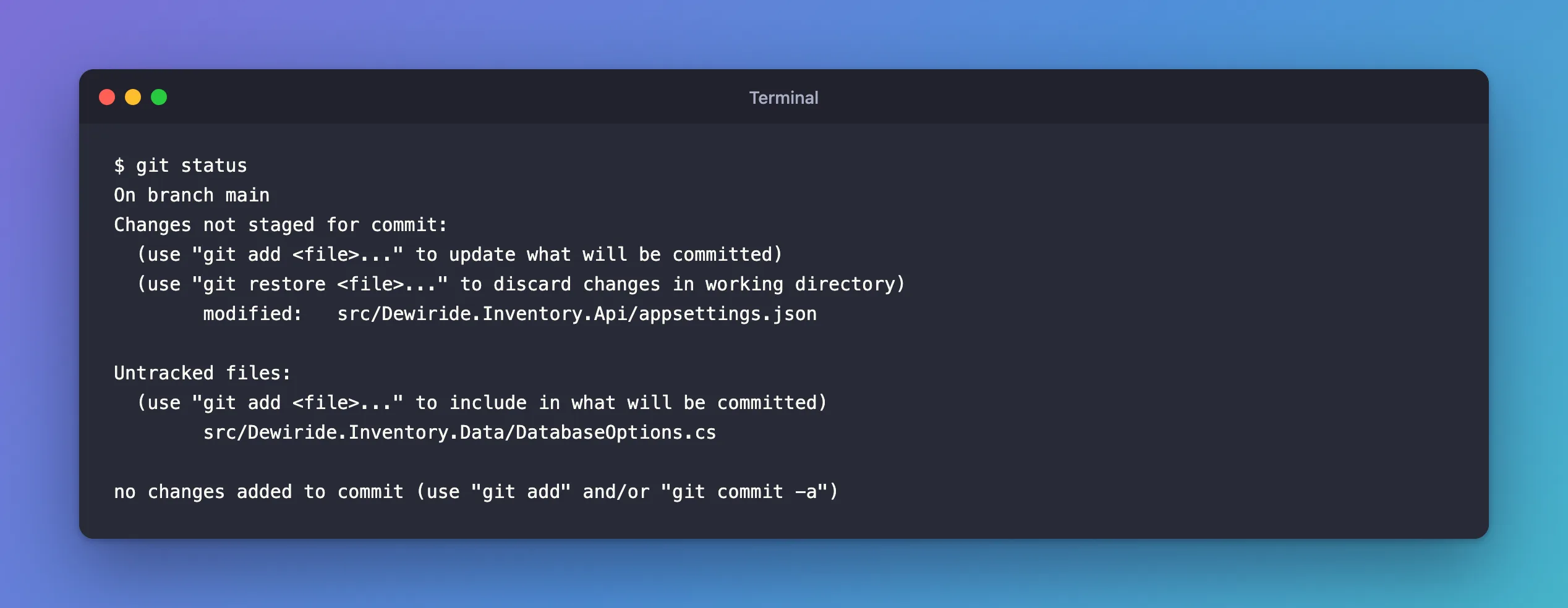
Git's manual describes exactly what this lists: "paths that have differences between the index file and the current HEAD commit, paths that have differences between the working tree and the index file, and paths in the working tree that are not tracked by Git". In this output:
- Changes not staged for commit:
appsettings.jsonis a file Git knows, edited on disk but not yet added to the index. - Untracked files:
DatabaseOptions.csis new. Git has never stored it, and won't until yougit addit. - no changes added to commit: the index is the same as the last commit, so
git commitright now would have nothing to save.
Git also prints the next commands you're likely to need, in brackets. Read them: they change with the situation.
Step 3: See Which Lines Changed
git status names files. git diff shows the lines:
git diff
warning: in the working copy of 'src/Dewiride.Inventory.Api/appsettings.json', CRLF will be replaced by LF the next time Git touches it
diff --git a/src/Dewiride.Inventory.Api/appsettings.json b/src/Dewiride.Inventory.Api/appsettings.json
index 10f68b8..793d7e4 100644
--- a/src/Dewiride.Inventory.Api/appsettings.json
+++ b/src/Dewiride.Inventory.Api/appsettings.json
@@ -2,7 +2,8 @@
   "Logging": {
     "LogLevel": {
       "Default": "Information",
-      "Microsoft.AspNetCore": "Warning"
+      "Microsoft.AspNetCore": "Warning",
+      "Microsoft.EntityFrameworkCore.Database.Command": "Warning"
     }
   },
   "AllowedHosts": "*"
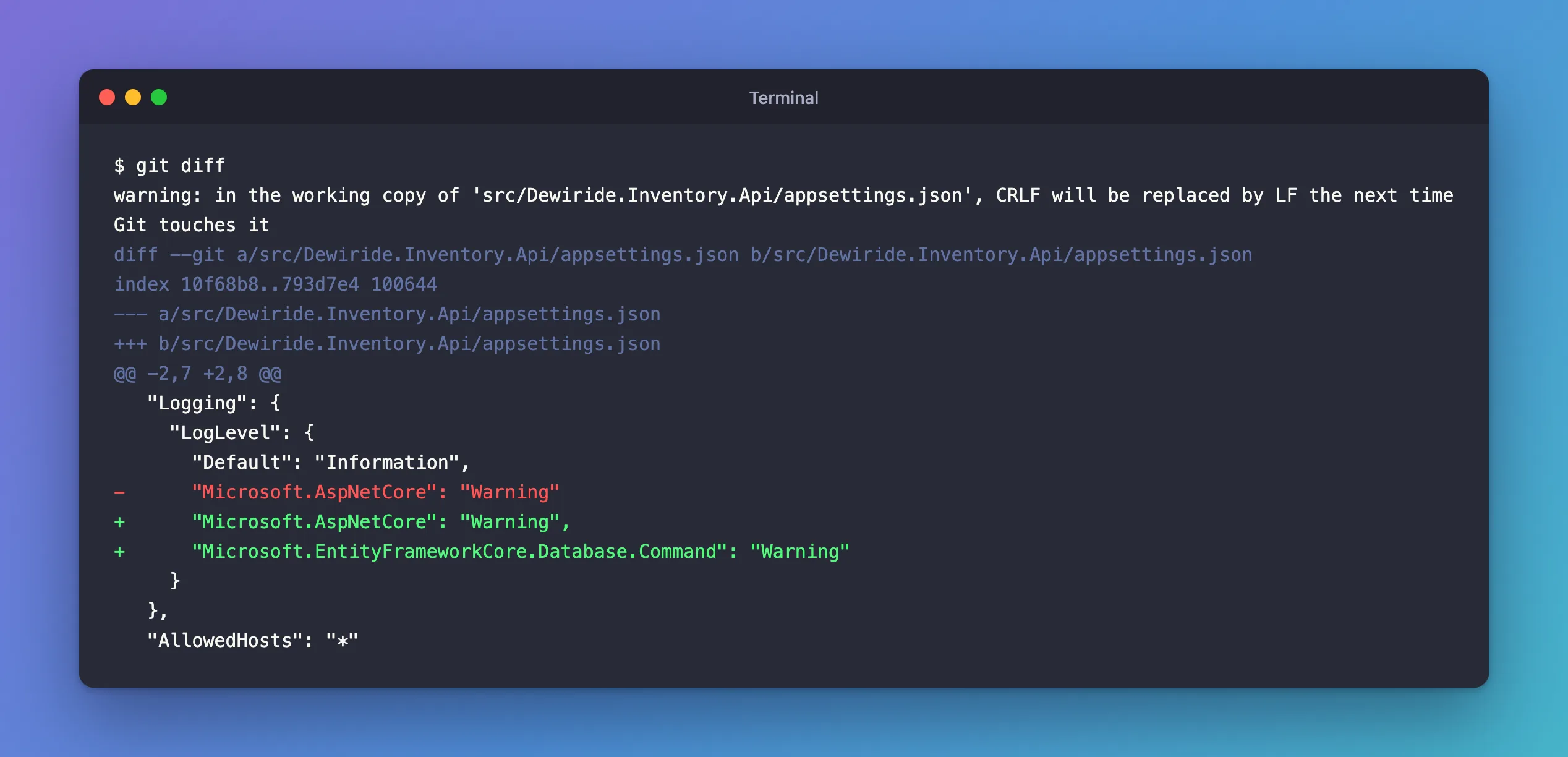
How to read it:
--- a/…and+++ b/…: the old version (a) and the new one (b) of the same file.@@ -2,7 +2,8 @@: where the change is. The old file's lines 2 to 8 (7 lines) became lines 2 to 9 (8 lines) in the new one.- Lines starting with
-were removed, lines starting with+were added, and the others are unchanged context around them, three lines by default. Adding a comma at the end of a line counts as removing the old line and adding a new one.
DatabaseOptions.cs isn't in the diff. The manual explains why: this form shows "the changes you made relative to the index", and an untracked file isn't in the index at all.
The first line is a warning about line endings, not about your change: the file came from a template with Windows line endings, and this repository stores text files with Unix ones. Fixed: Git Shows Every Line Changed in Files from dotnet new (CRLF Line Endings) explains the warning and how to make it stop.
Step 4: Stage One File, Then Look Again
Add the edited file to the index, and leave the new one out for now:
git add src/Dewiride.Inventory.Api/appsettings.json
git diff
git diff prints nothing. The change didn't disappear: it moved. Plain git diff compares your files with the index, and the index now holds the change, so there's no difference left between them. To see what the next commit will contain, compare the index with the last commit instead:
git diff --staged
diff --git a/src/Dewiride.Inventory.Api/appsettings.json b/src/Dewiride.Inventory.Api/appsettings.json
index 10f68b8..793d7e4 100644
--- a/src/Dewiride.Inventory.Api/appsettings.json
+++ b/src/Dewiride.Inventory.Api/appsettings.json
@@ -2,7 +2,8 @@
   "Logging": {
     "LogLevel": {
       "Default": "Information",
-      "Microsoft.AspNetCore": "Warning"
+      "Microsoft.AspNetCore": "Warning",
+      "Microsoft.EntityFrameworkCore.Database.Command": "Warning"
     }
   },
   "AllowedHosts": "*"
The manual describes this form as "the changes you staged for the next commit relative to the named <commit>", which "defaults to HEAD", and adds that "--staged is a synonym of --cached". Make it a habit: git diff --staged right before git commit shows exactly what you're about to save.
Step 5: The Short Version
On a busy day, the long git status is a lot to read. --short prints one line per file. Here it is before and after the git add from Step 4:
git status --short
 M src/Dewiride.Inventory.Api/appsettings.json
?? src/Dewiride.Inventory.Data/DatabaseOptions.cs
M  src/Dewiride.Inventory.Api/appsettings.json
?? src/Dewiride.Inventory.Data/DatabaseOptions.cs
The code before each file has two columns. The first describes the index and the second the working tree, which is why the M moved one place to the left when the file was staged:
| Code | Meaning |
|---|---|
M | Modified on disk, not staged |
M | Modified and staged |
MM | Staged, then changed again on disk |
A | New file, staged |
?? | Untracked: Git doesn't know the file yet |
The manual's short format section lists every code.
Step 6: Only Names or Counts
For a large change, the full diff is too long to read at a glance. Two options summarize it:
git diff --staged --stat
 src/Dewiride.Inventory.Api/appsettings.json | 3 ++-
 1 file changed, 2 insertions(+), 1 deletion(-)
git diff --staged --name-only
src/Dewiride.Inventory.Api/appsettings.json
--stat counts the added and removed lines per file. --name-only prints only the file names, handy to paste into a message or a script.
Unstage a File Without Losing the Change
If you added a file you didn't mean to commit, take it out of the index again:
git restore --staged src/Dewiride.Inventory.Api/appsettings.json
It prints nothing. The change stays in the file on disk; only the index goes back to the last commit, and git status --short shows M again. Don't confuse it with git restore <file> without --staged, which throws your changes in the file away.
Common Mistakes
| Mistake | What happens | Do this instead |
|---|---|---|
Trusting an empty git diff after git add | You think nothing changed, but everything is staged | Run git diff --staged |
Looking for a new file in git diff | It isn't there, because it's untracked | Check git status, then git add it |
git restore <file> to unstage | Your changes in that file are discarded | Use git restore --staged <file> |
Committing with git commit -a without looking | Every tracked change goes in, wanted or not | Stage what you mean, check git diff --staged, then commit |
Troubleshooting
| Symptom | Likely cause | Fix |
|---|---|---|
git diff shows every line changed | Line endings differ between the file and the repository | See the CRLF post under Related |
fatal: not a git repository | You're not inside the repository's folder | cd into the repository |
| The diff opens in a pager and you can't get out | Git sends long output to less | Press q, or run git --no-pager diff |
FAQ
What's the difference between --staged and --cached?
None. They're two names for the same option.
Does git status change anything?
No. git status and git diff only read. They're safe to run as often as you like.
Can I see the diff of one file only?
Yes. Add the path at the end: git diff src/Dewiride.Inventory.Api/appsettings.json.
Conclusion
git status tells you which files changed and where each change is: on disk, staged, or not tracked yet. git diff shows the changed lines that aren't staged, and git diff --staged shows what the next commit will contain, which is the one to check right before git commit. Use --short, --stat and --name-only when you only need the overview.
Additional Resources
- git-status — every option and the short-format codes.
- git-diff — every way to compare the working tree, the index and commits.
