How to See What a Formula Returns in Power Apps Studio

Power Apps Studio can show what a formula returns without running the app. Select the formula's text in the formula bar, and a strip under it shows the formula, an equals sign and the result, with the result's data type beside it. It's the quickest way to check a formula while you write it.
The examples are from the Overtime Timesheet app's My Overtime screen, which shows a month of a person's overtime with its totals.
Prerequisites
- An app open for editing in Power Apps Studio, with a control whose formula you want to check.
- Microsoft's overview of the formula bar, if it's new to you: the property list on the left, the formula on the right.
Step 1: Select the Formula
Select the control, choose the property in the list on the left of the formula bar, then click in the formula and select all of its text: Ctrl+A on Windows, Cmd+A on a Mac. After a moment, a strip appears under the formula bar.
In the example, a text control's Text was Sum(locEntriesMO, Hours), which adds up the hours of the month's entries (How to Add Up a Column in Power Apps with Sum). The strip read Sum(locEntriesMO, Hours) = 11, with Data type: number, and the control on the canvas showed the same 11:
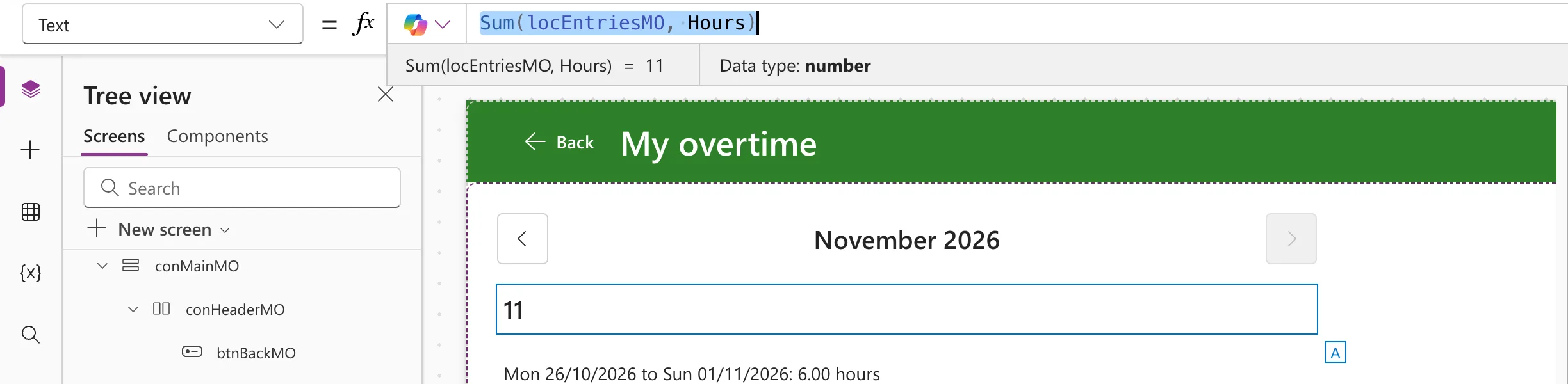
The strip has two parts:
- On the left, the formula, an equals sign and its result. A long formula is shortened with …; the result after the equals sign was shown in full in every example here.
- On the right, Data type: the kind of value, such as number, text, boolean or Date.
Step 2: Read the Result and Its Type
The type tells you as much as the value. Some results from the same app:
| Formula | The strip showed | Data type |
|---|---|---|
Sum(locEntriesMO, Hours) | 11 | number |
MondayOf(Date(2026, 11, 8)), a user-defined function | 02/11/2026, 00:00:00 | Date |
| The month's total, a text with the month and its hours | Total for September 2026: 0.00 hours | text |
A button's DisplayMode, an If that returns DisplayMode.Disabled this month | disabled | text |
A Date is shown with a time of midnight, and a DisplayMode as a word. Here's the DisplayMode of the screen's next-month button, which is disabled in the current month (How to Add Previous and Next Month Buttons in Power Apps):

Step 3: Spot a Blank
A formula that returns nothing shows Blank in italics, with the type it would have had. On the My Overtime screen, the total for a month with no entries read Total for September 2026: hours, with no number. Checking the Sum on its own showed why:
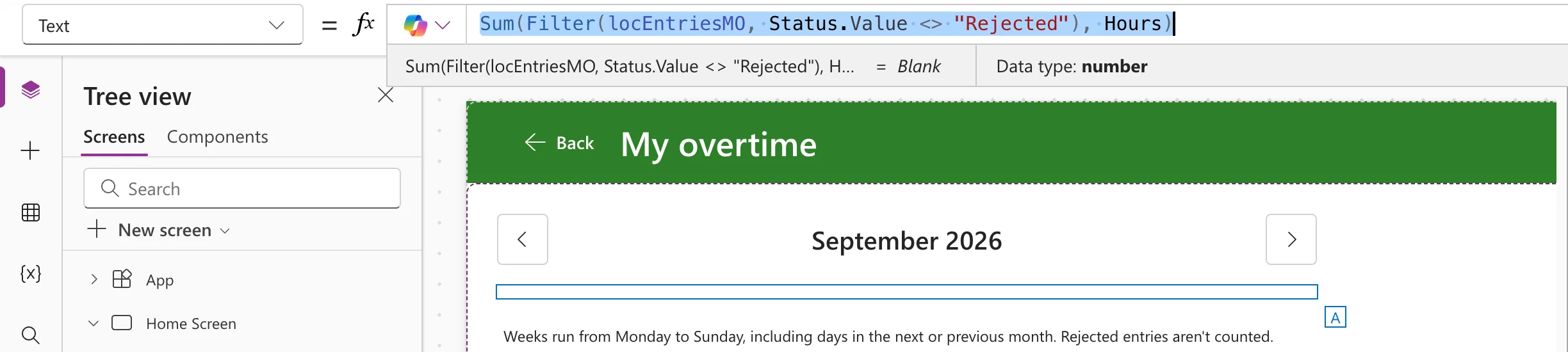
Sum of no rows returned Blank, not 0: Fixed: Sum Returns Blank Instead of 0 for an Empty Table in Power Apps.
To check one part of a long formula like that, I put the part on its own in the property for a moment, selected it, read the strip, and then put the whole formula back with the fix.
Step 4: Check a Long Formula
A long formula wraps in the formula bar, and its first line can be half hidden. Select the arrow at the right end of the formula bar to expand it, select the formula, and the strip shows under the expanded editor and its Format text, Remove formatting and Find and replace buttons:

Where the Values Come From
The strip works out the formula with the app's values as they are in Studio at that moment. Variables keep what the app last gave them: after a preview that ended on September, the strip used September's entries, the empty month in Step 3.
A screen's OnVisible doesn't run when you select the screen in Studio, so variables it sets are empty until you preview the app and go to that screen (How to Run a Formula When a Screen Opens in Power Apps with OnVisible). A Blank in the strip can mean that the screen hasn't loaded yet in this session, not that the formula is wrong.
What It Can't Work Out
A formula that uses ThisItem, such as one inside a gallery's row, depends on the row it's shown in. The strip says so instead of guessing: This formula uses scope, which is not presently supported for evaluation.
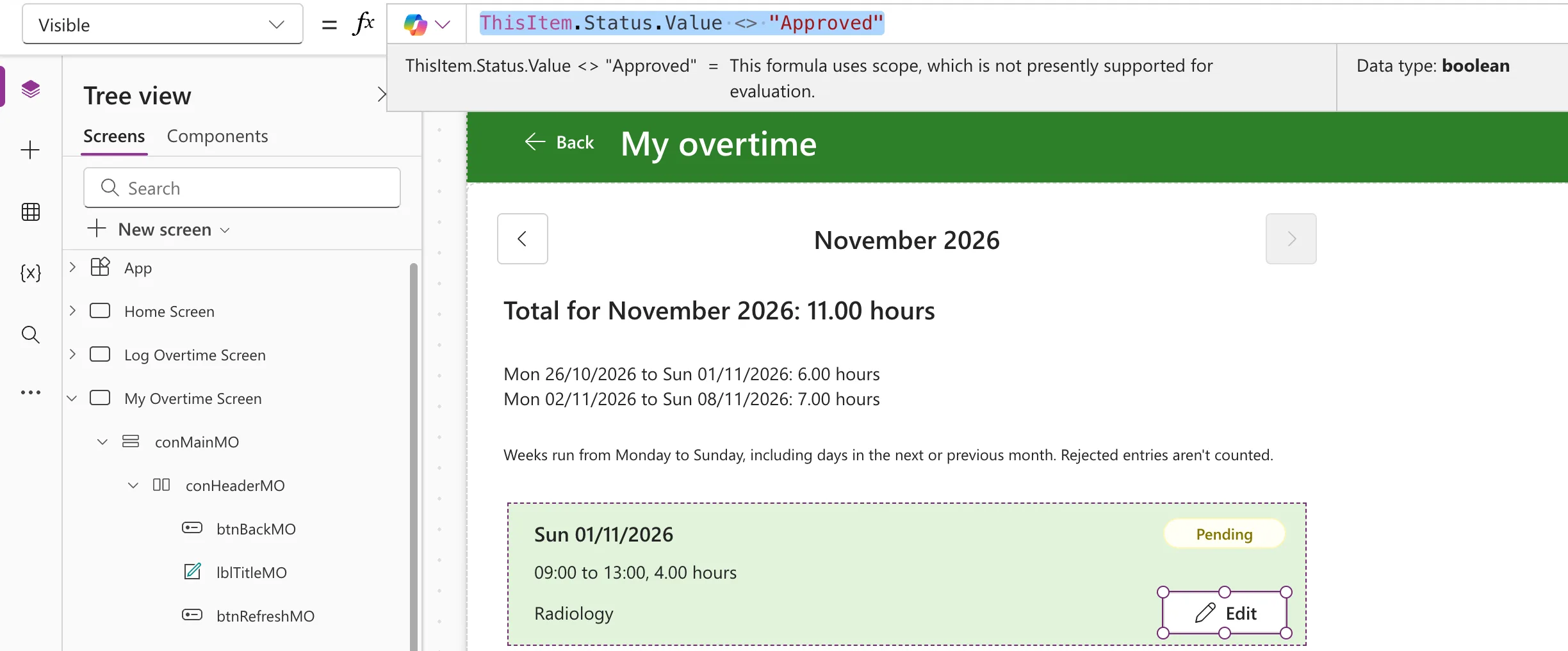
It still shows the Data type. Check the result in the rows on the canvas, or in Preview (How to Use ThisItem in a Power Apps Gallery).
Behavior formulas, such as a button's OnSelect, do something when they run rather than return a value. With the Edit button's OnSelect selected, no strip appeared at all.
Common Mistakes
| Mistake | What happens | Do this instead |
|---|---|---|
| Reading a Blank as a broken formula | The variables it uses may not be set yet in this session | Preview and go to the screen first, then check again |
| Checking only the whole formula | The strip shows the final result, not where it went wrong | Put the part you doubt on its own for a moment |
| Leaving a part on its own after checking it | The control keeps the part, not the whole formula | Put the whole formula back |
| Expecting a result for ThisItem formulas | The strip shows a message instead | Check the rows on the canvas or in Preview |
Troubleshooting
| Symptom | Likely cause | Fix |
|---|---|---|
| No strip under a selected formula | It's a behavior formula, such as OnSelect | Check what it does by running it in Preview |
| The formula's first line is cut off | It wraps in the collapsed formula bar | Expand the formula bar |
| This formula uses scope, which is not presently supported for evaluation. | The formula uses ThisItem | Check it on the canvas or in Preview |
| Blank for a variable you know is set | The screen that sets it hasn't been opened in Preview in this session | Preview and go to that screen |
FAQ
Does it change anything in the app?
No. Selecting the formula only shows its result. The app changes only if you edit the formula.
Why does a date show 00:00:00?
A Date is shown with a time of midnight. It's still a date: the Data type says Date.
Conclusion
Select a formula's text and Studio shows its result and data type under the formula bar. Read the type as well as the value, treat Blank as a clue, check one part at a time when a long formula goes wrong, and look at ThisItem formulas on the canvas or in Preview.
Additional Resources
- Get started with formulas in canvas apps: Use Power Fx formula bar: the formula bar and IntelliSense.
- Understand Power Apps Studio: the formula bar and the rest of Studio.
- Data types: the types the strip names.
